Operator quick tour
This page walks you through the web interface of an experiment that's already set up, for running shifts: checking the experiment, starting and stopping runs, dealing with problems, and recording what happened. You won't need to change any settings.
For what the parts of midas are, see What is midas.
Opening the web interface
Your experiment's admins will tell you the address of its web interface. Open it in a web browser.
Every page has the same layout:
- The header, at the top, shows the experiment name, the latest message and whether any alarms are triggered. Click the message to see all the messages, or the alarm state to see the alarms
- The side menu, on the left, has links to the built-in pages and to your experiment's own pages. The button shows or hides it
- The page itself updates automatically, so you don't need to reload it
See Web interface for all the built-in pages.
Checking the status page
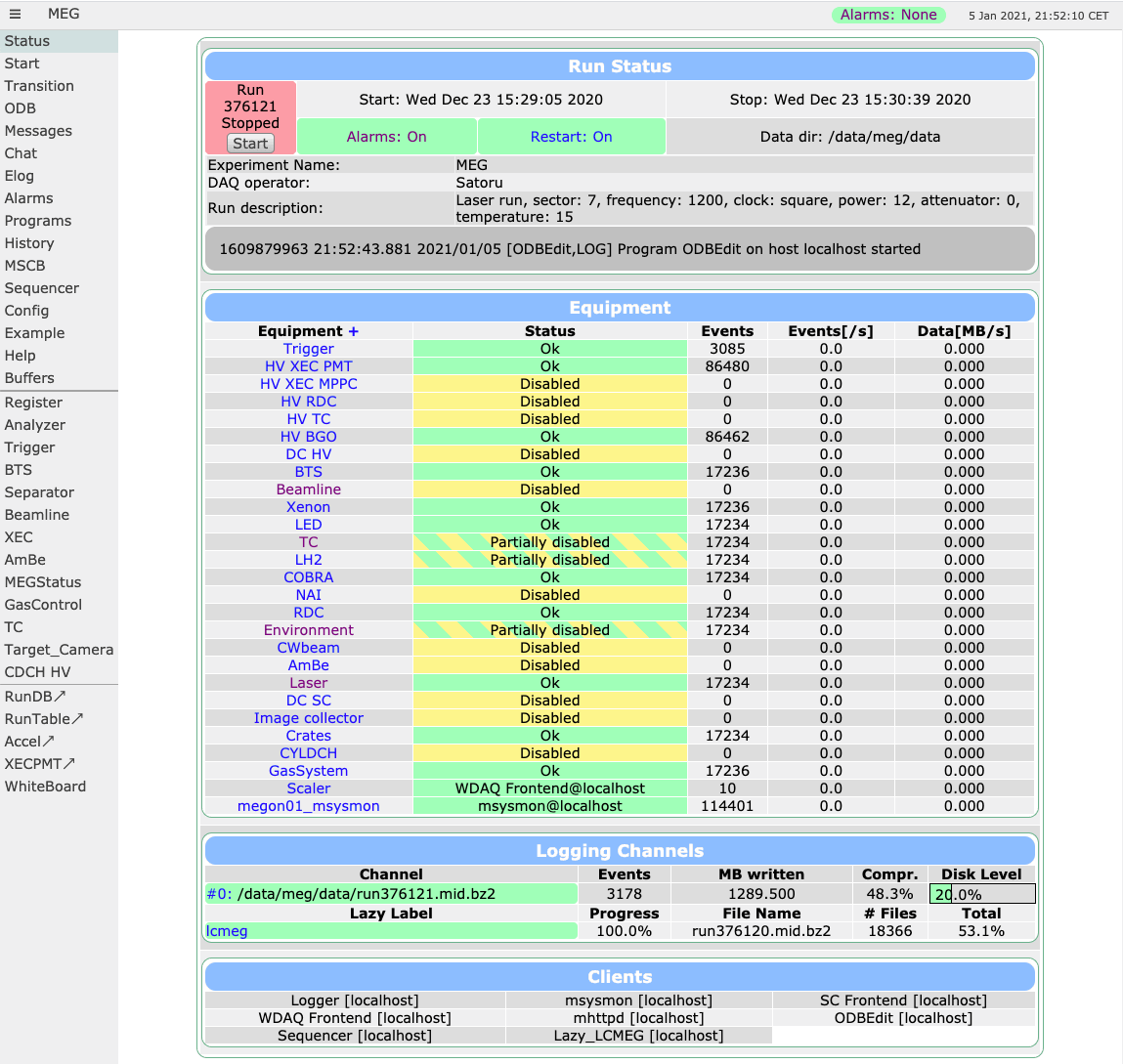 The
The Status page opens first, and shows the state of the experiment at a glance:
- Run status, at the top: the run number, whether the run is running or stopped, when it started, and buttons to start and stop runs
- Equipment: each part of the experiment that produces data, with its status and how many events it's producing. Green means it's working, and yellow means it's disabled. Click an equipment's name to see its values
- Logging channels: the data file being written, how much has been written, and how full the disk is
- Clients: the midas programs that are running
Many experiments also have their own custom pages, in the side menu, with the most important values for that experiment.
Starting and stopping runs
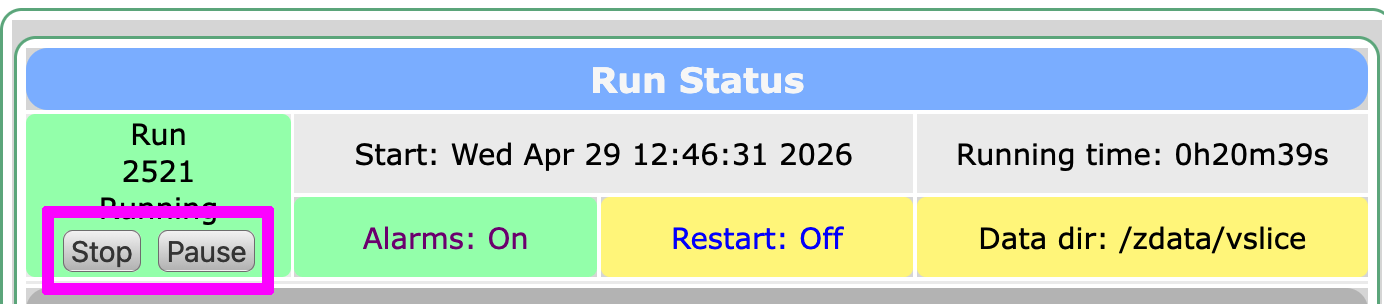 To start a run, click
 Start on the Status page. This opens the Start page, which shows the new run number, and may ask you some questions, such as a description of the run. Fill them in and click Start.
To stop the run, click Stop. Pause and Resume pause the data taking without starting a new run, e.g. while the beam is off.
While a run starts or stops, the Transition page shows each program's progress. If a run won't start, a program has usually refused, and says why in the messages.
Some experiments start and stop runs automatically with the sequencer. Check with your experiment's admins before starting or stopping runs by hand.
See Runs for more.
Reading messages
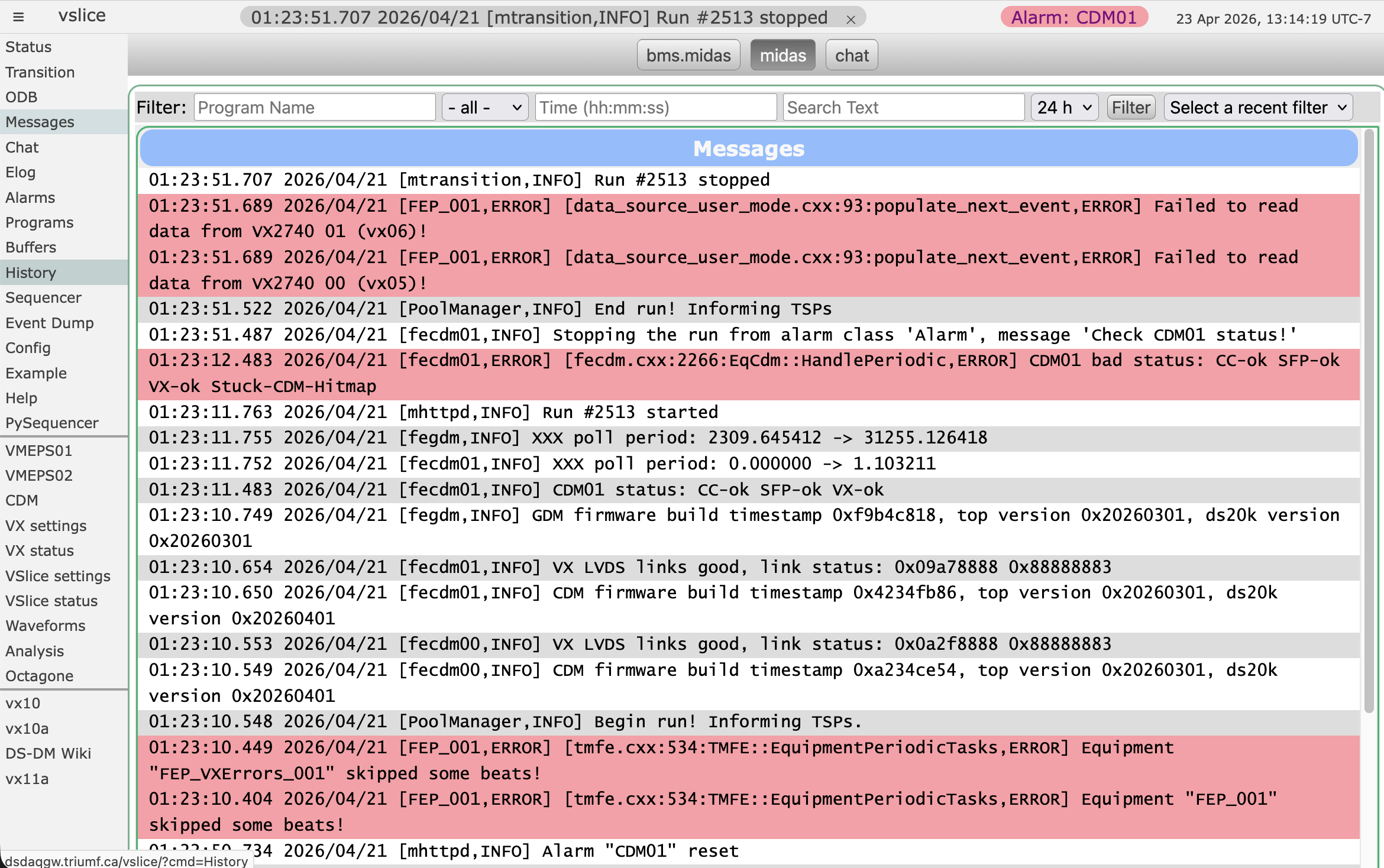 Midas programs report what they're doing, and any problems, in messages. The latest one is shown in the header of every page. Click it, or
 Messages in the side menu, to see all of them. You can filter them by program, type (e.g. only ERROR messages) or time.
Check the messages whenever something unexpected happens, e.g. a run won't start or an equipment stops producing events.
See Messages for more.
Dealing with alarms
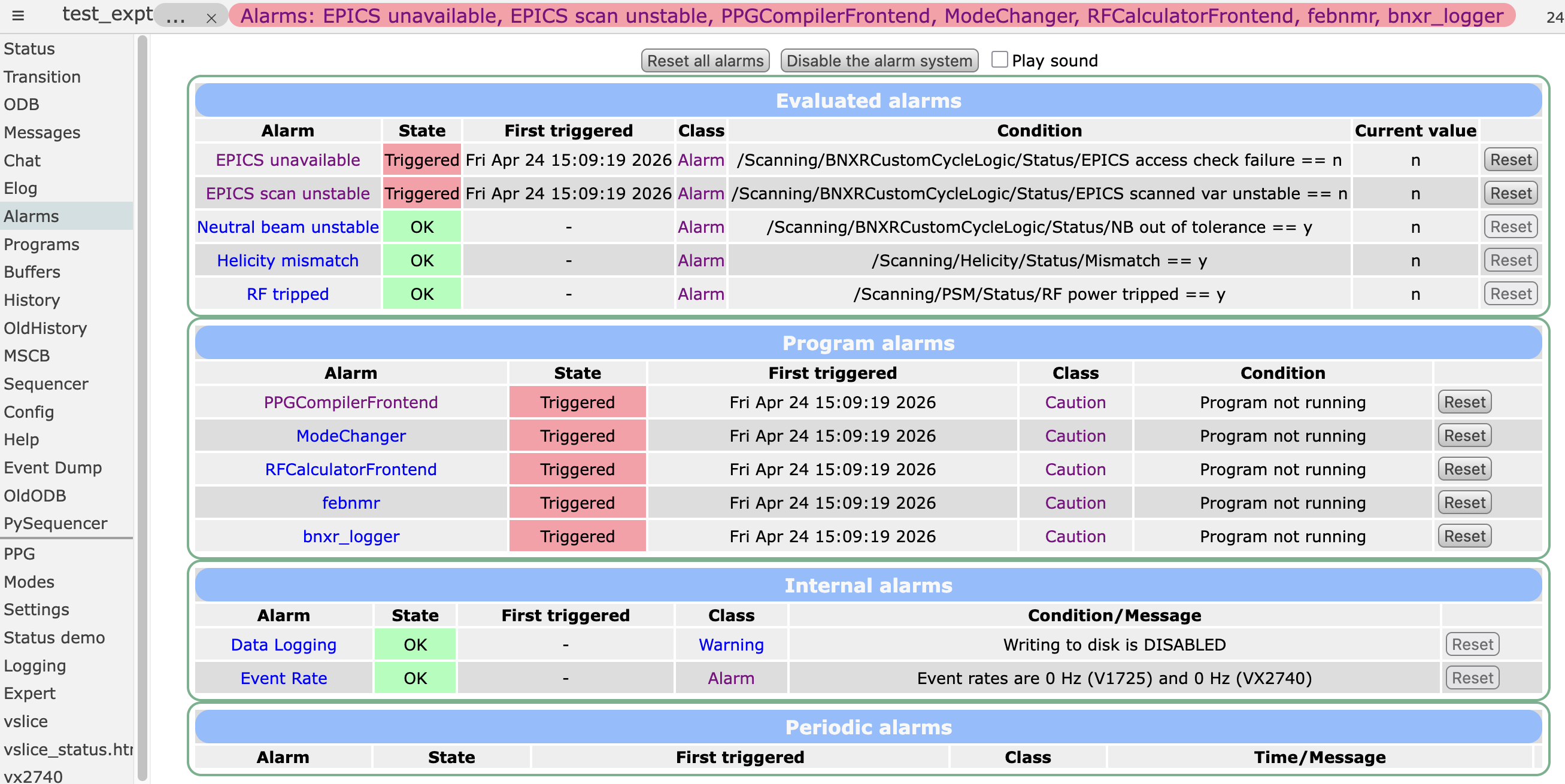 When an alarm is triggered, the header of every page shows it in red (alarm) or yellow (warning), and your browser may play a sound or speak the alarm message. Alarms can be triggered when a value goes out of range, a program stops, or it's time for a regular check.
- Click the alarm in the header, or
Alarmsin the side menu, to see which alarms are triggered and why. - Fix the problem, or tell the right person, as your experiment's procedures say.
- Click
Resetnext to the alarm. Alarms stay triggered until someone resets them, even if the problem has gone away, so that you know it happened.
See Alarms for more.
Checking and restarting programs
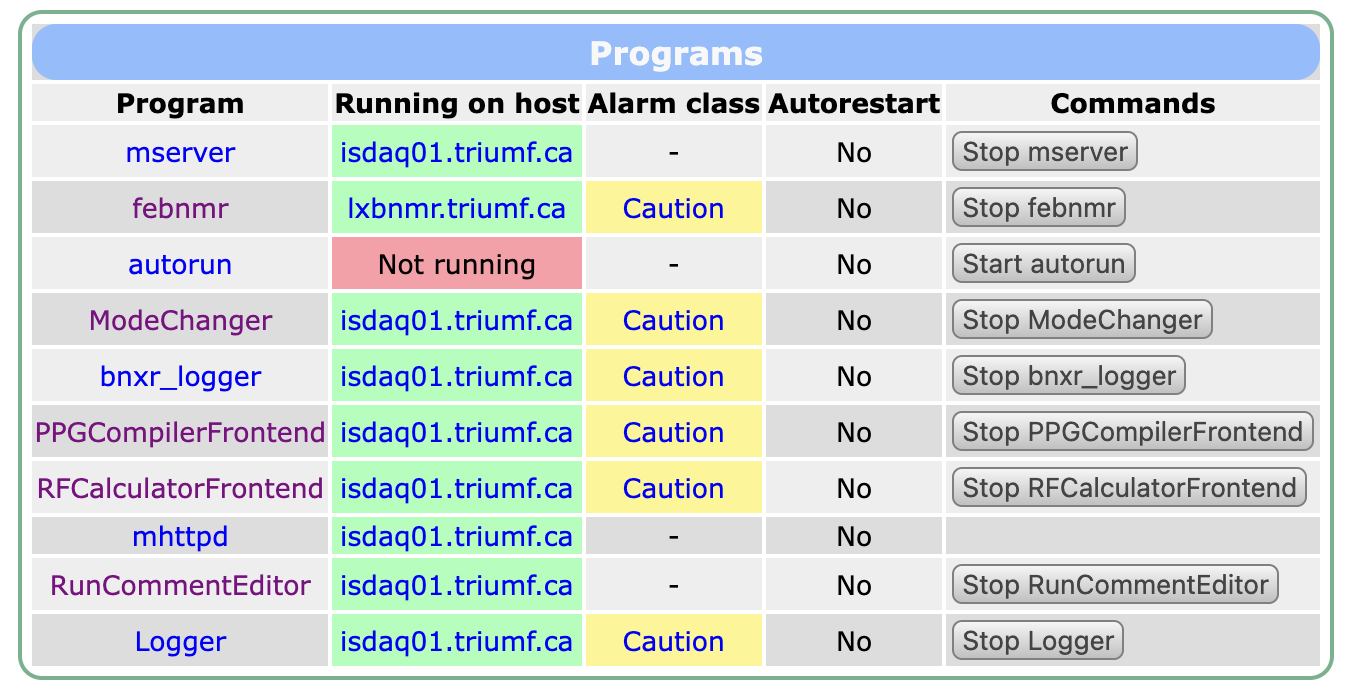 The
The Programs page lists the midas programs of your experiment, and whether each one is running. If a program has stopped (e.g. it crashed, and an alarm told you), click Start next to it to restart it. Your experiment's admins may have set up some programs to restart automatically.
See Programs for more.
Viewing history plots
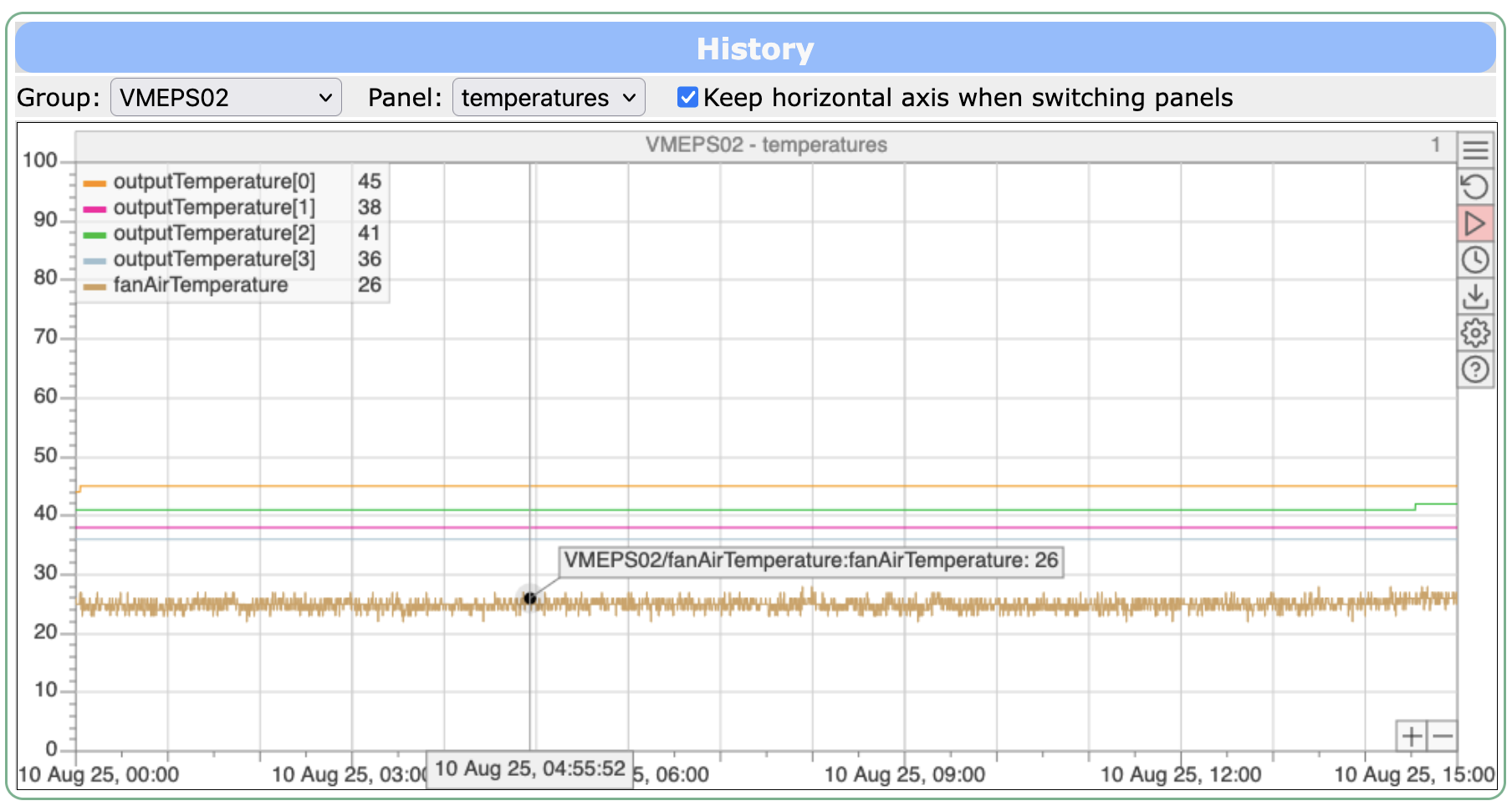 The history records how values such as voltages, temperatures and event rates change over time. Click
 History in the side menu, then a group or panel name, to see its plots. You can also click an equipment's name on the Status page to see its values.
- Zoom by dragging along an axis, or with the scroll wheel while holding Ctrl or Cmd
- Scroll by dragging the plot
- Choose the time range with the button
- See a value by hovering over a point
See History for more.
Writing in the logbook
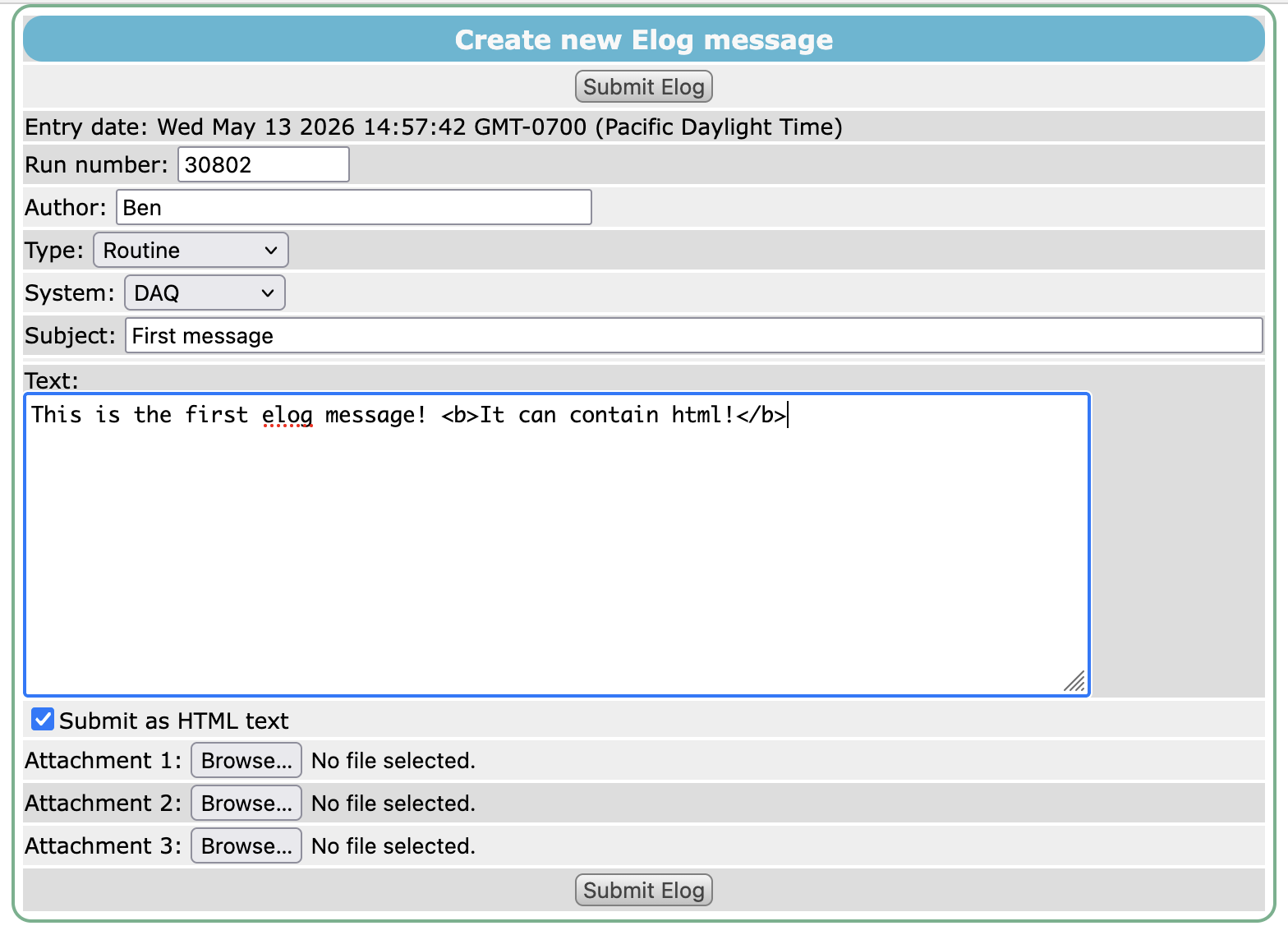 Record what happened during your shift in the electronic logbook (elog), e.g. problems, changes and the runs you took. Click
 Elog in the side menu, then New elog. Fill in your name, the type of entry and a subject, write the text, attach any files, and click Submit Elog. Your experiment may use a different logbook, and the Elog link then opens it instead.
You can also talk to other people working on the experiment with the Chat page.
See Logbook (elog) and Chat for more.