Frontends: overview
Any program can connect to a midas experiment for any purpose. A frontend is just a special type of program that produces "events". Most commonly these events contain data read from hardware devices (digitizers, power supplies etc.), but you can also have purely software-generated events.
Frontend programs follow certain conventions, allowing other programs to interact with them in a generic way. Frontends: programming contains details on how to write frontend programs, and the various frameworks provided to simplify things.
Key definitions
- A frontend is a program that generates events.
- Each frontend contains one or more equipment.
- Each equipment can be either periodic (generating an event at a certain frequency), polled (generating an event whenever new data is available) or manually triggered (generating an event when another program asks for one).
- Each equipment can read data only while a run is in progress, or all the time (e.g. to monitor voltages, currents or pressures).
Many frontends only contain a single equipment, but you may want to have multiple equipments for different data streams. There does not need to be a one-to-one mapping between physical hardware devices and midas equipments. You could have a collection of power supplies all controlled by a single "equipment", or have the data from a single digitizer split across multiple "equipment".
Possible setup for a digitizer frontend
For example, if you have a frontend for a digitizer, you may want to have 2 equipments:
- A polled equipment that reads data from the digitizer and writes it as midas events.
- A periodic equipment that writes out the total data rate and the hit rate per channel every few seconds
Status page
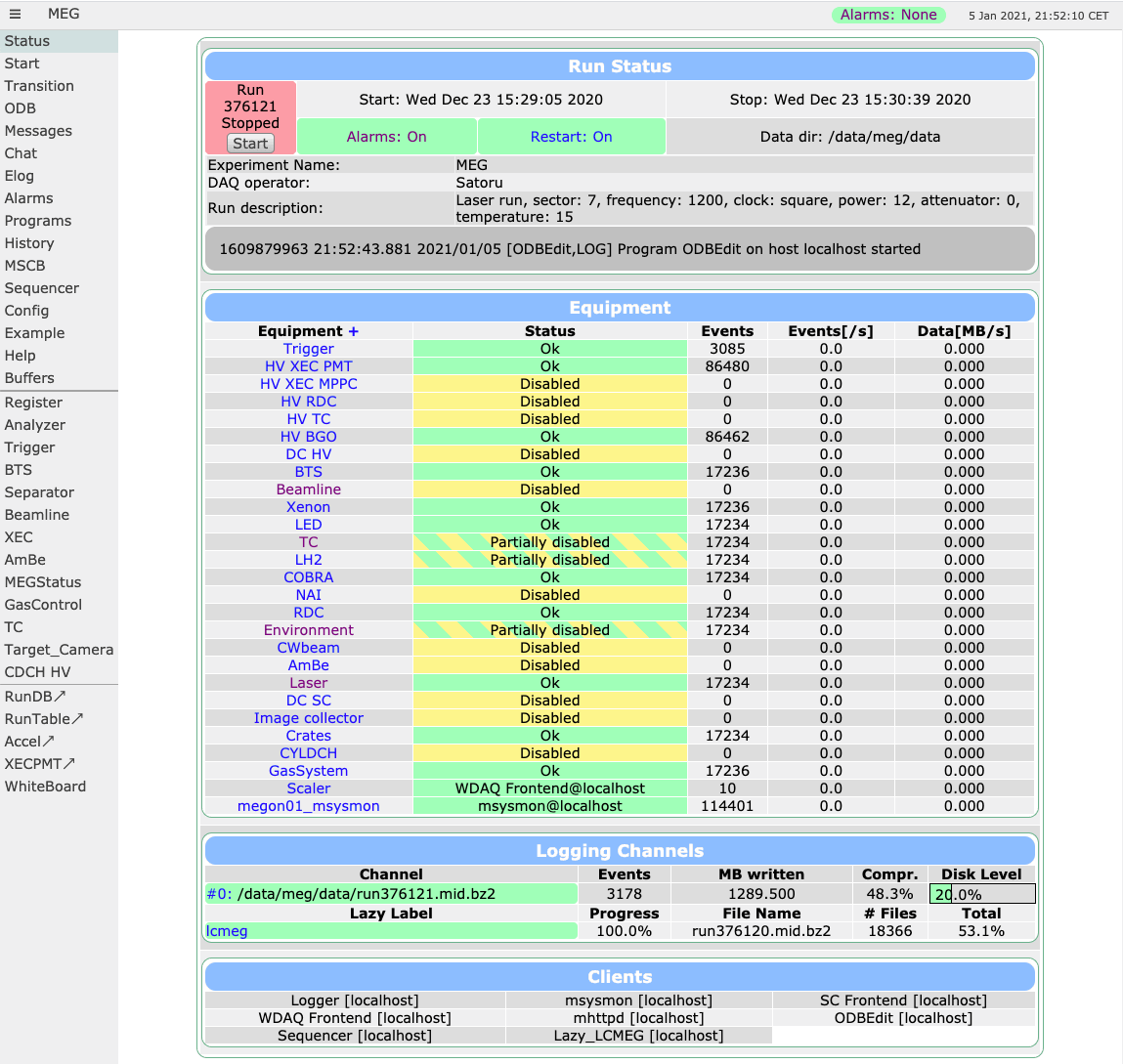
The state of each equipment is displayed on the midas status page.
Each frontend can write its own message in the "Status" column, and decide what colour background it should have. The event counts/rates and data rates are computed automatically.
Clicking on the equipment's name takes you to the equipment display page, which may show useful data (if the frontend has written any data there).
Many frontends only collect data while a run is in progress, but some collect data even when a run is stopped (e.g. to monitor voltages/currents/pressures).
Running a frontend
Frontends are programs written for each experiment, usually with one of the frontend frameworks. You start them like other midas programs: from the command line, from a start script, or from the Programs page (see Programs: configuring).
All frontends accept these command-line options:
| Option | Description |
|---|---|
-e <experiment> |
Experiment to connect to (see common parameters). |
-h <hostname> |
Connect to an experiment on another machine (see common parameters). |
-D |
Run in the background as a daemon. |
-O |
Run in the background, but keep writing output, e.g. to a log file with my_fe -O > my_fe.log 2>&1. |
-i <index> |
Frontend index, for running several copies of the same frontend (see below). |
-d, -v |
Print debug information. What these do depends on the framework (see Handling command-line arguments). |
Running several copies
If you have several identical pieces of hardware, you can run several copies of the same frontend, each with a different frontend index given with -i. Each copy can then use its index to choose which hardware to read, or to give its equipment different names, e.g. my_equip_02. How the index is used depends on the frontend. See Frontend index for details.
C++ (mfe) frontends can also take the index from the MIDAS_FRONTEND_INDEX environment variable, which overrides -i. The index is usually also added to the client name of the frontend (see Multiple instances of the same program).
Options of a particular frontend
A frontend can also accept its own options, e.g. the address of the hardware to read. These are chosen by whoever wrote the frontend, so check its own documentation. TMFE and Python frontends list all their options when run with --help. TMFE frontends take their own options after --, e.g. my_fe -i 2 -- --some-option.
Equipment display page
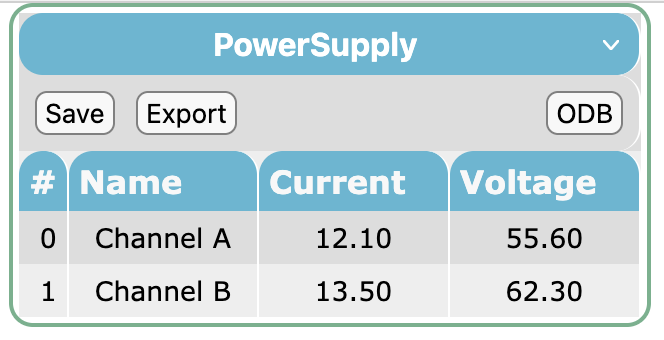
Clicking on the equipment name in the status page takes you to that equipment's "equipment display page". It shows the contents of /Equipment/xxx/Variables, which the frontend writes. The same values can also be recorded in the history system.
You can change how the page looks by adding keys to /Equipment/xxx/Settings, e.g. to label each value, show units, or let users edit values. See Equipment display page for how.