Custom pages: dialogs, tabs, sliders and diagrams
This page covers dialog boxes, the file picker, the ODB key picker and browser, tabs, sliders and live diagrams on custom pages.
For how to create a custom page and add it to the web interface, see Custom pages: overview.
For full descriptions of the functions and classes (including the optional parameters not mentioned here), see the API reference for controls.js, filesrw.js, odbbrowser.js and mhttpd.js.
Dialogs
API reference: controls.js dialogs
controls.js provides dialog boxes that look like the rest of the web interface. The dialogs don't stop your JavaScript: each one returns immediately, and calls a function you provide when the user closes it.
To show a message, use dlgMessage(), which has a title and can be shown as an error, or dlgAlert() for a plain message. dlgWait() shows a message with a progress bar, and closes itself after the time you give:
dlgMessage('Information', 'Calibration is ready.');
dlgMessage('Read failed', '<b>No sensor data available.</b>', true, true); // modal, shown as an error
dlgAlert('Check the coolant supply.');
dlgWait(3, 'Please wait…'); // closes itself after 3 seconds
To ask the user for some text, use dlgQuery(). The answer is false if the user clicked Cancel:
dlgQuery('Enter an operator note:', '', function(answer) {
   if (answer !== false) {
      console.log('Operator note:', answer);
   }
});
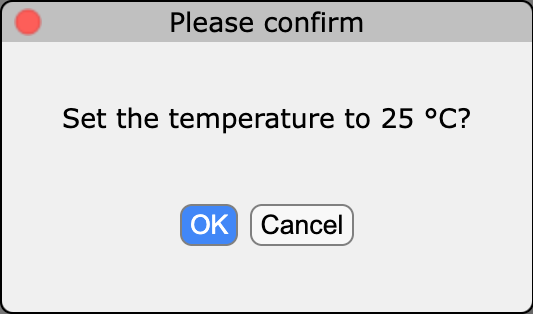 To ask the user to confirm something, use
 dlgConfirm(). Unlike data-confirm on a widget, nothing happens unless your function does it:
dlgConfirm('Set the temperature to 25 °C?', function(confirmed) {
   if (confirmed) {
      modbset('/Equipment/Environment/Variables/Inputs[1]', 25);
   }
});
The messages can contain HTML, so don't put text from untrusted sources in them without escaping it first.
Dialogs with your own contents
For anything else, dlgGeneral() shows a dialog containing your own HTML. dlgListBox() is similar, but grows as you add to its contents (up to 90% of the window height), so it suits a list that grows, such as progress messages. Both return the dialog's element, and the user closes them with the button in the title bar:
dlgGeneral({
   title: 'Channel 3',
   html: '<table><tr><td>Voltage</td><td>1985 V</td></tr>' +
         '<tr><td>Current</td><td>2.1 µA</td></tr></table>'
});

dlgListBox({title: 'Scan progress', html: '<div id="scanLog"></div>'});
document.getElementById('scanLog').insertAdjacentHTML('beforeend', 'Step 1 done<br>');
A dialog can also be written in the page's HTML. Give it the class dlgFrame, which hides it until you call dlgShow(). Close it with dlgHide():
<button class="mbutton" onclick="dlgShow('dlgSettings')">Settings</button>

<div id="dlgSettings" class="dlgFrame">
   <div class="dlgTitlebar">Settings</div>
   <div class="dlgPanel">
      <div>Your settings controls</div>
      <button class="dlgButton" onclick="dlgHide('dlgSettings')">Close</button>
   </div>
</div>
dlgShow('dlgSettings', true) shows the dialog as a modal dialog. To keep a dialog's HTML in a separate file, load it with dlgLoad() when the page loads, e.g. dlgLoad('settings_dialog.html'). It adds the file's contents to the end of the page, where dlgShow() can find the dialog.
File picker
API reference: file_picker(), reading and writing files
filesrw.js provides a dialog in which the user chooses a file on the server, to load or to save. Include it after midas.js and controls.js:
<script src="filesrw.js"></script>
For security, a page can only access files in the userfiles subdirectory of the experiment directory (and its subdirectories). File names are given relative to userfiles.
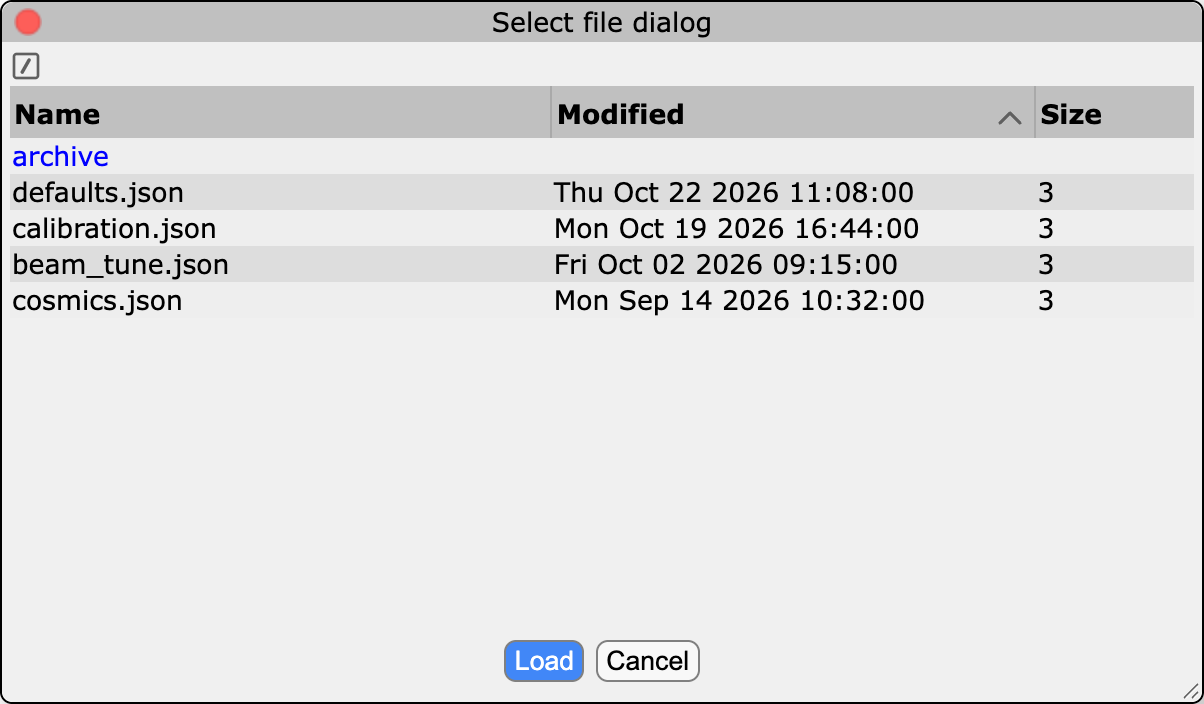
file_picker() only lets the user choose a file: it then calls your function with the file's name, and your function reads or writes it. To let the user load a settings file from userfiles/settings:
file_picker('settings', '*.json', function(filename) {
   file_load_ascii(filename, function(text) {
      const settings = JSON.parse(text);
      // ... use the settings
   });
});
Pass true as the fourth argument for a save dialog, which has a box for typing a new file name. file_save_ascii() asks the user before overwriting an existing file:
file_picker('settings', '*.json', function(filename) {
   file_save_ascii(filename, JSON.stringify(settings, null, 2), 'Settings saved');
}, true);
The user can sort the files, open subdirectories, and type the first letters of a name to jump to it. Pass true as the sixth argument (fileTools) to also let the user create subdirectories, and rename and delete files. file_load_bin() reads a binary file instead of a text file.
ODB browser
API reference: odbbrowser.js
odbbrowser.js contains the ODB browser of the built-in ODB page. A custom page can use it in two ways: odb_picker() opens a dialog in which the user selects an ODB key, and odb_browser() shows the full browser in an element of the page. Include it after the scripts it uses, in the same order as the ODB page:
<script src="midas.js"></script>
<script src="mhttpd.js"></script>
<script src="controls.js"></script>
<script src="filesrw.js"></script>
<script src="markdown.js"></script>
<script src="odbbrowser.js"></script>
Selecting an ODB key
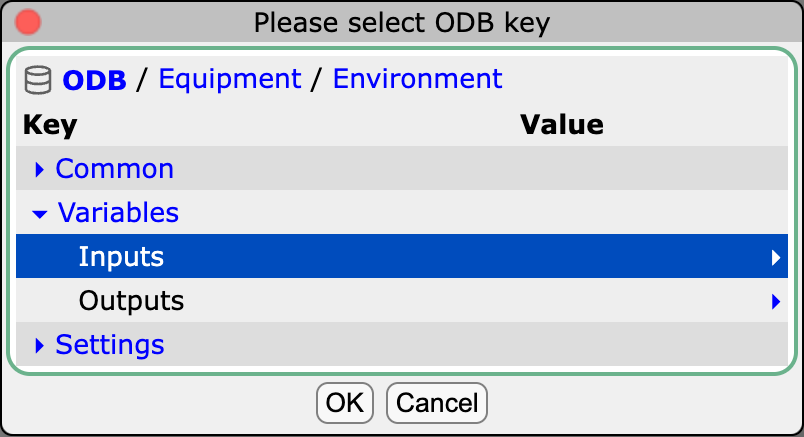
odb_picker() opens a dialog showing the ODB, starting in the directory you give it. The user opens directories by clicking their names, and selects a key by clicking it. The dialog hides the browser's toolbar, and values can't be edited by clicking them. Like the other dialogs, it returns immediately and calls your function when the user closes it:
odb_picker('/Equipment', function(ok, path) {
   if (ok) {
      console.log('Selected key:', path);
   }
});
ok is true if the user clicked OK, and false for Cancel. path is the full path of the selected key, or of the directory the dialog is showing if the user didn't select a key. A directory can be selected too, so check the key's type if your page needs a value.
A common use is a Browse… button next to a text box, so the user can type a path or choose one:
<input id="source" type="text" size="50" value="/Equipment/Environment/Variables/Inputs">
<button class="mbutton" onclick="
   const box = document.getElementById('source');
   const start = box.value.substring(0, box.value.lastIndexOf('/')) || '/';
   odb_picker(start, function(ok, path) {
      if (ok) {
         box.value = path;
      }
   });
">Browse…</button>
The picker opens in the directory containing the current path. To read the value of the selected key, use mjsonrpc_db_get_values().
Embedding the browser
odb_browser() shows the full ODB browser, with its toolbar, tabs and editing, in an element of the page. Give it the element's ID and the directory to start in, after mhttpd_init() has built the page:
<body class="mcss" onload="
   mhttpd_init('Environment');
   odb_browser('settingsBrowser', '/Equipment/Environment/Settings');
">
   <div id="mheader"></div>
   <div id="msidenav"></div>
   <div id="mmain">
      <div id="settingsBrowser"></div>
   </div>
</body>
This lets users change a group of settings without leaving the page. It is the same browser as the ODB page, so keep in mind that:
- Users can change, create and delete keys anywhere in the ODB, not only in the starting directory. If you hide the ODB page to prevent accidental changes, an embedded browser undoes this. Protect keys that mustn't change with read-only keys instead.
- Each change of directory adds an entry to the browser history.
- The browser's keyboard shortcuts work anywhere on the page.
- A page can have only one embedded browser.
Tabs
API reference: tab classes
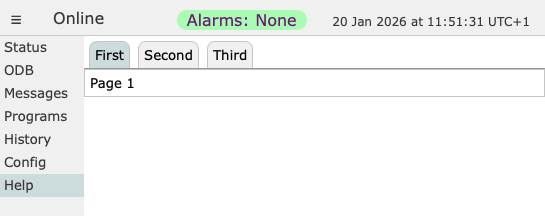 To split a large page into tabs, use
 mtab elements for the tab buttons, each with a data-target naming the ID of its mpanel. Give the tab and panel to show first the active class:
<div class="mtabs">
   <div class="mtab active" data-target="overview">Overview</div>
   <div class="mtab" data-target="details">Details</div>
   <div class="mtab" data-target="settings">Settings</div>
</div>
<div id="overview" class="mpanel active">Overview widgets</div>
<div id="details" class="mpanel">Detailed readings</div>
<div id="settings" class="mpanel">Settings controls</div>
mhttpd_init() makes the tabs work. To switch tab from JavaScript, click the tab:
document.querySelector('.mtab[data-target="details"]').click();
Sliders
API reference: sliders
 A slider lets the user choose a value by dragging a knob. Unlike the ODB widgets, a slider isn't connected to the ODB. Instead, it calls a function of yours with the new value, and your function writes it to the ODB (or does anything else with it).
Use a button named ctrlHSlider for a horizontal slider, or ctrlVSlider for a vertical one. A horizontal slider needs a width in its style attribute, and a vertical slider needs a height:
<button name="ctrlHSlider" type="button" style="width: 400px"
        data-min-value="0" data-max-value="2000" data-scale="1"
        data-update="setVoltage()"></button>
function setVoltage(value, final) {
   if (final) {
      modbset('/Equipment/HV/Settings/Demand[0]', Math.round(value));
   }
}
data-min-valueanddata-max-valueare the values at the two ends (default0and1). The value can have decimals, so round it if you need a whole numberdata-scale="1"shows the minimum and maximum values at the endsdata-updateis the name of your function, followed by(). It must be a global function. Anything inside the parentheses is ignored
While the user drags the knob, your function is called many times with final set to false. When they let go, it is called once more with final set to true. Writing to the ODB only when final is true, as above, avoids sending a burst of changes. Right-clicking the slider moves it back to the middle of its range.
The slider starts in the middle of its range. To show the current ODB value instead, call the slider's set() method, e.g. from a modb element:
<button name="ctrlHSlider" type="button" style="width: 400px" id="hvSlider"
        data-min-value="0" data-max-value="2000" data-update="setVoltage()"></button>
<div class="modb" data-odb-path="/Equipment/HV/Settings/Demand[0]"
     onload="this.onchange()"
     onchange="document.getElementById('hvSlider').set(this.value)"></div>
set() doesn't call your function. A value outside the slider's range moves the knob to the nearest end.
Diagrams
API reference: modb
A page can show a diagram, such as a gas system or cooling circuit, and change its colors and labels as ODB values change. Draw the diagram as an SVG file (e.g. with Inkscape), giving the parts you want to change IDs. Then embed it with an <object>: an <img> would show the diagram, but your JavaScript couldn't change it.
<object id="plant" type="image/svg+xml" data="plant.svg"></object>
<div class="modb" data-odb-path="/Equipment/Environment/Variables/Inputs[3]"
     onload="this.onchange()"
     onchange="
        const svg = document.getElementById('plant').contentDocument;
        const valve = svg && svg.getElementById('inlet-valve');
        if (valve) {
           valve.style.fill = this.value ? '#00FF00' : '#FF0000';
        }
     "></div>
Here a modb element colors the valve green or red as the value changes. The diagram must have loaded before its contents can be changed. If it might load after the first value arrives, also update it from the <object>'s load event.
The Mu3e helium plant is an example of a page with a live diagram.
Full example: valves and an expansion volume
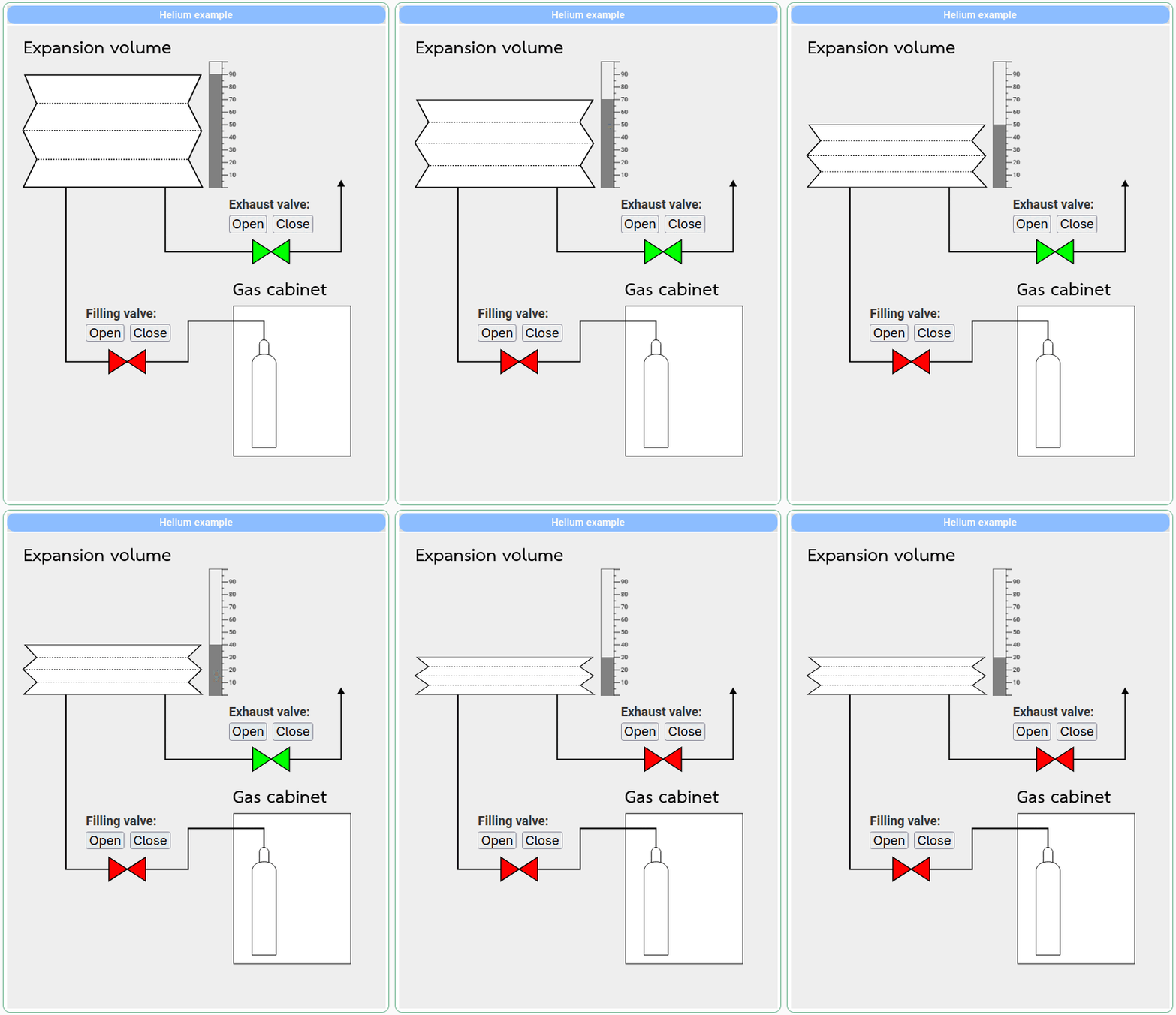 This page shows an SVG diagram of a gas system, with two valves and an expansion volume:
- Each valve is green when it's open and red when it's closed. A
modbelement callsupdateValveColor()when the valve's ODB value changes, which finds the valve in the SVG by its ID and sets its fill color - The
OpenandClosebuttons aremodbbuttonelements. Theirdata-validatefunction asks the user to confirm, then sets the value withmodbset() - The fill level of the expansion volume is shown with a
modbvbar, and by changing the height of the expansion volume in the SVG.updateVolume()scales it in Y only, keeping its bottom edge in place
Scaling a part of an SVG can be tricky, depending on how it was drawn (e.g. in Inkscape). updateVolume() first compares the SVG's width and height with its viewBox, as these may scale the drawing. It then reads the part's position and height from its transform matrix, before applying the new translation and scale.
The IDs in the SVG (Filling_valve, Exhaust_valve and Expansion_volume) must match the IDs that the JavaScript looks for.
<!DOCTYPE html>
<html class="mcss">
<head>
   <meta charset="UTF-8">
   <link rel="stylesheet" href="midas.css">
   <script src="controls.js"></script>
   <script src="midas.js"></script>
   <script src="mhttpd.js"></script>
   <title>Helium example</title>

   <style>
      .modbbutton {font-size: 20px;}
      .text {font-size: 20px;}
   </style>

   <script>
      // Valve coloring --------------------------------------------------------------

      function updateValveColor(flag, valveID) {
         const svgDoc = document.getElementById('svgObject').contentDocument;
         // The valveID needs to match the ID given in the SVG file
         const obj_Valve = svgDoc.getElementById(valveID);

         obj_Valve.style.fill = (flag === 1) ? "#00FF00" : "#FF0000";
      }

      // Confirmation routines -------------------------------------------------------

      function confirmValve(arg, valveAddress) {
         const txt = arg === "Close" ? "Are you sure to close the valve?" : "Are you sure to open the valve?";
         const val = arg === "Open" ? 1 : 0;
         dlgConfirm(txt, function(confirmed) {
            if (confirmed) {
               modbset(valveAddress, val);
            }
         });
         return false; // Don't change the ODB value yet
      }

      // Animation -------------------------------------------------------------------

      /**
       * Update the volume of an SVG element by applying a transformation based on input.
       * @param {number} elem - The scale factor to modify the volume.
       * @param {string} svgID - The ID of the SVG element to be transformed.
       * This example only transforms the Y size of the object,
       * keeping its bottom edge in place.
       */
      function updateVolume(elem, svgID) {
         const svgDoc = document.getElementById('svgObject').contentDocument;
         const rootSvg = svgDoc.documentElement;

         // Get the width and height of the root SVG element.
         const widthAttr = rootSvg.getAttribute("width");
         const heightAttr = rootSvg.getAttribute("height");

         // Get and parse the viewBox attribute.
         const viewBoxAttr = rootSvg.getAttribute("viewBox");
         const viewBoxParts = viewBoxAttr.split(" ").map(parseFloat);
         const viewBoxWidth = viewBoxParts[2];
         const viewBoxHeight = viewBoxParts[3];

         // Calculate the scaling factors for the x and y axes from the viewBox and actual width/height.
         const xScale = widthAttr / viewBoxWidth;
         const yScale = heightAttr / viewBoxHeight;

         // Get the element to modify.
         const obj_Vol = svgDoc.getElementById(svgID);
         const bbox = obj_Vol.getBBox();

         // Extract the transformation matrix from the element's transform attribute.
         const transformAttr = obj_Vol.getAttribute("transform");
         const matrixMatch = transformAttr.match(/matrix\(([^)]+)\)/);

         let transformedY, transformedHeight;

         // Apply the matrix transformation if it exists.
         if (matrixMatch) {
            const [a, b, c, d, e, f] = matrixMatch[1].split(",").map(parseFloat);

            // Apply the matrix to the top-left corner of the bbox to get the transformed Y position and height.
            transformedY = d * bbox.y + f;
            transformedHeight = d * bbox.height;
         }

         // Scale factor is 0.01 times the provided 'elem' value.
         const scale = 0.01 * elem;

         // Calculate the new Y position after scaling.
         const yPosInit = (transformedY / yScale + transformedHeight / yScale) * (1 - scale);

         // Update the element's transform attribute with the new translation and scaling.
         // Only the height (y-axis) is changed.
         updateTransform(obj_Vol, `0,${yPosInit}`, `1,${scale}`);
      }

      /**
       * Update the transform attribute of an SVG element with new translation and scale values.
       * @param {Element} elem - The SVG element whose transform attribute is to be updated.
       * @param {string} newTranslate - The new translation value as a string (e.g., "0,100").
       * @param {string} newScale - The new scale value as a string (e.g., "1,0.5").
       */
      function updateTransform(elem, newTranslate, newScale) {
         let transform = elem.getAttribute("transform") || "";

         // Regular expressions to match existing translate and scale transformations.
         const translateRegex = /translate\(([^)]+)\)/;
         const scaleRegex = /scale\(([^)]+)\)/;

         // Remove any existing translate and scale transformations from the transform string.
         transform = transform
            .replace(translateRegex, '')
            .replace(scaleRegex, '')
            .trim();

         // Construct the new transform string with the updated translation and scale.
         const newTransform = `translate(${newTranslate}) scale(${newScale}) ${transform}`.trim();

         // Apply the new transform to the element.
         elem.setAttribute("transform", newTransform);
      }
   </script>
</head>

<body class="mcss" onload="mhttpd_init('Example');">

<!-- header and side navigation will be filled in mhttpd_init -->
<div id="mheader"></div>
<div id="msidenav"></div>

<div id="mmain">

   <!-- modb values to listen for status changes -->
   <div id="filling_valve" class="modb" data-odb-path="/Equipment/Example/Filling Valve"
        onchange="updateValveColor(this.value,'Filling_valve');"
        onload="updateValveColor(this.value,'Filling_valve');"></div>
   <div id="exhaust_valve" class="modb" data-odb-path="/Equipment/Example/Exhaust Valve"
        onchange="updateValveColor(this.value,'Exhaust_valve');"
        onload="updateValveColor(this.value,'Exhaust_valve');"></div>

   <table class="mtable">
      <tr><th class="mtableheader">Helium example</th></tr>
      <tr><td>
         <div style="position:relative;width:600px;margin:auto">
            <!-- Import of a single SVG file, colors and sizes are changed directly for each object -->
            <object id="svgObject" type="image/svg+xml" data="Midas_helium_example.svg"></object>

            <!-- Filling line -->
            <button class="modbbutton" data-odb-path="/Equipment/Example/Filling Valve"
                    style="position:absolute; top: 473px;left:125px;"
                    data-validate='confirmValve("Open","/Equipment/Example/Filling Valve")'
                    data-odb-value="1">Open</button>
            <button class="modbbutton" data-odb-path="/Equipment/Example/Filling Valve"
                    style="position:absolute; top: 473px;left:195px;"
                    data-validate='confirmValve("Close","/Equipment/Example/Filling Valve")'
                    data-odb-value="0">Close</button>
            <div class="text" style="position:absolute; top: 443px; left:125px; font-weight: bold;">Filling valve:</div>

            <!-- Exhaust line -->
            <button class="modbbutton" data-odb-path="/Equipment/Example/Exhaust Valve"
                    style="position:absolute; top: 300px;left:352px;"
                    data-validate='confirmValve("Open","/Equipment/Example/Exhaust Valve")'
                    data-odb-value="1">Open</button>
            <button class="modbbutton" data-odb-path="/Equipment/Example/Exhaust Valve"
                    style="position:absolute; top: 300px;left:422px;"
                    data-validate='confirmValve("Close","/Equipment/Example/Exhaust Valve")'
                    data-odb-value="0">Close</button>
            <div class="text" style="position:absolute; top: 270px; left:352px; font-weight: bold;">Exhaust valve:</div>

            <!-- Expansion volume -->
            <div class="modbvbar" data-odb-path="/Equipment/Example/Expansion volume"
                 style="width:20px;height:200px; color:grey; position:absolute; top:56px;left:320px"
                 data-min-value="0" data-max-value="100" data-log="0"
                 onchange="updateVolume(this.value, 'Expansion_volume')"></div>
            <div class="mvaxis" style="width:30px;height:200px; position:absolute; top:56px;left:340px; text-align:left"
                 data-min-value="0" data-max-value="100" data-log="0"></div>
         </div>
      </td></tr>
   </table>

</div>

</body>
</html>
Save this as Midas_helium_example.svg, in the same directory as the page.
<?xml version="1.0" encoding="UTF-8" standalone="no"?>
<!-- Created with Inkscape (http://www.inkscape.org/) -->

<svg
   width="600"
   height="750"
   viewBox="0 0 600 750.00002"
   version="1.1"
   id="svg1"
   inkscape:version="1.4.1 (unknown)"
   sodipodi:docname="Midas_helium_example.svg"
   xmlns:inkscape="http://www.inkscape.org/namespaces/inkscape"
   xmlns:sodipodi="http://sodipodi.sourceforge.net/DTD/sodipodi-0.dtd"
   xmlns="http://www.w3.org/2000/svg"
   xmlns:svg="http://www.w3.org/2000/svg">
  <sodipodi:namedview
     id="namedview1"
     pagecolor="#ffffff"
     bordercolor="#000000"
     borderopacity="0.25"
     inkscape:showpageshadow="2"
     inkscape:pageopacity="0.0"
     inkscape:pagecheckerboard="0"
     inkscape:deskcolor="#d1d1d1"
     inkscape:document-units="px"
     inkscape:zoom="2.0661644"
     inkscape:cx="423.974"
     inkscape:cy="308.30073"
     inkscape:window-width="1920"
     inkscape:window-height="1009"
     inkscape:window-x="0"
     inkscape:window-y="32"
     inkscape:window-maximized="1"
     inkscape:current-layer="layer1" />
  <defs
     id="defs1">
    <marker
       style="overflow:visible"
       id="marker2"
       refX="0"
       refY="0"
       orient="auto-start-reverse"
       inkscape:stockid="Triangle arrow"
       markerWidth="1"
       markerHeight="1"
       viewBox="0 0 1 1"
       inkscape:isstock="true"
       inkscape:collect="always"
       preserveAspectRatio="xMidYMid">
      <path
         transform="scale(0.5)"
         style="fill:context-stroke;fill-rule:evenodd;stroke:context-stroke;stroke-width:1pt"
         d="M 5.77,0 -2.88,5 V -5 Z"
         id="path2" />
    </marker>
  </defs>
  <g
     inkscape:label="Gas system"
     inkscape:groupmode="layer"
     id="layer1">
    <g
       id="Gas_cabinet"
       inkscape:label="Gas_cabinet"
       style="display:inline"
       transform="matrix(4.056096,0,0,4.056096,-726.2293,-806.75454)">
      <rect
         style="fill:#ffffff;fill-opacity:1;fill-rule:evenodd;stroke:#000000;stroke-width:0.264635;stroke-miterlimit:3.2;stroke-dasharray:none;stroke-dashoffset:0;stroke-opacity:1"
         id="Gas_cabinet_outline"
         width="45.862354"
         height="58.905613"
         x="267.93396"
         y="308.49619"
         rx="0"
         ry="0"
         inkscape:label="Gas_cabinet_outline" />
      <g
         id="Gas_bottle"
         transform="matrix(3.6447445,0,0,3.4512234,112.28368,-106.71016)"
         style="display:inline;mix-blend-mode:normal;fill:#ffffff;stroke-width:0.118799"
         inkscape:label="Gas_bottle">
        <path
           style="fill:#ffffff;fill-opacity:1;stroke:#000000;stroke-width:0.0746005px;stroke-linecap:butt;stroke-linejoin:miter;stroke-opacity:1"
           d="m 45.466186,125.93812 v -1.31329 c 0,0 0.07542,-0.46399 0.475282,-0.46399 0.43403,0 0.541916,0.46399 0.541916,0.46399 v 1.31329"
           id="path11882"
           sodipodi:nodetypes="ccscc" />
        <path
           style="fill:#ffffff;fill-opacity:1;stroke:#000000;stroke-width:0.0746005px;stroke-linecap:butt;stroke-linejoin:miter;stroke-opacity:1"
           d="m 44.681364,126.73032 c 0,0 0.09055,-0.94582 1.313641,-0.94582 1.120378,0 1.273201,0.94582 1.273201,0.94582 v 9.66595 h -2.586842 z"
           id="path11880"
           sodipodi:nodetypes="cscccc" />
      </g>
      <text
         xml:space="preserve"
         style="font-weight:bold;font-size:13.3333px;font-family:Laksaman;-inkscape-font-specification:'Laksaman Bold';text-align:start;writing-mode:lr-tb;direction:ltr;text-anchor:start;display:inline;fill:#00ffff;fill-rule:evenodd;stroke-width:3.77953"
         x="179.48"
         y="151.93512"
         id="Gas_cabinet_title"
         transform="matrix(0.49308498,0,0,0.49308498,179.04638,229.4703)"
         inkscape:label="Gas_cabinet_title"><tspan
           sodipodi:role="line"
           style="font-size:13.3333px;fill:#000000;fill-opacity:1;stroke-width:3.77953"
           x="179.48"
           y="151.93512"
           id="tspan96-8-4-0">Gas cabinet</tspan></text>
    </g>
    <path
       style="fill:none;fill-opacity:1;fill-rule:evenodd;stroke:#000000;stroke-width:2"
       d="M 408.62454,498.40226 V 468.28588 H 288.15902 v 64.98024 H 93.771462 V 255.7319"
       id="Filling_line"
       inkscape:label="Filling_line"
       sodipodi:nodetypes="cccccc" />
    <path
       style="display:inline;fill:#ffffff;fill-opacity:1;stroke:#000000;stroke-width:1.53449;stroke-linecap:butt;stroke-linejoin:miter;stroke-miterlimit:4;stroke-dasharray:none;stroke-opacity:1"
       d="m 220.44846,552.04894 v -37.8841 l -58.46319,37.86918 v -37.8843 z"
       id="Filling_valve"
       sodipodi:nodetypes="ccccc"
       inkscape:label="Filling_valve" />
    <text
       xml:space="preserve"
       style="font-weight:bold;font-size:26.6666px;font-family:Laksaman;-inkscape-font-specification:'Laksaman Bold';text-align:start;writing-mode:lr-tb;direction:ltr;text-anchor:start;display:inline;fill:#00ffff;fill-rule:evenodd;stroke-width:7.55906"
       x="26.068356"
       y="43.542694"
       id="Expansion_volume_title"
       inkscape:label="Expansion_volume_title"><tspan
         sodipodi:role="line"
         style="font-size:26.6666px;fill:#000000;fill-opacity:1;stroke-width:7.55906"
         x="26.068356"
         y="43.542694"
         id="tspan96-8-8">Expansion volume</tspan></text>
    <path
       style="fill:none;fill-opacity:1;fill-rule:evenodd;stroke:#000000;stroke-width:2;stroke-dasharray:none;marker-end:url(#marker2)"
       d="m 251.67406,254.578 v 104.14268 h 97.7657 181.89378 V 251.47464"
       id="Exhaust_line"
       inkscape:label="Exhaust_line"
       sodipodi:nodetypes="ccccc" />
    <g
       id="Expansion_volume"
       inkscape:label="Expansion_volume"
       style="display:inline"
       transform="matrix(7.5560886,0,0,7.5560886,-161.95634,-143.19437)">
      <path
         style="mix-blend-mode:normal;fill:#ffffff;fill-opacity:1;stroke:#000000;stroke-width:0.264583;stroke-linecap:butt;stroke-linejoin:miter;stroke-dasharray:none;stroke-opacity:1"
         d="m 25.181199,26.590622 h 37.055527 l -2.746143,6.664982 2.885185,6.396771 -2.746137,6.65182 2.919945,6.490565 H 24.903107 l 2.798286,-6.490565 -2.937328,-6.813076 2.885185,-6.235515 z"
         id="path4823"
         sodipodi:nodetypes="ccccccccccc" />
      <path
         style="mix-blend-mode:normal;fill:#ffffff;fill-opacity:1;stroke:#000000;stroke-width:0.264581;stroke-linecap:butt;stroke-linejoin:miter;stroke-miterlimit:4;stroke-dasharray:0.264581, 0.264581;stroke-dashoffset:0;stroke-opacity:1"
         d="M 27.691557,33.255604 H 59.644908"
         id="path3275"
         sodipodi:nodetypes="cc" />
      <path
         style="mix-blend-mode:normal;fill:#ffffff;fill-opacity:1;stroke:#000000;stroke-width:0.264581;stroke-linecap:butt;stroke-linejoin:miter;stroke-miterlimit:4;stroke-dasharray:0.264581, 0.264581;stroke-dashoffset:0;stroke-opacity:1"
         d="M 24.974876,39.556896 H 62.361591"
         id="path3277"
         sodipodi:nodetypes="cc" />
      <path
         style="mix-blend-mode:normal;fill:#ffffff;fill-opacity:1;stroke:#000000;stroke-width:0.264581;stroke-linecap:butt;stroke-linejoin:miter;stroke-miterlimit:4;stroke-dasharray:0.264581, 0.264581;stroke-dashoffset:0;stroke-opacity:1"
         d="m 27.950288,46.304195 h 31.69462"
         id="path3279"
         sodipodi:nodetypes="cc" />
    </g>
    <path
       style="display:inline;fill:#ffffff;fill-opacity:1;stroke:#000000;stroke-width:1.53449;stroke-linecap:butt;stroke-linejoin:miter;stroke-miterlimit:4;stroke-dasharray:none;stroke-opacity:1"
       d="m 449.20856,377.30494 v -37.8841 l -58.4632,37.86918 v -37.8843 z"
       id="Exhaust_valve"
       sodipodi:nodetypes="ccccc"
       inkscape:label="Exhaust_valve" />
  </g>
</svg>