ODB: configuring
This page covers how to customise, resize and repair the ODB.
For the concepts and day-to-day use, see ODB: overview.
Customising the ODB
The user customizes the ODB for their experiment by:
- modifying the values of "system" parameters (e.g. setting
/Logger/Write datato false means that mlogger won't write data to disk). - adding keys for their own use.
Directories that shouldn't be changed
There are certain important keys and directories that are used internally by midas. Some of the tools require that the format of the ODB strictly matches what they expect.
It is strongly recommended that you do not add any extra keys to the following ODB directories:
/Equipment/xxx/Commonand/Equipment/xxx/Statistics/Experiment/Security/Programs(except for Execute on ... keys)/PySequencer/Sequencer/System/WebServer
Directories that require care
The structure of these directories matter, but you can create more instances of them by copying an existing version (either by code, copy/paste, or specific web interfaces):
- Channels at
/Logger/Channels/xxx - Alarms at
/Alarms/Alarms/xxxand/Alarms/Classes/xxx - Panels at
/History/Display/xxx/yyyand/History/Images/xxx/yyy
Directories that can be changed freely
You can create any keys and directories you want at the top level of the ODB, so long as they don't clash with names used by built-in programs.
You can also create any directories you want within the /Equipment/xxx directories for each equipment, and add keys within the /Equipment/xxx/Settings and /Equipment/xxx/Variables directories.
Max key name length
ODB key names are limited to a maximum of 31 characters.
In the history system, the combination of equipment_name + / + variable_name is limited to a maximum of 31 characters for per-variable history logging. Any excess characters will be silently truncated.
Symlinks
 Symlinks (aka symbolic links) point from one part of the ODB to another. They can point to subdirectories, keys, or even individual elements of arrays.
You can create a symlink in the web interface using the icon, or in odbedit by using the ln command. The target of the symlink should be an absolute ODB path (relative paths are not supported).
Linking to individual array elements
To link to an individual array element, the notation is like /path/to/some/array[3] (to link to element number 3).
However not all programming interfaces support such links. Some functions may return an error if it finds a link to an individual array element. Built-in midas tools should all support them, but custom user code may not.
You can delete a symlink in the web interface by highlighting the row containing the link and clicking the icon. You can delete a symlink in odbedit using the del or rm commands and specifying the path to the link.
If you delete the target of a link (but keep the link itself) you have created a broken link. It will appear in odbedit and on the ODB web interface as cannot resolve link. The effect of a broken link depends on the program that is reading it, but best to avoid this situation if possible! You can fix the broken link by editing the target to be a key that does still exist.
Access control
Read-only keys
ODB keys and directories have separate read, write and delete bits. These permissions are not per-user; they help prevent accidental changes rather than enforce user-specific access.
In the ODB browser, click the arrow to show the extended view. The Mode column uses these letters:
| Letter | Meaning | Source |
|---|---|---|
R |
Read permission | MODE_READ (1) |
W |
Write permission | MODE_WRITE (2) |
D |
Delete permission | MODE_DELETE (4) |
X |
Exclusive mode: an open record reserves writes for its owning client | MODE_EXCLUSIVE (8) |
H |
Active hotlink | Nonzero notification count; not an access-mode bit |
Click the blue mode letters to open a dialog with Read, Write and Delete checkboxes. X and H reflect client activity and are not checkboxes in this dialog. Changing a directory's mode here changes that directory only, not its child keys.
When a key has no read access, the browser still shows its name, but displays <no read access> instead of its value. Type, #Val, Size, Written and Mode are empty. The mode cannot be changed from the browser in this state; restore read access with the chmod command in odbedit. You can also change permissions programmatically; see changing permissions.
If a key lacks write access, the browser rejects edits. If it lacks delete access, the browser reports this before attempting deletion.
For example, RWDH means read/write/delete permissions with an active hotlink; RWDXH additionally has exclusive mode. H is derived from client registrations rather than set with chmod or set_mode().
Lock when running
You can set certain keys to be uneditable while a run is in progress.
To do this, create the ODB directory /Experiment/Lock when running. Then, create links from this directory to the keys that you want to protect. If you link to a directory, then all keys within that directory will also be protected.
You can create these links using the icon in the web interface to the ODB, or by using code to create symlinks.
Custom pages
An even more surface-level approach to "protecting" ODB keys is to hide the built-in ODB webpage, and only allow users to edit the ODB using custom web pages.
Again, this doesn't prevent a knowledgeable user from editing the ODB, but does help prevent accidental edits.
Limiting keys to certain options
If you have an ODB key that should only accept certain values (e.g. you want the user to specify a file-type, but you only support "json" and "xml"), you can enforce this through the web interface. Note that there is no low-level enforcement - it is purely a convenience for webpage use! Power-users are still able to set "unapproved" values via C++/Python/Javascript/odbedit...
To enable this for ODB key x, create an ODB key called Options x in the same directory. This "options" key should be a list of the valid values. For example:
[local:test:S]Edit on Start> ls -l
Key name                        Type    #Val  Size  Last Opn Mode Value
---------------------------------------------------------------------------
experiment number               INT32   1     4     21m  0   RWD  9998
Options experiment number       INT32   3     4     21m  0   RWD
                                       [0]             1234
                                       [1]             9998
                                       [2]             9999
Note that the "options" key should have the same type as the main key.
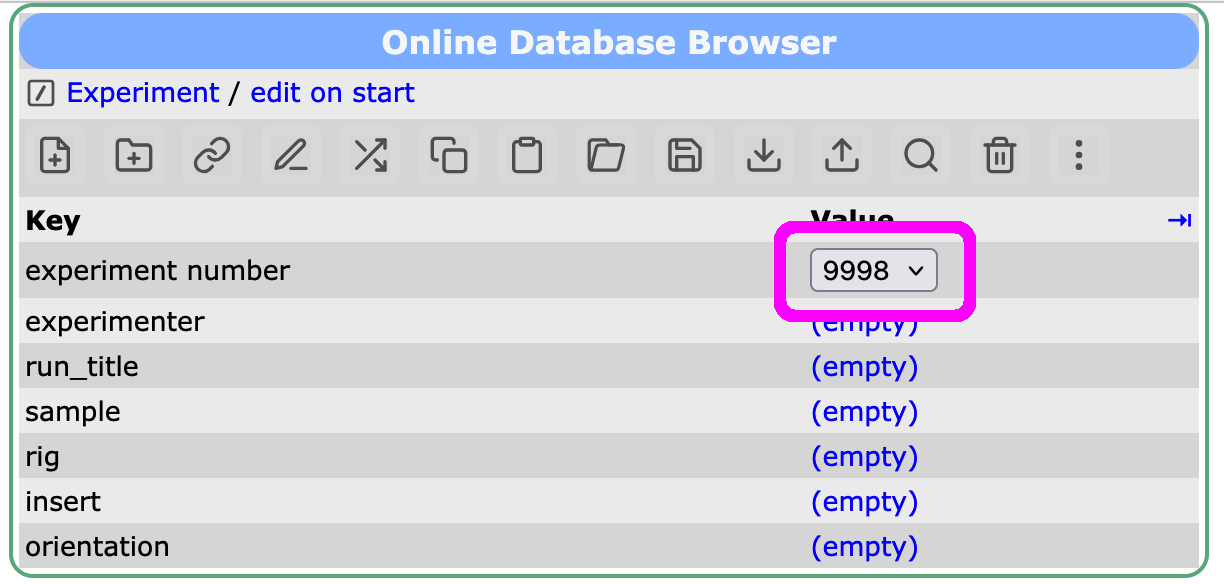
In the ODB web interface "experiment number" will be shown as a select dropdown element rather than a free-form text input (in this case the valid options would be 1234/9998/9999).
The web interface can create this key for you. Right-click the key and select Create options for this key.... The browser creates an Options x array of the same type immediately after x in the ODB. It starts with three entries: 1, 2, and 3 for numeric keys, or Option 1, Option 2, and Option 3 for string keys. The page then reloads in the detailed view so you can replace these values.
When a key has options, a button is shown beside its name in the normal view. Click it to open the detailed view and edit the corresponding Options x array. Edit each array element in the usual way. To add or remove choices, click the value in the #Val column and change the array length. The hint explaining this workflow is shown only once per browser session.
Again, there is no low-level enforcement of these options; it is purely a user-level convenience for the web interfaces.
Comments for ODB keys and directories
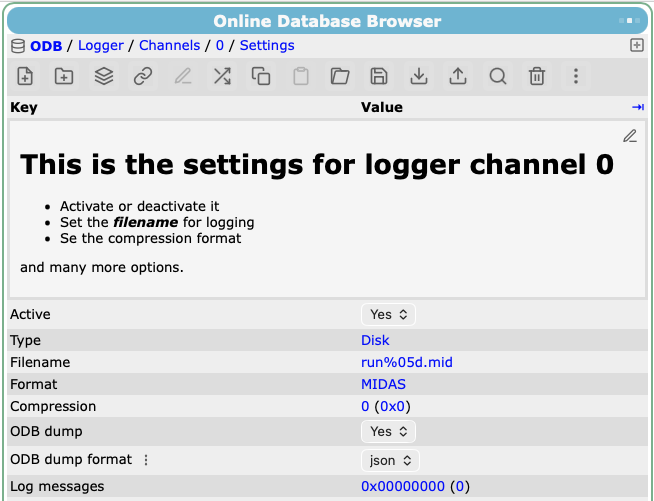 An ODB key or directory can have a Markdown-formatted description. For a key named
 xxx, the comment should be stored as a string key named Comment xxx in the same directory, immediately before xxx.
To create a comment from the web interface, right-click the key or directory and select Create a comment for this entry.... Click the button in the upper-right corner of the comment to open the editor. Click the  button to save the comment. While editing, the button opens a short guide to the formatting syntax.
In the normal web view, the comment is displayed in its rendered format (see screenshot above), with a pencil icon for editing the comment. By default the special Comment xxx key is hidden. In the expanded view (accessed by clicking the icon or pressing Tab), the Comment xxx key is shown as a regular ODB key, allowing you to delete, rename or re-order it if desired.
Naming and rendering rules
Note that any key with a naming format of Comment xxx will be rendered specially - the xxx does not have to match another key in the directory. Although the default behaviour is to associate a comment with a specific key, this is not a strict requirement.
A key named exactly Comment does not get special treatment; if it is followed by a space and any other text, then it does.
Most comments are rendered in exactly the order they appear in the ODB directory. You could use this to create one mega-comment that applies to an entire directory by putting it as the first entry. An example of this is shown in the screenshot above. The only exception is that subdirectories are always shown at the top of the list in the web display, and comments for subdirectories are forced to be above the relevant subdirectory.
Automatic saves
The ODB may be automatically saved during each run. This is useful for both data analysis and disaster-recovery purposes.
The three backup types supported by mlogger are:
| Type | Example name | ODB keys for configuration |
|---|---|---|
| Backup that gets overwritten at the start of each run | last.json |
Set the name using /Logger/ODB Last Dump File. An extension of .xml will save as XML, .json will save as JSON, any other extension will save as plain text. |
| Dump at the end of each run that gets a run-specific name | run01234.json |
Enable using /Logger/ODB DumpSet name + format using /Logger/ODB Dump File. A %d formatting option will be replaced by the run number. An extension of .xml will save as XML, .json will save as JSON, any other extension will save as plain text. Default is run%05d.json, meaning file names like run01234.json. |
| Dump at the start and end of each data file within a run | (part of run01234.mid) |
Enable using /Logger/Channels/xxx/Settings/ODB dumpSet format with ODB dump format in the same directory |
These ODB dumps can be used as part of data analysis, or to return the ODB to the state it was in during a previous run.
Corruption
In rare instances the ODB may become corrupted. The most common cause is the computer crashing at a bad time, but it can also be caused by rogue code.
The entire ODB is checked for corruption whenever a midas client is started. After that, each client only checks for corruption of the keys it accesses.
How to fix the corruption depends on the severity of the problem (i.e. how unlucky you were). In most cases you will see an error message of the form Error: ODB corruption detected, see previous messages. Use the earlier messages to diagnose which of the next three solutions is appropriate.
Repairing ODB free lists
Symptoms
This solution applies if your midas message log shows lines like:
Error: ODB key free list is corruptedError: ODB data free list is corrupted
followed by ODB key free list repair is disabled and ODB corruption detected
We will set an environment variable that tells midas to fix the problem when a client connects to the ODB.
We then run odbedit twice (you could run any other midas program that connects to the ODB as well, but odbedit is a quick and simple one):
- The first time it will fix the errors
- The second time should connect without any errors.
The auto-fixes include the free lists noted above, and deleting any overlapping keys in the data area. You should unset the environment variable after running the fixes.
export MIDAS_ODB_REPAIR_FREE_LIST=1
odbedit -c "ls" # Will report the errors and fix them
odbedit -c "ls" # Should not report any errors
unset MIDAS_ODB_REPAIR_FREE_LIST
setenv MIDAS_ODB_REPAIR_FREE_LIST 1
odbedit -c "ls" # Will report the errors and fix them
odbedit -c "ls" # Should not report any errors
unsetenv MIDAS_ODB_REPAIR_FREE_LIST
If the second instance still reports errors, move on to Repairing ODB from a JSON backup.
Repairing ODB from shared-memory backup
Symptoms
This solution applies if your midas message log shows lines like:
ODB key area is corrupted, "X" overlaps "Y" by N bytes, cannot repairODB data area is corrupted, "X" overlaps "Y" by N bytesinvalid hkeyinvalid key typeinvalid parent_keylist xxx should be yyykey offset xxx is invaliddata offset xxx is invalidinvalid pkey->total_sizeinvalid pkey->item_sizeinvalid pkey->num_valuesWarning: database key area is 100% full, but you're pretty confident that this is not trueWarning: database data area is 100% full, but you're pretty confident that this is not true
followed by ODB corruption detected
Midas makes a backup of the ODB shared memory every 60s. If we're lucky, the corruption is only in the live memory, and not in the backup. If we're not lucky, we'll move on to another solution.
Why you have to be lucky for this solution to work
In practice, this is only likely to work if either:
- the corruption caused all your midas clients to crash
- you noticed the corruption and quickly used
kill -9to kill all of your midas clients.
It will not work if the corruption got written to the backup file. This happens periodically (every 60s by default) and when the last client cleanly disconnects from the experiment.
If your entire computer crashed/rebooted, then the backup will automatically be loaded when the first midas client starts. If the backup is corrupt, odbedit -R can't help you and you must follow Repairing ODB from a JSON backup. If the backup is not corrupt, then your problem is already fixed.
- Step 1: Check if any midas clients are running
-
If any programs are connected to midas, you can choose to either:
- stop them gracefully, then follow Repairing ODB from a JSON backup
- kill them brutally with
kill -9and proceed with step 2
If no programs are running, try to run
odbedit -c "mem". If it completes without errors, your problem is already fixed. - Step 2: Remove the live version of the shared memory
-
odbedit -R - Step 3: See if midas clients can connect cleanly
-
odbedit -c "ls"
If the last command completes without reporting any errors, your ODB is fixed! If not, move on to the next section (Repairing ODB from a JSON backup).
Repairing ODB from a JSON backup
Symptoms
This solution applies if you see warning messages about ODB corruption detected and either of the previous two options didn't fix your problem.
We will completely wipe the existing ODB, and re-create it from a JSON/XML dump that was previously written by mlogger.
- Step 1: Stop all front-ends and programs connected to midas
-
Manually kill any lingering frontends and other midas programs (mlogger, mhttpd, etc.). It is critical that you stop all of them!
- Step 2: Remove the old ODB and create an empty one
-
Note this uses
odbinit, notodbedit!odbinit --cleanup -s 100000000The
-sargument is the new size of the ODB in bytes. The maximum allowed value is 100MB (100000000 bytes).If odbedit says
please check that all MIDAS programs are stopped and try again, go back to step 1.If odbinit complains that you're trying to resize the ODB, you have two options:
- keep your current ODB size: re-run the
odbinitcommand, but change the-sargument to match the current size of your ODB - increase the ODB size: delete the
.ODB_SIZE.TXTfile and re-run theodbinitcommand above
- keep your current ODB size: re-run the
- Step 3: Re-load a saved version of the ODB
-
See the automatic saves section for information about ODB dumps that are saved automatically.
These dumps are typically called something like
online/*.json. We want to find the most recent dump that was saved by your experiment.To find the correct file:
- The dumps are .xml, .odb or .json files.
- Depending on your mlogger ODB settings (
/Logger/ODB Dump,/Logger/ODB Dump File, and/Logger/ODB Last Dump File), you may have filenames based on run numbers or justlast.jsonetc. If using run numbers, you almost certainly want to load the most recent one. - The files are stored in the experiment's data directory (based on
/Logger/Data dir).
Once you have found the correct file, run a command like:
odbedit -c '"load online/run001234.xml"' # or odbedit -c '"load online/last.json"' - Step 4: See if midas clients can connect cleanly
-
odbedit -c "ls"
If the last command completes without reporting any errors, your ODB is fixed! If not, reach out to the midas elog/forum for support.
Enlarging the available size
The ODB defaults to being ~1MB in size. This is split between the "data" area and the "keys" area. It can be increased to a maximum of 100MB if needed.
You can view how much room remains in your ODB using odbedit's mem command.
$ odbedit -c "mem"
# Output truncated to show only the summary...
Free: 384368 (73.3%) keylist /**(1)!**/, 441312 (84.2%) data /**#(2)!**/

Total ODB size: 1048576 (0x00100000) Bytes, 1.04858 MBytes /**(3)!**/
- "Key" area has 384368 bytes (73.3%) free space
- "Data" area has 441312 bytes (84.2%) free space
- Overall size is ~1MB
If your ODB becomes full, messages will be printed to the message log, and many features of midas will stop working. You can fix the problem by increasing the size of your ODB!
Resizing the ODB cannot be done while any midas programs are running (as the ODB is a binary blob and midas programs store handles/pointers to bits of data at specific offsets within that blob).
The procedure for resizing the ODB is very similar to how you recover from a corrupted ODB, but you can create a dump of the current ODB structure rather than relying on one that was written previously.
- Step 1: Stop all front-ends and programs connected to midas
-
Either by killing processes manually, or via odbedit
odbedit -c "shutdown all"It is critical that you stop all of them!
- Step 2: Save the current ODB content
-
odbedit -c "save dump.json" - Step 3: Remove the old ODB and create an empty one with the new size
-
Note this uses
odbinit, notodbedit!odbinit --cleanup -s 100000000The
-sargument is the new size of the ODB in bytes. The maximum allowed value is 100MB (100000000 bytes).The first time you try this, odbinit will probably complain that you're trying to resize the ODB. It will tell you the path to a file called
.ODB_SIZE.TXT, and ask you to delete it. Delete that file and run odbinit again.rm /path/to/.ODB_SIZE.TXT odbinit --cleanup -s 100000000 - Step 4: Load the saved ODB content
-
odbedit -c "load dump.json"
You can now restart all your midas clients.
Implementation details
Shared memory
Midas uses shared memory for the ODB, data buffers, message buffers etc. This means that all midas clients running on the host machine have direct access to the ODB. Semaphores are used to ensure that two clients don't try to edit the ODB at the same time.
In multi-machine clusters, programs running on other servers do not have direct access to the ODB shared memory. Instead, they communicate with the mserver program that is running on the host machine, which accesses the ODB on their behalf. User code is the same in both cases, but performance is lower for clients that aren't running on the host machine.
On Linux, the shared memory is found in /dev/shm - look for entries that contain your experiment name. On MacOS, the shared memory lives only in the kernel.
Midas makes a backup of the ODB shared memory every 60s by default. The backup is stored in the .ODB.SHM file in your experiment directory on disk. This means that the ODB can be restored after your computed is powered-off (as shared memory doesn't survive a reboot). The interval can be changed using the ODB key /System/Flush/Flush period, but there is very little reason to change it. An extra backup is also made when the last client connected to midas disconnects.
UTF-8 key names
As of Jan 2017, ODB key names are now checked to ensure they are UTF-8 compliant. This check will show up in (at least) two ways:
- Attempts to create a new ODB variable if the ODB key is not UTF-8 compliant.
- When a program first connects to the ODB, it runs a check to ensure that the ODB is valid. This will now include a check that all key names are UTF-8 compliant. Any non-UTF8 compliant key names will be replaced by a string of the pointer to the key.