History: storing images
It is possible to use the midas history system to periodically record images from a network-connected webcam, for later playback through the midas history webpage. The midas data logger will automatically grab the current image from the webcam and store it on disk.
Requirements for this system to work
- The current webcam image must be accessible via a URL (http or https)
- libcurl must be available when compiling midas
- The mlogger program must be running
You can log multiple webcams, and specify the recording period and storage duration independently for each.
Configuration
For all the keys, see /History/Images.
Webcams are configured in the /History/Images directory of the ODB, with one subdirectory for each webcam. Midas doesn't create this directory.
To add a webcam:
- Create a subdirectory for it, e.g.
/History/Images/Hall - Restart mlogger. When it starts, mlogger adds any missing keys to each subdirectory, with default values. It only looks for new webcams when it starts
- Set
URLto the address of the current image from the webcam, andNameto the name to show on theHistorypage - Set
Enabledtoy
You can also change how often an image is fetched (Period) and how long the images are kept (Storage hours).
Tips for finding the webcam URL
Depending on the brand of your webcam, it may trivial or tedious to find the correct URL for getting the current image. In the best case, the URL is specified in the user manual. More often, you need to do a bit of digging.
The best place to start is by loading your camera's normal web interface. Depending on how the page is coded, you should be able to find the correct URL by either:
- Right-clicking the image and choosing \"Copy Image Location\" or similar (only works if the web interface is using a raw \"img\" tag to display the image)
- Looking at the source code of the webpage (for example if the web interface specifying the URL as a CSS property)
- Opening the Network tab of your browser's Developer Tools, reloading the page, and finding the request that loaded an image (should work in almost all cases)
- Googling for help on your specific webcam brand/model
For AXIS cameras, the URL is typically http://<name>/axis-cgi/jpg/image.cgi
Saving to disk
Note that although normal midas history variables can be logged to a database, the images from webcams are always only stored as files on disk.
The directory used is specified in the ODB at /Logger/History/IMAGE/History dir. If that ODB key is empty, /Logger/History dir is used, and if that is also empty, /Logger/Data dir. The images from each webcam are stored in a subdirectory with the same name as its ODB subdirectory, in files named by date and time (e.g. 260515_110218.jpg).
Web interface
You can access the image history webpage by clicking the History link in the side menu on any midas webpage, and then one of the links in the Images group.
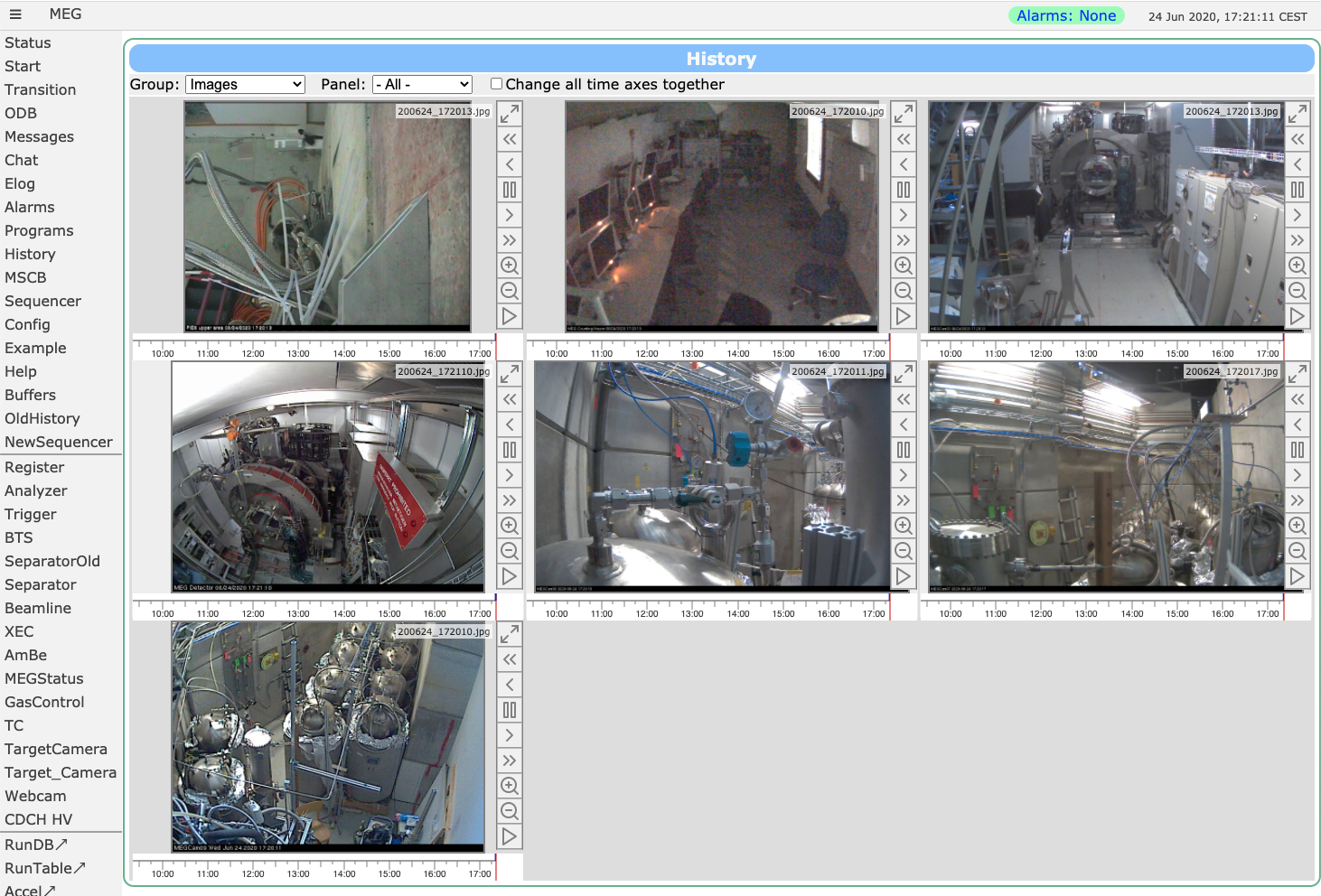 An example from the MEG experiment is shown on the right.
Initially, only the most recent image is loaded to speed up loading time. As soon as you click on the image or one of the arrow buttons, previous images are loaded progressively, which you can see in the ribbon bar becoming blue. For slow internet connections this can take some time. For typical webcams and one minute update period you get typically a few GB per week.
- Drag: You can click-and-drag left/right on an image to scroll backwards/forwards in time
- Buttons: The buttons on the right hand side of each image allow you to:
- Show only this image, if multiple webcams are being displayed on the same page
- Play backwards
- Step backwards
- Pause playing
- Step forwards
- Play forwards
- Zoom in on the timeline
- Zoom out on the timeline
- Jump to the current time and resume auto-scrolling (if background is currently red), or pause the auto-scrolling (if background is currently grey)
- Jump to a specific date/time
- Download the current image
- Show a help message
If you have multiple webcams, you can click the checkbox to synchronize all time axes. Scrolling/stepping/playing through images will then allow you to see your experiment from different cameras at the same timestamps.