Web interface: overview
The web interface is the main way to run a midas experiment. You can start and stop runs, see the state of the equipment, edit the ODB, read messages and plot the history, all from a web browser.
The web interface is provided by mhttpd, the midas web server. It runs on the main midas machine, and is usually started with the other midas programs (e.g. mhttpd -D in your start script, see Your first experiment).
Connecting
On the main midas machine, open http://localhost:8080 in a web browser.
By default, mhttpd only accepts connections from the same machine, and doesn't ask for a password. This is deliberate, as anyone who can use the web interface can control the experiment. To use the web interface from other computers, see Accessing the web interface from other computers. The recommended way is to run mhttpd behind a web server that handles HTTPS and passwords.
Page layout
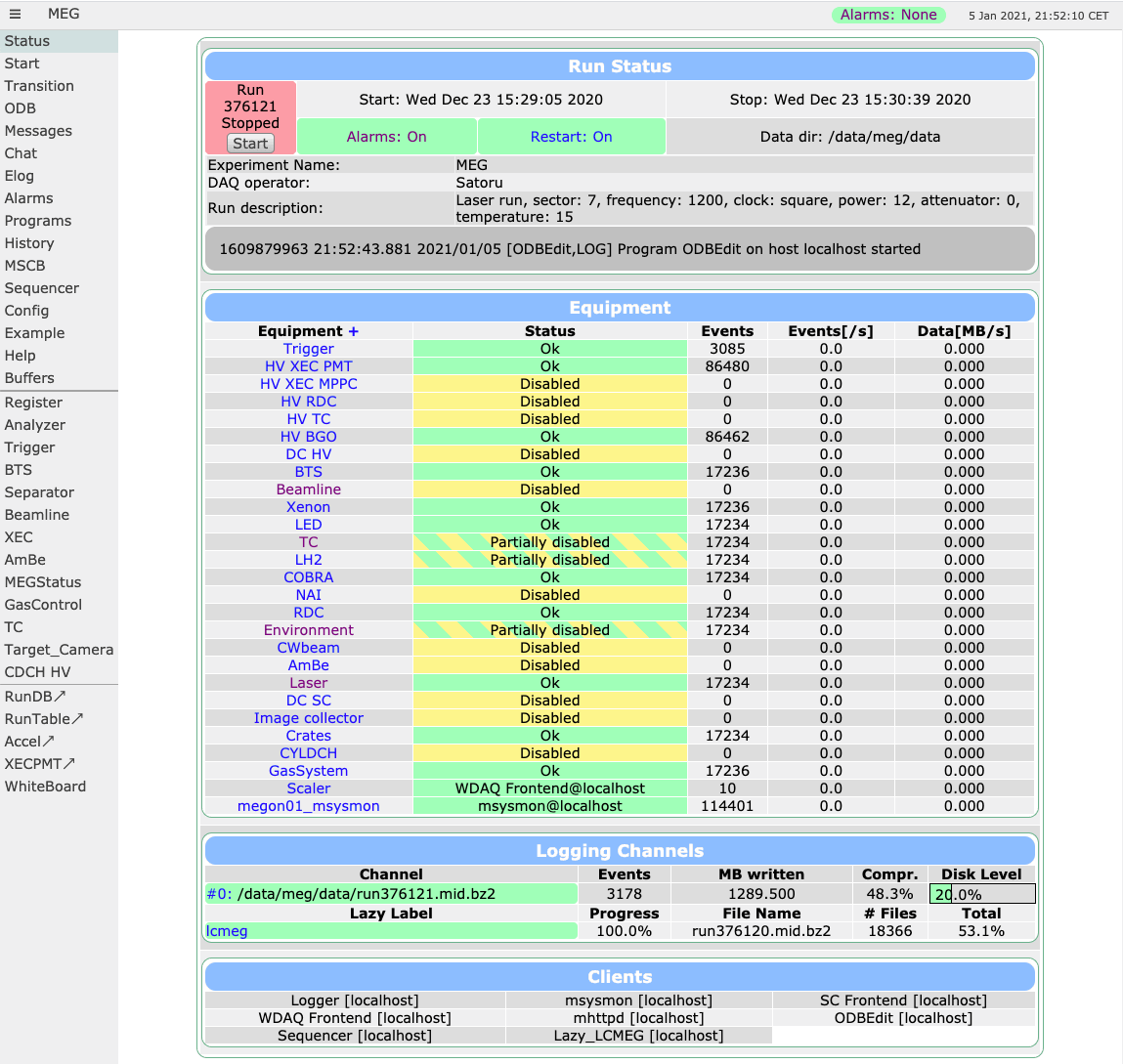 Every page of the web interface has the same layout:
- a header with the experiment name, the latest message and the alarm state. Click the message to open the
Messagespage, or the alarm state to open theAlarmspage. The button shows or hides the side menu - a side menu on the left, with links to the built-in pages, your own custom pages, script buttons and links to other web pages
- the page itself, which updates automatically, so you don't need to reload it
The Status page (shown on the right) opens at the web server's address. It shows the run state with buttons to start and stop runs, the equipment and their event rates, the data logging, and the programs that are connected.
Built-in pages
The most-used built-in pages are:
| Page | Used for | See |
|---|---|---|
Status |
The state of the experiment at a glance | Runs, Frontends |
Start, Transition |
Starting and stopping runs | Starting and stopping a run |
ODB |
Viewing and changing settings | ODB: web interface |
Messages, Chat |
Reading the message log, and talking to other users | Messages, Chat |
Elog |
Writing and reading logbook entries | Logbook (elog) |
Alarms |
Seeing and resetting alarms | Alarms |
Programs |
Starting and stopping midas programs | Programs webpage |
History |
Plotting how values change over time | History |
Sequencer, PySequencer |
Running scripts that control the experiment | Sequencer |
Buffers, Event Dump |
Checking the event buffers and the data in them | Event buffers |
Config |
Settings for your own browser (e.g. sounds and time zone) | Per-browser config |
Help |
The midas version and installation details |
Keyboard shortcuts
You can open these pages from any page of the web interface with a keyboard shortcut. Hold down Alt (or ⌥ on macOS) to see the shortcut letters underlined in the side menu. A shortcut only works if its page is shown in the menu.
| Page | Windows/Linux | macOS |
|---|---|---|
Status |
Alt+S |
⌥+S |
Transition |
Alt+T |
⌥+T |
ODB |
Alt+O |
⌥+O |
Messages |
Alt+M |
⌥+M |
Alarms |
Alt+A |
⌥+A |
Programs |
Alt+P |
⌥+P |
History |
Alt+H |
⌥+H |
Sequencer |
Alt+Q |
⌥+Q |
Buffers |
Alt+B |
⌥+B |
Config |
Alt+C |
⌥+C |
Help |
Alt+E |
⌥+E |
Clicking an equipment name on the Status page opens its equipment page, which shows the equipment's variables.
See Built-in web pages for all the pages, how to open each one, and which are shown in the menu by default.
Changing the web interface
You can hide the built-in pages you don't use, and add menu entries for script buttons and links to other web pages. See Web interface: configuring. You can also write your own pages, for example to show the state of your detector. See Custom pages.