History: overview
The history system is designed for tracking "slow control" data as a function of time. Examples include temperatures, pressures, voltages, currents etc. Such data may be used for monitoring experimental hardware or even calibrating event-based data during data analysis.
It is possible to save the data to either binary files on disk, or to an SQL database (MySQL, PostgreSQL, SQLite). The different destinations are written to by different history drivers.
 History data is recorded by the mlogger program, with the destination chosen using the
 /Logger/History/xxx/Active ODB keys.
A graphical display of the history data is available on webpages.
Data sources
mlogger watches certain ODB directories, and records any updates in the history system. Note that midas files record data from event buffers, but the history system records data from the ODB!
Only numeric types can be stored
The history system supports all numerical values, except 64-bit integers. Strings, 64-bit integers, and other non-numerical types can not be stored in the history system.
Frontends
mlogger watches all the /Equipment/xxx/Variables directories.
The key /Equipment/xxx/Common/Log history determines whether that equipment's variables should be logged in the history system or not:
- a value of 0 means do not log
- a value greater than 0 means log at most once every N seconds.
Data is only logged when the ODB keys in /Equipment/xxx/Variables are written to, and at most once per second (if Log history is set to 1). Your equipment can write to the Variables directory more frequently, but only periodic snapshots will be recorded.
Each equipment's data gets associated with a history "event" (events and tags will be explained later).
The Variables directory may contain subdirectories, but see the note in the event names and tag names section for important restrictions.
Other ODB keys (virtual events)
mlogger can also record ODB keys outside /Equipment, using "virtual" history events defined in /History/Links. Each subdirectory of /History/Links is an event, containing links to the keys to record. Unlike equipment variables, a virtual event is recorded every time one of its keys is written to, with no limit on how often. See Recording other ODB keys for how to set one up.
Events and tags
The history system uses the terms "events" and "tags" to refer to the data that gets recorded. An event definition includes the event name, a list of tags that describe the data that is being recorded, and a timestamp that defines when this definition is valid from. The event data includes a timestamp when the data was written, and the value for each tag.
The definition of an event may change over time (e.g. if you add more entries to an equipment's Variables directory). All the history drivers support such a "schema evolution".
Depending on a setting, an equipment's variables are recorded either as one event for the whole equipment, or as one event per variable. See Per-variable vs per-equipment.
Event names and tag names
In general:
- the "event name" is the name of the equipment (if using per-equipment logging) or the equipment + variable (if using per-variable logging)
- the "tag name" is the name of the variable, based on the ODB key and any names specified in an equipment's
Settingsdirectory
Full details of how event names and tag names are constructed are found in History: programming.
Timestamps
The ODB data is recorded alongside the timestamp when the data was logged. Note that it uses the time when mlogger wrote to the file/database, not the time when the frontend/program wrote to the ODB. Timestamps are recorded with 1s resolution.
If you need to know when the data was written to the ODB (not when mlogger handled it), you could include that timestamp as an extra entry in your ODB array.
Web interface
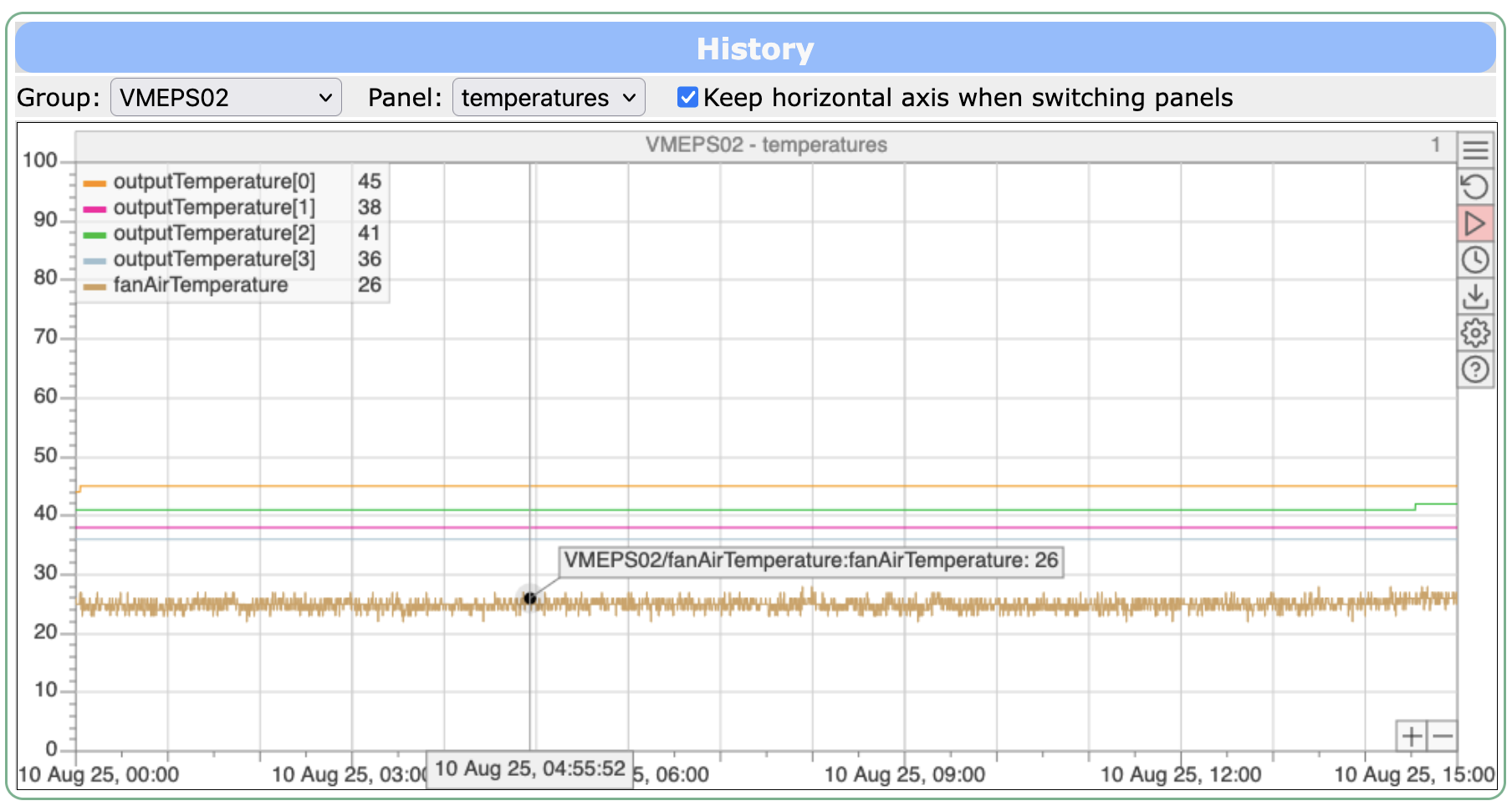
The most common way to view data from the history database is via a web interface. The plots are very interactive, and designed with physicists in mind (e.g. extreme data points are important, even if they only happened briefly). For long time ranges, the plots show binned data that still includes these extreme points.
"Old history" vs "new history"
There are two options for viewing history plots:
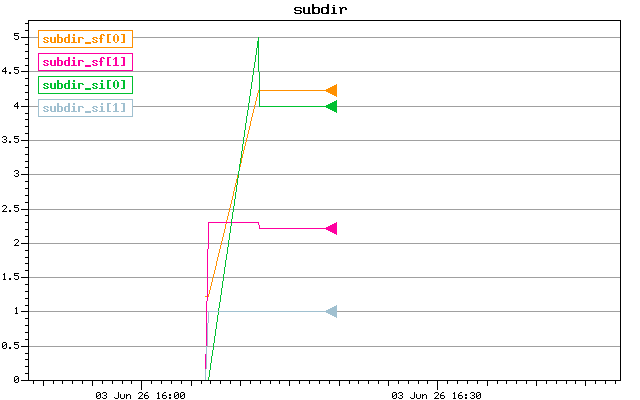
- The old history plots are static images that are rendered by the server. Not very detailed, and limited interactivity.
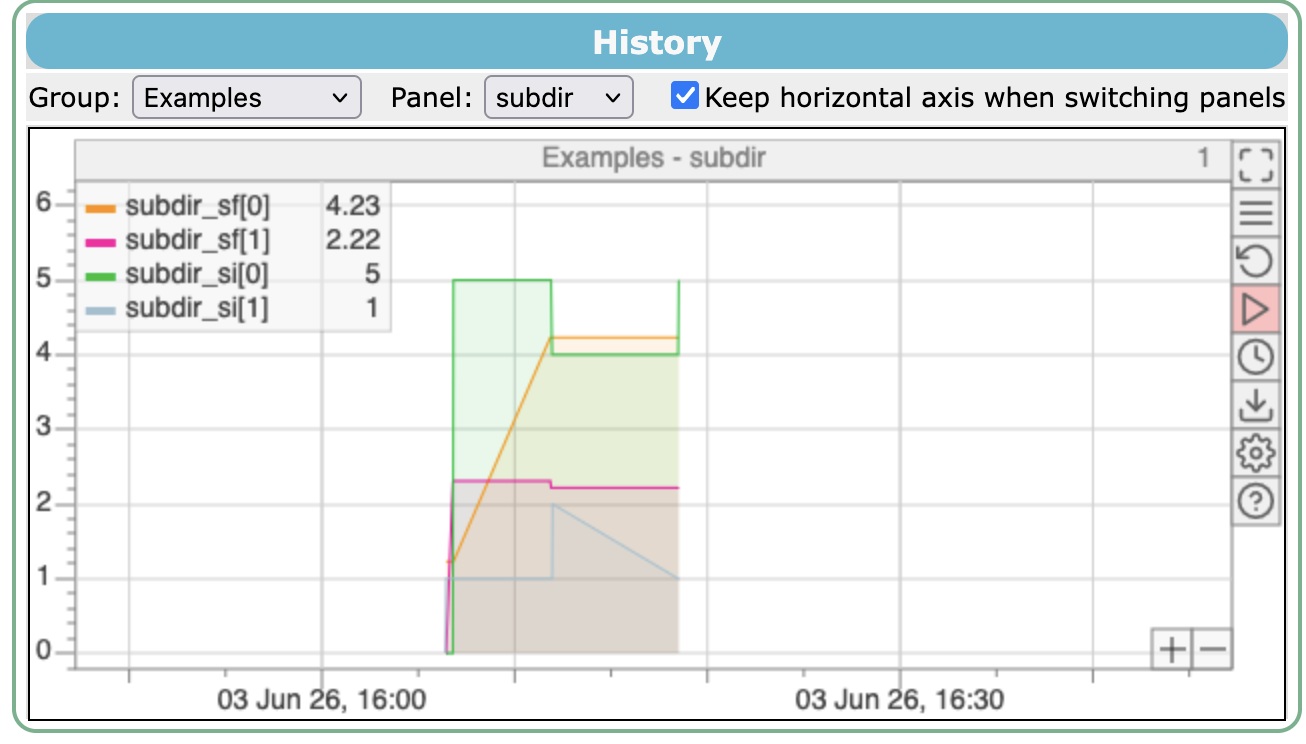
- The new history plots are interactive, and you can scroll/zoom, focus on a specific variable etc.
The old history plots are accessed using the OldHistory link in the side menu; the new history plots are found in the History link.
-
Old history
-
New history
Defining plot groups and panels
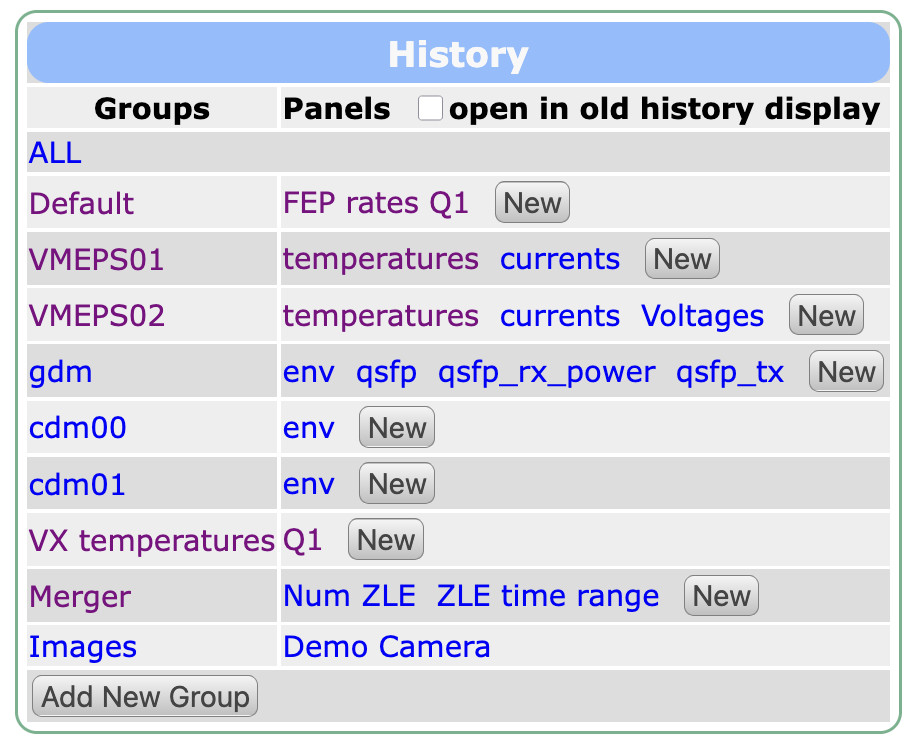 You can pre-defined "panels" that overlay multiple variables on a single plot, and group these panels according to a theme.
When you click the History link in the menu on any midas webpage, you are taken to the panel selection screen. You can click on an existing panel name to view just that plot, or the group name to view all the plots in that group on a single page.
You can click the New button to add a new panel, or the Add new group button to create a new group.
The settings interface for adding a new panel is shown below:
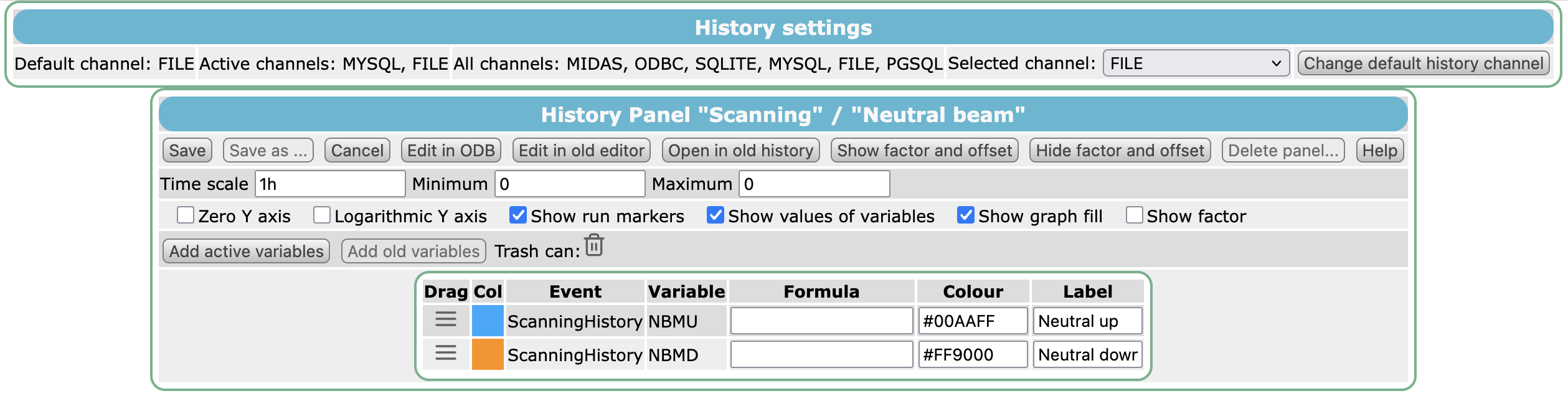
On the settings page, add a variable by clicking Add active variables, and delete one by dragging its icon onto the trashcan (). You can choose the colour and legend label of each variable, and give it a formula, e.g. to convert units. Then click Save.
See Web display history panels for all the settings (some of which only affect either the History or the OldHistory page), and for other ways of creating panels.
On-demand plots on equipment pages
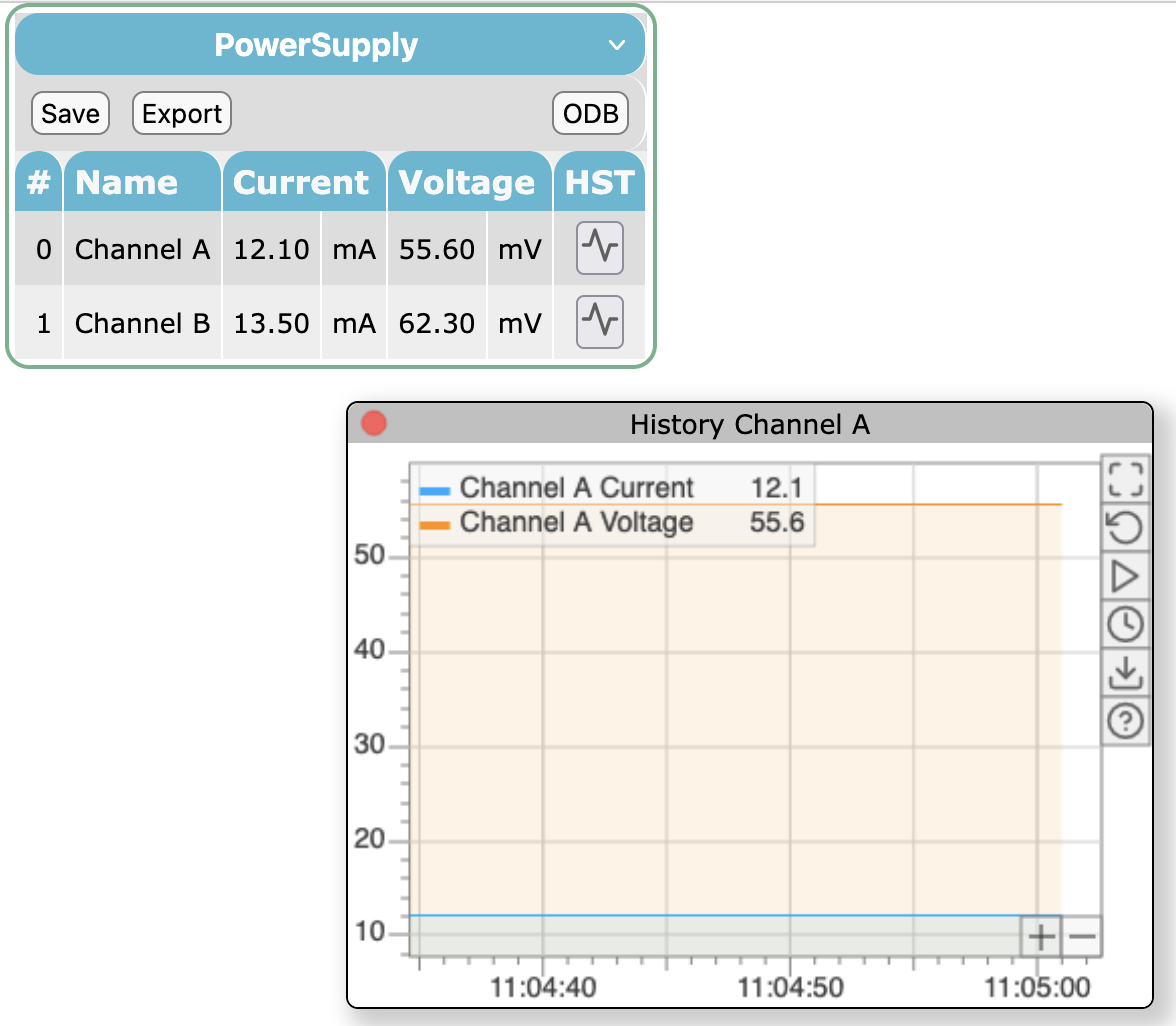 As mentioned in the frontend documentation, you can configure an "equipment display page" to show buttons that will show the history of a variable, even if you haven't defined a panel for it.
These "on-demand" plots are limited to only show one variable per plot. However you can open multiple plots on the same equipment display page, and drag them around / resize them.
Interacting with history plots
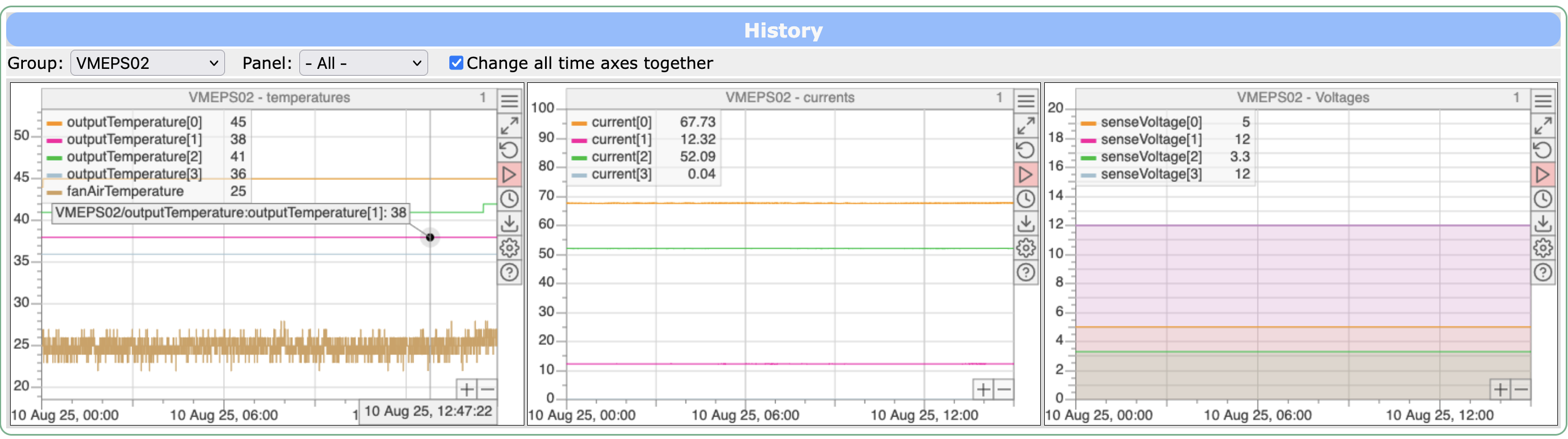
- Zoom: You can click and drag on an axis to zoom in. You can also zoom in/out the X axis by pressing Ctrl/Cmd and using the mouse scrollwheel. You can zoom in/out the Y axis by pressing Alt/Option and using the mouse scrollwheel. When using the scrollwheel, the zooming is relative to the current cursor position.
- Scroll: You can click and drag on the plot to scroll. If your X axis shows the current time, by default it will auto-update and auto-scroll as more data becomes available. To pause this, click the "play" icon () and see that the background of that button turns red.
- Hover: You can hover over a data point to view the time/value.
- Measure: Click two data points to measure their time and value differences. See Measuring differences with markers.
- Buttons: The buttons on the right hand side of each plot allow you to:
- / Show only this plot (if on an equipment page or multi-panel page)
- Show or hide the legend
- Reset the axes (if you have zoomed/scrolled)
- Jump to the current time and resume auto-scrolling (if background is currently red), or pause the auto-scrolling (if background is currently grey)
- Select a timespan to view. There are several "last N minutes/hours" options, plus an
A->Bfor choosing a custom timespan, and a<<<option for jumping to the most recent data. - Download the plot data as text (CSV file) or an image (PNG file).
- Change the settings (for pre-defined panels only)
- Show a help message.
Measuring differences with markers
Use markers A and B to measure time and value differences on an interactive history plot.
- Click near a data point to set A. The Measurement dialog opens.
- Move the cursor near another data point to preview B and the differences. Click to set B.
- Drag either marker to adjust the measurement. Once both markers are set, clicking another data point starts a new measurement with a fresh A. Clicking empty plot space leaves the measurement in place when Snap to trace is enabled.
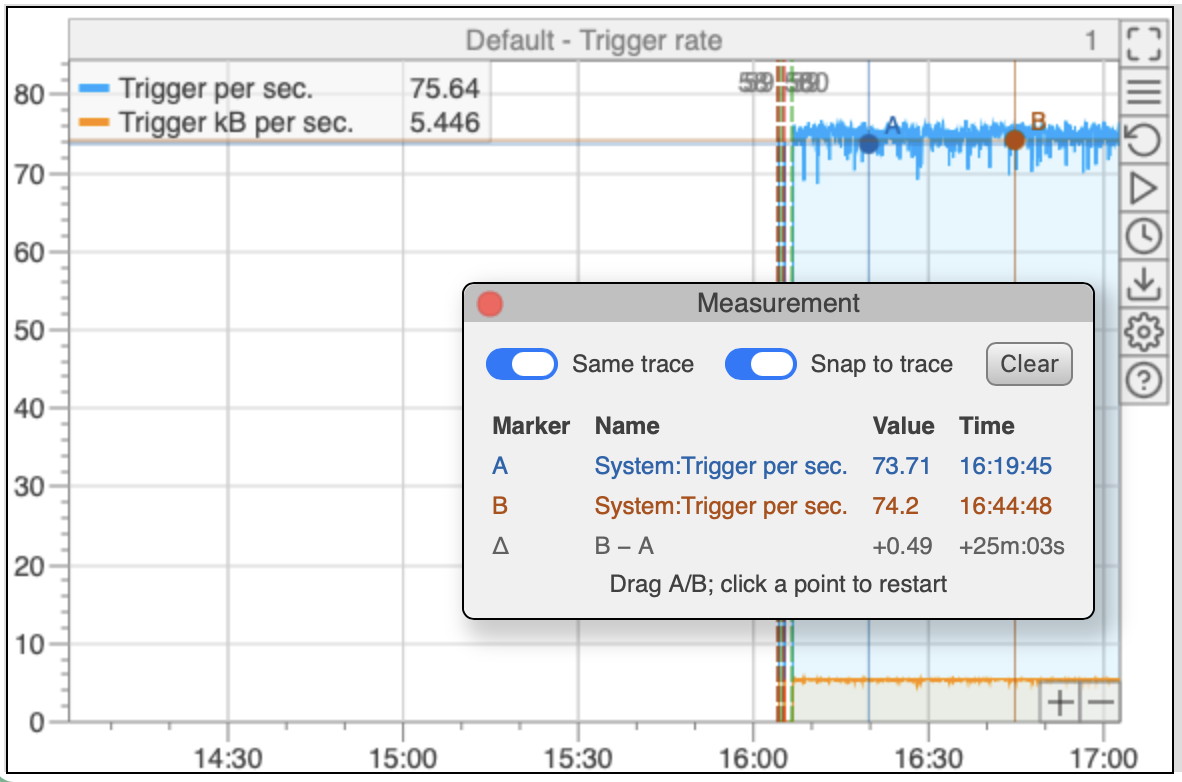
The table shows each marker's name, value and time, with text matching the marker's color. The gray Δ row shows B − A for both value and time, including the sign. In the example, B is 0.49 higher than A and 25 minutes, 3 seconds later.
The two switches are enabled by default:
- Same trace restricts both markers to the same variable. Turn it off to compare points on different traces. Turning it back on keeps A and releases B if the markers are on different traces.
- Snap to trace places markers on recorded data points. Turn it off to place and drag markers freely within the plot, using the time and value at the cursor position. Free markers are named Free position, and Same trace is disabled while snapping is off.
Drag the dialog's title bar to move it. Its close button hides the dialog while keeping the markers; starting a new measurement reopens it. Clear or Escape removes both markers and hides the dialog. Dragging the plot away from the markers still scrolls it, and the usual axis zoom controls remain available.
Binned data for long time ranges
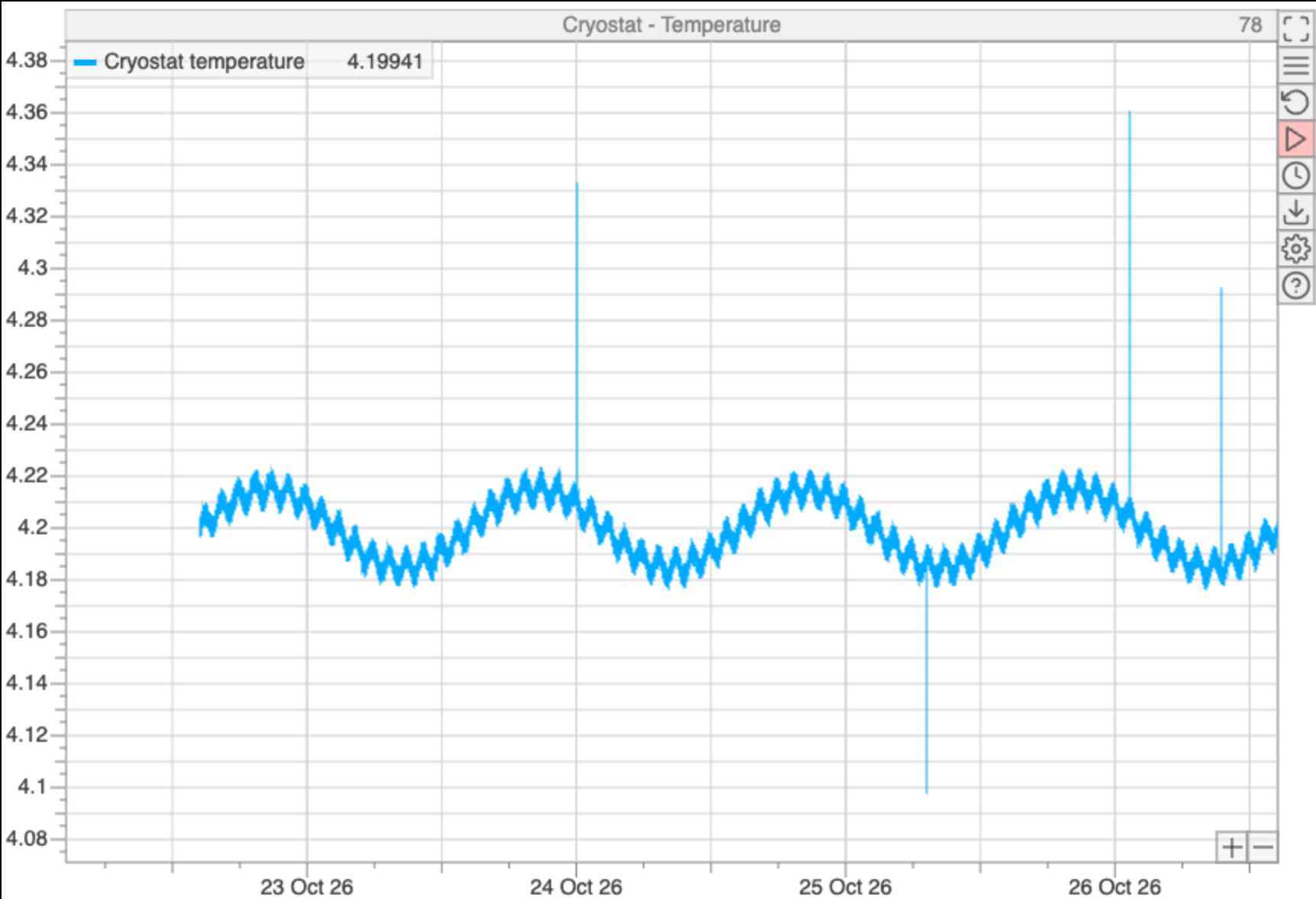
A long time range can contain far more values than the plot can show (a value every second for a week is over 600,000 values). So when a plot covers 8 hours or more, the History page asks for binned data instead. The time range is divided into 5000 bins, and only the minimum, maximum, first and last value of each bin are sent to the browser.
At each bin, the plot draws a vertical line from the first value to the maximum, down to the minimum, and then to the last value. Together, these lines show the full range of the values, so a spike stays visible at its full height even if it is much shorter than a bin. The number at the right of the plot's title bar is the average number of values in each bin (1 for unbinned data).
-
Binned: 4 days, 78 values per bin
-
Unbinned: 2 hours around the last spike
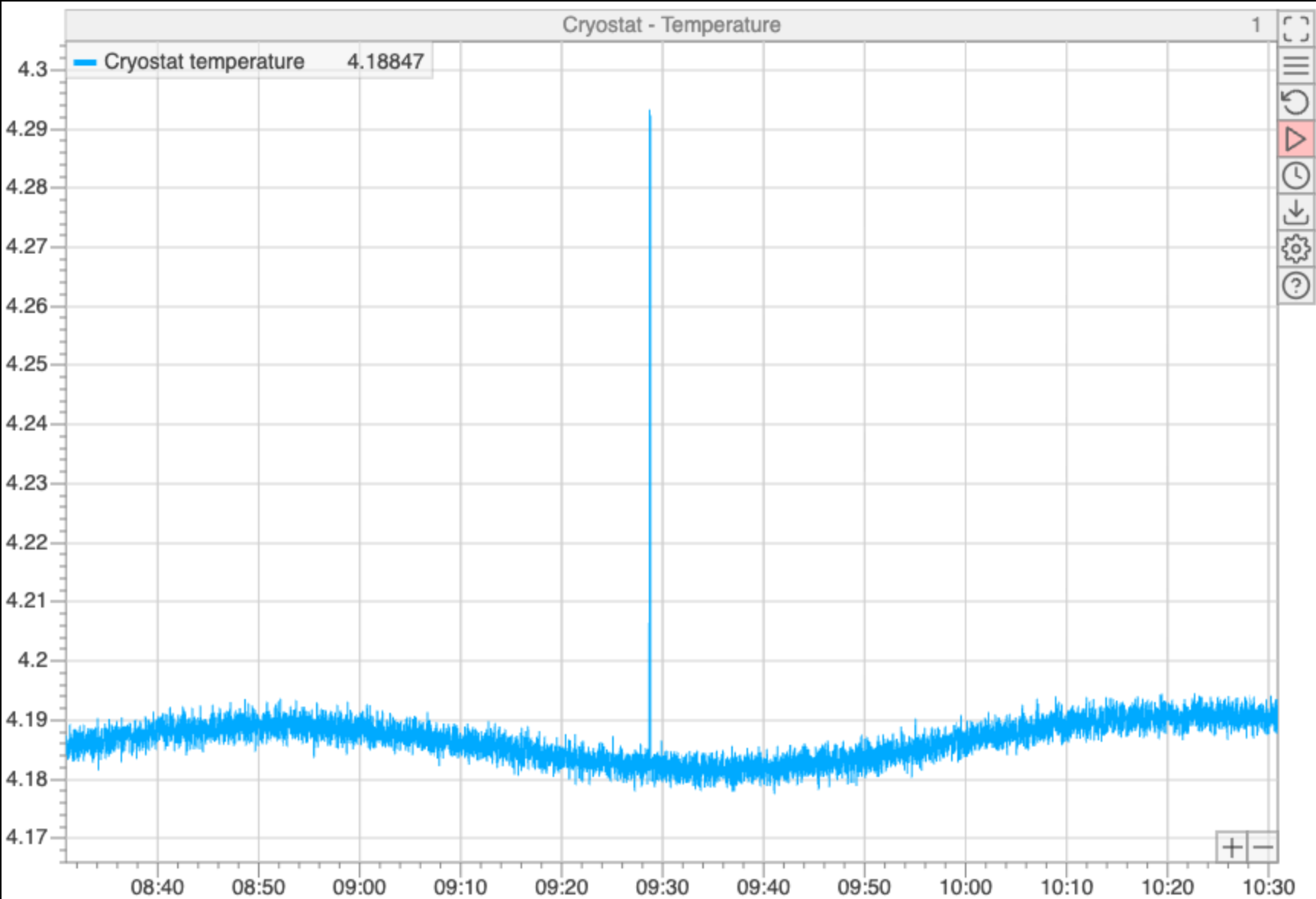
In this example, the temperature is recorded every second, with occasional spikes that last only a few seconds. Over 4 days, the noise appears as a band and the spikes still appear at their full height. Zooming in to 2 hours shows every recorded value.
When the data is binned:
- The value in the legend is the middle of the bin's range, half way between its minimum and maximum.
- When you hover over the plot, the marker jumps to the minimum or maximum of the nearest bin, and shows that value.
- The plot doesn't update as new data arrives. To see new data, show less than 8 hours with the button, which also turns auto-scrolling back on.
- A downloaded CSV file contains the minimum and maximum of each bin (a
MINand aMAXcolumn for each variable) instead of the values. - Run transitions are not binned.
Range when a panel opens
When a panel opens, it shows half its time scale more on each side (but not past the current time). For example, a panel with a time scale of 6 hours opens showing the last 9 hours, so its data is binned. Click (reset the axes) to show exactly 6 hours.
Low-level tools
To convert legacy .hst history files to another format, see Converting legacy history files.
Command-line query (mhist)
The mhist program queries the data in the history system and prints it to the screen. It reads from the history driver specified in /History/LoggerHistoryChannel, so it needs a running experiment. If run without any arguments, it interactively asks you for an event name and tag name, and how much data you want to print. Otherwise, you can give these as command-line options: see mhist in the reference for the full list.
Example mhist commands
- Start an interactive session
mhist - List all available events and tags
$ mhist -l Event 'PowerSupply/Current' 0: Current[2] ... - Display data from the last hour for a single variable
$ mhist -e "PowerSupply/Current" -v "Current" -i 1 Jun 4 15:47:17 2026 12.5 Jun 4 15:47:07 2026 12.6 - Display data from the last 30 days for all variables in an event
$ mhist -e "PowerSupply/Voltage" -d 30
0: vrdb[2]
1: vset[2]
Event 'PowerSupply/Voltage', 4 variables, 4 entries
Time                        vrdb[0]             vrdb[1]             vset[0]  vset[1]
Jun  3 16:11:51 2026        4.230000019073486   2.309999942779541   4.23000  2.22000
Jun  3 16:11:54 2026        4.230000019073486   2.220000028610229   4.23000  2.22000
Jun  3 16:11:57 2026        4.230000019073486   2.220000028610229   4.23000  2.22000
Jun  3 16:11:58 2026        4.230000019073486   2.220000028610229   4.23000  2.22000
A simple python-based version is also available. It is mostly intended as an example for developers of how to use python code to interact with the history system, but can also be handy for users:
python $MIDASSYS/python/examples/basic_hist_script.py
The python version only supports interactive use (has fewer command-line options) and only shows the most recent data (you can't specify an explicit time range).
Listing the records in a history file (mhist -f)
With the -f option, mhist reads a .hst file written by the MIDAS driver directly, without connecting to an experiment. It prints the definition of each event (its name and ID), then the time and size of each data record, but not the tag names or values. It is a quick way to see which events a file contains and when they were written. Use mhdump to see the values, or for .dat files from the FILE driver.
With -f, -e gives an event ID rather than a name. Without -e, or with -e 0, all the events are listed (so you can't list only event 0, Run transitions). The times are local times without the year, or UNIX times with -b.
Example mhist -f commands
- List all the records in a file:
$ mhist -f 261026.hst Event definition Environment/Inputs, ID 101 Event definition Environment/Outputs, ID 102 Event definition Run transitions, ID 0 ID 101, Oct 26 11:14:56, size 8 ID 102, Oct 26 11:14:56, size 12 ID 101, Oct 26 11:14:57, size 8 ID 102, Oct 26 11:14:57, size 12 ... - List the records of event 101, with UNIX times:
$ mhist -f 261026.hst -e 101 -b
Event definition Environment/Inputs, ID 101
ID 101, 1793038496 , size 8
ID 101, 1793038497 , size 8
ID 101, 1793038498 , size 8
Dumping a history file (mhdump)
The mhdump tool is a low-level tool for inspecting the content of a file written by the FILE or MIDAS history drivers.
The output is slightly different for the two file formats. For .hst files, the event definitions and data will be dumped. For .dat files, the event definitions and timestamps will be dumped. In either case, this tool is mostly used for debugging, rather than as a primary way to view history data. See mhdump in the reference for the full list of options.
Example mhdump commands
- List all existing tags:
mhdump -L file1.hst file2.hst ... - Show data for all events, all tags:
mhdump file1.hst file2.hst ... - Show data for event 0, tag "State":
mhdump -n -E 0 -T State file1.hst file2.hst ... - Show data for event 3, tag "MCRT", array index 5:
mhdump -n -E 3 -T MCRT[5] file1.hst file2.hst ...