History: configuring
This page covers what gets recorded in the history, where it is stored, how history plots are set up, and how to maintain the data.
For the concepts and day-to-day use, see History: overview.
What gets recorded
mlogger records history data from two places in the ODB (see Data sources):
- the
Variablesdirectory of each equipment whoseCommon/Log historyis greater than 0, recorded when it is written but at most once everyLog historyseconds - the links in each subdirectory of
/History/Links(virtual events), recorded every time one of the linked keys is written
Only numbers are recorded: strings and 64-bit integers are skipped.
Restart mlogger after changing what gets recorded
mlogger works out the history events and tags when it starts.
Restart mlogger after you:
- add an equipment, or change its
Common/Log history - add, remove or rename keys in an equipment's
Variablesdirectory (but see below) - change the names in an equipment's
Settings/Namesarrays - change
/History/Links, or thePerVariableHistorysettings
mlogger does notice when the size of the data it records changes (e.g. an array in Variables gets more elements, or a key is added to Variables when using per-equipment history). The next time Variables is written, it redefines all the history events, and logs a harmless "struct size mismatch" error. With per-variable history, a new key in Variables doesn't change the size of any recorded data, so it isn't recorded until mlogger restarts.
If you make an array in Variables longer, you must make its Settings/Names array (if any) longer first. Otherwise mlogger stops with an "Array size mismatch" error as soon as the array is written, and refuses to start again until the names are fixed.
mhttpd may not see new history variables straight away
Once mlogger has recorded a new or changed variable, when the web interface sees it depends on the driver it reads from:
- FILE: straight away. mhttpd checks for new history files every time it reads the history.
- SQL drivers and the legacy midas driver: mhttpd keeps the list of events and tags that it read when it first needed it. Until that list is reloaded, new variables aren't offered when you add variables to a panel, and plots of them show no data. To reload it, click
Add active variableson a panel's settings page (once, after loading the page), or clickClear history cachein the old settings editor for theOldHistorypage. Restarting mhttpd also reloads it.
Per-variable vs per-equipment
When recording history data in files (rather than an SQL database), you can choose whether to record all your equipment's variables at once, or only record the variables that are written to.
- Per-variable history
- If
Variables/xis modified butVariables/yis not, onlyVariables/xwill get recorded in the binary file. You get a history "event definition" for each variable separately. - Per-equipment history
- If
Variables/xis modified butVariables/yis not, bothVariables/xandVariables/ywill get recorded in the binary file. The history "event definition" includes all the variables for the equipment.
For the file-based history, you can choose which option is used using the ODB key /Logger/History/xxx/PerVariableHistory (where xxx is MIDAS or FILE).
Note
- SQL databases always use per-variable history.
- ODB arrays are always recorded atomically - even if only one element in an array is written to, the state of the entire array will be recorded in the history system.
- If your equipment's
Variablesdirectory contains sub-directories, the subdirectory is treated as the "variable" - if you write to any key in the sub-directory, the entire subdirectory will be recorded. - "Virtual" events (from
/History/Links) are always treated as a single event - the entire ODB directory in/History/Links/xxxis recorded whenever a key within that directory is written to. If you want keys to be recorded separately, put the links in different subdirectories (i.e. asxxx/xandyyy/yinstead ofxxx/xandxxx/y).
Recording other ODB keys (virtual events)
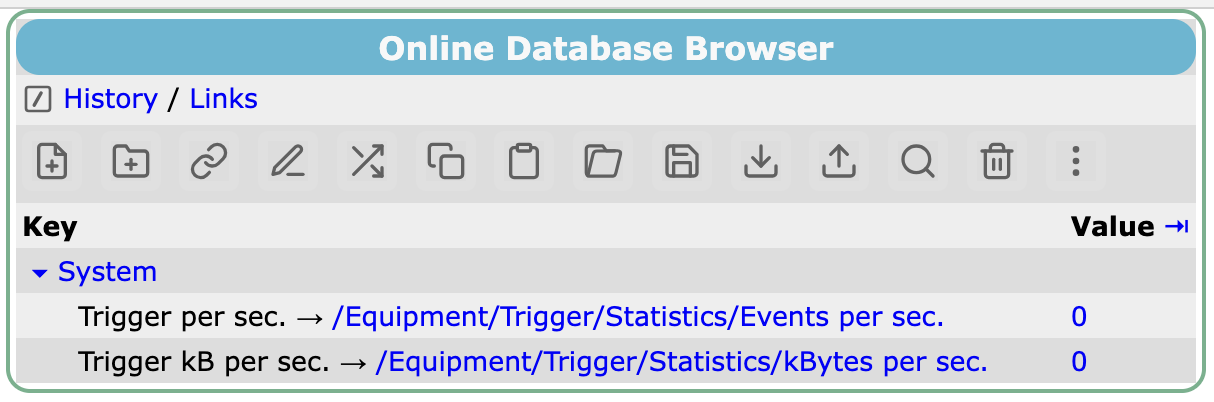 To record ODB keys outside
 /Equipment, create a subdirectory in /History/Links. Each subdirectory becomes a "virtual" history event, named after the subdirectory.
You should ensure that your subdirectory names in /History/Links do not clash with any equipment names in /Equipment!
Each subdirectory should contain symlinks to other ODB keys that you wish to log. The links can point to individual numbers or arrays, but may NOT link to other directories.
These "virtual" events are recorded whenever an ODB key is written to - there is no built-in throttling by mlogger. You should make sure that you do not update the keys too frequently, so that data storage does not grow too large.
mlogger will complain (and refuse to start) if the target of a link at /History/Links/xxx/yyy does not exist.
If you have an equipment called Trigger, mlogger creates a System subdirectory, with links to the event rate and data rate of that equipment. You can delete it, but mlogger creates it again the next time it starts.
Data destinations (history drivers)
History data can be stored either as binary files on disk or in an SQL database. There are multiple drivers in the history system that determine where the data gets logged. You can enable multiple drivers if you wish (e.g. logging to both binary files and an SQL database).
| Driver | Type | Notes | Supported by web interface |
Supported for analysis on main midas host |
Supported for analysis on other machines |
|---|---|---|---|---|---|
| FILE | File (.dat) | Default |  |
|
Limited |
| Midas | File (.hst/.idx/.idf) | Deprecated | |
|
Limited |
| MYSQL | SQL (MySQL) | |
|
|
|
| PGSQL | SQL (PostgreSQL) | |
|
|
|
| SQLITE | SQL (SQLite) | |
|
|
|
| ODBC | SQL (any) | |
|
|
Settings for all drivers are found in the ODB at /Logger/History/xxx. The exact keys differ (and are explained below), but all of them contain a boolean /Logger/History/xxx/Active key that enables/disables the driver.
History files
There are 2 history drivers that write to binary files - the legacy midas driver creates .hst, .idx and .idf files, while the FILE driver just creates .dat files.
Where to write files
There are three ways to specify where history files should get written. The first ODB entry that is not an empty string gets used:
/Logger/History/FILE/History dir(for the FILE driver) or/Logger/History/MIDAS/History dir(for the midas driver)./Logger/History dir/Logger/Data dir
File names
The FILE driver writes data for each history event in a separate file. A new file is created whenever the event definition changes (e.g. because more entries got added to an equipment's Variables directory), when the current file is more than 30 days old, or when it is larger than 100 MiB. A UNIX timestamp is included in the filename to indicate when the file was created.
The event name is included in the filename, and gets manipulated to be all lower case, with any punctuation being replaced by underscores.
The full filename format is mhf_<timestamp>_<date>_<event>.dat.
Example filename for the FILE driver
mhf_1780521232_20260603_powersupply_current.dat contains data for the PowerSupply/Current event, starting from UNIX timestamp 1780521232 (approx 2:15pm Pacific on 3rd June 2026).
Low-level details of the file format are found in History file formats and database schema.
The midas driver creates 3 files per day, and stores data for all events in the same file. If an event definition changes (e.g. because more entries got added to an equipment's Variables directory), this is recorded in the files.
.hstfiles contain definitions of the events and the actual history data.idffiles contain just the definitions of the events.idxfiles contain just the timestamps of the history data and "pointers" to where that data is in the.hstfile
So, all the data is available in the .hst files, but the .idx and .idf files allow you to more rapidly find data in the .hst file without having to wade through an entire day's history data.
Filenames simply contain the date, in yymmdd format, e.g. 260603.hst for 3rd June 2026.
Low-level details of the file format are found in History file formats and database schema.
SQL databases
There are 4 history drivers available for writing to SQL databases:
MYSQLwrites to a MySQL or MariaDB database. MariaDB is an open-source fork of MySQL.PGSQLwrites to a PostgreSQL database.SQLITEwrites to an SQLite database. SQLite is very low overhead but does not support remote connections - it is not very suitable if you want to run SQL queries from a separate analysis machine. It is fine if you only plan to query from the main midas machine or via the web interface.ODBCcan (in principle) write to any database engine that supports Open Database Connectivity. But see the important warning below.
ODBC compatibility - only MySQL-flavoured SQL syntax
Most database systems have an ODBC driver available, including Oracle, MySQL, MariaDB, Microsoft SQL, PostgreSQL, MongoDB and more. See here for links to many ODBC drivers.
Note the confusing terminology - there is both the "low-level ODBC driver" (which handles ODBC->database) and the "midas history ODBC driver" (which handles midas->ODBC)!
Although midas has the ability to connect to any database that offers a low-level ODBC driver, the different databases use slightly different SQL syntax for creating tables and inserting data, and even refer to data types differently!
Currently the midas ODBC driver only supports the MySQL flavour of SQL commands.
If you try to use ODBC with another database system, you may end up with many warnings about syntax issues. Please use the midas forum to let us know if you have a different database system in mind, and we can look at extending the compatibility.
Installing the database server
How you install the database software depends on your operating system. For PostgreSQL, SQLite and ODBC, see their own documentation. For MySQL, these are the steps on two common systems:
Run these commands as root.
-
Install the MySQL server:
apt install mysql-server -
Check that the server has started. The output should include
Active: active (running):service mysql status -
Check that the server only accepts connections from the same computer (the default):
$ grep bind-add /etc/mysql/mysql.conf.d/mysqld.cnf bind-address = 127.0.0.1 mysqlx-bind-address = 127.0.0.1 -
Find the socket that programs on the same computer connect through. You can use it in the connection files:
$ grep sock /etc/mysql/my.cnf
socket = /run/mysqld/mysqld.sock
Moving the database to another disk
The database is in /var/lib/mysql. To move it (e.g. to a larger disk), as root:
-
Stop the server and copy the data:
systemctl stop mysql cp -a /var/lib/mysql /new/data/directory -
Set the new location in
/etc/mysql/my.cnf:[mysqld] datadir=/new/data/directory -
Allow the server to use the new directory, by either adjusting your AppArmor settings or disabling AppArmor.
-
Start the server with
systemctl start mysql. -
Once you've checked that it works, delete the old directory with
rm -rf /var/lib/mysql.
-
Install MySQL, and start it as a service that also starts when you log in:
brew install mysql
brew services start mysql
Homebrew sets up the database when it installs MySQL, with no password for the database's root user. To set one, run
mysql_secure_installation. -
Check that the service has started.
mysqlshould be listed asstarted:brew services list -
Homebrew's MySQL only accepts connections from the same computer, set by
bind-addressin/opt/homebrew/etc/my.cnf(/usr/local/etc/my.cnfon Intel Macs). -
Find the socket that programs on the same computer connect through. You can use it in the connection files:
$ mysql_config --socket
/tmp/mysql.sock
Creating the database and users
Start the mysql program as the database's root user. On Ubuntu, run sudo mysql. On macOS with Homebrew, run mysql -u root (add -p if you've set a root password).
Then create an empty database, a read-only user and a read-write user. You can change the database name, account names and passwords, but don't use the CHANGE_THIS_PASSWORD! passwords from this example:
CREATE DATABASE IF NOT EXISTS history;
CREATE USER history_reader@'localhost' IDENTIFIED BY 'CHANGE_THIS_PASSWORD!';
GRANT SELECT ON history.* TO history_reader@'localhost';
CREATE USER 'history_writer'@'localhost' IDENTIFIED BY 'CHANGE_THIS_PASSWORD!';
GRANT SELECT,INSERT,CREATE,ALTER,INDEX ON history.* TO 'history_writer'@'localhost';
FLUSH PRIVILEGES;
Check that you can log in as each user. Each command asks for that user's password:
mysql -u history_reader -p
mysql -u history_writer -p
I assume that you have installed PostgreSQL and have started the database server.
You will need to create an empty database, and create users with read-write and read-only permissions.
The example commands below should be run at the postgresql prompt as the superuser (e.g. by running psql -d postgres). You can change the database name, account names and passwords.
CREATE DATABASE history;
\connect history
CREATE USER history_reader WITH PASSWORD 'CHANGE_THIS_PASSWORD!';
GRANT SELECT ON ALL TABLES IN SCHEMA public TO history_reader;
ALTER DEFAULT PRIVILEGES IN SCHEMA public GRANT SELECT ON TABLES TO history_reader;
CREATE USER history_writer WITH PASSWORD  'CHANGE_THIS_PASSWORD!';
GRANT SELECT,INSERT ON ALL TABLES IN SCHEMA public TO history_writer;
ALTER DEFAULT PRIVILEGES IN SCHEMA public GRANT SELECT,INSERT ON TABLES TO history_writer;
GRANT CREATE ON SCHEMA public TO history_writer;
I assume that you have installed SQLite3.
You do not need to create any databases or users in SQLite - you just need to create a directory
where the .sqlite3 files will live.
I assume that you have installed your desired database and its ODBC driver.
You must create a database, and ideally a read-only user and a read-write user (if your database supports users/roles). The read-write user must be able to create tables and alter the structure of existing tables.
Re-compiling midas if needed
If you installed your database software after compiling midas, you may need to re-compile midas so that it includes support for your database.
CMake prints a line for each database it finds, e.g.:
-- MIDAS: Found MySQL version 8.0.41
If it prints e.g. MySQL not found instead, midas is built without support for that database.
Defining the connection
Create two files in your experiment directory (the directory specified in your exptab file):
mysql_reader.txt, for the read-only usermysql_writer.txt, for the read-write user
If you use different names, set them in the ODB keys /Logger/History/MYSQL/MYSQL Reader and /Logger/History/MYSQL/MYSQL Writer.
The files should have the following structure:
Example mysql_reader.txt file
server=127.0.0.1
port=3306
database=history
user=history_reader
password=CHANGE_THIS_PASSWORD!
To connect through the server's socket instead of over the network, replace server= and port= with e.g. socket=/run/mysqld/mysqld.sock (see Installing the database server for how to find the socket).
To check that midas can connect, run mh2sql with the writer file. It prints nothing if the connection works, and an error if it doesn't:
mh2sql --mysql mysql_writer.txt
Create two files in your experiment directory (the directory specified in your exptab file):
pgsql_reader.txt, for the read-only userpgsql_writer.txt, for the read-write user
If you use different names, set them in the ODB keys /Logger/History/PGSQL/PGSQL Reader and /Logger/History/PGSQL/PGSQL Writer.
The files should have the following structure:
Example pgsql_reader.txt file
database=history
server=localhost
port=5432
user=history_reader
password=CHANGE_THIS_PASSWORD!
Creating /Logger/History/PGSQL if it doesn't exist
The ODB directory /Logger/History/PGSQL may not exist if you initially installed midas before PostgreSQL support was added. To fix this, you can create the following entries in the ODB, then restart mlogger:
/Logger/History/PGSQLas a subdirectory/Logger/History/PGSQL/Activeas a boolean, and set it to true/Logger/History/PGSQL/Typeas a string, and set it toPGSQL
When you restart mlogger, it will create all the other keys that are needed in the /Logger/History/PGSQL directory.
SQLite does not have any concept of users or permissions.
Simply specify a directory where the .sqlite files should be written. The first of these ODB keys that isn't empty will be used:
/Logger/History/SQLITE/History dir/Logger/History dir/Logger/Data dir
The files will appear in the directory as *.sqlite3 (e.g. mh_powersupply_current.sqlite3).
Create two DSNs (Data Source Names, i.e. ODBC connections) in the ~/.odbc.ini file (and optionally the ~/.odbcinst.ini file):
history_reader, for the read-only userhistory_writer, for the read-write user
Set their names in the ODB keys /Logger/History/ODBC/Reader_ODBC_DSN and /Logger/History/ODBC/Writer_ODBC_DSN.
The file should have the following structure:
Example ~/.odbc.ini file
[ODBC Data Sources]
history_writer = Midas History Writer DSN
history_reader = Midas History Reader DSN

[history_writer]
Driver       = /usr/local/lib/libmyodbc9w.so
SERVER       = localhost
USER         = history_writer
Password     = CHANGE_THIS_PASSWORD!
Database     = history
OPTION       = 3

[history_reader]
Driver       = /usr/local/lib/libmyodbc9w.so
SERVER       = localhost
USER         = history_reader
Password     = CHANGE_THIS_PASSWORD!
Database     = history
OPTION       = 3
You can try testing your connection with the isql command (e.g. isql -v history_writer). If isql can connect, then midas should be able to connect!
Enabling the driver
Set the ODB key /Logger/History/MYSQL/Active to true.
Set the ODB key /Logger/History/PGSQL/Active to true.
Set the ODB key /Logger/History/SQLITE/Active to true.
Set the ODB key /Logger/History/ODBC/Active to true.
If you no longer want to write the history with the driver you used before (e.g. FILE), set its Active key to false. Then restart mlogger.
Check the message log for any errors. If mlogger can't connect to the database, it will print a message but will continue logging data to midas files and other active history drivers.
You must check the message log to ensure that your SQL connection is working!
The first time mlogger connects to a new database, it creates the tables and columns it needs, and prints a message for each one. With MySQL, it also prints an error because the history index table doesn't exist yet, which you can ignore:
[Logger,ERROR] [history_schema.cxx:1285:Mysql::Prepare,ERROR] mysql_query(SELECT event_name, table_name, itimestamp FROM _history_index WHERE table_name!='' AND column_name IS NULL;) error 1146 (Table 'history._history_index' doesn't exist)
[Logger,INFO] Adding SQL table "myperiodicequipment_pydt"
[Logger,INFO] Adding SQL table "_history_index"
[Logger,INFO] Adding column "event_name" to SQL table "_history_index", status 1
...
To check that data is being written, log in to the database and select some recent values. Each table has an _i_time column with the time as a Unix timestamp, and a column for each variable (see SQL databases for the full schema):
mysql> SELECT _i_time, pydt_0 FROM myperiodicequipment_pydt ORDER BY _i_time DESC LIMIT 3;
+------------+---------+
| _i_time    | pydt_0  |
+------------+---------+
| 1793319815 | 5.89511 |
| 1793319814 | 6.63168 |
| 1793319813 | 5.96647 |
+------------+---------+
To show the history plots from the database, see Default history driver to read from.
If you change your connection settings, you must restart mlogger for it to pick up the new settings.
Database schema
Details of the database schema that midas creates is found in History file formats and database schema.
Default history driver to read from
There are several ways to read data from the history database, including a graphical web interface for displaying plots, embedding plots in your own custom webpages, and command-line tools for dumping data. These all seamlessly handle reading data from any of the history drivers.
If you are writing to multiple destinations, you can choose which one is read from using the /History/LoggerHistoryChannel ODB key.
Example
If both the FILE and MYSQL drivers are active, you can tell the web interface to read from the SQL database when drawing plots by setting /History/LoggerHistoryChannel to MYSQL.
If this ODB key is empty, the first entry in /Logger/History that has the Active key set to true will be used.
Web display history panels
Panels are usually created and edited on the settings page of the web interface (see Defining plot groups and panels), and are stored in the ODB in /History/Display/<group>/<panel>. The same settings page is used for the History and OldHistory pages, but some settings only affect one of them.
Panel-wide settings
| Setting | ODB key | History page |
OldHistory page |
|---|---|---|---|
| Time scale | Timescale |
Time range shown when the panel opens, e.g. 30m, 1h, 7d (m for minutes, h for hours, d for days) |
Same |
| Minimum, Maximum | Minimum, Maximum |
Range of the Y axis. Leave both at 0 to scale the axis to the data | Same |
| Zero Y axis | Zero ylow |
Start the Y axis at 0 | Same |
| Logarithmic Y axis | Log axis |
Use a logarithmic Y axis | Same |
| Show run markers | Show run markers |
Show the starts and ends of runs as vertical lines | Same |
| Show values of variables | Show values |
Show the legend when the panel opens (you can show or hide it with ) | Show the latest value of each variable in the legend |
| Show graph fill | Show fill |
Fill the area under each line | Not used |
| Show factor | Show factor |
Not used | Not used |
Buttons |
Time ranges offered by the button. Can only be set in the ODB | Time ranges offered as buttons above the plot, when a single panel is shown |
The Show factor setting has no effect on either plot. It is only used by the old settings page (the Edit in old editor button), to show the factor and offset columns.
Per-variable settings
| Setting | ODB key | History page |
OldHistory page |
|---|---|---|---|
| Formula | Formula |
Formula applied to the values before plotting | Not used |
| Factor, Offset, VOffset | Factor, Offset, VOffset |
Not used | Scaling applied to the values before plotting. The settings page hides these columns unless a variable uses them, or you click Show factor and offset |
| Colour | Colour |
CSS hex color of the line (e.g. #ff0000 for red) |
Same |
| Label | Label |
Label in the legend. If empty, the variable name is shown | Same, but if empty, the factor and offsets are also shown |
Show raw value |
Show the value before the formula, rather than after it, in the legend and when the cursor is over the plot. Can only be set in the ODB or on the old settings page | Not used, even though the old settings page has a Raw checkbox for it |
Display formula
You will often want to display multiple related variables that have very different numerical ranges. For example, you may have a voltage that ranges from 0-1200V and a temperature that ranges from 20-30C. Both the "old history" and "new history" plots allow you to manipulate the displayed values, but in different ways:
In the new history system you specify an arbitrary formula, using the placeholder variable x. The formula is not displayed to the user anywhere, but you can write arbitrary text in the Label entry for the variable.
For example, to convert from volts to kilovolts, you could specify a Formula of x*0.001, and set a label of Voltage (kV).
In the old history you specify: a multiplicative factor, an overall offset, and a value offset. The plotted value uses the formula:
plotted_value = offset + factor * (history_value - voffset)
If the variable has no Label, the legend shows the variable name with the factor and offsets (e.g. Voltage * +0.001). Otherwise it shows just the label.
For example, to convert from volts to kilovolts, you could specify a Factor of 0.001, leave the offsets at 0, and set a label of Voltage (kV).
When you open a panel on the settings page, any variable that has a factor or offset but no formula is given the equivalent formula (offset+factor*(x-voffset)), so the History page shows it the same way once you save the panel.
Other ways to define a panel
As well as using the settings page, you can also create panels by:
- copying/pasting an existing panel using the ODB tools (e.g. the
odbeditcommand-line tool or the ODB web interface) - writing code, as described in History: programming
See /History/Display for the full list of ODB keys in a panel.
Converting legacy history files to another format (mh2sql)
mh2sql allows you to convert .hst files written by the MIDAS driver into another format - either .dat files from the FILE driver, or an SQL database. See mh2sql in the reference for the full list of options.
The --odbc, --sqlite, --mysql --pgsql and --file arguments determine where the data gets written to. If you do not specify any of these, the default history driver as specified in the ODB is used.
Note that you must manually specify the .hst files to process. If converting a large number of files, you should ensure you process them in the order that they were created.
Example conversions
- Convert a file from old
.hstformat to newer.datformat, in the specified directory:mh2sql --file /path/to/somewhere 260812.hst - Convert 3 files to a MySQL database, with connection settings specified in
mysql_writer.txt. They will be processed in the order listed:mh2sql --mysql /path/to/mysql_writer.txt 260813.hst 260814.hst 260815.hst - Convert a file to an SQLite database in the current directory:
mh2sql --sqlite . 260816.hst - Convert a file to the default driver specified in the ODB:
mh2sql 260817.hst
SQL history database surgery
The MySQL/Postgres history databases may sometimes contain extra columns or data that you don't want.
The databases contain tables for each equipment, with a column for each variable. It also contains an extra table called _history_index that tracks which tables/columns were active at given times (e.g. tracking when variables were added/removed from the history system).
The _history_index table is the sole source of truth, not the MySQL/Postgres table list!
Background on how mlogger parses the history database
The relevant code lives in SqlHistory::hs_define_event() in history_odbc.cxx.
When mlogger connects to the database (hs_connect()), it does this:
status = fSql->ListTables(&tables);
for (unsigned i=0; i<tables.size(); i++) {
    if (tables[i] == "_history_index") {
        fHaveIndex = true;
        break;
    }
}
It scans the list of tables from MySQL only to check whether _history_index itself exists — it does not read the contents of _history_index into the in-memory global index (gHistoryIndex) at this point. That global index starts completely empty after hs_connect().
When mlogger encounters a new equipment, it calls hs_define_event(). The function uses a lazy-read strategy:
- Cleans up any stale in-memory
Event*objects for that event name. - Creates a new
Event*and, if needed, issuesCREATE TABLE _history_index (...)— handlingDB_KEY_EXISTgracefully if it's already there. - Then it looks for an
IndexEntryfor this event name ingHistoryIndex. Since the global index was not pre-populated at connect time, this lookup returns nothing for a new equipment. - It then calls
ReadIndex(fSql, event_name)to query_history_indexby event name. For a genuinely new equipment that has never been logged before, this query also returns nothing. - Since no index entry is found, the code concludes that this equipment has no table and proceeds to issue
CREATE TABLE <table_name>— withoutIF NOT EXISTS.
Detecting duplicate timestamps
Display all duplicate timestamps and the number of occurrences in the table
SELECT _i_time, COUNT(_i_time) FROM table_name GROUP BY _i_time HAVING COUNT(_i_time) > 1;
Deleting a table from the database
If we just delete the table, mlogger will complain that the table does not exist, because the table is still present in the _history_index.
-
View the entries related to a table called "mytable", useful so we don't delete anything unwarranted by accident
SELECT * FROM _history_index WHERE table_name="mytable"; -
Delete those entries, now that we've verified which rows will be deleted:
DELETE FROM _history_index WHERE table_name="mytable"; -
Drop the table from the database
DROP TABLE mytable;
Rename a table in the database
In this section we cover how to rename a table in the database. This is equivalent to changing the name of the equipment (say, if you make a typo or decide on a better naming scheme).
- Stop the logger and the epics frontend.
-
Rename the equipment in the ODB
odbedit -c 'rename "/Equipment/old_name" "new_name"' -
Rename the equipment in the frontend and recompile (if needed)
-
Rename the table in the database
RENAME TABLE old_name TO new_name; -
Change entries in the history index
UPDATE _history_index SET table_name = "new_name" WHERE table_name = "old_name";Check that values changed:
SELECT * FROM _history_index WHERE table_name="new_name"; -
Restart equipment frontend and mlogger. You might get some errors from mlogger, something like
Cannot define event "EpicsTest/TEST", hs_define_event() status 702. If so, restart it again and the errors should clear. -
Check that values in the table are updating (most recent value printed at the top)
SELECT * FROM new_name ORDER BY _i_time DESC LIMIT 10; -
Check for odd column or table names (suffix with a timestamp) - there should be messages from mlogger warning you about the create of these when the program is started.
SHOW COLUMNS FROM new_name;
SHOW TABLES;
If these exist, stop the logger, delete the columns. Delete or rename the corresponding entries in _history_index (as needed), then restart the logger.
Recreating the history index file
If you really screw up the history index file you can recreate it from scratch:
-
Stop mlogger
-
Delete the history index file
DROP TABLE _history_index; -
Start then stop mlogger. This will recreate the
_history_indexfile properly, but all the table names will have timestamps appended to them, since the tables already exist. -
Change the table names in the index
UPDATE _history_index SET table_name = "new_name" WHERE table_name = "old_name"; -
Drop the bad tables
DROP TABLE old_name; -
You might have to do something similar for the column names, if it's a problem. In addition to the above commands, the following may be useful:
ALTER TABLE table_name DROP COLUMN column_name; -
You need to ensure that
itimestampin_database_indexpredates the earliest timestamp in each columnGet earliest timestamp in the table
SELECT MIN(_i_time) FROM table_name;Set that time (or ideally a slightly earlier one) in the schema table:
UPDATE _history_index set itimestamp = timestamp_value where table_name = "table_name"; -
When everything looks clean, restart the logger and pay attention to the messages. If everything goes smoothly, there should be no errors. Check the database again for oddities.
Merging columns from different tables
In this scenario we want to reorganize our tables: we will move columns from multiple tables into one, then assign that new table to an equipment. We assume that the table we are copying into is not yet in the _history_info schema - i.e. mlogger has yet to try to write to the table. We can summarize the steps as follows:
- Create the new equipment, run it and mlogger to set up the
_history_infoschema and the table. - Delete all the data out of the table (optional).
- Copy the new data into the table.
- Clean up the timestamps (optional)
- Drop duplicate rows
- Clean up the schema info in
_history_info. - Start up the equipment and logger again.
Step 1: Setup
- Create new equipment
- Run that equipment
- Restart mlogger to prompt the creation of new tables and populate it with columns
- Stop mlogger
The end result is that the new table is setup in the database with the new schema as well.
Step 2: Clear (optional)
Delete all rows in the table
DELETE FROM new_table;
Step 3: Copy data
When we copy we need to worry about pre-existing duplicate timestamps, creating duplicate timestamps, and mismatched timestamps. A naive INSERT command will create duplicate timestamps instead of filling NULL column values. Having mismatched timestamps will cause columns to have lots of NULL values, resulting in very ugly history plots.
The strategy is thus to
- Copy the columns we're interested in into the new table
- Fill
NULLvalues with real values from duplicate timestamps - Delete the duplicates
Repeat the below for every table and column you want to copy data from.
INSERT INTO
    new_table
        (_t_time,
        _i_time,
        column1,
        --  ...
        columnN)
SELECT
    _t_time,
    _i_time,
    column1,
    -- ...
    columnN
FROM
    old_table;
While this preserves all timestamps, if there is misalignment of the timestamps then there will be a bunch of NULL values in your database at the end of this procedure. When you plot the history graph in the browser, the NULL values will show as zero. This results in very jagged graphs.
The result at the end would be something like this, columns with mismatched timestamps:
+------------+-----------------------------+-----------------------------+
| _i_time    | ucn2_he3_ts109_rdtempk_test | ucn2_he4_pt202_rdpress_test |
+------------+-----------------------------+-----------------------------+
| 1778002480 |                        NULL |                     875.671 |
| 1778002481 |                     291.293 |                        NULL |
| 1778002490 |                        NULL |                     853.388 |
| 1778002491 |                     291.293 |                        NULL |
| 1778002500 |                        NULL |                     1011.77 |
| 1778002501 |                     291.293 |                        NULL |
+------------+-----------------------------+-----------------------------+
Step 4: Round timestamps (optional)
One way to clean this up is to try to align the timestamps. One option is to round to the nearest 10 seconds (assuming this is the logging period):
UPDATE new_table
SET
    _t_time = FLOOR(_t_time/10)*10,
    _i_time = FLOOR(_i_time/10)*10;
Step 5: Drop duplicate timestamps
We now need to drop duplicate timestamps and merge the data from the corresponding columns, overwriting NULL values.
Make a row for unique IDs since we have duplicate times
ALTER TABLE new_table ADD COLUMN id INT NOT NULL AUTO_INCREMENT KEY;
Fill null values of duplicate rows
UPDATE new_table v1
INNER JOIN new_table v2 ON v1._i_time = v2._i_time AND v1.id != v2.id
SET
    v1.column1 = COALESCE(v1.column1, v2.column1),
    -- ...
    v1.columnN = COALESCE(v1.columnN, v2.columnN);
Drop duplicate rows, keeping the first id
DELETE v1 FROM new_table v1
INNER JOIN new_table v2
WHERE
    v1.id > v2.id AND
    v1._i_time = v2._i_time;
Drop the id column and index
ALTER TABLE new_table DROP COLUMN id;
Step 6: Update the schema
Get the earliest timestamp
SELECT MIN(_i_time) FROM table_name;
Set itimestamp to something that predates the earliest timestamp:
UPDATE _history_index set itimestamp = timestamp_value where table_name = "table_name";
Step 7: Restart
- Start equipment and logger
- May need to restart mhttpd