Hello world! Writing programs in midas
This page outlines minimal programs in each of the languages that midas supports. Each example just prints a message to the message log. Other code snippets in this documentation assume you've started with a base program like one of these.
If you are not a code developer, skip to the web interface section.
Which language to use
Midas programs can be written in C++, Python or JavaScript. C++ and Python programs run on their own, on any machine that can connect to the experiment. JavaScript runs in the user's browser, as part of a custom web page. Each language suits different jobs:
| C++ | Python | JavaScript | |
|---|---|---|---|
| Read and write the ODB |  |
|
|
| Start and stop runs | |
|
|
| Look at events in a buffer | |
|
|
| Read history data | |
|
|
| Write frontends that produce events | |
|
|
| Handle high data rates | |
with numpy | |
| Write sequencer scripts † | |
||
| Analyse midas files | |
|
|
| Build web pages | |
||
| Run without being compiled | |
|
|
| Run without a browser page open | |
|
|
| Use the whole midas API | |
Almost * |
* Only a few features are missing from the Python API, e.g. writing elog entries. See Supported features for what it covers.
† Sequencer scripts can also be written in the midas script language (MSL).
JavaScript can't produce data
JavaScript can read data from the experiment, but it can't send events to an event buffer. Data has to be produced by a C++ or Python program. A web page can still ask a frontend to produce an event, e.g. by triggering a manually-triggered equipment.
JavaScript talks to midas through the web server's JSON-RPC methods, so it can only do what those methods allow.
Clients vs frontends
Any program that uses the midas libraries can connect to the experiment and read/write data. They are referred to as midas clients. Examples include monitoring tools and data analysers.
Frontends are a special type of client that integrate more tightly with reading data from devices and writing events. These are written using frontend frameworks that handle common tasks.
C++ client
For a more detailed introduction to C++ programs, see the C++ API overview.
Create hello.cxx with this content:
#include "midas.h"
#include <cstdio>

int main() {
  std::string host, expt;
  INT status = cm_get_environment(&host, &expt); //(1)!

  if (status != SUCCESS) {
    printf("Failed to connect to experiment: %d\n", status);
    return 1;
  }

  status = cm_connect_experiment(host.c_str(), expt.c_str(), "ctest", nullptr);

  if (status != SUCCESS) {
    printf("Failed to connect to experiment: %d\n", status);
    return 1;
  }

  HNDLE hDB; //(2)!
  status = cm_get_experiment_database(&hDB, nullptr);

  if (status != SUCCESS) {
    printf("Failed to connect to ODB: %d\n", status);
    cm_disconnect_experiment();
    return 1;
  }

  status = cm_msg(MINFO, __FUNCTION__, "Hello world from C++!"); //(3)!

  if (status != SUCCESS) {
    printf("Failed to send message: %d\n", status);
  }

  cm_disconnect_experiment();
  return status == SUCCESS ? 0 : 1;
}
- Reads
$MIDAS_EXPT_NAMEand$MIDAS_SERVER_HOST, so the program connects to the same experiment as the built-in midas programs. Without this, midas asks which experiment to use if your exptab lists more than one. - Although we don't actually need the ODB in this example, 99% of midas clients
do need to access it, so we may as well show how to get the
hDBhandle here! - The
__FUNCTION__macro is a useful shortcut for automatically populating the function name and line number arguments ofcm_msg().
Then compile and run the program. You only need to use make or cmake, not both. The choice is yours!
Create Makefile with this content:
# Use -std=c++17 if midas was built with -DMIDAS_CXX17_FALLBACK=1
CXXFLAGS = -std=c++20 -I$(MIDASSYS)/include
LDLIBS   = -L$(MIDASSYS)/lib -Wl,-rpath,$(MIDASSYS)/lib -lmidas-shared

hello.exe: hello.cxx
    $(CXX) $(CXXFLAGS) -o $@ $< $(LDLIBS)
The C++ standard must match the one midas was built with. This is C++20 by default, or C++17 if midas was built with the -DMIDAS_CXX17_FALLBACK=1 cmake option.
Compile using:
make
Create CMakeLists.txt with this content:
cmake_minimum_required(VERSION 3.14)
project(hello)
find_package(Midas REQUIRED PATHS $ENV{MIDASSYS})
add_executable(hello.exe hello.cxx)
target_link_libraries(hello.exe midas::midas)
Compile using:
mkdir build
cd build
cmake ..
make
midas::midas is the right target for most programs. Midas also provides these targets:
| Target | Usage |
|---|---|
midas::midas |
Normal midas programs |
midas::midas-shared |
Normal midas programs, using the shared midas library |
midas::mfe |
Frontends using the standard mfe framework |
midas::mfed |
Frontends using mfed, the newer version of mfe |
midas::mscb |
Programs using the MSCB slow control system |
midas::drivers |
Slow control programs using the standard midas drivers |
Run the program using ./hello.exe.
The message Hello world from C++! appears in the terminal and on the Messages page of the web interface.
Python client
For a more detailed introduction to Python programs, see the Python API overview.
Create hello.py with this content:
import midas.client

with midas.client.MidasClient("pytest") as client:
  try:
    client.msg("Hello world from python!")
  except Exception as e:
    print(f"Failed to send the message: {e}")
Run this using python3 hello.py. This needs the midas python package to be available - see set up python.
Web page
For a more detailed introduction to JavaScript for web pages, see the JavaScript API overview.
Create hello.html with this content, saving it in a directory for your custom pages (e.g. /home/test_expt/online/custom):
<!DOCTYPE html>
<html lang="en">
<head>
  <meta charset="UTF-8">
  <link rel="stylesheet" href="midas.css">
  <script src="controls.js"></script>
  <script src="midas.js"></script>
  <script src="mhttpd.js"></script>
  <script>
    function send_message() {
      mjsonrpc_cm_msg("Hello world from Javascript!").then(function(rpc) {
        let status = rpc.result.status;
        let outcome = "";

        if (status == 1) {
          outcome = "Message sent!";
        } else {
          outcome = "Request failed with status code " + status;
        }

        document.getElementById("outcome").innerText = outcome;
      }).catch(function(error) {
        // We didn't even submit the request correctly
        mjsonrpc_error_alert(error);
      });
    }
  </script>
  <title>My page</title>
</head>

<body class="mcss" onload="mhttpd_init('My page');">

<!-- header and side navigation will be filled in mhttpd_init -->
<div id="mheader"></div>
<div id="msidenav"></div>

<div id="mmain">
  <!-- Put all your content in the mmain div -->
  <table class="mtable">
    <tr>
      <th class="mtableheader">Hello world</th>
    </tr>
    <tr>
      <td>
        <button class="mbutton" onclick="send_message()">Click to send a message!</button>
        <div id="outcome"></div>
      </td>
    </tr>
  </table>
</div>

</body>
</html>
Then tell the web server where to find it, using the /Custom ODB directory. These instructions use the odbedit command-line tool, but you can also use the ODB webpage.
odbedit -c "mkdir /Custom"
odbedit -c "create STRING /Custom/Path"
odbedit -c "set /Custom/Path /home/test_expt/online/custom"
odbedit -c "create STRING /Custom/Hello"
odbedit -c "set /Custom/Hello hello.html"
/Custom/Path is the directory containing your pages, and /Custom/Hello adds a link called "Hello" to the side menu of the web interface. If a key already exists, odbedit will say so, and you can just carry on with the next command.
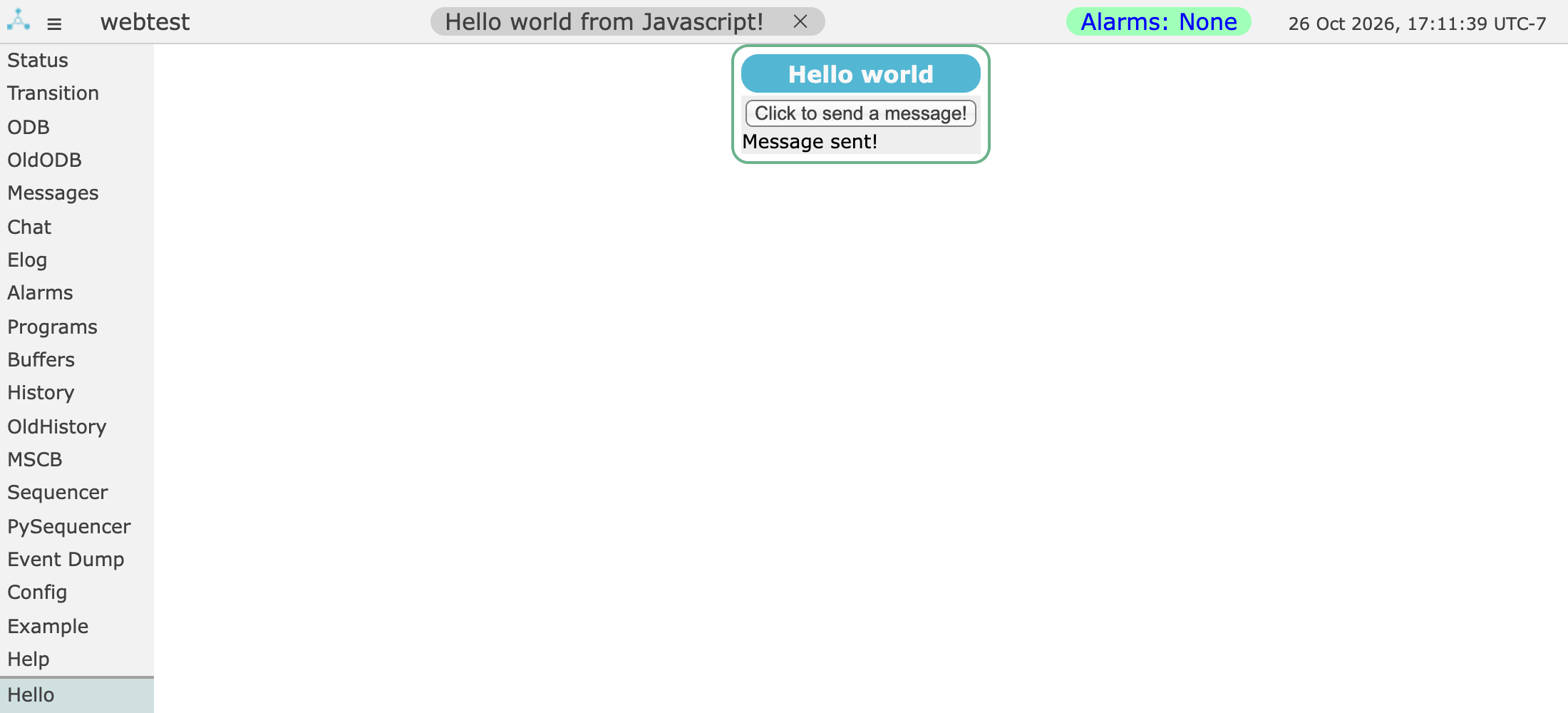 Reload the web interface, click
 Hello in the side menu, then click the button. The page shows "Message sent!", and the message appears on the Messages page. See Custom pages: overview for more ways to set up custom pages.
Next steps
Every feature has a "programming" page with examples, such as ODB: programming. The rest of this section covers long-running programs and communicating between programs.
The API section has the full reference for every function, starting with an overview of each language.