Alarms: overview
The alarm system allow users to be notified when something goes wrong and your experiment needs attention.
Types of alarm
- Evaluated - when a parameter in the ODB goes out of range (e.g. a current goes too high)
- Program not running - when a program crashes or isn't started
- Internal - code directly raises an alarm
- Periodic - e.g. a reminder to a shifter to perform some checks
Actions that can happen
Alarms are evaluated by every midas client - no special program needs to be running to use the alarm system. Once an alarm has been triggered, it does not get automatically reset - either the user or code needs to reset it. This is useful so that you are still aware of any temporary issues that occurred.
Do not use for safety-critical items!
Alarms are evaluated by midas programs during their periodic checks. If all your midas programs stop/crash for some reason, then nothing is checking whether alarm conditions have been met, and no actions will happen.
Midas alarms are designed to help reduce the amount of "deadtime" in an experiment (by ensuring conditions are suitable for taking high-quality data) and reducing the amount of "shifter fatigue" (by automating checks that might otherwise have to be done manually).
For safety-critical items, you should use a proper SCADA such as Epics.
Alarms and classes
Alarm configuration is split into Alarms and Classes. An alarm class defines what actions should be taken. The alarm itself defines the condition that should be checked and which Class it belongs to.
Default classes and alarms
Two default classes are defined - Alarm and Warning. The only difference between them is whether the banner on the midas status webpage has a red or yellow background.
Two default alarms are defined, but both are disabled by default. One is an example of an ODB evaluated alarm, and one is an example of a periodic alarm.
You are welcome to edit the existing alarms/classes or create your own. Most alarms are configured in the /Alarms section of the ODB, except for "Program not running" alarms, which are also defined in /Programs.
Web interfaces
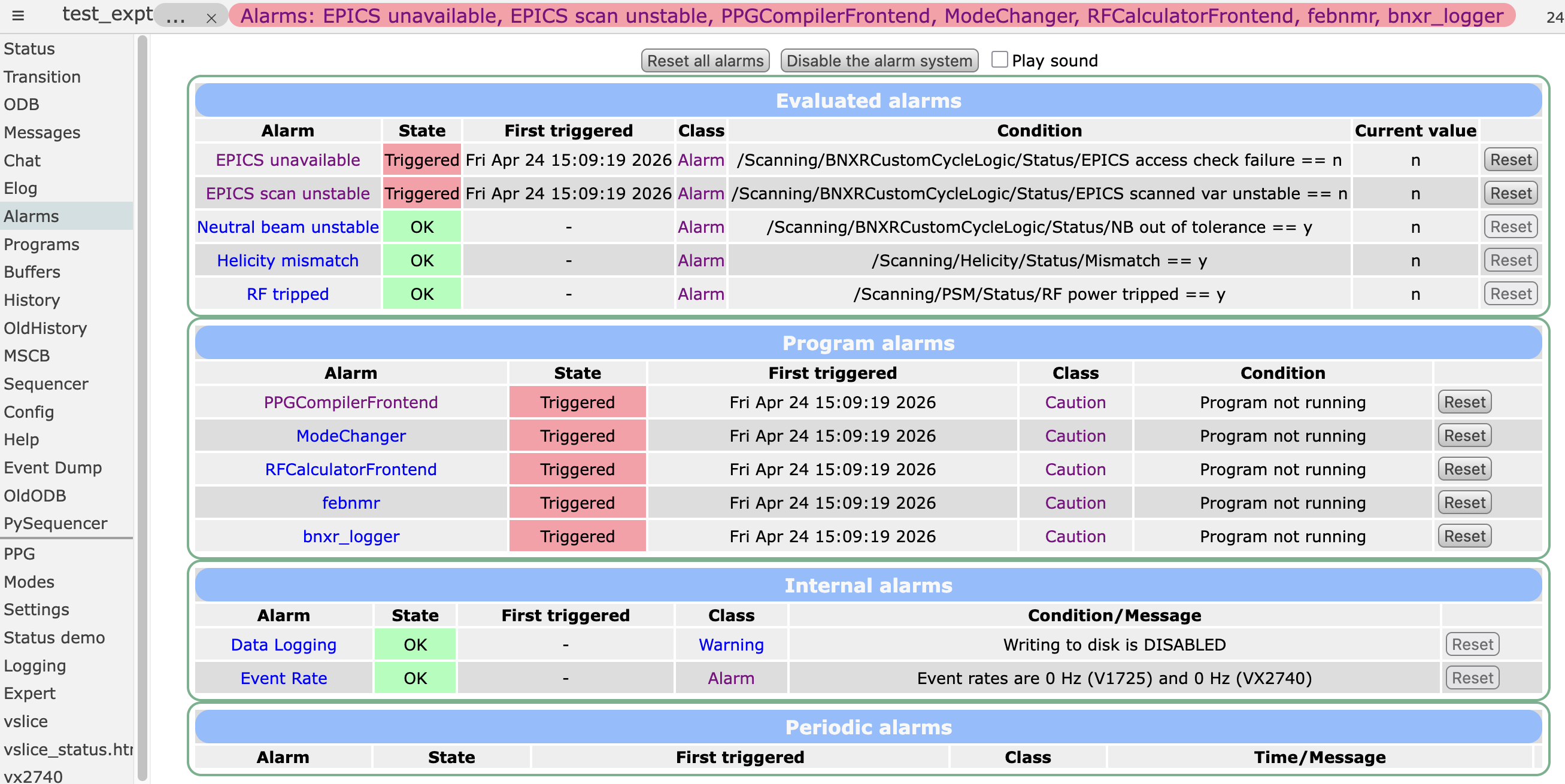 The
The Alarms webpage shows all the alarms that are currently defined, their current state, and allows you to reset any alarm that has been triggered. You can click on the alarm name to go to the ODB settings for that alarm, or click on the class name to go to the ODB settings for that class.
Enabling/disabling alarms
You can enable/disable specific alarms using the ODB keys /Alarms/Alarms/xxx/Active.
You can disable the entire alarm system using /Alarms/Alarm system active.