Shift scheduler
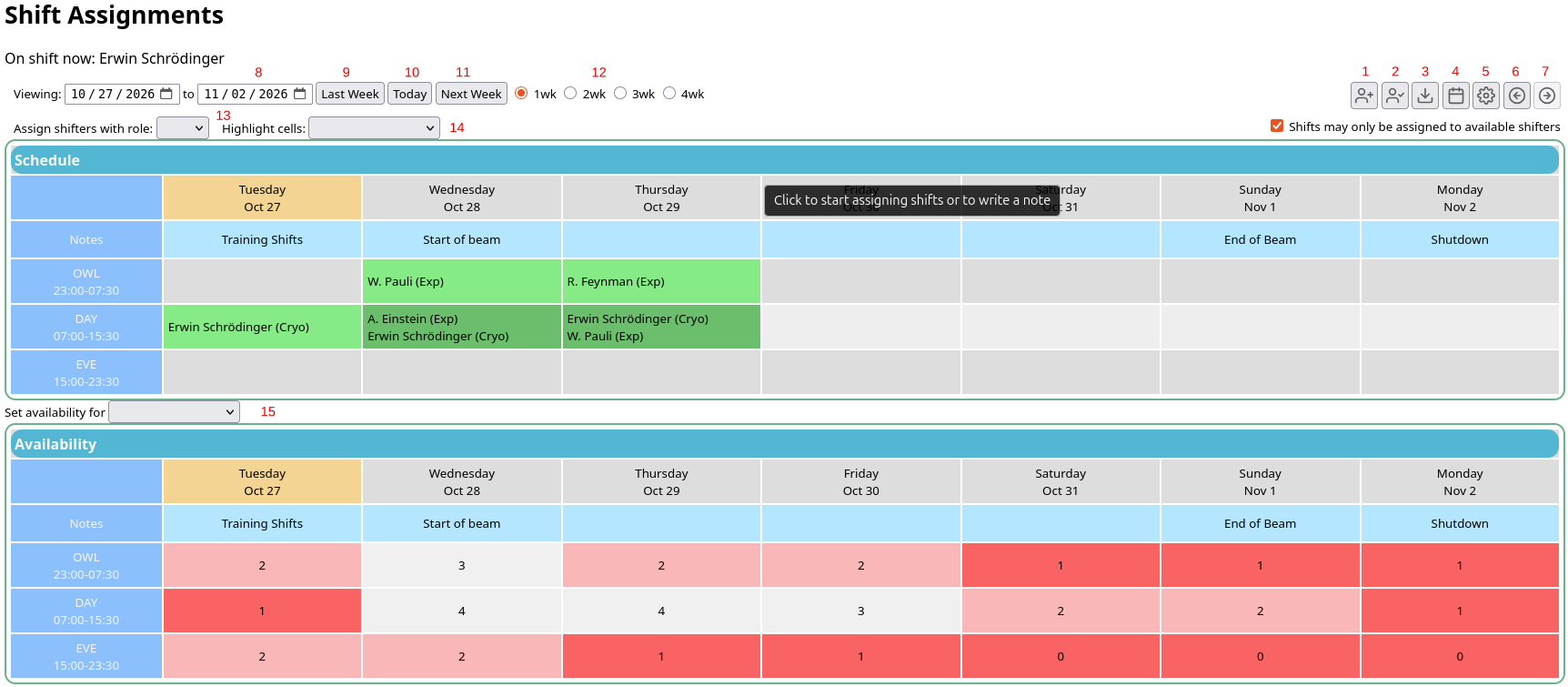 The shift scheduler is a calendar custom page and Python program for planning who is on shift. Shifters mark the shifts they're available for, and the shifts are then assigned to them.
It's included with midas (in $MIDASSYS/shiftschedule), but isn't set up by default. Its own setup script sets the proper ODB variables and directories, and makes the custom page. The Python program saves the data on the server.
Features
- Shifters mark their availability by clicking and dragging on a calendar
- Shifts are assigned from a dropdown menu, with roles for different jobs
- Several people can edit the schedule at the same time, with undo and redo
- Notes to indicate what's happening each day
- Statistics of the shifts assigned and available, and downloads of the schedule
- The names of the shifters currently on shift are kept in the ODB, for other programs to use (e.g. to phone them when an alarm is raised)
Setup
-
Check the prerequisites. The setup script needs
python3with thevenvmodule (on Debian and Ubuntu, this is thepython3-venvpackage). Internet access is needed to install the Python packages it uses. -
Run the setup script:
$MIDASSYS/shiftschedule/setup.bashWhat the setup script does
- The ODB directory
/Shiftsand its subdirectories and keys are created. If there are missing subdirectories or keys, they are re-added. If they already exist, they are skipped - Links for the custom page are created in the location pointed to by your
/Custom/PathODB key. If/Custom/Pathisn't set, the setup script sets it to$MIDASSYS/resources, inside the midas source tree, and midas then looks for all your custom pages there too. So set/Custom/Pathto your own directory first - Creates a Python virtual environment and installs dependencies
- Adds the Python program to the
Programspage, as a required program
- The ODB directory
-
Set up your shift definitions in the ODB, in
/Shifts/ShiftSetup. These are the shifts that make up each day, with their names and times. By default, three shifts are defined (OWL 23:00-07:30, DAY 07:00-15:30 and EVE 15:00-23:30), and two roles (ExpandCryo). - Check the settings in
/Shifts/Settings. For example, you can set a minimum time between one person's shifts, start the calendar on the most recent Sunday (instead of today), and choose the file format the schedule is saved in. - Start the Python program: click
Start shiftscheduleon theProgramspage. - Open the scheduler webpage using the
ShiftScheduleentry in the side menu. - Add your shifters. You need at least one shifter before you can do anything else.
Check for messages in shiftschedule.log
The Python program writes its messages to shiftschedule.log, in the same directory as the midas message log. This means you can read them on the Messages page, under the shiftschedule "facility" (see Messages: overview). Check them if the scheduler doesn't work as expected.
The scheduler page
The page has two calendars: Schedule (for assigning shifts) and Availability below it. The buttons referred to on this page are numbered in the screenshot.
Numbered buttons in the screenshot
- Add new shifter (must have a unique name)
- Edit existing shifter
- Download calendar data as a csv file
- Download calendar for the highlighted shifter as an ics file
- Go to settings ODB page
- Back / undo
- Forward / redo
- Set viewing start/end dates
- Move back one week
- Reset start to today
- Move forward one week
- Quick viewing range select buttons (can also set directly from range - see #8)
- Assign shift role dropdown
- Highlight shift from selected shifter dropdown
- Set / view availability for shifter dropdown
Colour meanings in the calendars
In the Schedule calendar:
| Colour | Meaning |
|---|---|
| Green | The shift has been assigned. The darker the green, the more shifters are assigned to that shift. |
| Grey | The shift hasn't been assigned |
| Purple | Shifts assigned to the shifter selected in Highlight cells (button 14) |
| Pink border | Shifts assigned with the role selected in Assign shifters with role (button 13) |
| Blue | Notes |
| Yellow | Today's date |
In the Availability calendar, the colours depend on whether a shifter has been selected with the Set availability for button (button 15). With no shifter selected, the calendar summarises the availability of all the shifters. With a shifter selected, it shows that shifter's availability:
| Colour | Shifter selected? | Meaning |
|---|---|---|
| Red | No | Shifts with few shifters available, compared with the other shifts shown. The darker the red, the fewer shifters are available. Each cell shows the number of shifters available |
| Light grey | No | Shifts with the most shifters available, compared with the other shifts shown |
| Green | Yes | The shifts they are available for |
| Grey | Yes | The shifts they aren't available for |
| Blue | Either | Notes |
| Yellow | Either | Today's date |
Managing shifters
Adding a shifter
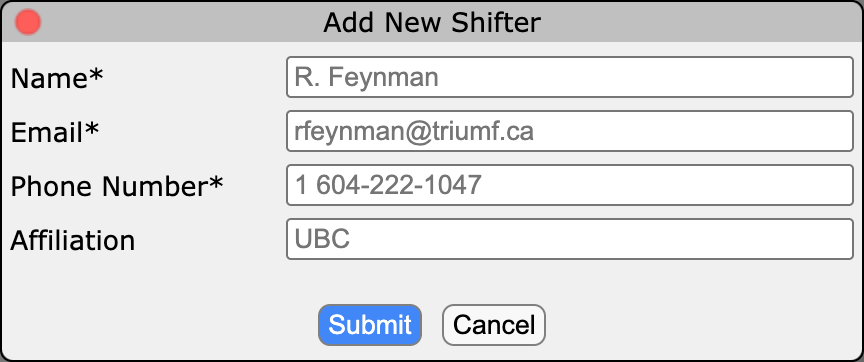 Click and enter the information. The name is used as the unique identifier in the database, so choose wisely.
Enter the phone number with its country code (e.g. 1 604-222-1047), so that it can be used for phone calls.
Editing a shifter
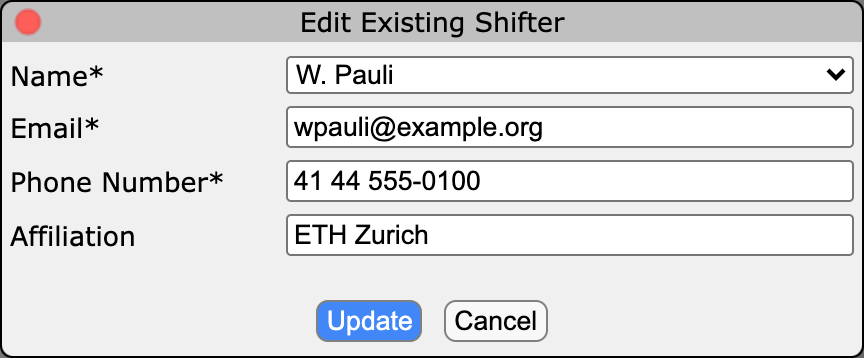 Click , select the shifter from the
 Name dropdown, change their details, then click Update. This is the same as editing their keys in the ODB, in /Shifts/ContactInfo/<name>.
Deleting a shifter
Delete their ODB key from /Shifts/ContactInfo. This will prevent them from showing up in the assignment or availability tables, but does not affect their database entry. If a shifter with the same name is added later, they will get the old shifter's assignments and availability back, because the database identifies shifters by name.
Planning shifts
Note: Anyone can edit the schedule
At this time, anyone with access to your midas instance can edit the schedule. Thus, all experimenters can edit the schedule. Please coordinate with your group to set expectations as to how the scheduler is to be used and who is expected to edit the schedule.
Marking availability
Select a name from the Set availability for dropdown menu (button 15), then click and drag to highlight shifts in green. The changes are saved automatically as soon as you release the mouse button. You can't accidentally make a shifter unavailable for a shift they're assigned to: a message asks you to unassign them first.
Showing availability for all shifters again
To get the red summary colours back, set availability for no shifter (first, blank option). Otherwise, the calendar will display the availability colors (green) for that one shifter only.
Assigning shifts
First choose a role using Assign shifters with role (button 13).
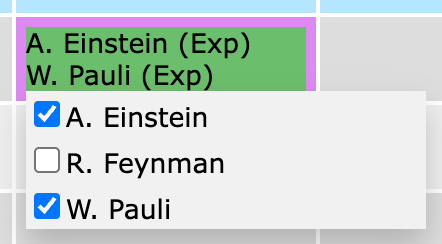 Then click on a cell in the
 Schedule calendar, and tick a name in the list. The assignment is saved automatically as soon as you tick the name. A shift can have several shifters, so you can tick more than one name. To unassign a shifter, untick their name.
You can assign any shifter to any shift unless the Shifts may only be assigned to available shifters checkbox is checked. In that case you will see a reduced list of shifters to pick from. If /Shifts/Settings/min_hours_between_shifts is set, shifters who would have shifts too close together are shown with a strikeout, and can't be selected.
No option to unassign a shifter?
Probably the Shifts may only be assigned to available shifters checkbox was selected when that shifter was assigned. Unselect the checkbox, unassign the shifter, then (optionally) restore the checkbox.
Adding notes
Click on the blue cell to write a note. Notes are synchronized between the two calendars.
Undo and redo
The and buttons undo and redo changes to the schedule, for up to 50 changes (see How the schedule is stored).
Using the shift data
Statistics
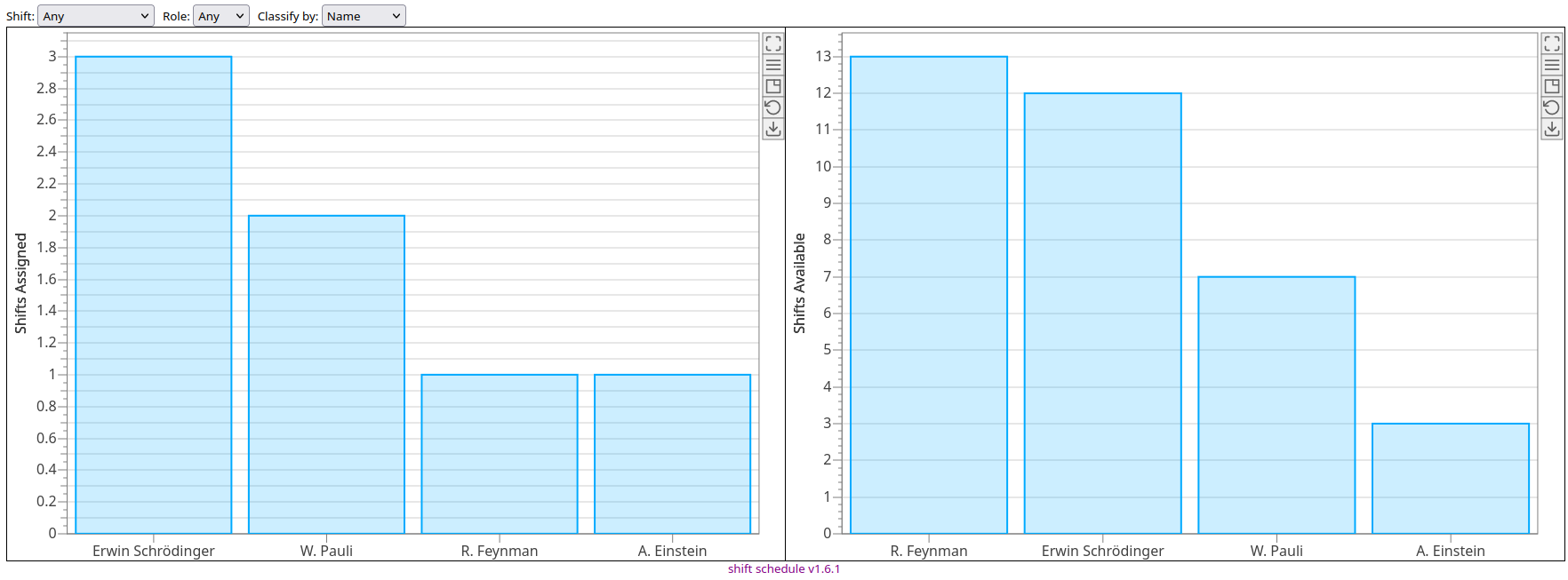 Below the calendars, two charts show how many shifts each shifter has been assigned, and how many shifts they are available for, in the date range being viewed. You can filter the counts by shift definition (e.g. to count only the OWL shifts) and by role. Use
 Classify by to group them by shifter or by institution.
To get the histogram data, use the download button () in each of the figures. You will be given the choice to download them as png or csv files.
Exporting the schedule
The button (top right) downloads both the shift assignment and shift availabilities as two separate csv files, limited to the displayed range. For the full range, copy the database files.
The button downloads the shifts of the shifter selected in Highlight cells as an ics file, which you can import into a calendar program.
Who is on shift now
Every minute, the Python program updates who is on shift in /Shifts/Variables:
onshift_names: the names of the shifters on shift nowonshift_shiftid: the ID of each one's shift definition (from/Shifts/ShiftSetup/shiftids)onshift_names_str: the same names as one string, e.g. for showing on a custom page (nobodyif no one is on shift)
Other programs can read these keys, and can also get the shifters' contact details from /Shifts/ContactInfo/<name>.
Phone calls when an alarm is raised
The alarmnotify plugin (see Community contributions) phones the shifters on shift when a midas alarm is raised, and reads out the alarm message. It uses the phone numbers entered in the shift scheduler (phone_call in /Shifts/ContactInfo/<name>). The calls are made through Bird (formerly MessageBird), which needs an account. See the plugin's README for how to set it up.
ODB structure
For all the keys, see /Shifts.
The settings and the shifters are saved in the ODB, in /Shifts.
The shift data itself (the assignments, availability and notes) isn't stored in the ODB. It's saved in files on the server (see Storing and backing up the schedule).
The ODB directory structure is as follows:
/Shifts/ShiftSetup: the shift definitions, which are needed to set up the schedule (the name, ID, start and stop times of each shift), and the roles/Shifts/Settings: general settings/Shifts/Variables: set by the shift scheduler, and should not be changed manually/Shifts/ContactInfo: shifter information (see Managing shifters)
Recovering deleted ODB keys
If part of /Shifts was deleted by accident, either:
- Restore the entire ODB from a backup
- Re-run the
$MIDASSYS/shiftschedule/setup.bashscript. This re-creates any missing keys with their default values, but doesn't change the keys that still exist. It can't bring back shifters deleted from/Shifts/ContactInfo, so add them again. If you use the same names, they get their assignments and availability back
Storing and backing up the schedule
The Python program saves the schedule in shiftschedule/data, in your custom page directory (/Custom/Path). The setup script makes shiftschedule in that directory a link to $MIDASSYS/shiftschedule, so the files actually end up in $MIDASSYS/shiftschedule/data. By default the data is in csv format (see /Shifts/Settings/database).
If you change /Custom/Path after running the setup script, run the setup script again, so that it creates the link in the new directory. Otherwise the Python program will create a new, empty schedule in the new /Custom/Path.
Re-installing midas may delete your shift data
The database directory $MIDASSYS/shiftschedule/data is inside the midas source tree, and isn't ignored by git. Reinstalling or re-cloning midas, or cleaning the source tree (e.g. with git clean), will delete the schedule. Back it up regularly. The shifters and settings are in the ODB, so they're saved with your ODB backups instead.
How the schedule is stored
Every change to the schedule (an assignment, an availability or a note) creates a new "state". The scheduler copies the files of the current state to a new directory, numbered one higher than the last, and saves the change there. So each numbered directory in $MIDASSYS/shiftschedule/data holds the complete schedule at one point in time, in three files: shift_database, avail_database and notes_database (ending in .csv or .parquet).
The scheduler keeps the last 50 states, which are what the undo and redo buttons step through. /Shifts/Variables/stateid is the number of the state being shown. This is normally the largest number, but is smaller after an undo. Making a change after an undo deletes the states with larger numbers.
Backing up the schedule
Copy the directory whose number matches /Shifts/Variables/stateid to your backup location of choice. To keep the undo history too, copy the whole data directory.
Example: backing up the current state with Python
This script uses the midas Python package to read the state being shown, and copies it to ~/shift_backups. It finds the data directory the same way as the scheduler, from /Custom/Path. Run it on the computer that runs the experiment, e.g. regularly from cron.
import datetime, os, shutil
import midas.client

# Read the state being shown, and where the scheduler keeps its data
client = midas.client.MidasClient("shift_backup")
stateid = client.odb_get("/Shifts/Variables/stateid")
data_dir = os.path.join(client.odb_get("/Custom/Path"), "shiftschedule", "data")
client.disconnect()

# Copy that state to e.g. ~/shift_backups/2026-10-29_state84
backup = os.path.expanduser(f"~/shift_backups/{datetime.date.today()}_state{stateid}")
shutil.copytree(os.path.join(data_dir, str(stateid)), backup)
print(f"Copied state {stateid} to {backup}")
Restoring the schedule from a backup
The Python program only reads the state directories when it starts, so stop it before restoring:
- Stop the Python program: click
Stop shiftscheduleon theProgramspage. - Copy the backed-up directory into
$MIDASSYS/shiftschedule/data, and give it a number one higher than the largest number there (or0if the directory is empty). If you backed up the wholedatadirectory, copy it back instead. - Set
/Shifts/Variables/stateidto the number of the state to show (the largest number). - Start the Python program again: click
Start shiftschedule.
Example: restoring a backed-up state with Python
This script does the four steps above for one backed-up state directory, e.g. one saved by the backup example. It uses the midas Python package to stop and start the Python program, which it starts with the Start command in /Programs/shiftschedule. Run it on the computer that runs the experiment:
python3 restore_shifts.py ~/shift_backups/2026-10-29_state84
import os, shutil, sys
import midas.client

# The backed-up state directory, e.g. ~/shift_backups/2026-10-29_state84
backup = os.path.expanduser(sys.argv[1])

client = midas.client.MidasClient("shift_restore")

# The Python program only reads the states when it starts, so stop it first
client.stop_client("shiftschedule")

# Copy the backup in as a new state, numbered one higher than the largest
data_dir = os.path.join(client.odb_get("/Custom/Path"), "shiftschedule", "data")
os.makedirs(data_dir, exist_ok=True)
states = [int(name) for name in os.listdir(data_dir) if name.isdigit()]
stateid = max(states) + 1 if states else 0
shutil.copytree(backup, os.path.join(data_dir, str(stateid)))

# Show the restored state, and start the Python program again
client.odb_set("/Shifts/Variables/stateid", stateid)
client.start_client("shiftschedule")
client.disconnect()
print(f"Restored {backup} as state {stateid}")