Custom pages: plots of your own data
This page covers showing plots of any data on custom pages, with mplot.js.
For how to create a custom page and add it to the web interface, see Custom pages: overview. For plots of the history, see Custom pages: history plots.
For every attribute and setting (including the optional ones not mentioned here), see the API reference for mplot.js.
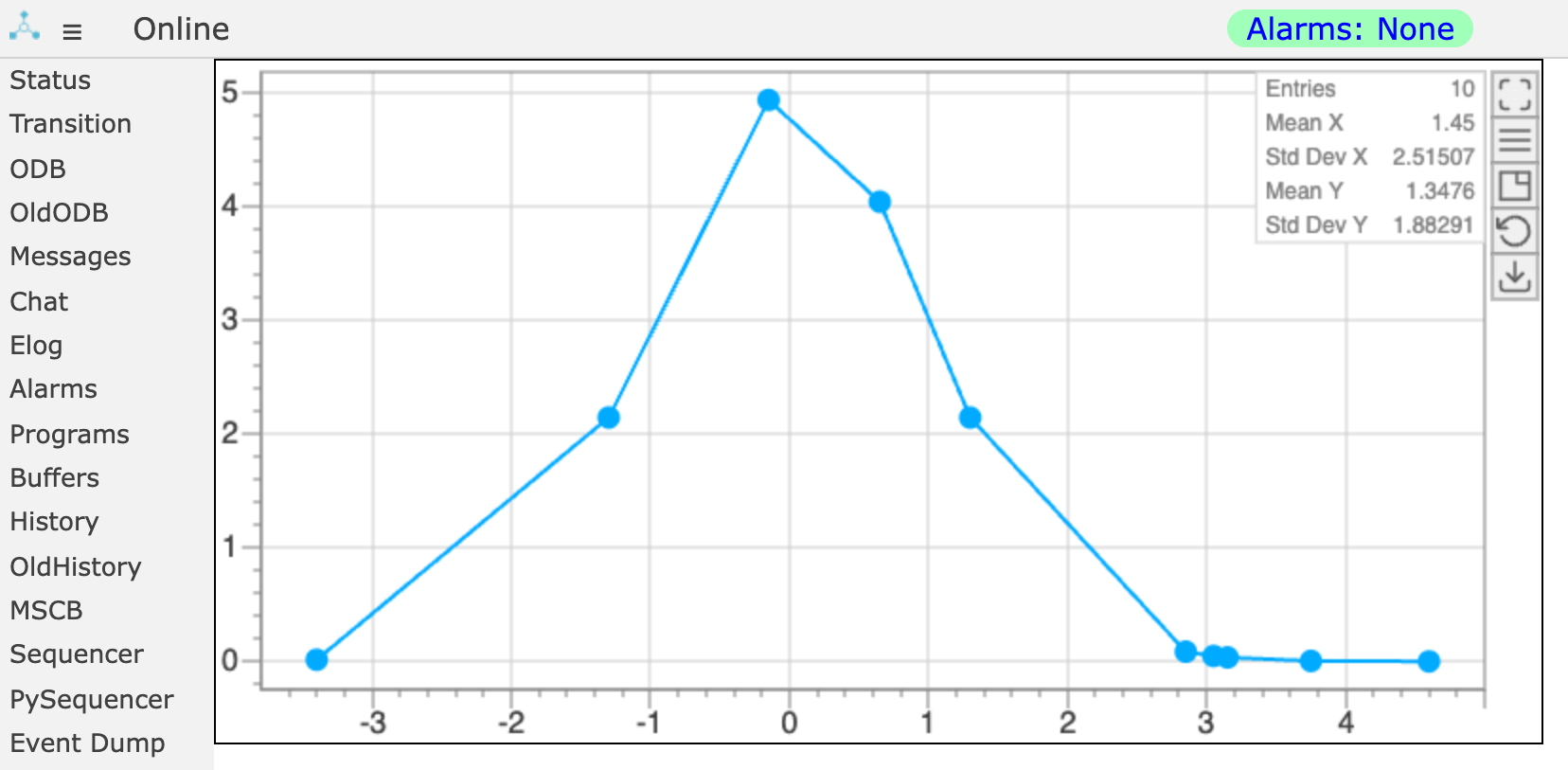
mplot.js draws scatter plots, histograms, bar charts, color maps and mathematical functions, from data in the ODB or calculated by your JavaScript. Include mplot.js, add one or more mplot elements, and call mplot_init() once the ODB data the plots need exists.
This page plots the ODB arrays /Path/To/Data/X and /Path/To/Data/Y, which must be numeric and the same length:
<!DOCTYPE html>
<html lang="en">
<head>
   <meta charset="UTF-8">
   <link rel="stylesheet" href="midas.css">
   <script src="controls.js"></script>
   <script src="midas.js"></script>
   <script src="mhttpd.js"></script>
   <script src="mplot.js"></script>
   <title>myPage</title>
</head>

<body class="mcss" onload="mhttpd_init('myPage'); mplot_init();">
   <div id="mheader"></div>
   <div id="msidenav"></div>

   <div id="mmain">
      <div class="mplot"
           style="width: 700px; height: 360px"
           data-odb-path="/Path/To/Data"
           data-x="X"
           data-y="Y">
      </div>
   </div>
</body>
</html>
data-odb-path is the ODB directory holding the data, and data-x and data-y are the names of the arrays in it. Plots read their data from the ODB once per second.
The kind of plot is chosen by its attributes, or set with data-type:
| Plot | Attributes | Description | |
|---|---|---|---|
 |
Scatter plot | data-x, data-y |
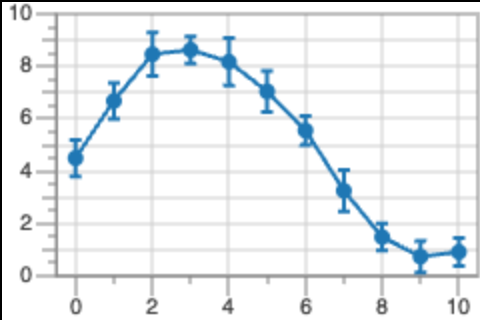
Points, with optional lines and X and Y error bars (data-x-error, data-y-error) |
 |
Histogram | data-h |
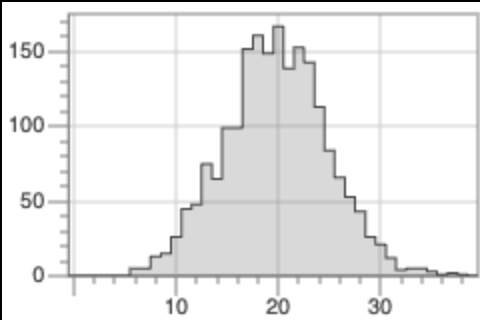
The array is the contents of the bins. Without data-x, the bins are centred at 0, 1, 2, ... |
 |
Bar chart | data-type="bar" |
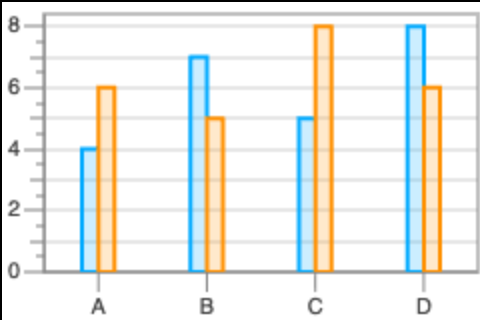
Groups of bars. An array of strings as the X data gives labelled categories |
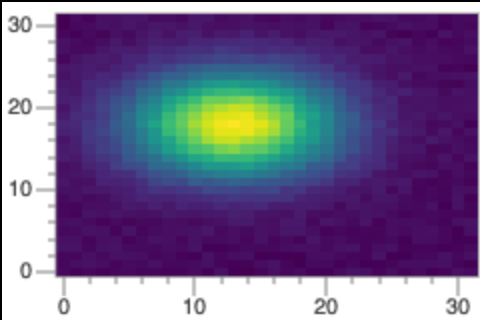 |
Color map | data-z, data-nx, data-ny |
A two-dimensional array, drawn as colors |
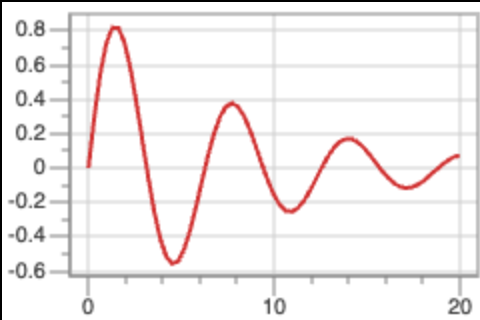 |
Function | data-function |
A mathematical expression |
See mplot.js for all the attributes, e.g. for titles, axis ranges, colors and line styles.
Interacting with mplot plots
The user can explore an mplot.js plot with the mouse and keyboard:
- Zoom: Click and drag along an axis to zoom in on part of it. Use the mouse scrollwheel over the plot to zoom both axes in or out, around the cursor position.
- Scroll: Click and drag on the plot to move it.
- Hover: Hover near a data point to see its values.
- Measure: Click two data points to measure the differences between them. See Measuring differences.
- Keys: Press
Rto reset the axes of every plot on the page, orEscapeto remove the measurement markers. - Buttons: The buttons on the right of each plot allow you to:
- Show the plot in a larger dialog (not for plots that are already in a dialog)
- Show or hide the legend
- Show or hide the statistics box (the button with a small box in its top right corner)
- Reset the axes (if you have zoomed or scrolled)
- Download the plot data as text (CSV file) or an image (PNG file). The values of function plots are included in the CSV file
To hide the buttons, or to stop the scrollwheel zooming the plot, see Buttons and mouse-wheel zoom.
Measuring differences
Use markers A and B to measure differences between points in an mplot.js plot. No extra setup is needed.
- Click near a point to set A and open the Measurement dialog.
- Move near another point to preview B and the differences, then click to set B.
- Drag either marker to adjust it. Once both are set, clicking another point starts a new measurement with a fresh A.
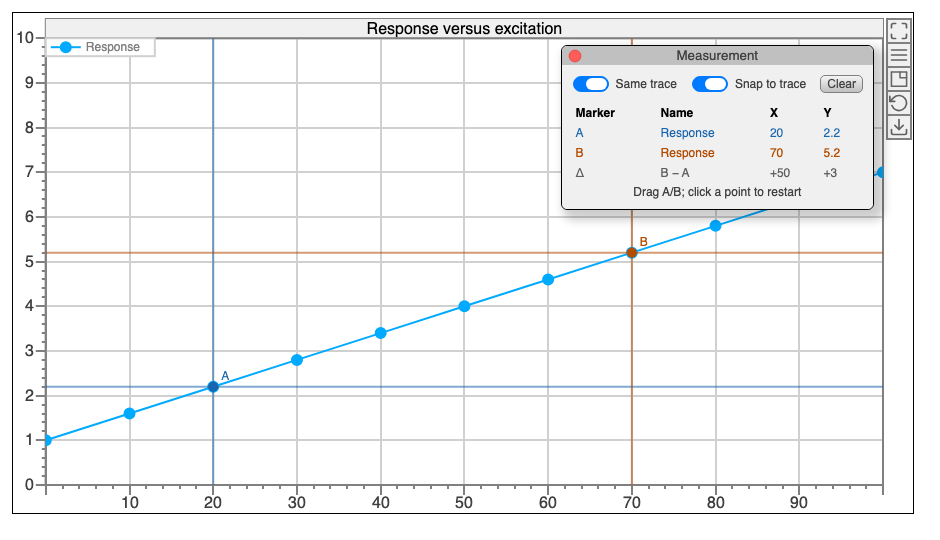
The table shows each marker's name, X and Y values, with text matching the marker's color. The gray Δ row shows B − A, including the sign. In this example, X increases by 50 and Y by 3. Color maps also show Z and its difference; a missing or null Z value has no numerical difference. For category bars, X shows the category name and its difference is shown as —.
For a date/time X axis, the X column becomes Time. Today's timestamps show only the time, using the configured display timezone; other days include the date. Time differences use integer seconds, such as 12s, 2m:03s, 12h:12m:23s or 12d:23h:12m:23s.
Both switches are enabled by default:
- Same trace restricts both markers to one dataset or function. Turn it off to compare different traces. Turning it back on keeps A and releases B if they are on different traces.
- Snap to trace places markers on data points, histogram bins, bar tops, color-map cell centers or the calculated function. Turn it off to place and drag markers freely at the cursor's X and Y coordinates. These markers are named Free position, and Same trace is disabled while snapping is off.
Drag the dialog by its title bar. Its close button hides the dialog while keeping the markers; a new measurement reopens it. Clear or Escape removes the markers and hides the dialog. Dragging elsewhere in the plot still pans it, and the usual zoom controls remain available. Custom mouse callbacks can still override the normal plot handling.
Defining the datasets
API reference: HTML attributes, graph settings, dataset settings
The settings of a plot, including its datasets, can be given in three ways. The rest of this page shows them in tabs:
- HTML attributes of the
mplotelement, as in the example above. They are the simplest, but don't cover every setting - JSON inside the
mplotelement, with the graph settings - A JavaScript object, passed to
new MPlotGraph()when your own JavaScript creates the plot
The names correspond, e.g. data-x-min is xAxis.min in JSON and JavaScript. An element can have both attributes and JSON. If they give the same setting, the attribute takes precedence.
A plot can show up to 16 datasets, and they can be of different types, e.g. a histogram with a function drawn over it. This plot shows measured points with error bars, and a simulation as a dashed line:
Attributes without a number set up the first dataset. For several datasets, use the numbered versions, from 1 to 16:
<div class="mplot"
     data-odb-path="/System/Tmp/Plot"
     data-title="Measurement and simulation"
     data-x1="X1"
     data-y1="Y1"
     data-x1-error="X1Error"
     data-y1-error="Y1Error"
     data-label1="Measurement"
     data-line1-color="#00aaff"
     data-x2="X2"
     data-y2="Y2"
     data-label2="Simulation"
     data-marker2-style="none"
     data-line2-color="#d03030"
     data-line2-style="dashed">
</div>
Each dataset is an entry in the plot array. Settings that you don't give keep their defaults:
<div class="mplot" style="width: 700px; height: 400px">
{
   "title": {"text": "Measurement and simulation"},
   "plot": [
      {
         "odbPath": "/System/Tmp/Plot",
         "xPath": "X1", "yPath": "Y1",
         "xErrorPath": "X1Error", "yErrorPath": "Y1Error",
         "label": "Measurement",
         "line": {"color": "#00aaff"}
      },
      {
         "odbPath": "/System/Tmp/Plot",
         "xPath": "X2", "yPath": "Y2",
         "label": "Simulation",
         "marker": {"draw": false},
         "line": {"color": "#d03030", "style": "dashed"}
      }
   ]
}
</div>
Call addPlot() once for each dataset. Settings that you don't give keep their defaults. The data come from your JavaScript (see Data calculated in JavaScript):
const graph = new MPlotGraph(document.getElementById("plotId"), {
   title: {text: "Measurement and simulation"}
});

graph.addPlot({
   label: "Measurement",
   xData: x1, yData: y1, xErrorData: x1Error, yErrorData: y1Error,
   line: {color: "#00aaff"}
});

graph.addPlot({
   label: "Simulation",
   xData: x2, yData: y2,
   marker: {draw: false},
   line: {color: "#d03030", style: "dashed"}
});
Data from the ODB
Plots that mplot_init() creates read their data from the ODB once per second, so they always show the current values. The data are arrays in an ODB directory. Arrays plotted against each other (e.g. X and Y) must be the same length.
data-odb-path is the ODB directory, and the other attributes are the names of the arrays in it:
<div class="mplot" style="width: 700px; height: 400px"
     data-odb-path="/Equipment/Scaler/Variables"
     data-x="Threshold"
     data-y="Rate"
     data-y-error="RateError">
</div>
Each dataset has its own odbPath, and the names of its arrays:
<div class="mplot" style="width: 700px; height: 400px">
{
   "plot": [
      {
         "odbPath": "/Equipment/Scaler/Variables",
         "xPath": "Threshold",
         "yPath": "Rate",
         "yErrorPath": "RateError"
      }
   ]
}
</div>
Plots created from JavaScript don't read the ODB, so read the arrays yourself with mjsonrpc_db_get_values(). Give them to the plot with setData(), and the errors with modifyPlot():
const graph = new MPlotGraph(document.getElementById("plotId"));
graph.addPlot({label: "Rate"});

function updateData() {
   mjsonrpc_db_get_values(["/Equipment/Scaler/Variables/Threshold",
                           "/Equipment/Scaler/Variables/Rate",
                           "/Equipment/Scaler/Variables/RateError"]).then(function(rpc) {
      const [threshold, rate, rateError] = rpc.result.data;
      graph.modifyPlot(0, {yErrorData: rateError});
      graph.setData(0, threshold, rate);
      graph.calcMinMax();
      graph.draw();
   }).catch(function(error) {
      mjsonrpc_error_alert(error);
   });
}

updateData();
setInterval(updateData, 1000);
These examples are scatter plots. The other plot types take their data from these settings:
| Plot type | HTML attributes | JSON | JavaScript |
|---|---|---|---|
| Histogram | data-h: the bin contents |
"type": "histogram", and the bin contents in yPath |
type: "histogram", then setData(index, undefined, binContents) |
| Bar chart | data-type="bar", data-x and data-y |
"type": "bar", xPath and yPath |
type: "bar", then setData(index, x, y) |
| Color map | data-z: the nx * ny values, with the size in data-nx and data-ny |
"type": "colormap", zPath, nx and ny |
type: "colormap", nx and ny, then setData(index, undefined, undefined, values) |
Data calculated in JavaScript
API reference: MPlotGraph, dataset settings
Plots can also show data calculated by your JavaScript. Create a plot with new MPlotGraph() (its settings are described in Configuring the layout), and add datasets to it:
const graph = new MPlotGraph(document.getElementById("plotId"), {
   title: {text: "Generated plot"}
});

graph.addPlot({
   label: "Measurement",
   xData: [0, 1, 2, 3, 4],
   yData: [10, 12, 12, 14, 11],
   line: {color: "blue"}
});
setData() replaces the data of a dataset, e.g. to update a histogram:
const histogram = new Array(100).fill(0);
const index = graph.addPlot({type: "histogram", label: "Counts", yData: histogram});

// Later, after changing the bin contents:
graph.setData(index, undefined, histogram);
A color map needs its size and an array of nx * ny values, in which X changes fastest:
const nx = 32, ny = 32;
const z = Array.from({length: nx * ny});
for (let y = 0; y < ny; y++) {
   for (let x = 0; x < nx; x++) {
      z[y * nx + x] = 10 * Math.exp(-(x - nx/2) ** 2 / nx) * Math.exp(-(y - ny/2) ** 2 / ny);
   }
}

graph.addPlot({type: "colormap", nx: nx, ny: ny, zData: z, zMin: 0, zMax: 10, showZScale: true});
If you change zData directly rather than with setData(), call graph.invalidateColormap(index) before redrawing.
A function can be added in the same way (see Mathematical functions).
The MPlot tab of resources/custom_example.html, and resources/mplot.html, have more examples.
Mathematical functions
API reference: function expressions
A function plot draws an expression of x. A function on its own needs a range for the X axis:
<div class="mplot"
     data-function="sin(x/10)*100"
     data-x-min="0"
     data-x-max="100"
     data-line-color="blue"
     data-line-style="dashed"
     data-line-width="2"
     data-label="Function">
</div>
<div class="mplot">
{
   "xAxis": {"min": 0, "max": 100},
   "plot": [
      {
         "type": "function",
         "function": "sin(x/10)*100",
         "label": "Function",
         "line": {"color": "blue", "style": "dashed", "width": 2}
      }
   ]
}
</div>
const graph = new MPlotGraph(document.getElementById("plotId"), {
   xAxis: {min: 0, max: 100}
});

graph.addPlot({
   type: "function",
   function: "sin(x/10)*100",
   label: "Function",
   line: {color: "blue", style: "dashed", width: 2}
});

graph.calcMinMax();
graph.draw();
The expression is calculated again each time the plot is drawn, so zooming in shows more detail rather than a magnified line. Where the result isn't a finite number, the line has a gap. Hovering over the function's label in the legend shows its expression.
Expressions are mathematics, not JavaScript
An expression can only use the operators and functions listed in mplot.js.
The expression can also be read from an ODB string, once per second, so changing the string changes the plot:
If data-function starts with /, it is the path of the ODB string:
<div class="mplot"
     data-function="/Equipment/Test/Settings/Function"
     data-x-min="0"
     data-x-max="100"
     data-line-color="#d03030">
</div>
functionPath is the path of the ODB string:
<div class="mplot">
{
   "xAxis": {"min": 0, "max": 100},
   "plot": [
      {
         "type": "function",
         "functionPath": "/Equipment/Test/Settings/Function",
         "line": {"color": "#d03030"}
      }
   ]
}
</div>
Plots created from JavaScript don't read the ODB, so read the string yourself, and give it to the plot with modifyPlot():
const graph = new MPlotGraph(document.getElementById("plotId"), {
   xAxis: {min: 0, max: 100}
});
graph.addPlot({type: "function", function: "0", line: {color: "#d03030"}});

function updateFunction() {
   mjsonrpc_db_get_values(["/Equipment/Test/Settings/Function"]).then(function(rpc) {
      graph.modifyPlot(0, {function: rpc.result.data[0]});
      graph.calcMinMax();
      graph.draw();
   }).catch(function(error) {
      mjsonrpc_error_alert(error);
   });
}

updateFunction();
setInterval(updateFunction, 1000);
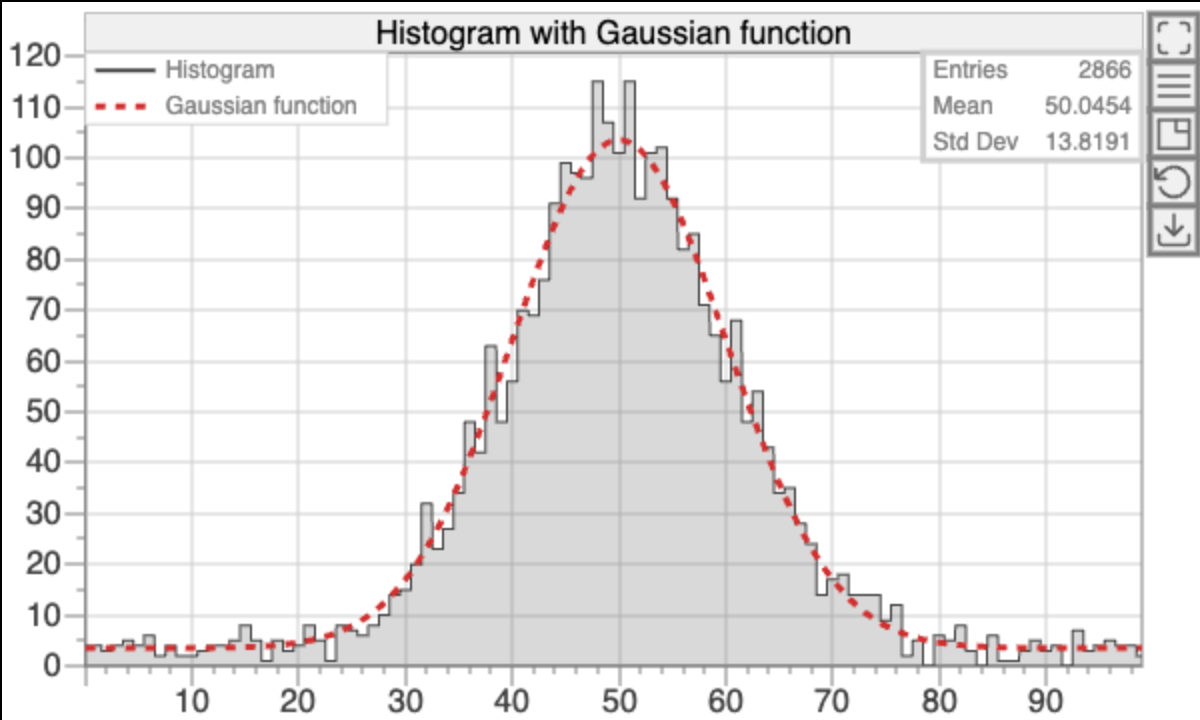 A function can be drawn on top of other data. Without its own X range, it uses the range of the other data. For example, this histogram from
 resources/custom_example.html has a Gaussian drawn over it:
<div class="mplot"
     data-odb-path="/System/Tmp/Plot"
     data-h="H"
     data-label="Histogram"
     data-function2="100*exp(-pow(x/10-5,2)/2)+3.5"
     data-label2="Gaussian function"
     data-line2-color="#d03030"
     data-line2-style="dashed"
     data-line2-width="3"
     data-title="Histogram with Gaussian function">
</div>
<div class="mplot">
{
   "title": {"text": "Histogram with Gaussian function"},
   "plot": [
      {
         "type": "histogram",
         "odbPath": "/System/Tmp/Plot",
         "yPath": "H",
         "label": "Histogram"
      },
      {
         "type": "function",
         "function": "100*exp(-pow(x/10-5,2)/2)+3.5",
         "label": "Gaussian function",
         "line": {"color": "#d03030", "style": "dashed", "width": 3}
      }
   ]
}
</div>
The histogram's bin contents are in the array h. After adding the datasets, call calcMinMax() and draw():
const graph = new MPlotGraph(document.getElementById("plotId"), {
   title: {text: "Histogram with Gaussian function"}
});

graph.addPlot({type: "histogram", label: "Histogram", yData: h});

graph.addPlot({
   type: "function",
   function: "100*exp(-pow(x/10-5,2)/2)+3.5",
   label: "Gaussian function",
   line: {color: "#d03030", style: "dashed", width: 3}
});

graph.calcMinMax();
graph.draw();
Configuring the layout
API reference: HTML attributes, graph settings, dataset settings
Each of these settings can be given as an HTML attribute, in JSON or in JavaScript (see Defining the datasets). In the tables below, settings without an attribute can only be given in JSON or JavaScript. See mplot.js for all the settings and their defaults.
The size of a plot is the CSS width and height of its element. To change the settings of a plot that already exists, see Modifying an existing plot.
Titles and axes
This plot has a title, axis titles, a fixed range for the X axis, and a logarithmic Y axis:
<div class="mplot" style="width: 700px; height: 400px"
     data-odb-path="/Equipment/Scaler/Variables" data-x="Threshold" data-y="Rate"
     data-title="Scaler rates"
     data-x-text="Threshold [mV]"
     data-x-min="0"
     data-x-max="100"
     data-y-text="Rate [Hz]"
     data-y-log="1">
</div>
<div class="mplot" style="width: 700px; height: 400px"
     data-odb-path="/Equipment/Scaler/Variables" data-x="Threshold" data-y="Rate">
{
   "title": {"text": "Scaler rates"},
   "xAxis": {"min": 0, "max": 100, "title": {"text": "Threshold [mV]"}},
   "yAxis": {"log": true, "title": {"text": "Rate [Hz]"}}
}
</div>
const graph = new MPlotGraph(document.getElementById("plotId"), {
   title: {text: "Scaler rates"},
   xAxis: {min: 0, max: 100, title: {text: "Threshold [mV]"}},
   yAxis: {log: true, title: {text: "Rate [Hz]"}}
});
The settings for titles and axes are:
| Setting | HTML attribute | JSON and JavaScript |
|---|---|---|
| Title | data-title |
title.text |
| Title colors and font size | title.color, title.backgroundColor, title.textSize |
|
| Axis titles | data-x-text, data-y-text |
xAxis.title.text, yAxis.title.text |
| Axis limits. Without them, each axis fits the data | data-x-min, data-x-max, data-y-min, data-y-max |
xAxis.min, xAxis.max, yAxis.min, yAxis.max |
Logarithmic axis (true or false) |
data-x-log, data-y-log |
xAxis.log, yAxis.log |
Type of X axis: numeric, datetime (use Unix times for X values) or category (automatically implied if X data is an array of strings) |
data-x-type |
xAxis.type |
Draw grid lines (true or false) |
xAxis.grid, yAxis.grid |
|
| Font sizes of the tick labels and axis titles | xAxis.textSize, xAxis.title.textSize, and the same for yAxis |
|
| Color scale of a color map: title, limits and log scale | data-z-text, data-z-min, data-z-max, data-z-log |
zAxis.title.text, zAxis.min, zAxis.max, zAxis.log |
Show the color scale of a color map (true or false) |
zAxis.show |
Legend, colors and markers
The legend lists the datasets that have a label. This dataset has a label, a red dashed line, and square markers:
<div class="mplot" style="width: 700px; height: 400px"
     data-odb-path="/Equipment/Scaler/Variables" data-x="Threshold" data-y="Rate"
     data-label="Channel 0"
     data-line-color="#d03030"
     data-line-style="dashed"
     data-marker-style="square">
</div>
<div class="mplot" style="width: 700px; height: 400px">
{
   "plot": [
      {
         "odbPath": "/Equipment/Scaler/Variables",
         "xPath": "Threshold",
         "yPath": "Rate",
         "label": "Channel 0",
         "marker": {"style": "square", "lineColor": "#d03030", "fillColor": "#d03030"},
         "line": {"color": "#d03030", "style": "dashed"}
      }
   ]
}
</div>
graph.addPlot({
   label: "Channel 0",
   xData: threshold,
   yData: rate,
   marker: {style: "square", lineColor: "#d03030", fillColor: "#d03030"},
   line: {color: "#d03030", style: "dashed"}
});
The settings for the legend, colors and markers are below. Apart from the legend and the bar width, they are settings of each dataset, so in JSON they go in the dataset's entry in the plot array. The attributes have numbered versions for several datasets, e.g. data-line2-color.
| Setting | HTML attribute | JSON and JavaScript |
|---|---|---|
| Label in the legend | data-label |
label |
Show the legend (true or false). The user can also hide it with the button |
legend.show |
|
| Colors and font size of the legend | legend.color, legend.backgroundColor, legend.textColor, legend.textSize |
|
| Line color | data-line-color |
line.color |
Line style: none, solid, dashed or dotted |
data-line-style |
line.style |
| Line width in pixels | data-line-width |
line.width |
Fill the area under the line (true or false) |
line.fill |
|
Marker shape, e.g. circle, square or cross (none hides the markers) |
data-marker-style |
marker.style |
| Marker colors (outline and fill) | marker.lineColor, marker.fillColor |
|
| Marker size | marker.size |
|
Opacity, from 0 (transparent) to 1 |
data-alpha |
alpha |
Width of each group of bars in a bar chart, from 0 to 1 |
data-bar-width |
barWidth |
If you don't give a dataset a color, it gets one automatically:
- Datasets take the colors of a sequence in turn: the first is blue (
#00AAFF), the second orange, the third pink, and so on - Histograms are dark gray, unless they are given with numbered attributes (
data-h1,data-h2, ...)
data-line-color only changes the color of the line. The markers keep their automatic color, unless you also set marker.lineColor and marker.fillColor in JSON or JavaScript.
Statistics box
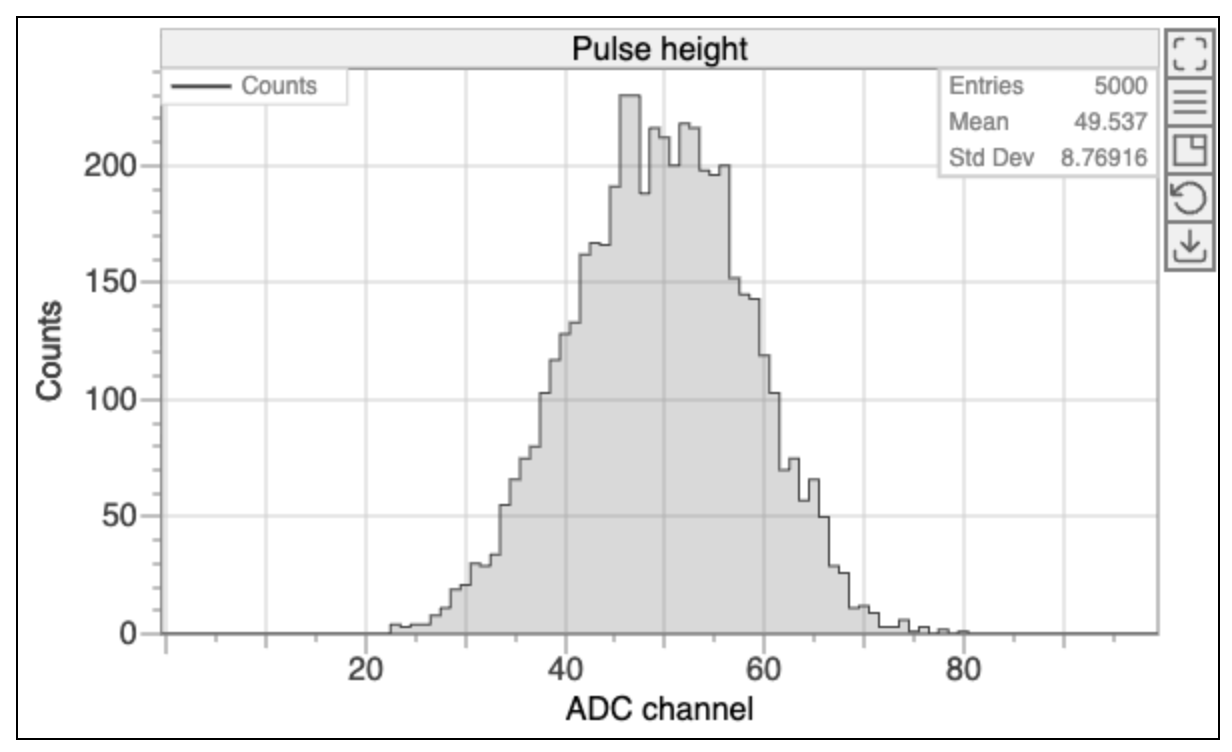 Plots show a box of statistics in their top right corner. The statistics are calculated from all the data of the first dataset, including any data outside the zoomed range. Function plots have no statistics.
The user can show or hide the box with the statistics button, in the column of buttons on the right of the plot. To hide it when the page loads:
<div class="mplot" data-odb-path="/Path/To/Data" data-h="H"
     data-stats="0"></div>
<div class="mplot" data-odb-path="/Path/To/Data" data-h="H">
{"stats": {"show": false}}
</div>
const graph = new MPlotGraph(document.getElementById("plotId"), {
   stats: {show: false}
});
The statistics depend on the kind of plot:
| Plot | Statistics |
|---|---|
| Scatter plot | Number of points, and the mean and standard deviation of X and of Y |
| Histogram | Number of entries (the sum of the bin contents), and the mean and standard deviation of the bin positions, weighted by the bin contents |
| Bar chart | Mean, minimum and maximum of the values |
| Color map | Number of entries (the sum of all values), and the mean and standard deviation in X and in Y |
Buttons and mouse-wheel zoom
The buttons on the right of a plot, and zooming with the mouse wheel, are described in Interacting with mplot plots. You can turn either of them off, e.g. to hide the buttons of a small plot, or to stop the mouse wheel zooming a plot on a long page that the user scrolls through. These settings can't be given as attributes:
<div class="mplot" data-odb-path="/Path/To/Data" data-x="X" data-y="Y">
{"showMenuButtons": false, "mouseWheelZoom": false}
</div>
const graph = new MPlotGraph(document.getElementById("plotId"), {
   showMenuButtons: false,
   mouseWheelZoom: false
});
Modifying an existing plot
API reference: MPlotGraph, graph settings, dataset settings
Your JavaScript can change the settings of a plot that already exists, e.g. to switch between linear and log axes. Each mplot element has its plot object in .mpg. The object's param holds the settings, with the same names as in JSON, and param.plot has one entry for each dataset. After changing them, call redraw():
const graph = document.getElementById("rates").mpg;
graph.param.title.text = "Scaler rates";
graph.param.yAxis.title.text = "Rate [Hz]";
graph.param.plot[0].line.color = "red";
graph.redraw();
When you change an axis (its range, or log scale), also call calcMinMax(), so the axis limits are calculated again. This button switches the Y axis between linear and log scale:
<script>
function toggleLog() {
   const graph = document.getElementById("rates").mpg;
   graph.param.yAxis.log = !graph.param.yAxis.log;
   graph.calcMinMax();
   graph.redraw();
}
</script>

<div class="mplot" id="rates" style="width: 700px; height: 400px"
     data-odb-path="/Equipment/Scaler/Variables" data-x="Threshold" data-y="Rate"></div>
<button class="mbutton" onclick="toggleLog()">Log scale</button>
modifyPlot() changes several settings of a dataset at once. Give it the dataset's index (or its label), and an object with the same structure as the dataset's JSON settings:
graph.modifyPlot(0, {
   label: "High threshold",
   marker: {style: "cross"},
   line: {draw: false}
});
graph.redraw();
Adding your own drawing, mouse handling and tooltips
API reference: callbacks
A plot can call three JavaScript functions of your own. Each is given by the name of a global function:
- The overlay function is called after the plot has been drawn, to draw extra text or graphics
- The event function is called for mouse events, e.g. to do something when the user double-clicks a cell of a color map. Returning
truestops the plot's normal handling, such as zooming - The tooltip function returns the text shown when hovering over a point
function overlay(plot, ctx) {
   ctx.fillStyle = "red";
   plot.drawTextBox(ctx, "First overlay line\nSecond overlay line", 120, 150);
}

function mevent(event, plot, ix, iy) {
   if (event.type === "dblclick") {
      console.log(ix + " / " + iy); // ix and iy are the cell of a color map
      return true;
   }
   return false;
}

function usertooltip(plotGraph) {
   let text = "X=" + plotGraph.marker.x + " Y=" + plotGraph.marker.y;
   if (plotGraph.param.plot[0].type === "colormap") {
      text += " Z=" + plotGraph.marker.z;
   }
   return text;
}
<div class="mplot" data-odb-path="/Path/To/Data" data-x="X" data-y="Y"
     data-overlay="overlay" data-event="mevent" data-tooltip="usertooltip"></div>
There is no JSON setting for the tooltip function, so it is still given as an attribute:
<div class="mplot" data-odb-path="/Path/To/Data" data-x="X" data-y="Y"
     data-tooltip="usertooltip">
{"overlay": "overlay", "event": "mevent"}
</div>
There is no setting for the tooltip function, so set the element's data-tooltip attribute:
const element = document.getElementById("plotId");
element.dataset.tooltip = "usertooltip";

const graph = new MPlotGraph(element, {overlay: "overlay", event: "mevent"});