Custom pages: ODB widgets
This page covers the widgets that show and edit live ODB values on custom pages.
For how to create a custom page and add it to the web interface, see Custom pages: overview.
For every attribute of every widget (including the optional ones not mentioned here), see the API reference for mhttpd.js.
The modb* widgets are ordinary HTML elements with a special class. mhttpd.js finds them, reads their ODB values, and keeps them up to date, so you can build a live display without writing any JavaScript.
| Widget | Purpose | |
|---|---|---|
 |
modbvalue |
Show a value, optionally letting the user edit it |
modb |
Read a value or directory for your own JavaScript, without showing it | |
 |
modbbox |
A box that shows one of two colors |
 |
modbbutton |
A button that writes a fixed value |
  |
modbcheckbox, modbswitch |
Show and change a flag |
 |
modbselect |
Choose a value from a list |
  |
modbhbar, modbvbar |
Horizontal and vertical bars |
 |
mhaxis, mvaxis |
Axes to draw next to bars |
 |
modbthermo |
A thermometer |
  |
modbgauge, modbgauge2 |
Gauges |
 |
modbtile |
One or more values in a box with a colored status bar |
The screenshots on this page were made from the example code next to them. All the examples use the ODB array /Equipment/Environment/Variables/Inputs (of type DOUBLE), with these values:
| Element | Meaning | Value |
|---|---|---|
Inputs[0] |
Inlet temperature | 20 °C |
Inputs[1] |
Temperature | 25 °C |
Inputs[2] |
Pressure | 1562 mbar |
Inputs[3] |
Cooling enabled | 1 |
Inputs[4] |
Temperature setpoint | 25 °C |
Inputs[5] |
High temperature | 32 °C |
How widgets work
API reference: mhttpd_init(), common attributes, format strings
Widgets work on any page that includes mhttpd.js and calls mhttpd_init(); see Custom pages: overview. Use a <div> for a widget on its own line, a <span> for one inside a line of text, and the matching form elements for buttons, checkboxes and drop-down lists.
mhttpd_init() refreshes all the widgets once per second by default. It reads all their values in one request, rather than one request per widget, so pages with many widgets stay fast. Widgets added to the page later are picked up on the next refresh. Prefer widgets to your own polling loop: a polling loop adds requests, and has to handle communication errors itself.
Most widgets accept data-formula, a JavaScript expression applied to the ODB value (as x) before it is shown, and data-format, which sets how the value is formatted. Midas uses its own format codes: one digit after the decimal point is %f1, not %.1f. See format strings for the full list.
Formulas are JavaScript
Formulas, color expressions, dynamic paths and callbacks are JavaScript that runs with the page's access to midas. Only use them on pages written by people you trust.
Showing values
Showing a value
API reference: modbvalue
<div class="modbvalue" data-odb-path="/Equipment/Environment/Variables/Inputs[1]"
     data-format="%f1 °C"></div>
<div class="modbvalue" data-odb-path="/Equipment/Environment/Variables/Inputs[2]"
     data-format="%f0 mbar"></div>
The element's contents are replaced by the current value, and updated automatically.
To let the user change the value, add data-odb-editable="1". Clicking the value then opens an editor, and pressing Enter writes the new value to the ODB:

<div class="modbvalue" data-odb-path="/Equipment/Environment/Variables/Inputs[1]"
     data-odb-editable="1" data-format="%f1 °C" data-size="8"
     data-confirm="Change the temperature?"></div>
A data-formula only changes how the value is shown: the value the user types is written to the ODB as it is. Take care when combining a formula with editing.
Checking edits before they're written
API reference: modbvalue (data-validate and data-confirm)
data-confirm asks the user to confirm an edit before it is written. Cancelling leaves the ODB unchanged:
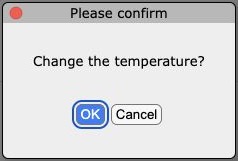
data-validate names a function that checks an edit first. It is passed the new value and the widget, and returns false to reject the edit:
<div class="modbvalue" data-odb-path="/Equipment/Environment/Variables/Inputs[1]"
     data-odb-editable="1" data-validate="validateTemperature"
     data-confirm="Change the temperature?"></div>
<script>
   function validateTemperature(value, element) {
      if (!Number.isFinite(Number(value)) || Number(value) > 50) {
         dlgAlert('Enter a temperature no greater than 50 °C.');
         return false;
      }
      return true;
   }
</script>
A validator can also change the value in the editor before returning true. The editor can contain a link followed by an input field, so find the input rather than relying on its position:
const input = element.querySelector('input');
if (input && Number(input.value) > 50) {
   input.value = '50';
}
Using a value in JavaScript
API reference: modb
Use modb when you want a value in your own JavaScript rather than on the page:
<div class="modb" data-odb-path="/Equipment/Environment/Variables/Inputs[1]"
     onchange="console.log('Temperature:', this.value)"></div>
The latest value is in this.value. If the path is an ODB directory, this.value is an object holding the directory. Its keys are in lower case, so the Inputs array becomes this.value.inputs:
<div class="modb" data-odb-path="/Equipment/Environment/Variables"
     onchange="console.log(this.value.inputs[1], this.value.inputs[2])"></div>
See callbacks for when onload and onchange run.
Two-color indicators
API reference: modbbox
<div class="modbbox" data-odb-path="/Equipment/Environment/Variables/Inputs[3]"
     data-formula="x > 0" data-color="lightgreen" data-background-color="red"
     style="width: 30px; height: 30px;"></div>
The box uses data-color when the value (after the formula) is true or positive, and data-background-color otherwise. The formula can compare the value (x > 10) or test a bit (x & 1). Unlike tiles, the colors are plain CSS colors, not JavaScript.
Controls that change the ODB
These widgets write to the ODB when the user uses them. To write values from your own JavaScript instead, use modbset() or mjsonrpc_db_paste() from midas.js.
Buttons
API reference: modbbutton
<button class="modbbutton mbutton" data-odb-path="/Equipment/Environment/Variables/Inputs[1]"
        data-odb-value="25">Set temperature to 25 °C</button>
The two classes do different jobs: modbbutton makes the button write to the ODB, and mbutton (from midas.css) only gives it the standard midas button style. mbutton can be used on any button, and modbbutton works without it (as a plain browser button).
Clicking the button writes data-odb-value. A data-validate function is passed the button (not a value, unlike the other widgets), and can cancel the write by returning false.
Checkboxes and switches
API reference: modbcheckbox and modbswitch
<input type="checkbox" class="modbcheckbox" data-odb-path="/Equipment/Environment/Variables/Inputs[3]">
<input type="checkbox" class="modbswitch" data-odb-path="/Equipment/Environment/Variables/Inputs[3]"
       aria-label="Cooling enabled">
Both show a flag and write 1 or 0 when clicked; this also works for integer flags. modbswitch looks like a sliding switch. As it's a normal checkbox, it can also be used with the keyboard. Give a switch without a visible <label> an aria-label, as above, so screen readers can describe it.
Drop-down lists
API reference: modbselect
<select class="modbselect" data-odb-path="/Equipment/Environment/Variables/Inputs[4]">
   <option value="20">20 °C</option>
   <option value="25">25 °C</option>
   <option value="30">30 °C</option>
</select>
Selecting an option writes its value, not the text the user sees. For a key that isn't an array element, data-auto-options="1" fills the list from an ODB array called Options <key name> next to the key, as the ODB browser does. The options only limit what the user can choose on this page: other programs can still write other values.
Bars, thermometers and gauges
These widgets show a number on a scale from data-min-value to data-max-value. Give them an explicit size in pixels. They can also show a value calculated by your JavaScript; see values that aren't in the ODB.
Bars
API reference: modbhbar and modbvbar
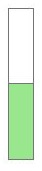
<div class="modbhbar" style="width: 200px; height: 18px; color: lightgreen;"
     data-odb-path="/Equipment/Environment/Variables/Inputs[1]" data-min-value="0" data-max-value="50"
     data-print-value="1" data-format="%f1"></div>
<div class="modbvbar" style="width: 24px; height: 150px; color: lightgreen;"
     data-odb-path="/Equipment/Environment/Variables/Inputs[1]" data-min-value="0" data-max-value="50"
     data-print-value="1"></div>
The filled part of the bar uses the CSS color, and the rest uses background-color. data-log="1" gives a logarithmic scale; use a minimum greater than zero.
Axes for bars
API reference: mhaxis and mvaxis
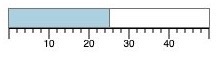
<div class="modbhbar" style="width: 200px; height: 18px; color: lightblue;"
     data-odb-path="/Equipment/Environment/Variables/Inputs[1]" data-min-value="0" data-max-value="50"></div>
<div class="mhaxis" style="width: 200px; height: 22px; vertical-align: top;"
     data-min-value="0" data-max-value="50"></div>
mhaxis draws a horizontal axis and mvaxis a vertical one. They don't read the ODB, so give them the same range (and data-log setting) as their bar, and the same width (for mhaxis) or height (for mvaxis). Leave space for the labels, and use vertical-align: top for a horizontal axis below its bar.
Thermometers
API reference: modbthermo
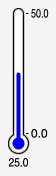
<div class="modbthermo" style="width: 40px; height: 160px;"
     data-odb-path="/Equipment/Environment/Variables/Inputs[1]" data-min-value="0" data-max-value="50"
     data-color="blue" data-background-color="white"
     data-print-value="1" data-scale="1" data-format="%f1"></div>
data-scale="1" shows the minimum and maximum, and data-print-value="1" shows the value below the thermometer.
Gauges
API reference: modbgauge, modbgauge2
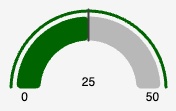
<div class="modbgauge" style="width: 160px; height: 95px;"
     data-odb-path="/Equipment/Environment/Variables/Inputs[1]" data-min-value="0" data-max-value="50"
     data-color="darkgreen" data-print-value="1" data-scale="1"></div>
A modbgauge fits best with a height of about half its width, plus 15 pixels if the scale is shown.
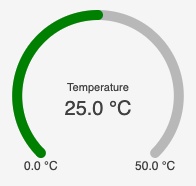
<div class="modbgauge2" style="width: 180px; height: 170px;"
     data-odb-path="/Equipment/Environment/Variables/Inputs[1]" data-min-value="0" data-max-value="50"
     data-title="Temperature" data-print-value="1" data-scale="1"
     data-format="%f1 °C" data-line-width="10"
     data-color="[[0, 'green'], [30, 'orange'], [40, 'red']]"></div>
modbgauge2 draws a 270-degree arc with rounded ends, with an optional title in the middle.
Colored segments
API reference: gauge colors
To show which values are normal and which need attention, data-color can be a list of value/color pairs instead of a single color. In the modbgauge2 example above, the gauge is green from 0, orange from 30 and red from 40:
data-color="[[0, 'green'], [30, 'orange'], [40, 'red']]"
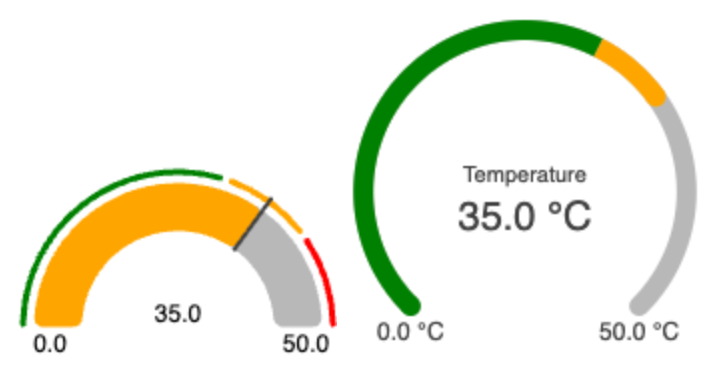 Each color is used from its value up to the next value, and the last color up to
 data-max-value. List the pairs in ascending order of value, and start the first one at data-min-value.
The two gauges use the colors differently, as in the screenshot of both gauges at 35:
modbgaugedraws the segments as a thin band around the outside of the gauge, so the ranges are always visible. The filled part takes the color of the segment the value is in, e.g. all orange at 35modbgauge2colors each part of the filled arc by its segment, e.g. green up to 30 and orange from 30 to 35
Tiles
API reference: modbtile
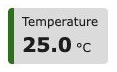
A modbtile shows one or more values in a grey box, with an optional label and a colored status bar on its left. The bar's color can change with the values, e.g. turning red when a value is too high.
<div class="modbtile" data-label="Temperature"
     data-odb-path="/Equipment/Environment/Variables/Inputs[1]"
     data-format="%f1" data-unit="°C"
     data-color="value > 25 ? 'red' : 'green'"></div>
Leave out data-label to remove the label and its space.
Several values in one tile
API reference: modbtile, modbvalue (data-label and data-unit)
To show several values, put modbvalue elements inside the tile instead of setting data-odb-path on it. All the values share the box and the status bar:
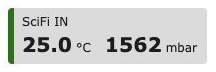
<div class="modbtile" data-label="SciFi IN"
     data-color="values[0] > 25 || values[1] < 1000 ? 'red' : 'green'">
   <span class="modbvalue"
         data-odb-path="/Equipment/Environment/Variables/Inputs[1]"
         data-format="%f1" data-unit="°C"></span>
   <span class="modbvalue"
         data-odb-path="/Equipment/Environment/Variables/Inputs[2]"
         data-format="%f0" data-unit="mbar"></span>
</div>
Each value can have its own data-label, unit, format, formula, editing and callbacks. The values are placed side by side (wrapping if needed); data-layout="vertical" stacks them instead:
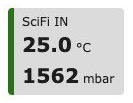
<div class="modbtile" data-label="SciFi IN" data-layout="vertical"
     data-color="values[0] > 25 || values[1] < 1000 ? 'red' : 'green'">
   <span class="modbvalue"
         data-odb-path="/Equipment/Environment/Variables/Inputs[1]"
         data-format="%f1" data-unit="°C"></span>
   <span class="modbvalue"
         data-odb-path="/Equipment/Environment/Variables/Inputs[2]"
         data-format="%f0" data-unit="mbar"></span>
</div>
Set the CSS width of the tiles if you want them all the same width. Tiles can't be put inside other tiles.
Status bar colors
API reference: tile expressions
data-color is a JavaScript expression that returns a CSS color. It can use value (the first value) and values (all of them), and runs after all the tile's values have been updated:
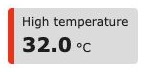
<div class="modbtile" data-label="High temperature"
     data-odb-path="/Equipment/Environment/Variables/Inputs[5]"
     data-format="%f1" data-unit="°C"
     data-color="value > 25 ? 'red' : 'green'"></div>
Some common expressions:
| Status bar | Attribute |
|---|---|
| Always blue | data-color="'steelblue'" |
| Red above 25 | data-color="value > 25 ? 'red' : 'green'" |
| Red outside a range | data-color="value < 10 \|\| value > 25 ? 'red' : 'green'" |
| Warning and alarm levels | data-color="value > 30 ? 'red' : value > 25 ? 'orange' : 'green'" |
| A flag | data-color="value ? 'green' : 'red'" |
The color can also depend on an ODB value that isn't shown, set with data-status-path and used as status:
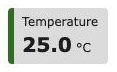
<div class="modbtile" data-label="Temperature"
     data-odb-path="/Equipment/Environment/Variables/Inputs[1]"
     data-format="%f1" data-unit="°C"
     data-status-path="/Equipment/Environment/Variables/Inputs[3]"
     data-color="status === 1 ? 'green' : 'orange'"></div>
The bar is grey while the page is loading, and if there is no data-color. If a value can't be read (or isn't a finite number), the tile shows —, with an explanation when you hover over it, and the bar turns grey until the value is valid again. A mistake in the color expression also leaves the bar grey; the error message is in the tile's data-color-error attribute.
Note
Tile colors are only shown on the page. Use alarms if you need to be notified when a value is out of range.
Blinking
API reference: tile expressions
data-blinking is an expression, using the same variables as data-color, that makes the status bar pulse while it is true:
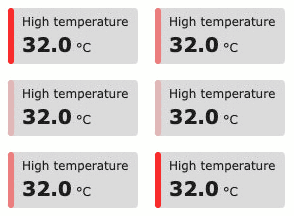
<div class="modbtile" data-label="High temperature"
     data-odb-path="/Equipment/Environment/Variables/Inputs[5]"
     data-format="%f1" data-unit="°C"
     data-color="value > 25 ? 'red' : 'green'"
     data-blinking="value > 25"></div>
Only the bar pulses, about once a second; the label and values stay steady. If the browser is set to reduce motion, the bar doesn't pulse. A mistake in the expression stops that tile blinking, and the error message is in its data-blinking-error attribute.
Fonts
API reference: tile CSS classes
The label and unit are 12 pixels high, and values are bold and 20 pixels high. To change them for some tiles only, add your own class to those tiles:
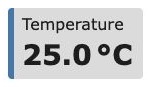
<style>
   .modbtile.tile-large .modbtile-label,
   .modbtile.tile-large .modbtile-value-label {
      font-size: 16px;
   }
   .modbtile.tile-large .modbtile-item > .modbvalue,
   .modbtile.tile-large .modbtile-unit {
      font-size: 28px;
      font-weight: bold;
   }
</style>
<div class="modbtile tile-large" data-label="Temperature"
     data-odb-path="/Equipment/Environment/Variables/Inputs[1]"
     data-format="%f1" data-unit="°C" data-color="'steelblue'"></div>
To make the unit look the same as the value, set both its size and its weight:
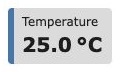
<style>
   .modbtile.tile-equal-unit .modbtile-item > .modbvalue,
   .modbtile.tile-equal-unit .modbtile-unit {
      font-size: 20px;
      font-weight: bold;
   }
</style>
<div class="modbtile tile-equal-unit" data-label="Temperature"
     data-odb-path="/Equipment/Environment/Variables/Inputs[1]"
     data-format="%f1" data-unit="°C" data-color="'steelblue'"></div>
Size
API reference: modbtile (data-height)
To make a tile smaller or larger without changing each font, set its height with data-height. The whole tile is scaled, including its text, spacing and status bar, so its width changes in proportion:
<div class="modbtile" data-height="3em" data-label="Temperature"
     data-odb-path="/Equipment/Environment/Variables/Inputs[1]"
     data-format="%f1" data-unit="°C" data-color="'steelblue'"></div>
The height can be any CSS length, such as 40px or 3em, or a number of pixels without a unit.
Reacting to values with JavaScript
Callbacks
API reference: common attributes and properties (onload, onchange and value)
A widget's onload handler runs once, when its first value has been read, and its onchange handler runs when the value changes. Both can use the value (this.value) to change the widget's attributes, its style, or other elements of the page. For example, this thermometer turns red above 30 °C:
<div class="modbthermo" style="width: 40px; height: 160px;"
     data-odb-path="/Equipment/Environment/Variables/Inputs[1]" data-min-value="0" data-max-value="50"
     data-print-value="1"
     onchange="this.dataset.color = this.value > 30 ? 'red' : 'blue';"></div>
Use onload="this.onchange()" to run the same code when the page loads. Some graphical widgets run onchange on every refresh, even if the value hasn't changed, so make sure it's safe to run repeatedly. Don't rely on the order in which different widgets' callbacks run.
For a tile whose color depends on several values, use data-color and data-blinking rather than callbacks, as they run after all the tile's values have been updated.
ODB paths that change
API reference: named array entries, common attributes (data-odb-path)
Sometimes the names of sensors are fixed but their positions in an array can change. For an array in an equipment's Variables directory, put the sensor's name in quotes instead of the index:
<span class="modbvalue" data-odb-path="/Equipment/Environment/Variables/Inputs['ADC1']"></span>
mhttpd_init() looks up the name in /Equipment/Environment/Settings/Names Inputs, or in Settings/Names if there is no names array for Inputs, and uses its index. This works in data-odb-path and data-status-path. The names are only read when the page loads, so reload the page if they change. A name that isn't found is reported in the browser console.
For arrays elsewhere in the ODB, or to follow names that change while the page is open, data-odb-path can be a JavaScript function call that returns the path. It is evaluated on every refresh:
<script>
   let sensorNames = [];

   // Look up the sensor's array index on every refresh.
   function sensorPath(name) {
      const index = sensorNames.indexOf(name);
      if (index < 0) {
         throw new Error('Unknown sensor: ' + name);
      }
      return '/Equipment/Environment/Variables/Inputs[' + index + ']';
   }
</script>
<body class="mcss" onload="
   mjsonrpc_db_get_values(['/Equipment/Environment/Settings/Names']).then(function(rpc) {
      if (rpc.result.status[0] !== 1) {
         throw new Error('Cannot read sensor names');
      }
      sensorNames = rpc.result.data[0];
      mhttpd_init('Environment');
   }).catch(function(error) {
      mjsonrpc_error_alert(error);
   });">
   <div id="mheader"></div>
   <div id="msidenav"></div>
   <div id="mmain">
      <span class="modbvalue" data-odb-path="sensorPath('ADC1')"></span>
   </div>
</body>
This page reads the names before calling mhttpd_init(), so that the paths are valid from the first refresh. To follow changes while the page is open, read the names again, e.g. in the onchange of a modb element on the names array.
Values that aren't in the ODB
API reference: common attributes and properties (setValue())
Bars, thermometers and gauges can also show a value calculated by your JavaScript. Leave out data-odb-path, and call the widget's setValue() method:
<div id="difference" class="modbthermo" style="width: 40px; height: 160px;"
     data-min-value="-10" data-max-value="30" data-print-value="1"></div>
document.getElementById('difference').setValue(15);
setValue() doesn't update the text of a modbvalue, so it can't be used to show calculated text.