Event buffers: overview
Midas uses shared memory buffers for event collection and distribution. Processes can send events to buffers (producers) and/or read events from them (consumers). Events are read out in the same order they are written (first-in-first-out).
In most experiments, frontend programs produce events and write them to a buffer. The mlogger (data logger) program then consumes those events and writes them to disk in midas files.
Details of the event data format are available in Event data format. The key thing to note for now is that midas does not care about the content of the event - it just provides a standard way to tag metadata such as which program produced the event and the time it was generated.
Buffer names
There are two built-in buffers, and you may also create your own.
Built-in buffers
SYSTEM- Default buffer that frontends write their events to, and mlogger reads data from.SYSMSG- Buffer used for sending messages.
You can change both which buffer(s) that frontends write events to, and which buffer(s) that mlogger reads from. You can also use buffers for your own purposes to send events between your own programs. An example would be an event builder that reads data from multiple frontends, combines them, then writes the combined events to the SYSTEM buffer.
Details of how to interact with event buffers from code is found in Event buffers: programming.
Looking at the events in a buffer
You can look at the events passing through a buffer using the Event Dump webpage or the mdump command-line program. You may want to do this to check that a frontend is producing the data you expect, or to see which banks are in each event while writing analysis code. Neither slows down the experiment: they only take a copy of events as they go past, and don't make the programs writing to the buffer wait for them (unless you ask mdump to with -g all). So when events arrive quickly, they skip some of them.
Both decode events in the midas bank format, and show the event header (event ID, trigger mask, serial number, size and time stamp) followed by the contents of each bank.
Event Dump webpage
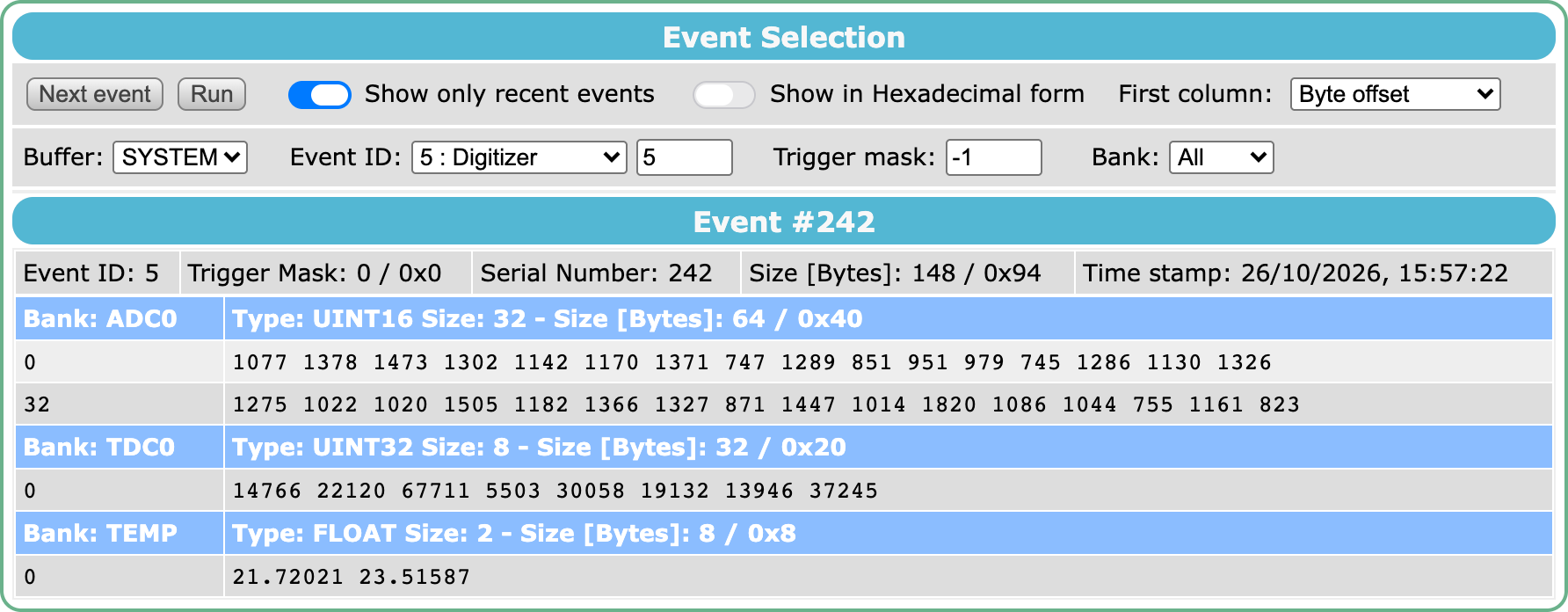
Click Event Dump in the menu to open the page, and Next event to show an event, or Run to show a new event every second until you click Pause. The controls are:
- Buffer: the buffer to read from, from the buffers listed in
/Experiment/Buffer sizes - Event ID and Trigger mask: only show events with this event ID or trigger mask, or
-1for any. The drop-down list shows the event ID of each equipment - Bank: when a single event ID is selected, only show this bank
- Show only recent events: if on, each event shown is the newest one in the buffer. If off, the events are shown in the order they were written, so you can step through them (but events can still be skipped if they arrive faster than you look at them)
- Show in Hexadecimal form: show the values in hexadecimal rather than decimal
- First column: whether the first column shows the byte offset of the row in the bank, or the index of its first value
Long banks show their first 12 rows, followed by a link to show the rest.
The menu entry can be hidden by setting /Experiment/Menu/Event Dump to n.
mdump
mdump prints events from a buffer in a terminal. By default it prints one event from the SYSTEM buffer and exits:
$ mdump -i 5
------------------------ Event# 1 ------------------------
Evid:0005- Mask:0000- Serial:15- Time:0x6adfdaa3- Dsize:148/0x94
#banks:3 - Bank list:-ADC0TDC0TEMP-

Bank:ADC0 Length: 64(I*1)/16(I*4)/32(Type) Type:Unsigned Integer*2
   1-> 0x0582 0x0503 0x0330 0x039b 0x03e5 0x03f0 0x0619 0x076e
   ...

Bank:TDC0 Length: 32(I*1)/8(I*4)/8(Type) Type:Unsigned Integer*4
   1-> 0x0000383b 0x0000dc0b 0x0000ef86 0x0000d8bc 0x0000388d 0x0000708b 0x000060fc 0x00013aff

Bank:TEMP Length: 8(I*1)/2(I*4)/2(Type) Type:Real*4 (FMT machine dependent)
   1-> 2.192e+01 2.356e+01
More mdump examples
- Print only the
ADC0bank of the next 10 events with event ID 5, in decimal rather than hexadecimal:mdump -i 5 -l 10 -b ADC0 -f d - Print the header and bank names of each event, rather than the contents:
mdump -l 10 -j - Print the data rate and fill level of the
SYSTEMbuffer every second, until you press!:mdump -s - Print every event in a midas file (use
-rto skip to a given event, and-singlewith-bto print only one bank):mdump -x run00002.mid.lz4 | less mdump -x run00002.mid.lz4 -b TEMP -single
See mdump for all the options.
Buffers webpage
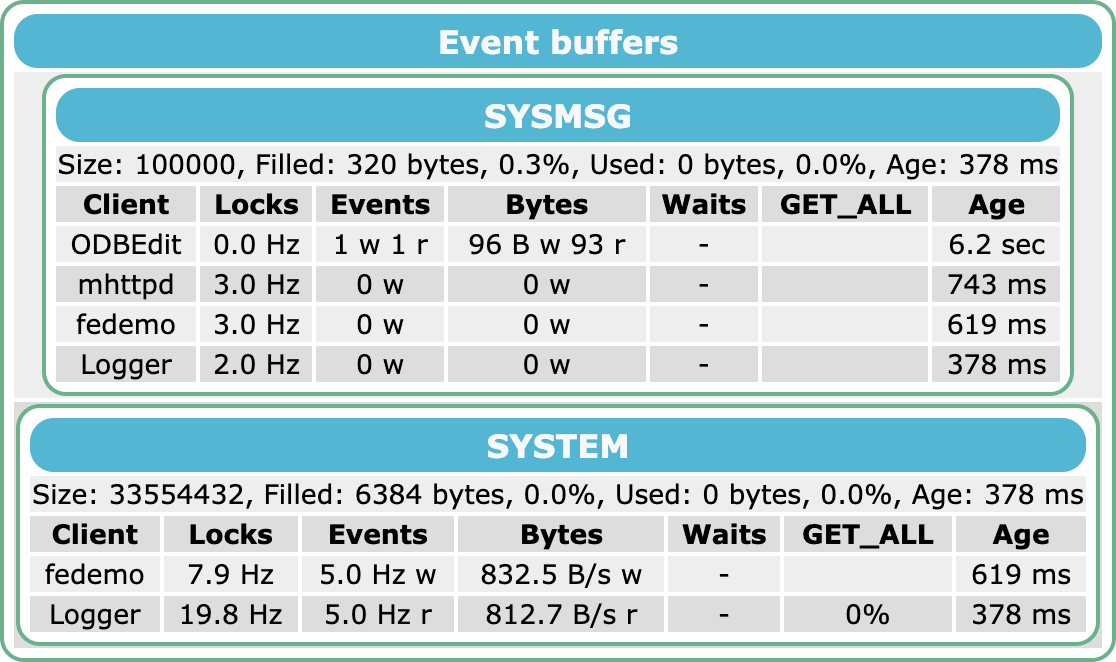
Click Buffers in the menu to see the state of each buffer, and of each program that uses it. It is mainly useful for finding out why data isn't flowing as fast as expected, e.g. a slow reader that makes the frontends wait.
For each buffer, the first line shows:
- Size: the size of the buffer, in bytes
- Filled: how much of the buffer holds events, including old events that no reader needs any more. Old events are only removed when a writer needs their space, so in a running experiment this rises to nearly 100% and stays there. This isn't a problem: writers only have to wait if the space they need holds events that a
GET_ALLreader hasn't read yet (seeUsed) - Used: the largest amount of data that a
GET_ALLreader (a program that must see every event, such as mlogger) still has to read. If this reaches 100%, the programs writing to the buffer have to wait - Age: time since the statistics were last updated
Then there is a row for each program that uses the buffer:
- Locks: how often the program locks the buffer
- Events and Bytes: the rate of events and data the program writes to the buffer (
w) or reads from it (r). Totals are shown until the page has updated twice - Waits: how many times a writer had to wait for space in the buffer and for how long, the largest amount of space it waited for, and which readers it waited for
- GET_ALL: for
GET_ALLreaders, the percentage of the buffer that they still have to read - Age: time since the program last updated its statistics
Each program updates its statistics in /System/Buffers about once a second, while it is using the buffer. Programs that haven't updated them for an hour are hidden.