Frontends: configuring
This page covers how to configure frontends and equipment.
For the concepts and day-to-day use, see Frontends: overview.
Configuration
The frontend code is responsible for defining the midas "equipment" it contains.
Settings for each equipment are found in the ODB at /Equipment/xxx. There are 3 standard subdirectories, 1 optional subdirectory, and each frontend may add its own directories if desired.
/Equipment/xxx/Commoncontains settings that determine the operation of the equipment (e.g. how often a periodic equipment should write data, and where the data should go)./Equipment/xxx/Variablescontains any data that should be shown on the equipment display page (and optionally may be logged in the history system)./Equipment/xxx/Statisticscontains the event rates and data rates./Equipment/xxx/Settingsis optional, and contains any custom settings for this equipment.
Don't change the structure of Common, Variables or Statistics
The frontend creates these directories and relies on the keys in them. Adding, removing or renaming keys can stop the frontend from working. You can change the values in Common, but not its keys.
Settings is where you can add your own keys, e.g. to change how the equipment display page looks. Some frontends may still complain about keys in Settings that they don't expect.
Typical changes
In general, well-informed users will change:
Common/Periodto change how often a periodic equipment writes dataCommon/Bufferto change which event buffer events get written to (e.g. setting it to an empty string to stop the data from getting logged in data files)Common/Log historyto change whether data written toVariablesalso gets logged in the history system- Anything in
Settings
Changes to Common may be undone when the frontend restarts
Each frontend decides whether its code or the ODB wins when it starts. If its code wins, the frontend writes its own values into Common each time it starts, replacing your changes. Python and TMFE frontends keep the ODB values unless they were written otherwise. C++ (mfe) frontends always choose one or the other explicitly.
Even when the code wins, mfe frontends keep your Enabled, Hidden and Event limit, and TMFE frontends keep your Enabled and Event limit. Python frontends replace everything. If your changes are lost after a restart, ask whoever maintains the frontend to change its code. See /Common in ODB vs code for details.
Equipment display page
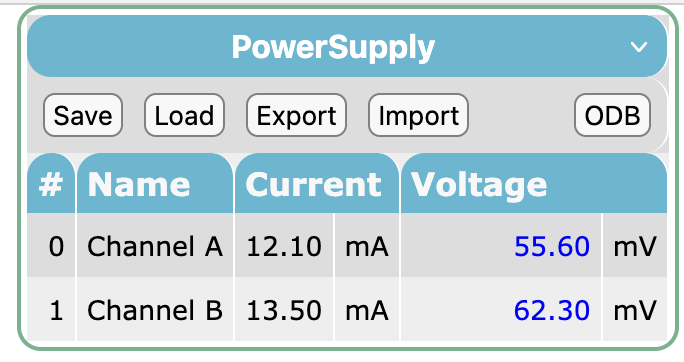
The equipment display page shows the contents of /Equipment/xxx/Variables. You can change how the page looks by adding keys to /Equipment/xxx/Settings:
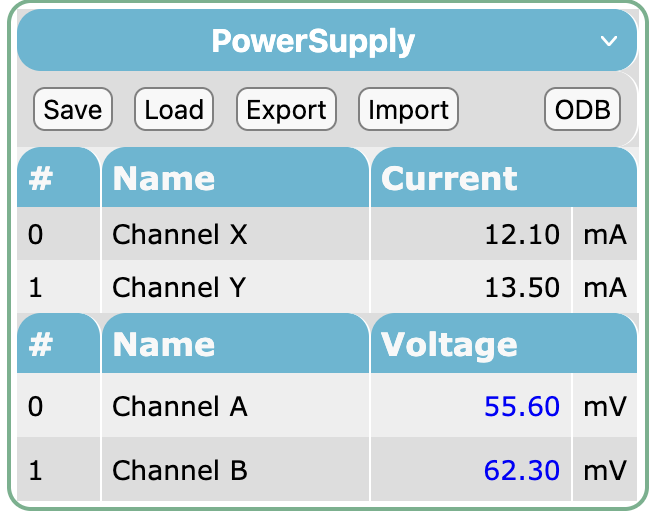
- label each element of an array (e.g. one name per channel) with
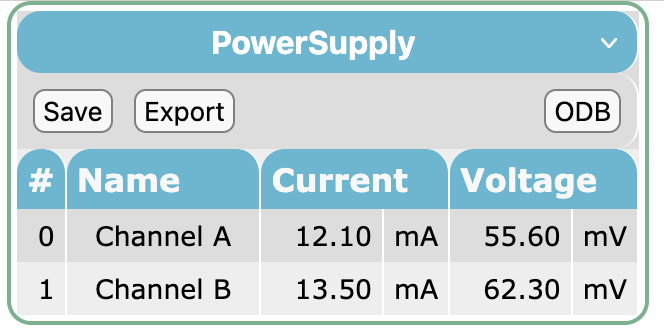
NamesorNames <variable>(see Naming elements in data arrays) - show the unit of a variable (e.g.
VormA) withUnit <variable> - let users edit values on the page, by listing the variables in
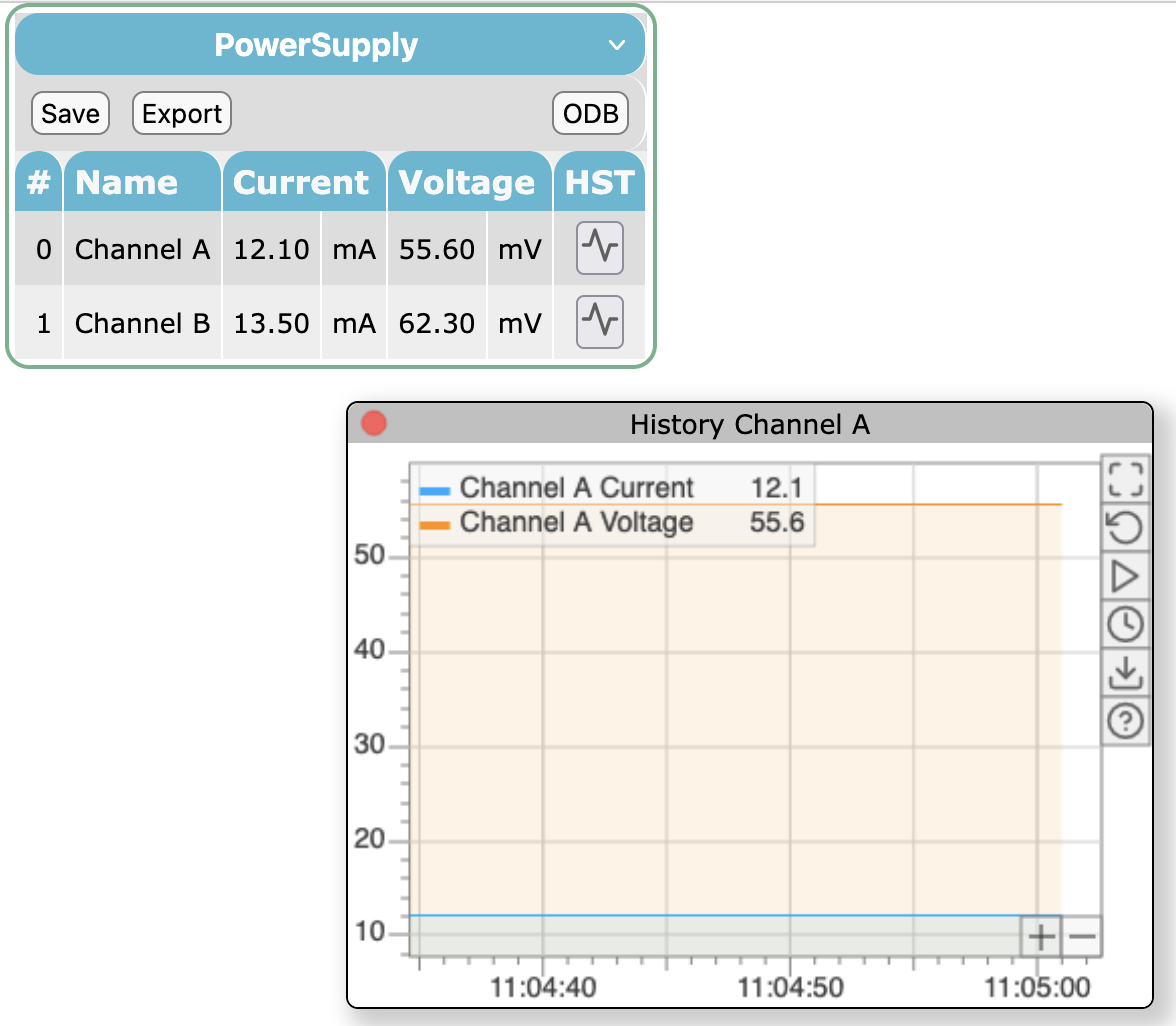
Editable(comma-separated) - add a button next to each value that shows a plot of its recent history, by setting
History buttonstoy - show the variables in a grid by setting
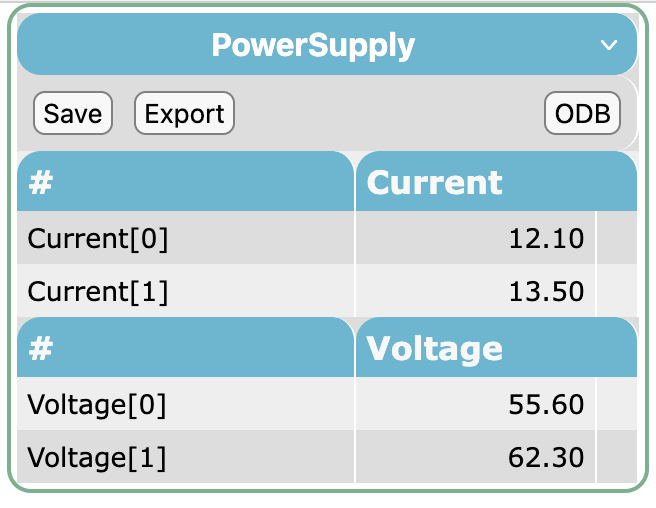
Grid displaytoy. Each array becomes a column, with one row per element. This is useful when several arrays have one element per channel, e.g. a voltage and a current. Set it tonto list the variables one after the other instead. IfGrid displayisn't set, the page decides automatically (it uses the grid whenVariablescontains at least two arrays that all have the same length). Equipment without aSettingsdirectory always uses the list (non-grid) display.
There are more options, e.g. to choose the columns, set number formats, offer drop-down lists, or split the table by device. See /Equipment/xxx/Settings for the full list.
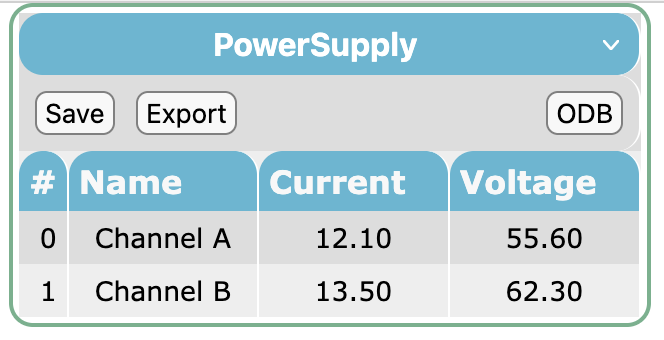
The table below shows different layout results for various options in /Equipment/xxx/Settings.
In all cases the Variables directory is the same:
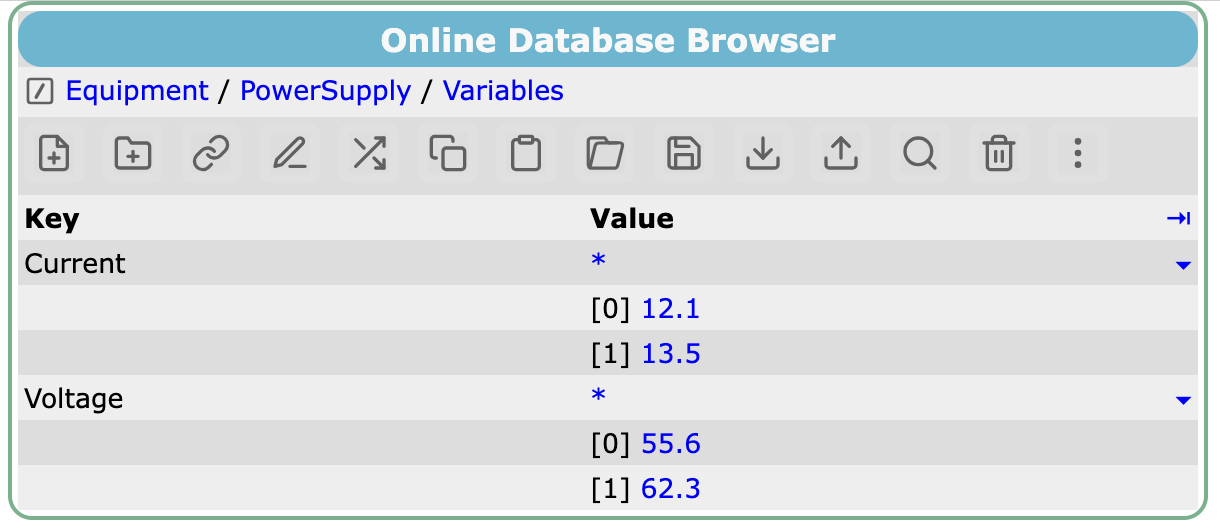
| Summary | Settings | Result |
|---|---|---|
| Default | 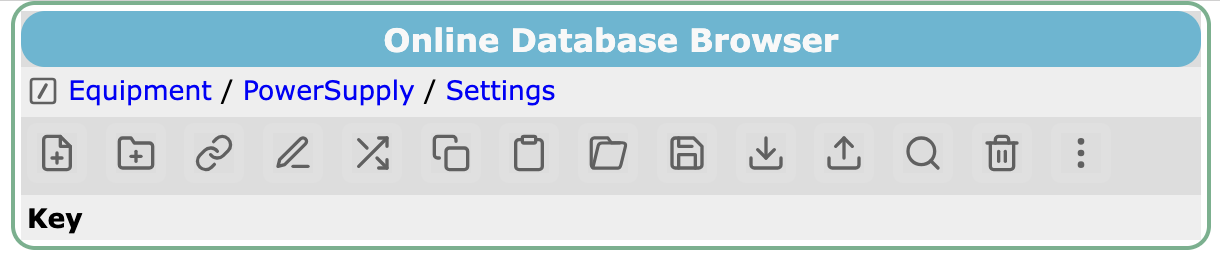 |
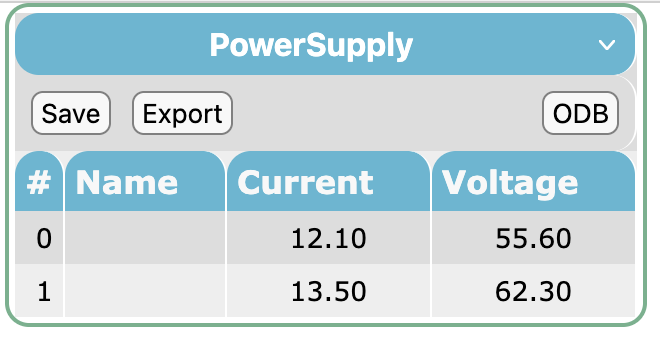 |
| Names | 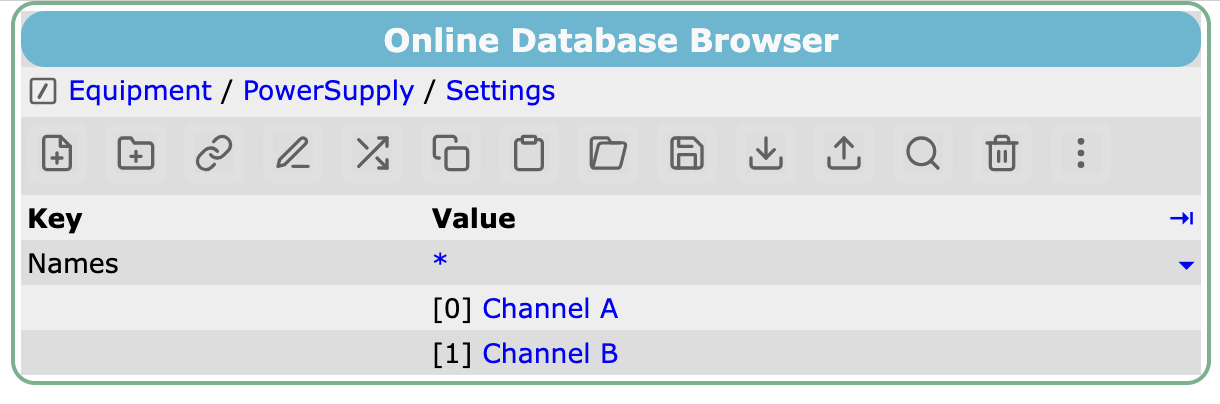 |
 |
| Units | 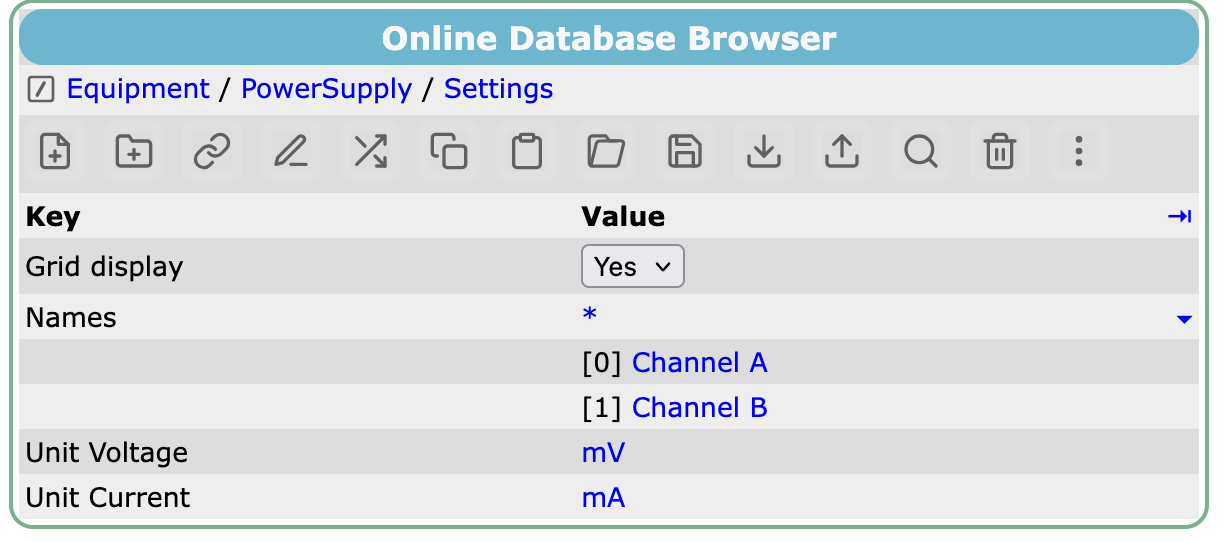 |
 |
| Editable | 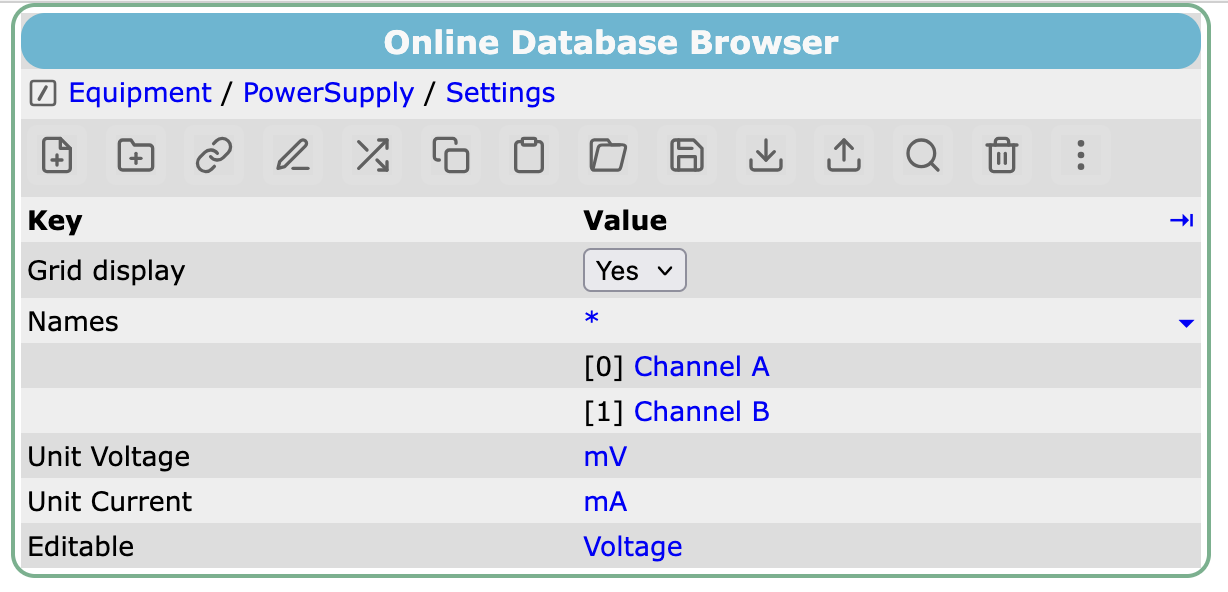 |
 |
| History buttons | 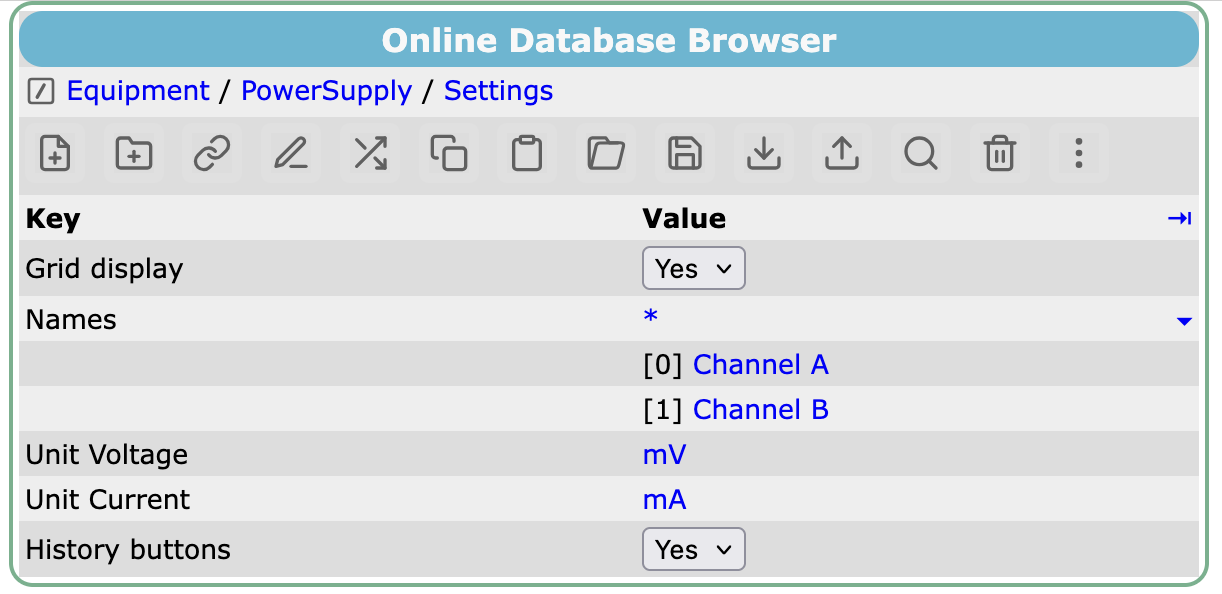 |
 |
| Non-grid | 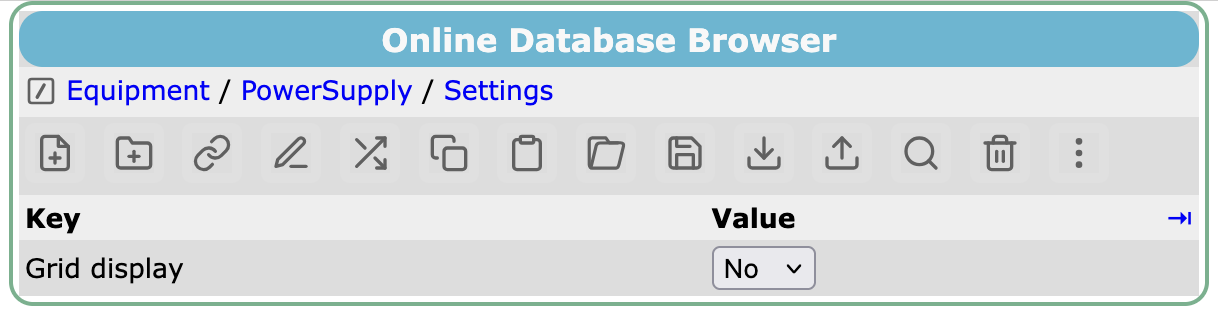 |
 |
| Per-variable names | 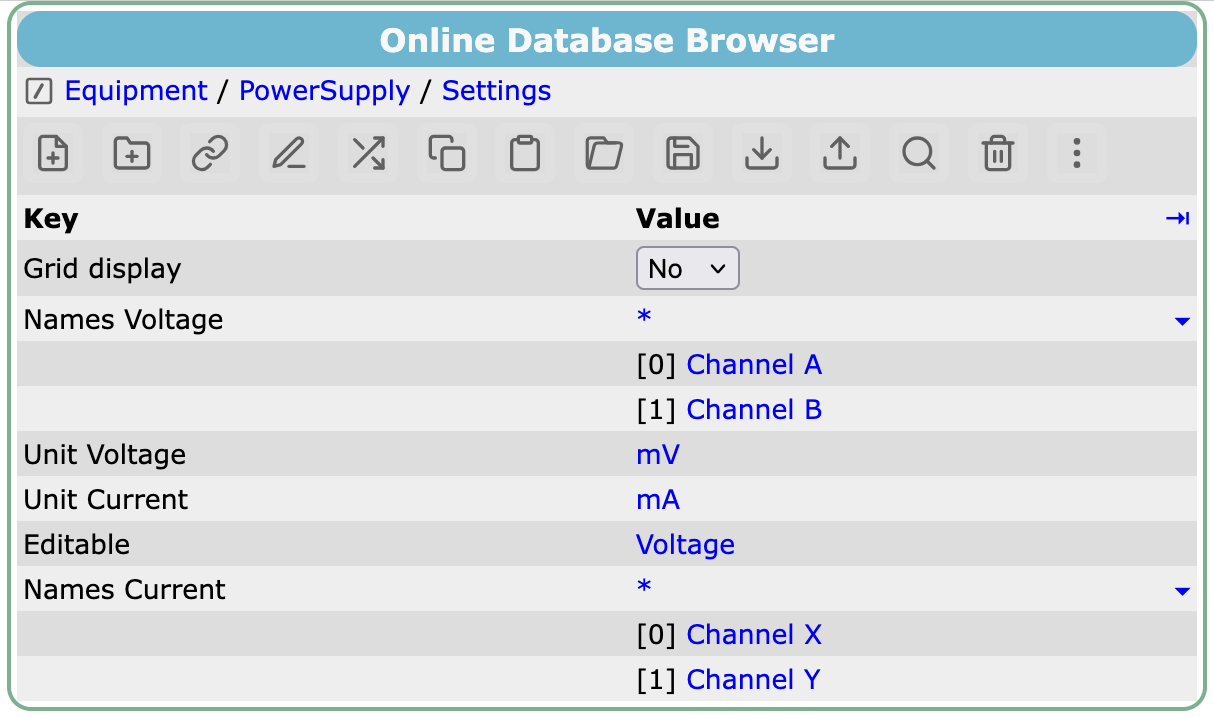 |
 |
Naming elements in data arrays
An array in Variables often holds one value per channel, sensor or device. You can give each element a name with a string array in Settings:
Settings/Names <variable>names the elements of one variable, e.g.Settings/Names InputsforVariables/Inputs.Settings/Namesnames the elements of every variable that doesn't have its ownNames <variable>array.
The names array must have at least as many elements as the variable. Slow control class drivers create these arrays for you, and you can edit the names in the ODB.
Example
/Equipment/Environment/Variables/Inputs               = [23.9, 24.9]
/Equipment/Environment/Settings/Names Inputs          = ["Hall temperature", "Rack temperature"]
The names are used:
- On the equipment display page, to label the values.
- As history tag names. A name from
Names <variable>is used as it is (Hall temperaturein the example). A name fromNameshas the variable name added (Hall temperature Inputsif the example usedSettings/Names). An empty name gives<variable>_<index>, e.g.Inputs_1. Tag names are limited to 31 characters, and mlogger refuses to start if a name fromNamesis too long once the variable name is added. - On custom pages, where you can refer to an element by its name rather than its index, e.g.
Inputs['Rack temperature'](see named array entries).
Keep the names in step with the data
- If you make an array in
Variableslonger, make its names array longer first. Otherwise mlogger stops with an "Array size mismatch" error. - mlogger only reads the names when it starts, so restart mlogger after changing them. From then on, the history records the values under the new tag names, so history panels that use the old names need to be updated.