Custom pages: overview
This page covers how to write your own pages and add them to the web interface.
For the web interface itself, see Web interface: overview.
For full descriptions of the programming interfaces, see the API reference for mhttpd.js, midas.js and controls.js.
Experiments can write custom webpages. These can be any arbitrary HTML/Javascript/CSS/image files etc. Examples range from static "shifter instruction manuals" to graphical interfaces for controlling/monitoring complex experiments.
Custom pages can be plain HTML, but midas also provides JavaScript libraries that add the standard header and side menu, widgets that show and edit live ODB values, plots and dialog boxes. See writing a custom page below.
Adding pages to the web interface
You can configure which web pages should be served using the /Custom ODB directory. You may create this directory if it does not already exist at the top level of your ODB. All subkeys within /Custom should be strings.
The special key /Custom/Path states which directory the web server should look in to find files. Your path may include environment variables, e.g. /path/to/$some_env_var/some_dir.
You can give names to your custom pages by adding entries to /Custom. The ODB key is the user-friendly name of your page, and the ODB value is the file path. If you specify a relative path, it is relative to the directory in /Custom/Path. You may also specify full paths. By default, any entry you add to /Custom will create a link in the side menu.
Example with explicit path
If /Custom/MyPage is /path/to/somewhere.html, you can access the page by:
Clicking the MyPage link in the side menu |
 |
Visiting http://some.host:8080/?cmd=custom&page=MyPage |
|
Visiting http://some.host:8080/MyPage |
|
Visiting http://some.host:8080/somewhere.html |
Example with relative path
If /Custom/Path is /path/to/ and /Custom/MyPage is somewhere.html, you can access the page by:
Clicking the MyPage link in the side menu |
|
Visiting http://some.host:8080/?cmd=custom&page=MyPage |
|
Visiting http://some.host:8080/MyPage |
|
Visiting http://some.host:8080/somewhere.html |
|
Using the Path feature means that you do not need to list all your custom pages in /Custom - you only need to list the ones you want to be listed in the side menu, and ones that are outside of your Path directory. This is useful if you want to include CSS/Javascript files in your custom pages. You can just put them in the Path directory, and reference them like
<script src="something.js"></script>
Example with no explicit entry in /Custom
If /Custom/Path is /path/to/ and that directory contains a file somewhere.html, you can access the page by:
Clicking the MyPage link in the side menu |
|
Visiting http://some.host:8080/?cmd=custom&page=MyPage |
|
Visiting http://some.host:8080/MyPage |
|
Visiting http://some.host:8080/somewhere.html |
|
If you need to manually specify a file, but do NOT want it to appear in the side menu, you can add an exclamation mark (!) at the end of the ODB key name.
Example of hiding from menu
If /Custom/Path is /path/to/ and /Custom/MyPage! is somewhere.html, you can access the page by:
Clicking the MyPage link in the side menu |
|
Visiting http://some.host:8080/?cmd=custom&page=MyPage |
|
Visiting http://some.host:8080/MyPage |
|
Visiting http://some.host:8080/somewhere.html |
|
If you want the menu link to open the webpage in a new tab/window, you can add an ampersand (&) at the end of the ODB key name.
Example of opening in new tab/window
If /Custom/Path is /path/to/ and /Custom/MyPage& is somewhere.html, you can access the page by:
Clicking the MyPage link in the side menu |
(in new tab/window) |
Visiting http://some.host:8080/?cmd=custom&page=MyPage |
|
Visiting http://some.host:8080/MyPage |
|
Visiting http://some.host:8080/somewhere.html |
|
Sub-menus
A subdirectory of /Custom creates a sub-menu in the side menu, and sub-menus can be nested:
/Custom
    Path              /home/expt/online/custom
    Environment       environment.html
    Calorimeter
        HV            hv.html
        Rates         rates.html
Here, Environment opens ?cmd=custom&page=Environment, and the HV entry of the Calorimeter sub-menu opens ?cmd=custom&page=Calorimeter/HV.
Menu entries that run JavaScript
A menu entry can run JavaScript instead of opening a page. If the value of an entry isn't the name of a file (with an extension such as .html), it is run as JavaScript when the entry is clicked. For example, /Custom/Click with the value alert(1) shows an alert.
Custom status page
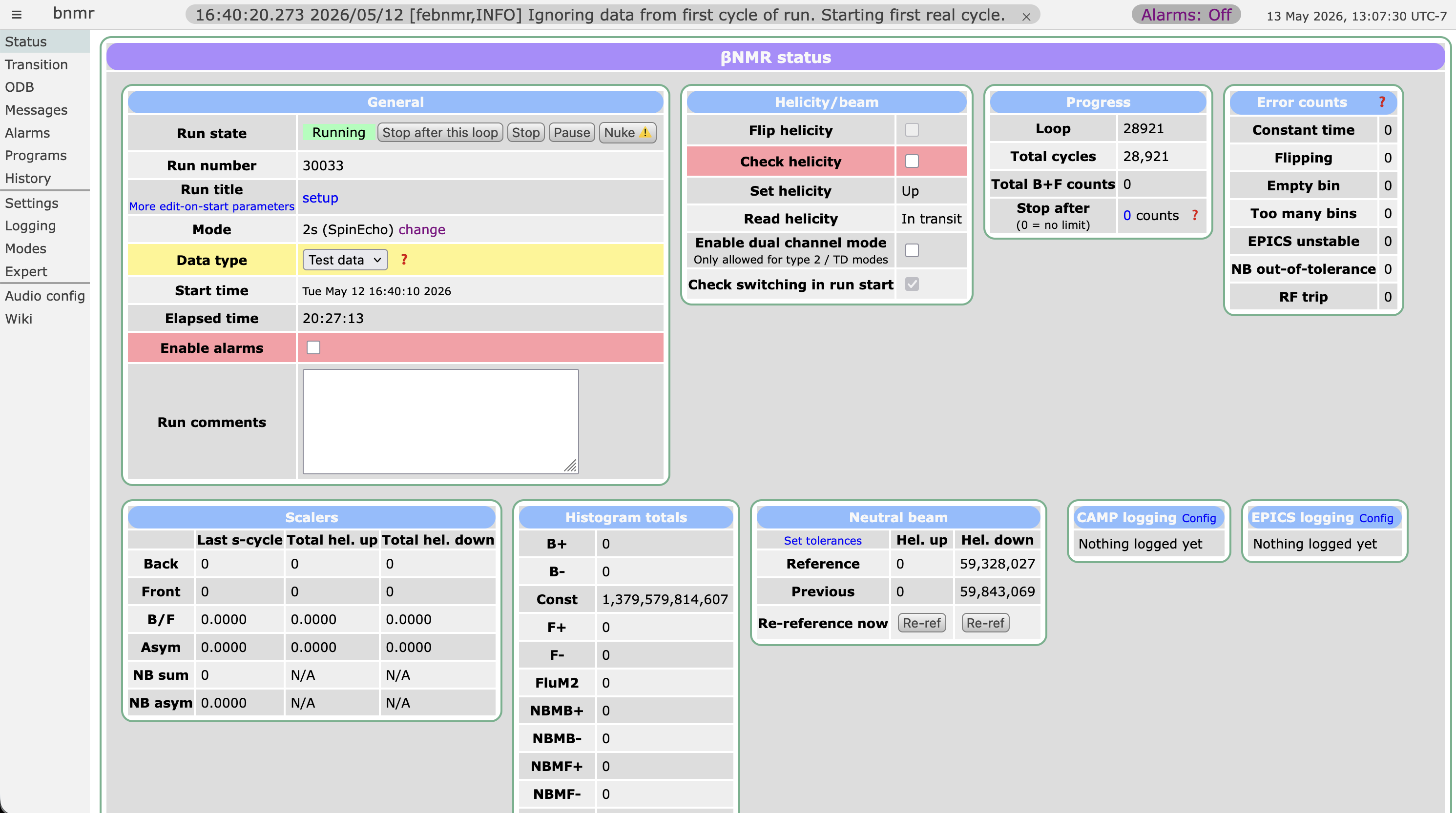 You may replace the default midas status page with a custom one by setting the special ODB key
 /Custom/Status. This may be either a full path or relative to the directory in /Custom/Path.
This may be useful for experiments where the equipment listing does not contain particularly useful information, and you want to show a more user-friendly or data-rich display.
You can still access the original status page by visiting status.html.
Example of Custom status page
If /Custom/Status is /path/to/something.html, the following pages are shown:
| URL | Custom status page | Original status page |
|---|---|---|
http://some.host:8080 |
|
|
http://some.host:8080/?cmd=Status |
|
|
http://some.host:8080/Status |
|
|
http://some.host:8080/status.html |
|
Writing a custom page
A minimal page
This page has the standard midas header and side menu, and shows a live ODB value:
<!DOCTYPE html>
<html lang="en">
<head>
   <meta charset="UTF-8">
   <link rel="stylesheet" href="midas.css">
   <script src="controls.js"></script>
   <script src="midas.js"></script>
   <script src="mhttpd.js"></script>
   <title>Environment</title>
</head>
<body class="mcss" onload="mhttpd_init('Environment');">
   <div id="mheader"></div>
   <div id="msidenav"></div>
   <div id="mmain">
      Temperature:
      <span class="modbvalue" data-odb-path="/Equipment/Environment/Variables/Inputs[1]"></span>
   </div>
</body>
</html>
The files midas.css, controls.js, midas.js and mhttpd.js are served by mhttpd itself, so you don't need to copy them to your /Custom/Path directory. mhttpd_init() fills in the header (mheader) and side menu (msidenav), sets the page title, and starts updating the page's widgets once per second. Put your own content inside mmain.
To update the page every two seconds instead, pass the interval in milliseconds: mhttpd_init('Environment', 2000).
Styling your page
API reference: CSS classes
midas.css provides the styles used by the built-in pages, so your page can match the rest of the web interface. Put the mcss class on <body> (as in the minimal page above) for the standard fonts and link colors, then use these classes:
mtablefor the panels with a green border used on the built-in pages, with anmtableheadertitle and an optionalmtabletitlerow of column headings. Rows are shaded alternatelymbuttonfor buttons in the standard stylemgreen,mred,myellow,morange,mgrayandmbluefor the status colors, e.g. green for "running" and red for "stopped". Combine them withmboxfor a box with rounded corners
<table class="mtable">
   <tr><th colspan="2" class="mtableheader">Cooling</th></tr>
   <tr class="mtabletitle"><th>Item</th><th>State</th></tr>
   <tr><td>Chiller</td><td class="mgreen mbox">Running</td></tr>
   <tr><td>Pump</td><td class="mred mbox">Stopped</td></tr>
</table>
<button class="mbutton" onclick="dlgAlert('Hello')">Say hello</button>
The status colors are also available as CSS variables, such as var(--mgreen), for your own styles and for widget colors:
<div class="modbtile" data-label="Chiller" data-odb-path="/Equipment/Chiller/Variables/Running"
     data-color="value ? 'var(--mgreen)' : 'var(--mred)'"></div>
Your page can add its own <style> block or style sheet as usual.
What you can add to a page
The modbvalue element above is one of the widgets provided by mhttpd.js. The other custom pages documentation describes what else you can put on a page:
| Page | Covers |
|---|---|
| ODB widgets | Showing and editing ODB values: text, buttons, checkboxes, drop-down lists, bars, gauges, thermometers, colored indicators and tiles |
| History plots | Plots of the history: a history panel on a page or in a dialog, or a plot of any history variable |
| Plots of your own data | Scatter plots, histograms, bar charts, color maps and mathematical functions, of data in the ODB or calculated by your JavaScript |
| Dialogs, tabs, sliders and diagrams | Dialog boxes, a file picker for loading and saving files, selecting an ODB key or embedding the ODB browser, splitting a page into tabs, sliders, and diagrams that change with ODB values |
Your page can also call midas directly from JavaScript, e.g. to read or write the ODB, start runs, or send messages, using the functions in midas.js. The "JS" tabs on the feature "programming" pages show how, such as ODB: programming.
A complete example
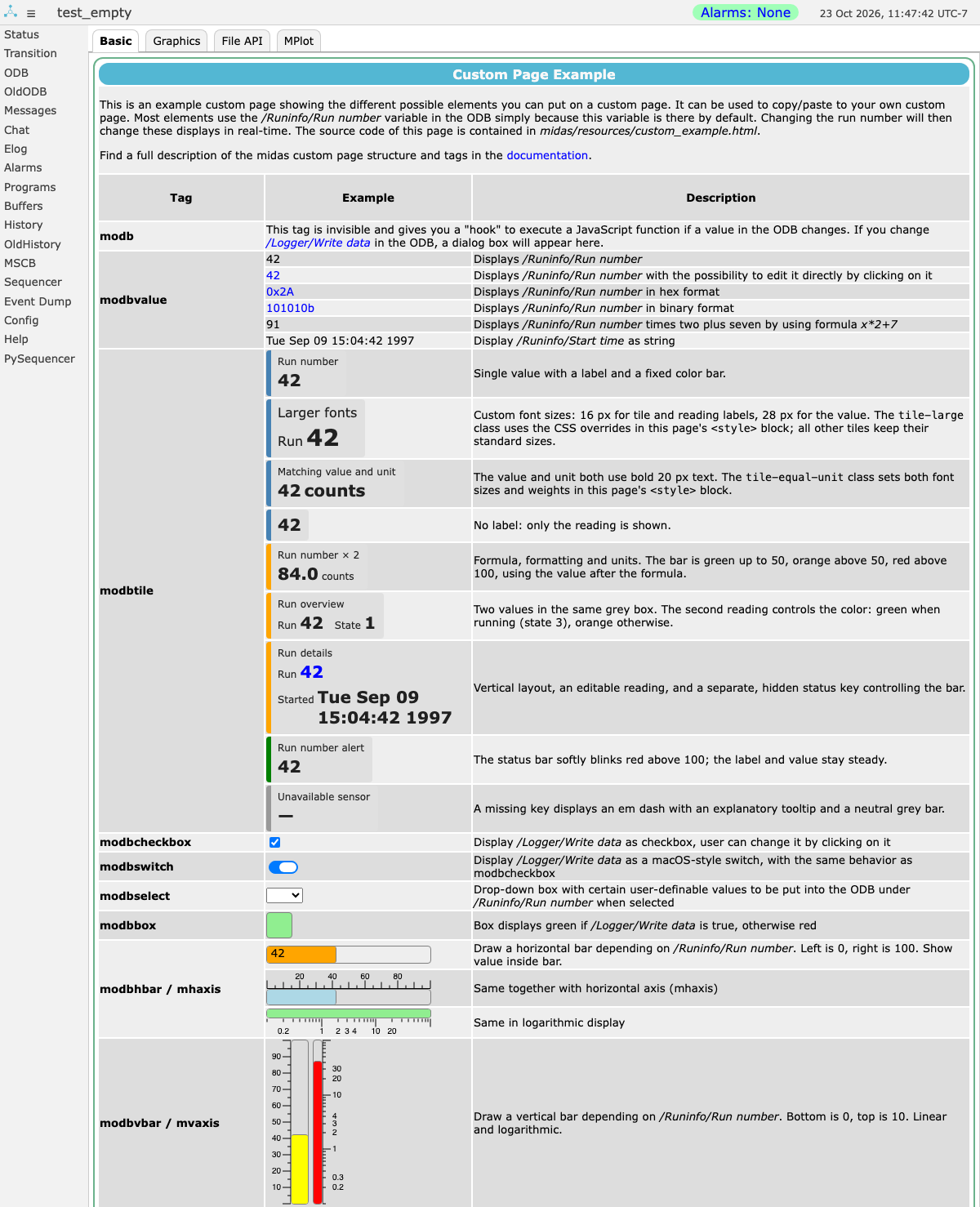 Midas comes with two pages to start from:
resources/custom_template.html: a template for a new pageresources/custom_example.html: a gallery of widgets, tiles, plots and other features. To see it, visit?cmd=custom_exampleon your mhttpd server (e.g. http://localhost:8080/?cmd=custom_example), then read its source code to see how each example works
The screenshot shows the first part of the gallery's Basic tab. Most of its examples show /Runinfo/Run number, so change the run number to see them update.
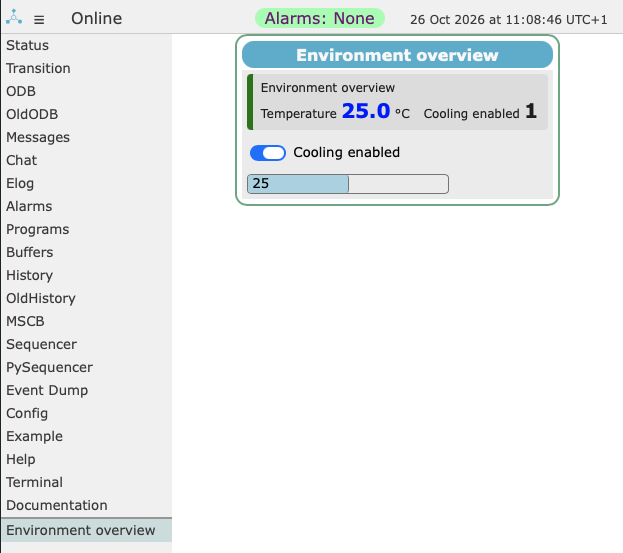
This page shows a tile, a checkbox and a bar, all using the example ODB values from Custom pages: ODB widgets:
<!DOCTYPE html>
<html lang="en">
<head>
    <meta charset="UTF-8">
    <link rel="stylesheet" href="midas.css">
    <script src="controls.js"></script>
    <script src="midas.js"></script>
    <script src="mhttpd.js"></script>
    <title>Environment overview</title>
</head>
<body class="mcss" onload="mhttpd_init('Environment overview');">
<div id="mheader"></div>
<div id="msidenav"></div>
<div id="mmain">
    <table class="mtable">
        <tr>
            <th class="mtableheader">Environment overview</th>
        </tr>
        <tr>
            <td>
                <div class="mtabletitle">
                    <div class="modbtile" data-label="Environment overview"
                         data-color="values[0] > 30 ? 'red' : 'green'"
                         data-blinking="values[0] > 30">
                        <span class="modbvalue" data-label="Temperature"
                              data-odb-path="/Equipment/Environment/Variables/Inputs[1]" data-odb-editable="1"
                              data-format="%f1" data-unit="°C" data-confirm="Change the temperature?"></span>
                        <span class="modbvalue" data-label="Cooling enabled"
                              data-odb-path="/Equipment/Environment/Variables/Inputs[3]"></span>
                    </div>
                    <p>
                        <label>
                            <input type="checkbox" class="modbswitch" data-odb-path="/Equipment/Environment/Variables/Inputs[3]">
                                Cooling enabled</input>
                        </label>
                    </p>
                    <div class="modbhbar" style="width: 200px; height: 18px; color: lightblue;"
                         data-odb-path="/Equipment/Environment/Variables/Inputs[1]" data-min-value="0" data-max-value="50"
                         data-print-value="1"></div>
                </div>
            </td>
        </tr>
    </table>
</div>
</body>
</html>
To try it, save it as overview.html in your /Custom/Path directory, and set /Custom/Environment overview to overview.html. The page then looks like this, with its entry in the side menu:
Examples from experiments
These pages show the range of what custom pages can do.
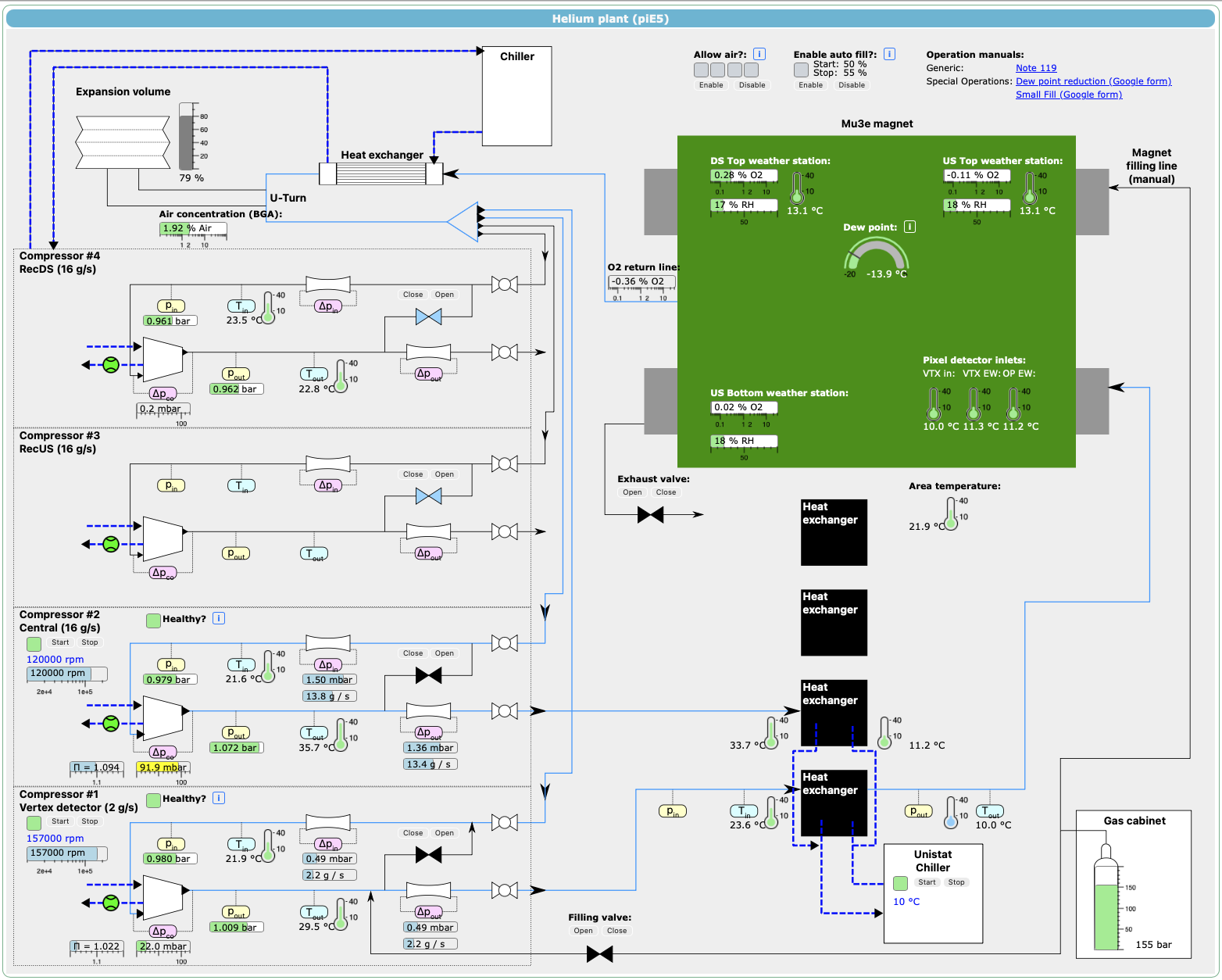
Mu3e helium plant
The helium cooling plant is shown as a diagram, with live pressures, temperatures, flows and gas concentrations next to the parts they belong to. Controls let operators start and stop the compressors and chiller, and open and close valves.
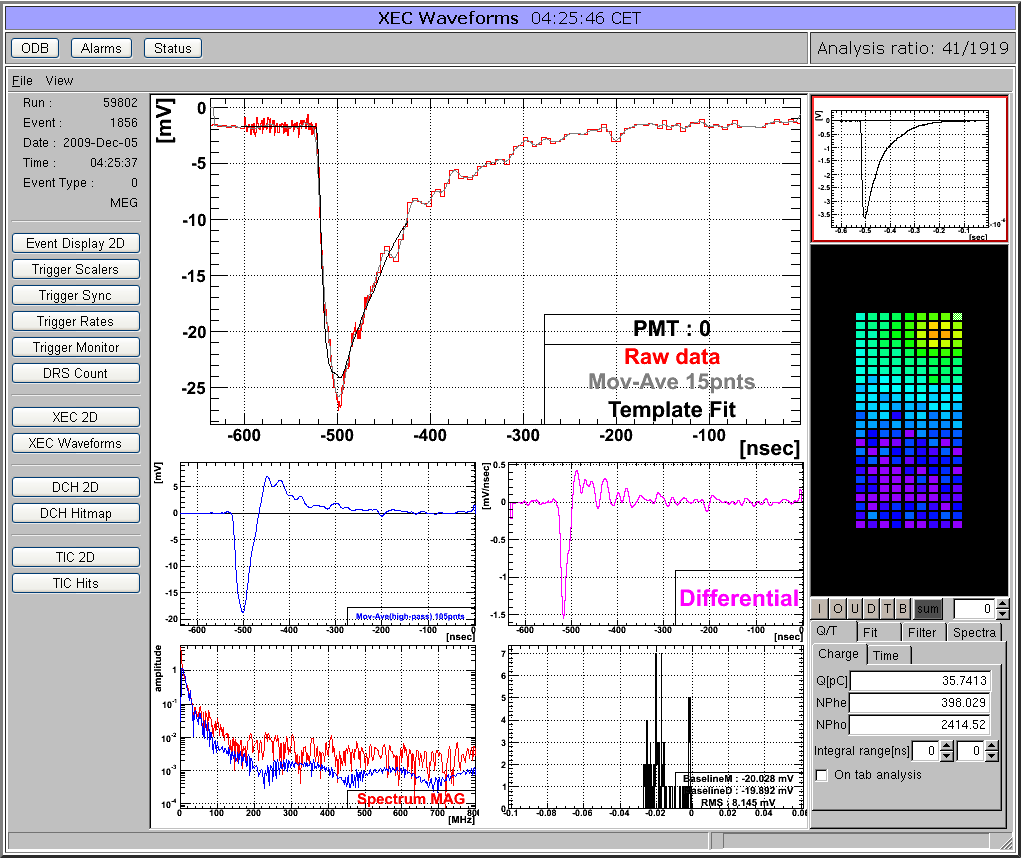
MEG ROOT analyzer
The analyzer draws its plots into image files, using a virtual X server such as Xvfb, and a custom page shows the images with buttons to choose between them. This shows the monitoring plots in a browser, without giving access to the full ROOT session.
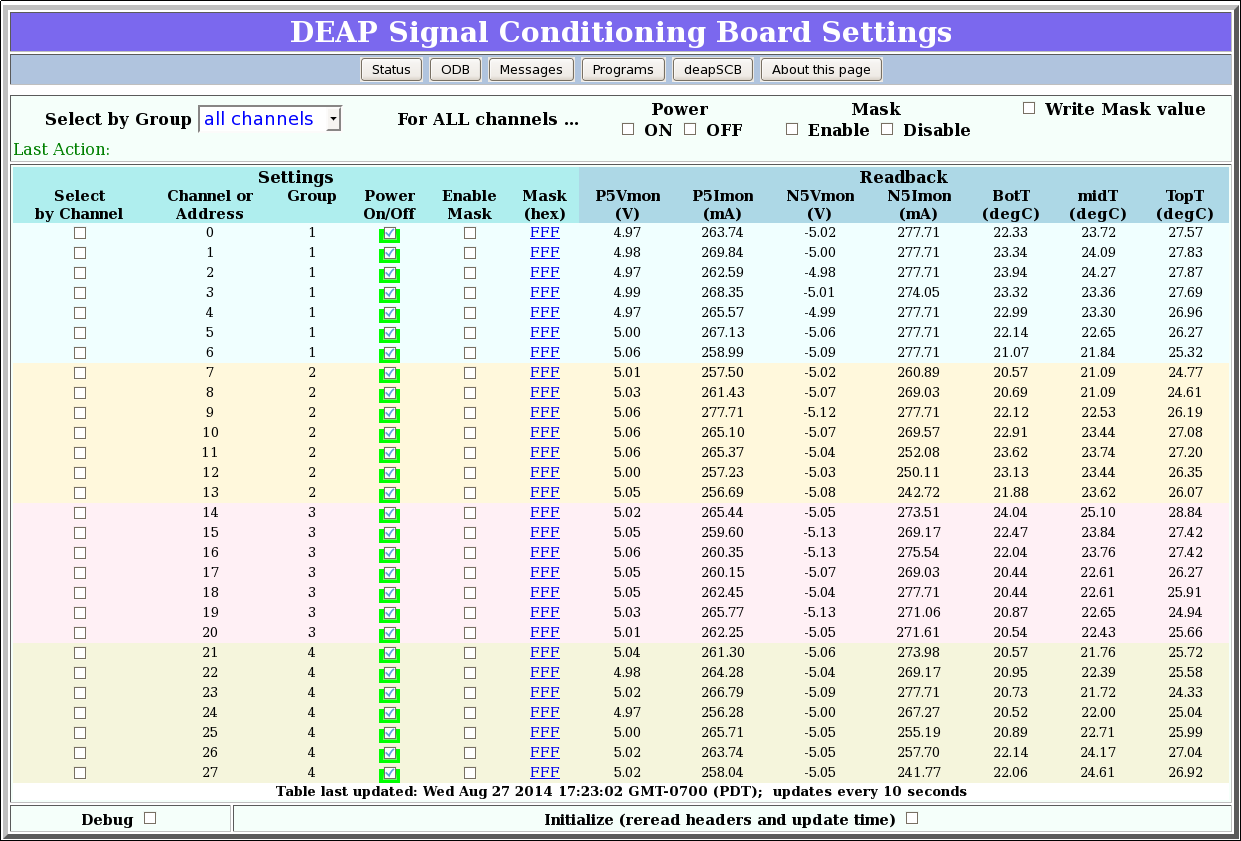
DEAP SCB setup
A settings page organized by channel, with buttons that act on a group of channels or the whole module.
Older custom pages
Older custom pages may use <odb> tags or JavaScript functions that are now deprecated; see deprecated web features. Use the widgets described in Custom pages: ODB widgets for new pages.
Most of the examples and screenshots on these pages were adapted from the MidasWiki's Custom Page page (revision 3604, 19 February 2026).