Custom pages: history plots
This page covers showing plots of the history on custom pages, with mhistory.js.
For how to create a custom page and add it to the web interface, see Custom pages: overview. For the history system itself, see History: overview. For plots of other data, see Custom pages: plots of your own data.
For every attribute and parameter (including the optional ones not mentioned here), see the API reference for mhistory.js.
You can show data from the history system on your custom pages, using the same interactive plots as the History page. You can show either:
- a history panel that has already been defined on the
Historypage - history variables of your own choice, without a pre-defined panel
Each can be shown on the page itself, or in a dialog box that the user can move and resize.
This page shows the history panel Temperatures from the group Environment:
<!DOCTYPE html>
<html lang="en">
<head>
   <meta charset="UTF-8">
   <link rel="stylesheet" href="midas.css">
   <script src="controls.js"></script>
   <script src="midas.js"></script>
   <script src="mhttpd.js"></script>
   <script src="mhistory.js"></script>
   <title>Environment</title>
</head>

<body class="mcss" onload="mhttpd_init('Environment'); mhistory_init();">
   <div id="mheader"></div>
   <div id="msidenav"></div>

   <div id="mmain">
      <div class="mjshistory"
           data-group="Environment"
           data-panel="Temperatures"
           style="width: 500px; height: 300px;">
      </div>
   </div>
</body>
</html>
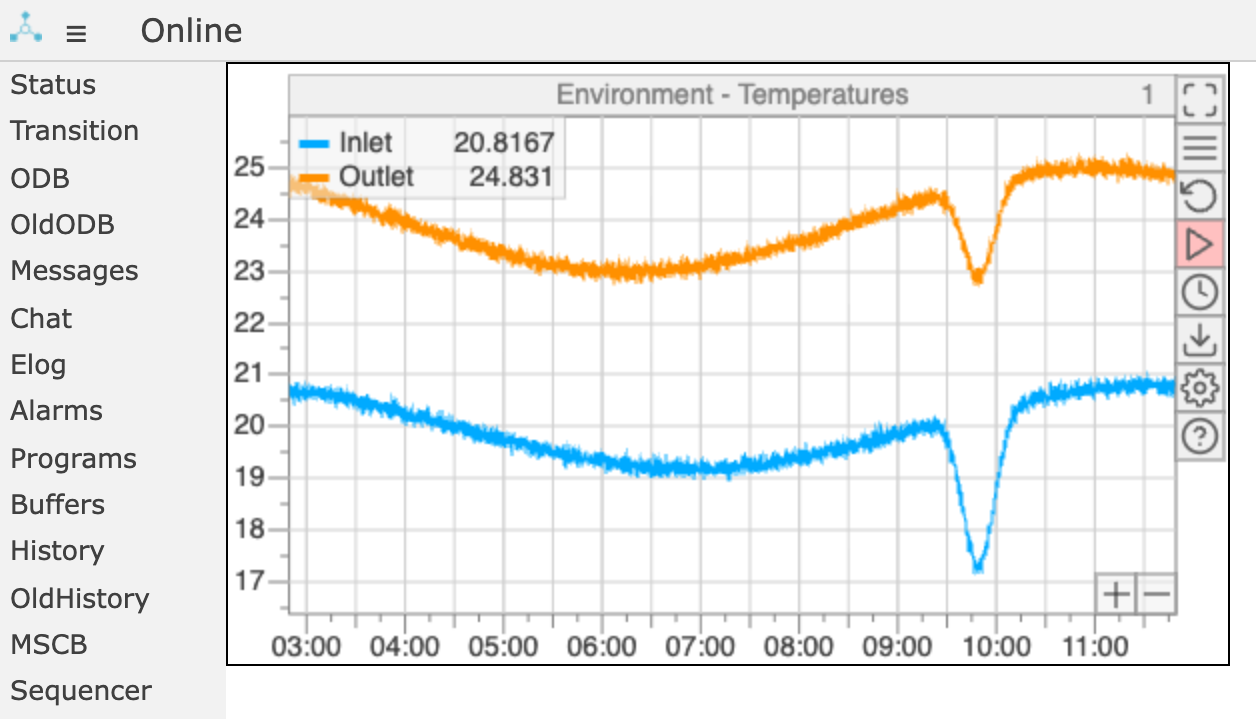 The page:
- loads
mhistory.js, which draws the plots, after the other custom-page scripts - has an
mjshistoryelement. Its attributes say which panel to show, and its width and height set the size of the plot - calls
mhistory_init()when the page loads. It draws a plot in eachmjshistoryelement
Showing a plot on the page
API reference: mjshistory, mhistory_init()
As in the example above, a plot on the page is an mjshistory element, drawn by mhistory_init(). The plots update themselves, separately from the widgets updated by mhttpd_init().
As well as the attributes that choose what to plot (described below), an mjshistory element can have:
data-scale, which sets how much time is shown (e.g.10m,5hor3d)- attributes that hide parts of the plot, such as its title or buttons; see mhistory.js
Pre-defined panel
To show a history panel that has been set up on the History page (and so is stored in /History/Display/<group>/<panel>), give its group and panel:
<div class="mjshistory" data-group="Environment" data-panel="Temperatures"
     data-scale="1h" style="width: 500px; height: 300px;"></div>
Without data-scale, the panel's own time scale is used.
Custom variables
To plot history variables that aren't in a panel, give them in data-history-var, as event:tag. Separate several variables with commas:
<div class="mjshistory" data-history-var="System:Trigger per sec."
     data-scale="24h" style="width: 500px; height: 300px;"></div>
The plot uses the same default settings as mhistory_dialog_var() (e.g. a time scale of 1 hour). To change other settings, pass them as the third argument of mhistory_init(). They apply to all the plots of variables on the page:
<body class="mcss" onload="mhttpd_init('Rates'); mhistory_init(undefined, undefined, {'Show run markers': true});">
The settings have the same names as those of a history panel; see mhistory.js for the full list.
Showing a plot in a dialog box
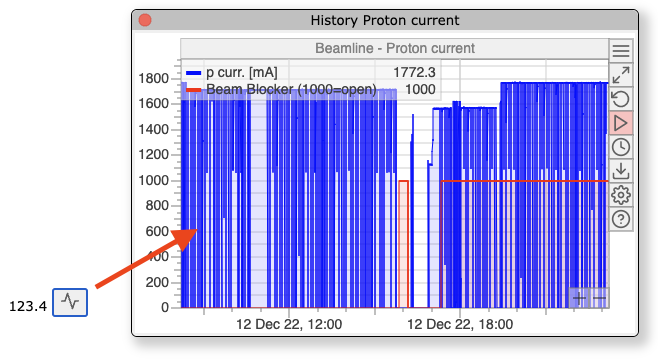 A history plot can also be opened in a dialog box that the user can move and resize, e.g. when the user clicks a button. The dialog is 400 × 300 pixels unless you pass a different size. You don't need to call
 mhistory_init() to open a dialog.
Pre-defined panel
API reference: mhistory_dialog()
mhistory_dialog() opens a history panel in a dialog box. For example, this button next to a value opens its history:
<span class="modbvalue" data-odb-path="/Equipment/Environment/Variables/Inputs[1]"></span>
<button class="mbutton" onclick="mhistory_dialog('Environment', 'Temperatures')">
   <img src="icons/activity.svg" alt="Show temperature history" style="width: 16px;">
</button>
Custom variables
API reference: mhistory_dialog_var()
mhistory_dialog_var() plots history variables that aren't in a panel. Give the variable as event:tag (separate several variables with commas), and optionally an object with settings for the plot:
<button class="mbutton"
        onclick="mhistory_dialog_var('System:Trigger per sec.', {
           'Timescale': '24h', 'Show run markers': true
        })">Show trigger-rate history</button>
The settings have the same names as those of a history panel; see mhistory.js for the full list.