ODB: overview
The midas Online Data Base (ODB) contains the settings and status of all midas applications. It contains all the information needed to run an experiment, and is used both by built-in programs and by any custom code written by the user.
Overview
The ODB is hierarchically structured (similar to a file system) with directories and sub-directories (aka trees and subtrees). The data are stored in key/data pairs, and the data can be integers, floats, bytes, strings, etc. or arrays of such. The ODB also supports sub-directories and symbolic links.
By default, a full copy of the ODB is stored in each data file that is written. This ensures that you have easy access to the configuration/state of your experiment when analysing your data. The more information you put in the ODB, the less you have to record in separate logbooks!
ODB key names are case-independent and may contain spaces.
Built-in programs create their relevant bits of the ODB the first time that they are started. For example, if you have never started the mhttpd web server, your ODB will not contain the /WebServer directory.
A description of the ODB structure and a list of all the ODB trees used by the system can be found in the ODB reference section.
Access
The midas ODB can be accessed interactively in two ways:
For programming interfaces, see ODB: programming.
Web interface
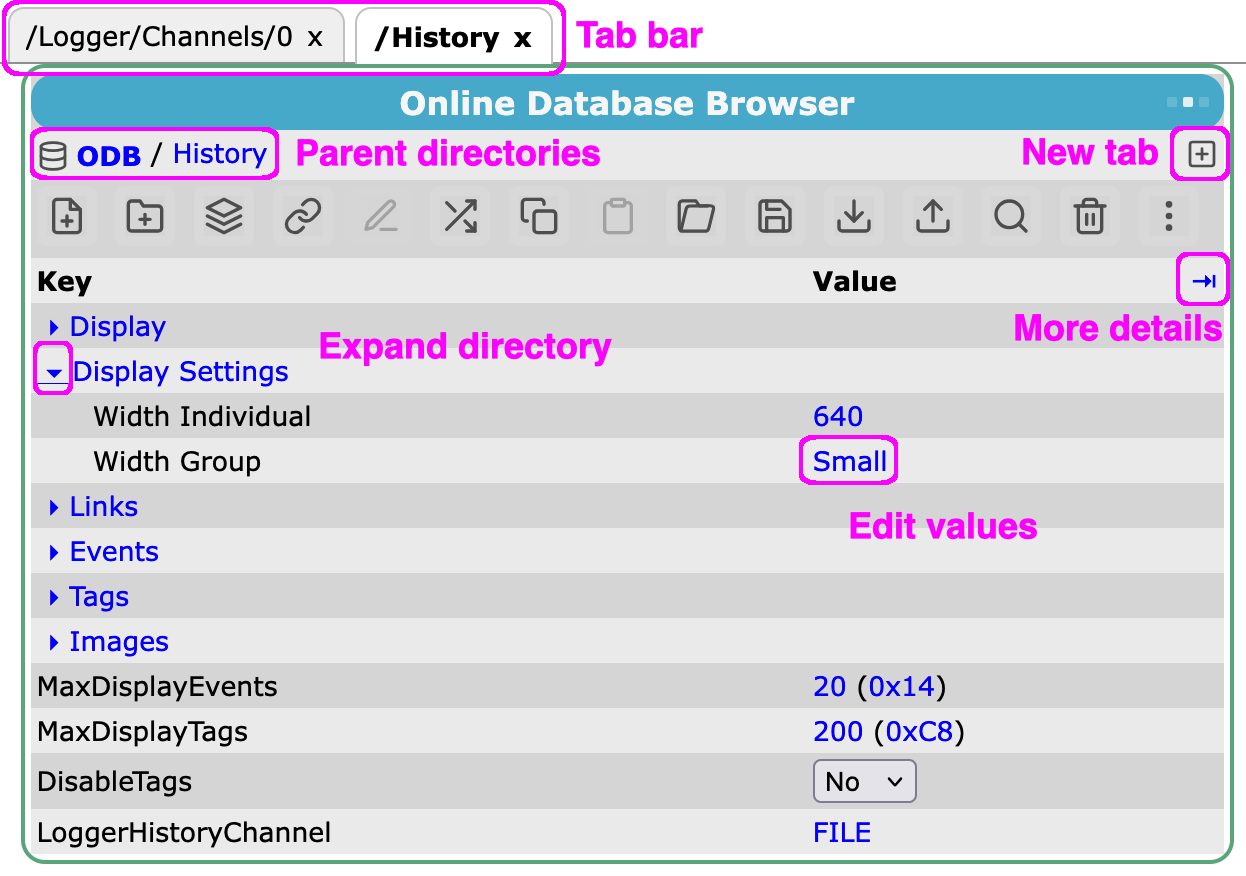 You can access the ODB webpage by clicking the
 ODB link in the side menu on any midas webpage.
The webpage allows you to:
- view and edit the value of any ODB key
- open directories in-line, in the same tab, or in a new tab
- create, rename, re-order and delete keys
- save and load settings to the clipboard, to a file on the server, or to a file on your PC
- search for keys anywhere in the ODB
Interacting with the ODB webpage can be done by clicking the mouse and/or using keyboard shortcuts. There is a full list of keyboard shortcuts in the reference section.
Navigating
 Many commands require you to highlight a row (or multiple rows) first. A selected row appears with a blue background. Click on the grey background of a row to highlight it. You can highlight multiple rows at once using keyboard modifiers.
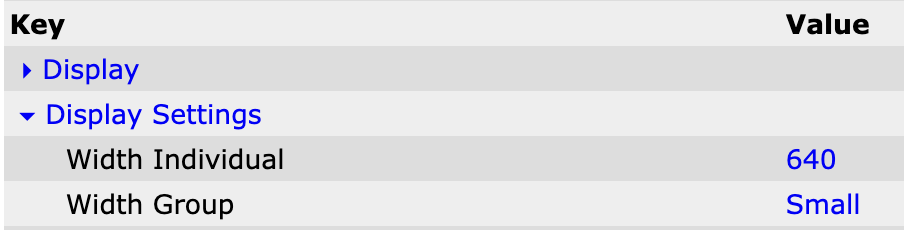 You can navigate between directories by clicking the directory name. Clicking the arrow next to a directory name will expand the directory in-place without navigating there. Directories are displayed before other keys while retaining their relative ODB order. Reorder mode displays the complete ODB order.
 A "breadcrumb" list of parent directories is visible above the content of the current directory. Click the
 ODB entry or press / to return to the root directory.
Keyboard-based navigation
You can also navigate with "speed select", using only the keyboard. For some users, this is faster than using the mouse:
- type the first characters of a key or directory name to select it. Characters typed less than a second apart are combined, and upper and lower case are treated the same
- press
Enterto go into the selected directory, or to edit the selected key (for an array,Entershows its elements) - press
Backspaceto go up one directory - press
/to go to the ODB root
See the full list of keyboard shortcuts for more.
Editing
 By default, the ODB page shows the name and value of all keys. You can click the value to edit it. For integers, we display both the decimal and hexadecimal representations, and you can use either format when entering the new value.
You can create a new directory by clicking the icon, or create a new key by clicking the icon. You will be prompted for the new key's name and data type.
 Arrays can be expanded or hidden by clicking the or icons at the right of each row. You can set all the values of an array to be the same by clicking the asterisk (*).
 Symlinks show both the destination and the value of the destination. You can edit where the link points by clicking the path. You can create a new symlink using the icon.
When you create a new key/directory/symlink, it will be created in the current directory.
Advanced information
You can click the link to view more information about the keys, including the data type, array size, data size in bytes, when the key was last modified, and mode indicators: R (read), W (write), D (delete), X (exclusive mode) and H (active hotlink). For directories, Type is DIR and #Val is the number of keys directly inside; Size and Written are empty.
You can edit the size of an array by click on a number in the #Val column and entering a new size.
-
Regular view
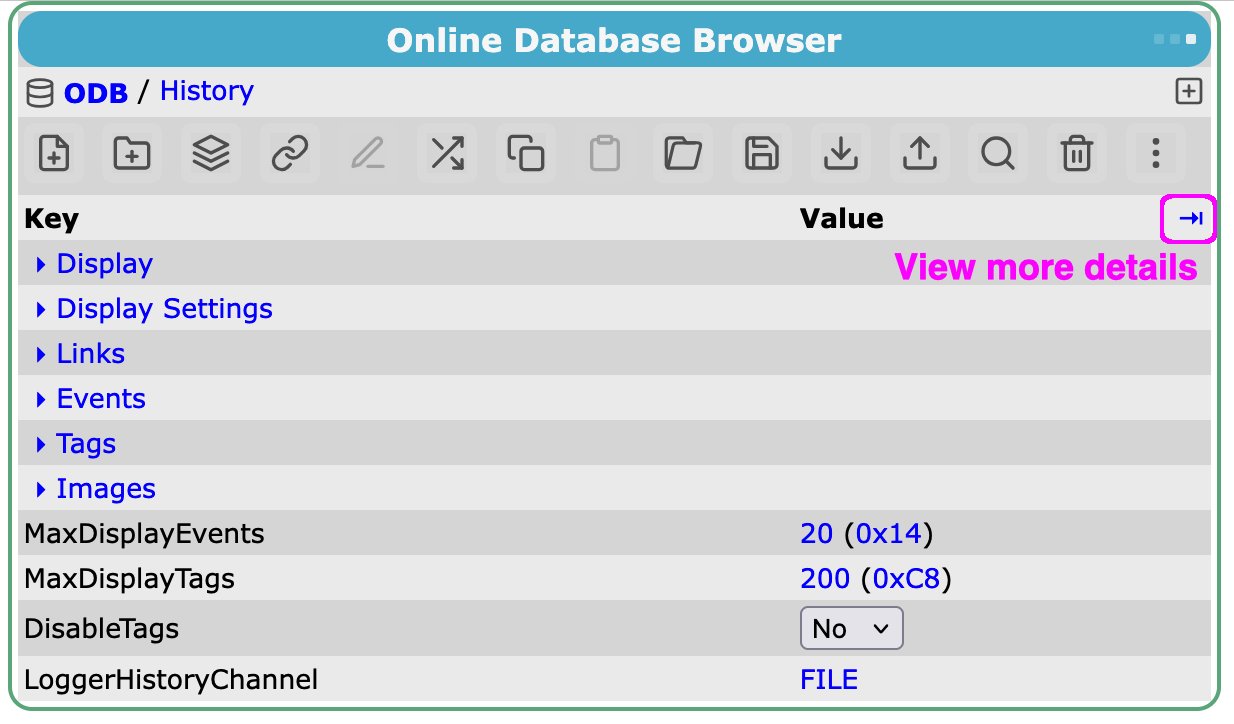
-
Expanded view
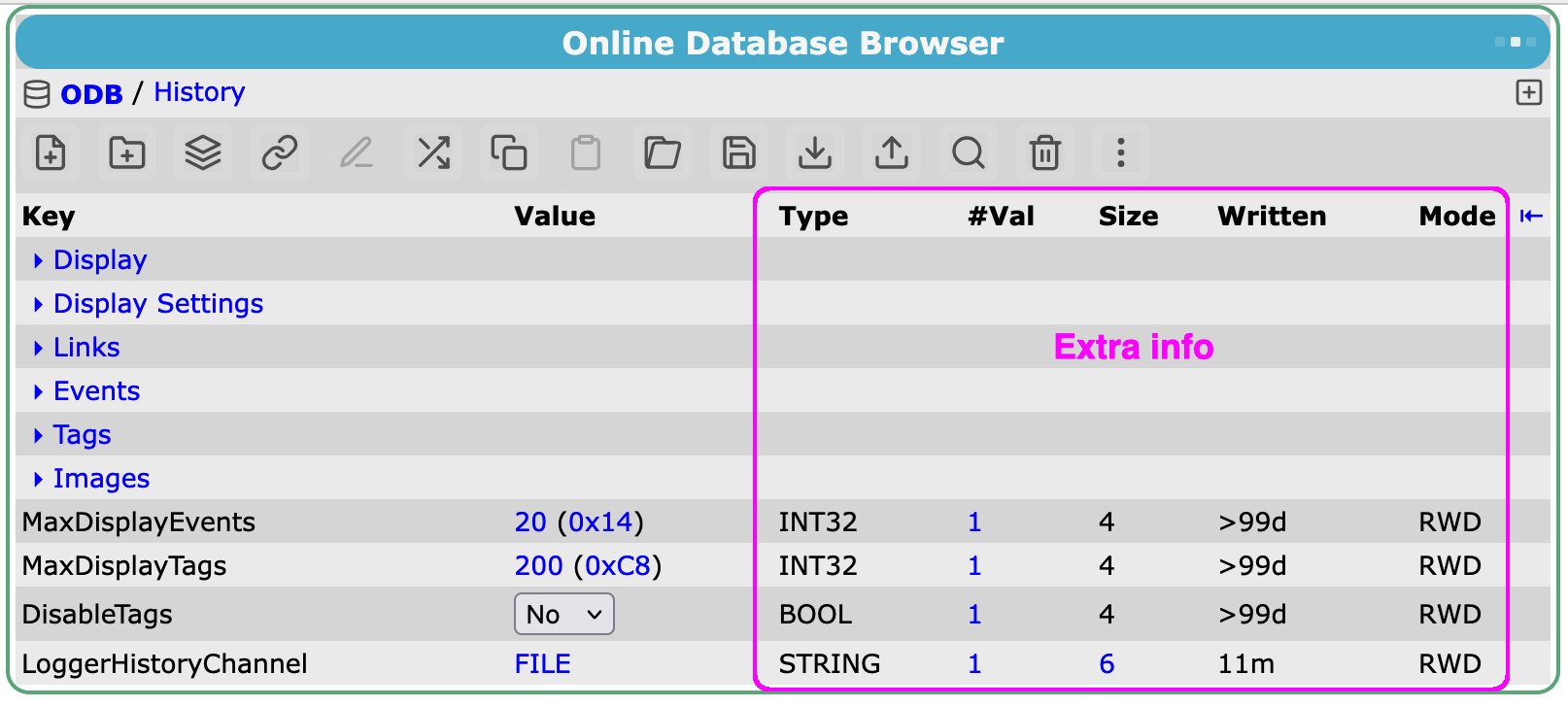
Copying and pasting
You can duplicate part of the ODB by selecting a key and clicking the icon. You will be prompted for the new name. This is particularly useful, for example, if you want to copy an entire directory that has a specific structure (e.g. to define a new alarm).
See saving via the web interface for more details about saving/loading via your computer's clipboard, files on you local PC, or files on the server.
Searching
There are two ways to search for keys in the ODB:
- search in the current directory and all sub-directories by clicking the icon or pressing
Ctrl+Shift+S(⌘+Shift+Son macOS). This will search for keys that contain the string anywhere in their name. - search in the current directory only by just typing the first few characters. It will only highlight keys that start with the letters you type.
Neither option searches the content/data/value of the ODB key, only the name of the key itself.
Open records
Click More menu and select Show open records... to see which ODB records clients have open in the current directory and its subdirectories. The dialog shows the directory it is querying. Navigate to the ODB root first to see open records across the whole ODB.
Tabs
You can open multiple ODB tabs in the same webpage by clicking the icon. A tab bar will appear at the top of the page, and you can close an existing tab by clicking the x icon.
Your tabs will be remembered next time you open the ODB webpage. Remember, to navigate to the top/root of the ODB, click ODB in the "breadcrumb" list of directories.
Split view
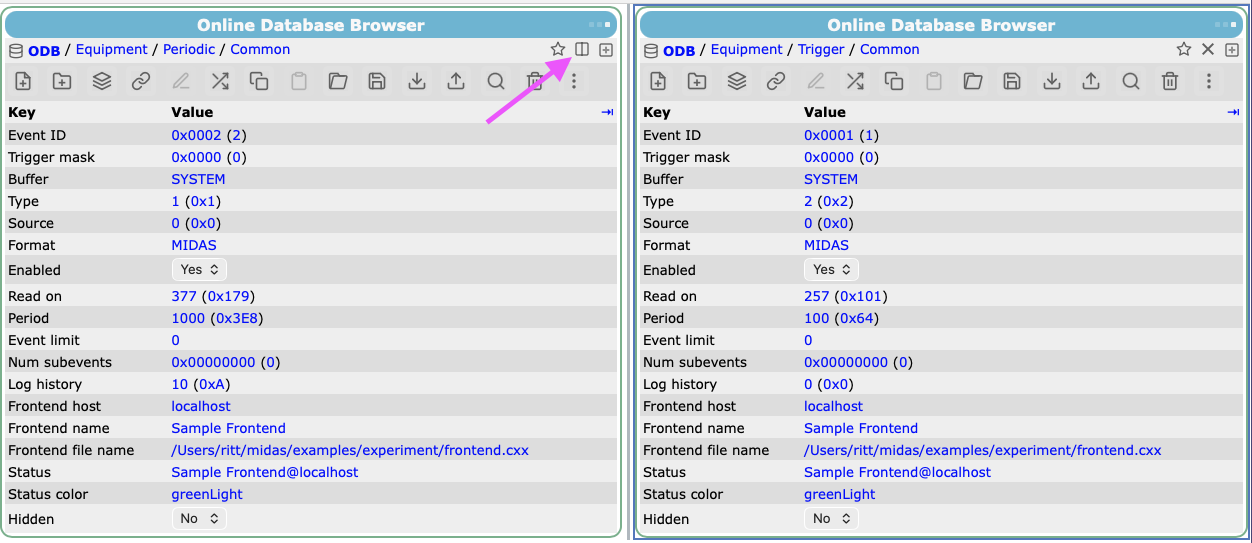
Click the Split view button (two columns) beside the new-tab button, or press Ctrl+Shift+T (⌘+Shift+T on macOS), to open a second ODB panel. Press the shortcut again or click Close split view in either panel to return to one panel. The right panel starts at the left panel's current path. You can then browse different directories and open separate tabs in each panel. Click inside a panel to make it active; the active panel has a blue border.
Drag the divider between the panels to resize them. You can also focus the divider and press ← or → to adjust its position. Press Ctrl+← or Ctrl+→ (⌘+← or ⌘+→ on macOS) to focus the left or right panel. Use Ctrl+Shift+← or Ctrl+Shift+→ (⌘+Shift+← or ⌘+Shift+→ on macOS) to switch tabs within the active panel.
To copy keys or a whole directory between panels, click Re-order keys in the source panel to show drag handles. Drag a key or selected group of keys by its handle into the other panel. Drop onto a directory row to copy into that directory, or elsewhere in the panel to copy into its current directory. Review and confirm the Preview ODB paste dialog to apply the copy.
The browser remembers split view and each panel's tabs and current path for the browser session. Closing split view keeps the right panel's tabs available if you open it again during that session.
Favourites
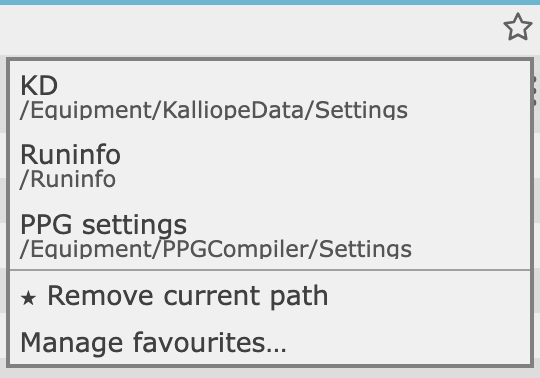 ODB favourites provide a shared list of frequently used ODB destinations. Click the button beside the current ODB path, or press
 Ctrl+Shift+F (⌘+Shift+F on macOS), to open the favourites menu. Each entry shows its label and destination. Click an entry to open it; hold Ctrl or ⌘ while clicking to open it in a new ODB tab.
You can add a new item to the favourites by clicking Add current path... in the favourites menu or right-clicking on an ODB key and choosing Add to favourites.... You will be prompted to enter a shorthand name/label for the favourite. Duplicate labels and destinations are not accepted.
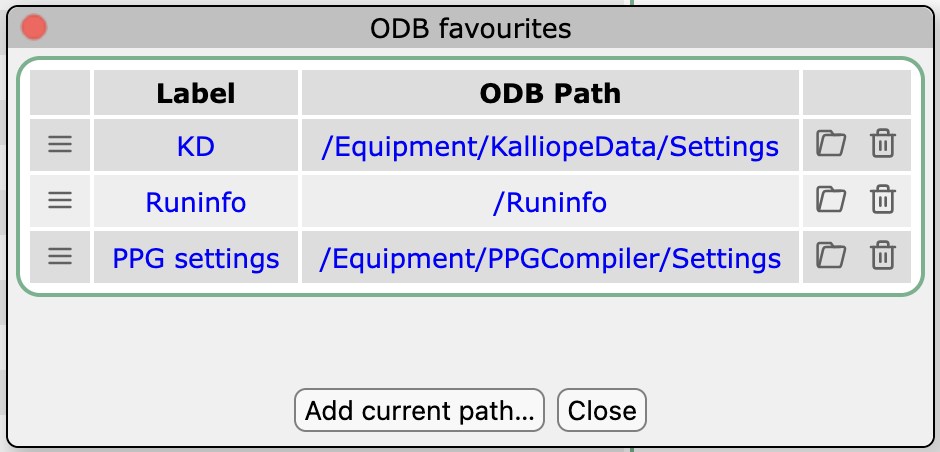 The favourites menu also contains a
 Manage favourites... option which allows you to edit paths/labels (click the blue text), open a favourite (), delete an entry (), or change the order (drag ).
ODB favourites are shared by all browsers connected to the experiment. They are stored as label/path string pairs below /WebServer/ODB Browser/Favourites. The directory is created automatically when the first favourite is added. Changes made in one browser are reflected in other ODB browsers connected to the same experiment.
Keyboard shortcuts
See the full list of ODB browser keyboard shortcuts.
odbedit tool
The odbedit tool provides a command-line interface to the ODB, and also allows some control of the experiment such as starting and stopping runs.
You are strongly recommended to NOT use odbedit for scripting purposes, as we provide fully-fledged python tools that are much more powerful and robust. odbedit is best used for low-level debugging, when a web interface is not available, or by people who are more comfortable in a terminal.
You can run odbedit in two modes - as an interactive session, or as a one-shot "run this command". The syntax is the same, but you just specify the command as the -c argument to run non-interactively.
$ odbedit #(1)!
[local:test_expt:S]Settings>cd /Equipment/PowerSupply/Settings
[local:test_expt:S]Settings>ls -l
Key name                        Type    #Val  Size  Last Opn Mode Value
---------------------------------------------------------------------------
Grid display                    BOOL    1     4     >99d 0  RWD   n
Unit Voltage                    STRING  1     32    >99d 0  RWD   mV
Unit Current                    STRING  1     32    >99d 0  RWD   mA
Editable                        STRING  1     32    >99d 0  RWD   Voltage
History buttons                 BOOL    1     4     >99d 0  RWD   y
[local:test_expt:S]Settings>quit
- Run
odbeditwithout any arguments to enter interactive mode
$ odbedit -c "ls -l /Equipment/PowerSupply/Settings" #(1)!
Key name                        Type    #Val  Size  Last Opn Mode Value
---------------------------------------------------------------------------
Grid display                    BOOL    1     4     >99d 0  RWD   n
Unit Voltage                    STRING  1     32    >99d 0  RWD   mV
Unit Current                    STRING  1     32    >99d 0  RWD   mA
Editable                        STRING  1     32    >99d 0  RWD   Voltage
History buttons                 BOOL    1     4     >99d 0  RWD   y
- Run
odbeditwith the-cargument to run a single command and then exit
Use the help command to see the available commands, or see the odbedit reference section for full details. Here we'll just list the basic families of command that are available:
- ODB interaction with
create,mkdir,ls,dir,set,del,rm,copy,move,find,ln,rename,wait,watch,chmod,pwd,trunc,du - ODB save/load with
save,load,exp,imp,json,jsls,jsvalues - start and stop runs with
start,pause,resume,stop - message system interaction with
msg,old - low-level admin with
cleanup,sor,shutdown,scl,hi,mem,make,passwd,webpasswd,ver,test_rpc - miscellaneous
alarm,chat,quit,help
One notable command that is often used in disaster recovery is odbedit -c "stop now", which forces a run to stop immediately (skipping some logic that is normally used when stopping a run from the web interface).
odbedit supports tab-completion when typing an ODB path. Type the first few characters of a directory/key and press tab to be shown what currently matches; if there is only one match, it will be expanded automatically.
Saving and loading
Saving through odbedit
The ODB can be saved at its current position in several formats (ASCII text, XML, JSON, as a C structure) using the odbedit save command, and reloaded from a saved file with the load command. You can choose to save/load the entire ODB, or only a subset by specifying the -d argument to odbedit.
Saving manually
odbedit determines the file format to use as using either explicit flags or the extension of the filename you specify. The extension overrides the flag.
# Both of these will result in a JSON file of everything beneath "/Experiment"
odbedit -d "/Experiment" -c 'save my_exp.json'
odbedit -d "/Experiment" -c 'save -j my_exp.txt'
| Desired file type | Use flag | Or use file extension |
|---|---|---|
| JSON | -j |
.json or .js |
| JSON without metadata | -z |
|
| XML | -x |
.xml or .XML |
| C structure | -c |
|
#define string |
-s |
|
| ASCII | (no flag) |
Loading manually
The odbedit load command will load a previously saved file. The content of the file is used to determine whether it is XML, JSON, or ASCII format. Files saved with the -c or -s flags cannot be loaded.
odbedit -d "/Experiment" -c 'load my_exp.json'
Saving via the web interface
The web interface allows you to save/load individual bits of the ODB to/from:
- your computer's clipboard ( and )
- files on your computer ( and )
- files on the midas server ( and )
In all cases, you can save either the entire current directory (by not highlighting any rows), or only part of it (by highlighting one or more rows). See save sets later on the page for information about pre-defining which bits of the ODB you want to save, if you need to save/load the same sections repeatedly.
When loading, you will be shown a preview of any changes that will be applied.
The web interface will always use JSON format to save/load data.
Save sets
Save sets allow you to pre-define which bits of the ODB you want to regularly save/load. For example, you could use this to adjust many parameters when switching between your experiment's "physics" and "calibration" modes, or save known-good beamline tuning parameters for different isotopes. The system works by saving JSON files on the midas server.
- Define which bits of the ODB you want to save using
/WebServer/ODB Browser/Savesets - Save the current settings using then
SaveSets ... - Load previously-saved settings using or
Ctrl+Oor⌘+O
Defining which bits of the ODB to save
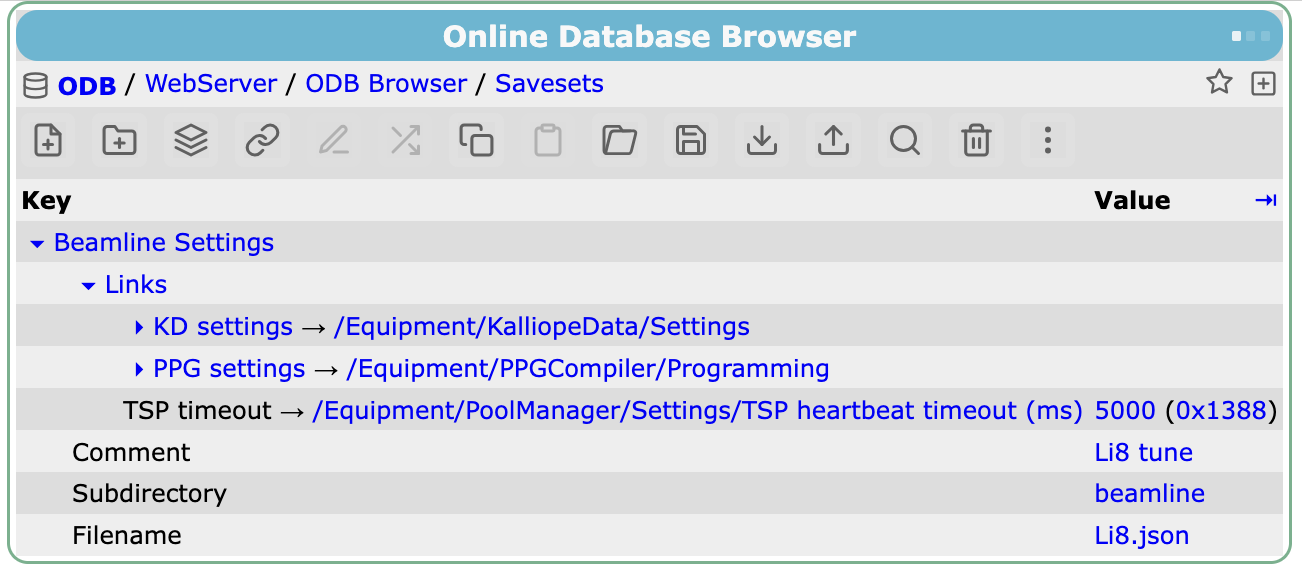 The ODB directory
 /WebServer/ODB Browser/Savesets is used to define which bits of the ODB to save.
An example set will be created the first time you click then SaveSets .... Click the Modify... button to go to the relevant location in the ODB.
You can modify the example entry, or duplicate it to add more save sets (e.g. if you want to separately save beamline and DAQ settings, you could have 2 separate directories in Savesets).
The Links subdirectory is where you create symlinks that point to the bits of the ODB that you want to save. The other entries are used to determine where the files are saved on the server, and a human-readable comment that is set whenever you save (e.g. documenting the experimental conditions).
| ODB key | Type | Edit each time you save? | Meaning |
|---|---|---|---|
Links |
subdirectory | Symlinks to all keys and subtrees to save. | |
Subdirectory |
string | Subdirectory to save this file to on disk (below the midas userfiles directory). | |
Comment |
string |  |
Reason why settings are being saved. |
Filename |
string | |
The name of the JSON file to write. |
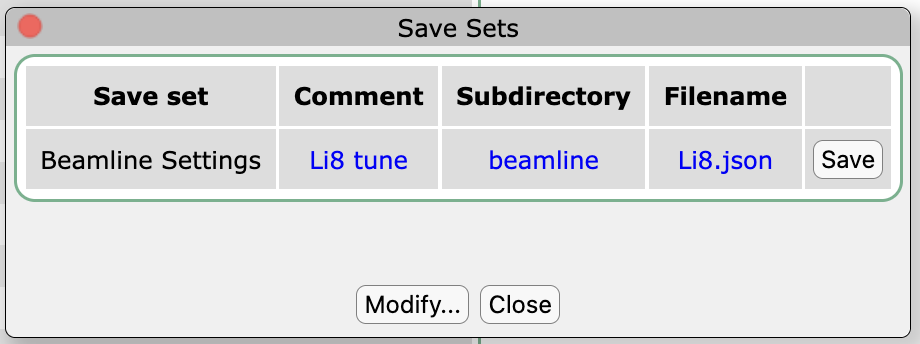 To save the current settings, click then
 SaveSets.... You can edit the comment, subdirectory, and filename fields before saving. If the file already exists, you will be prompted before overwriting it. It is highly recommended that you use a meaningful filename.
 Use the icon (or press
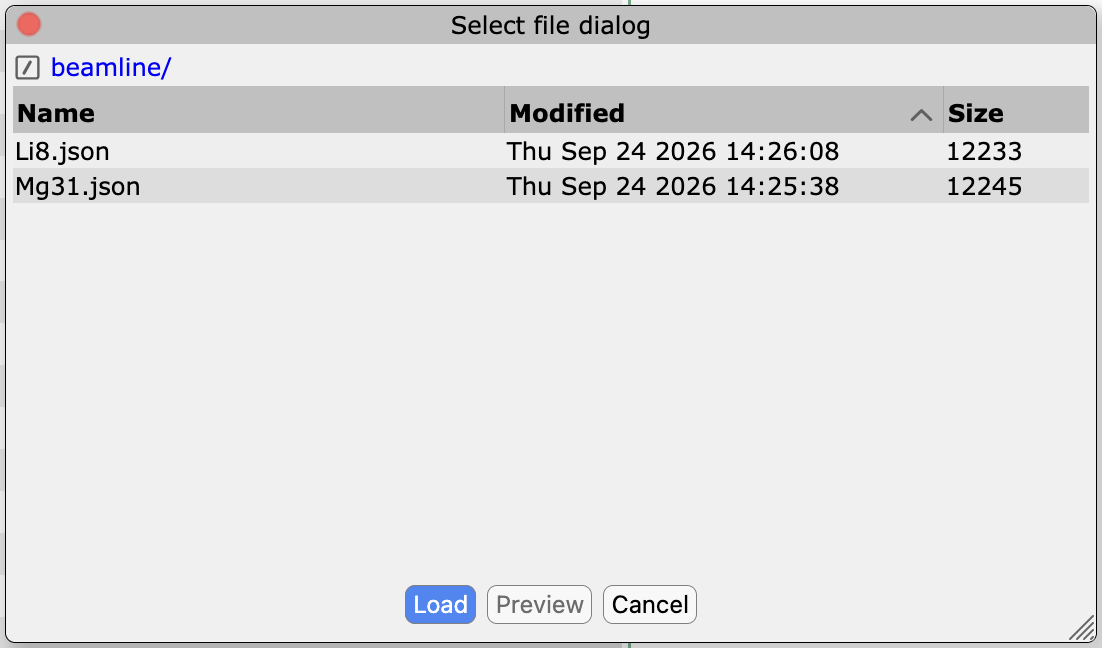
 Ctrl+O or ⌘+O) to load settings that were saved previously. Navigate to the subdirectory where your JSON files are located, and choose the file of interest. You can sort the list by filename, modified time or size by clicking the column headings.
After highlighting a file, the Preview button will show you the full content of the file. The Load button will first show you what changes will be made to the ODB by loading this file, and you can then choose to either Apply or Cancel the changes.