Web interface: configuring
This page covers how to customise the web interface.
For the concepts and day-to-day use, see Web interface: overview.
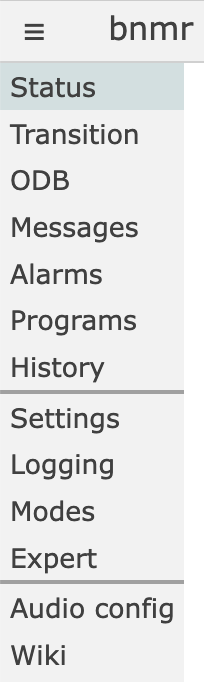 Webpages served by mhttpd (the midas web server) all follow a similar format, with
- a banner at the top showing any alarms and recent messages
- a side menu with links to other pages
- the main page content
The menu links are split into four sections - built-in webpages, custom pages, script buttons and aliases (extra menu links). An example is show on the right.
For details on how to configure which ports the midas webpages are served at, see the security documentation.
Hiding built-in webpages
By default, most of the built-in webpages are shown in the side menu. You may wish to hide some of these if they are irrelevant to your experiment (e.g. if you don't use MSCB hardware, or don't plan to use the chat system).
You can remove links from the side menu by setting ODB keys in /Experiment/Menu to n, or add the pages that are hidden by default (e.g. Documentation) by setting their keys to y. Note that the page is still accessible if the user knows the URL, it just isn't shown in the menu. See Built-in web pages for all the pages, and which are shown by default.
Example of hiding a built-in webpage
Setting /Experiment/Menu/MSCB to n will remove the MSCB link from the side menu, but a user could still access the page at http://some.host:8080/?cmd=MSCB.
Aliases (extra menu links)
You can add menu links to any arbitrary webpage by adding entries to the /Alias ODB directory. If the directory does not already exist, you can create it.
The ODB key is used as the name of the link, and the string value is the URL to visit. As with custom pages, you can append an ampersand (&) to the name to open the link in a new tab/window.
Example aliases
| ODB key | ODB value | Result |
|---|---|---|
/Alias/MyLink |
https://google.com |
Clicking MyLink opens Google |
/Alias/MyLink& |
https://google.com |
Clicking MyLink opens Google in a new tab/window |
Script buttons
You can add buttons to the side menu that run a command on the mhttpd machine (e.g. a script that backs up the latest run), by adding entries to the /Script ODB directory. See /Script for how to define them.
Warning
Anyone who can use the web interface can run these commands (as the user that runs mhttpd).
Proxies
The midas web server can act as a simple proxy (forwarder) to other web servers.
Example use case
Maybe your main midas machine has two ethernet connections - a public one and a private one. You may have a fancy piece of hardware (power supply, digitizer etc) that exposes a web interface. Normally you would not be able to access that webpage from anywhere except the main midas machine (unless you do some ssh port forwarding or set up an Apache/Nginx proxy). Using mhttpd as a proxy allows you to view the hardware's webpage from anywhere.
You can configure proxies by adding entries to the /WebServer/Proxy directory in the ODB. The ODB key is the name we'll use as a shorthand for the proxy, the ODB value is the URL to forward to.
Example proxy
If /WebServer/Proxy/MyProxy is http://192.168.50.1, and the Main midas server is at http://some.host:8080, then:
| Midas URL | Forwards to |
|---|---|
http://some.host:8080/proxy/MyProxy/ |
http://192.168.50.1 |
http://some.host:8080/proxy/MyProxy/some/page.html |
http://192.168.50.1/some/page.html |
May not work with all targets!
Note that this comes with the usual caveats around proxies - if the proxied webpage is not designed with proxies in mind, it may not function correctly. For example, if it wants to load/redirect to /xyz.html (an absolute path), it will try to load http://some.host:8080/xyz.html (a midas page!) rather than http://some.host:8080/proxy/MyProxy/xyz.html (the intended proxied page).
Apache and Nginx webservers contain more advanced tools (such as "rewrite" engines) that can manipulate the proxied pages to work around some of these issues. The midas proxy tool does not, and can only be used with "well-behaved" destinations.
Per-browser config
All the other settings documented on this page affect everybody using the web interface. However there are also some options for changing behaviour for your specific browser.
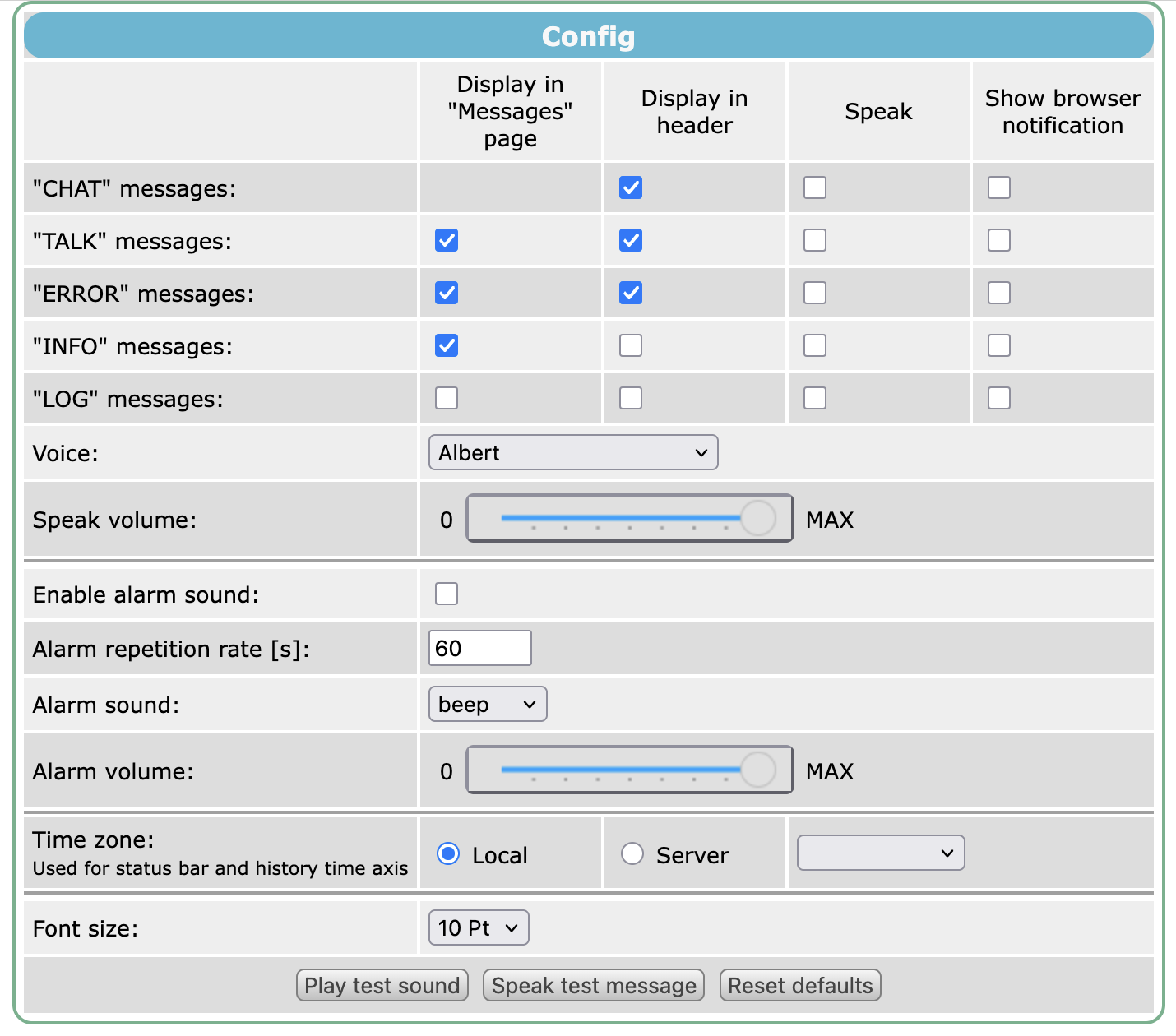 These are found on the
 Config page, and allow you to change: