Logbook (elog)
Elog is a web application that allows you to record day-to-day activities about an experiment. Entries can contain text and attachments (images, PDFs etc), and are automatically timestamped. You could use it for recording beamline issues, when samples get changed, when cryogenics get refilled etc. It is an alternative to paper logbooks or very long shared Word documents...
Built-in vs external elogs
The midas web server (mhttpd) contains a built-in elog notebook. It is also possible to configure an external logbook if you have installed the elog package.
The built-in option is sufficient for simple experiments. The external option is more powerful, allowing for multiple logbooks, configuration options, user authentication, theming etc.
Integration between midas and elog comprises:
| Feature | Internal elog | External elog |
|---|---|---|
| Having a link to the elog from the side menu on all midas webpages |  |
|
| Web interface | In midas | Via elog web server |
| Command-line tools for adding entries to the elog | |
|
| Automatically adding an entry to the elog when certain alarms are raised | |
If you write a script |
| Automatically sending emails when certain entries are added | |
|
Web interfaces
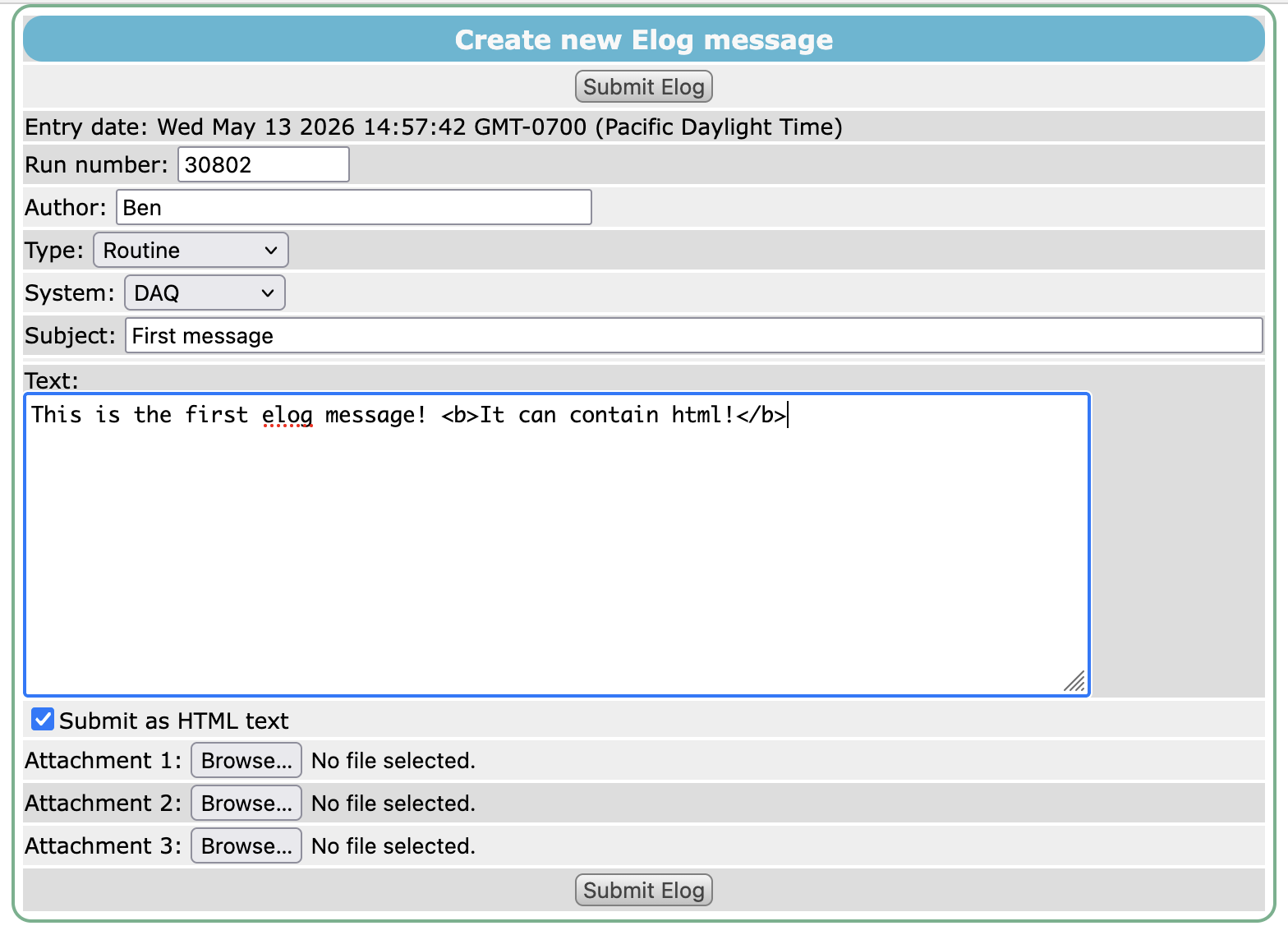
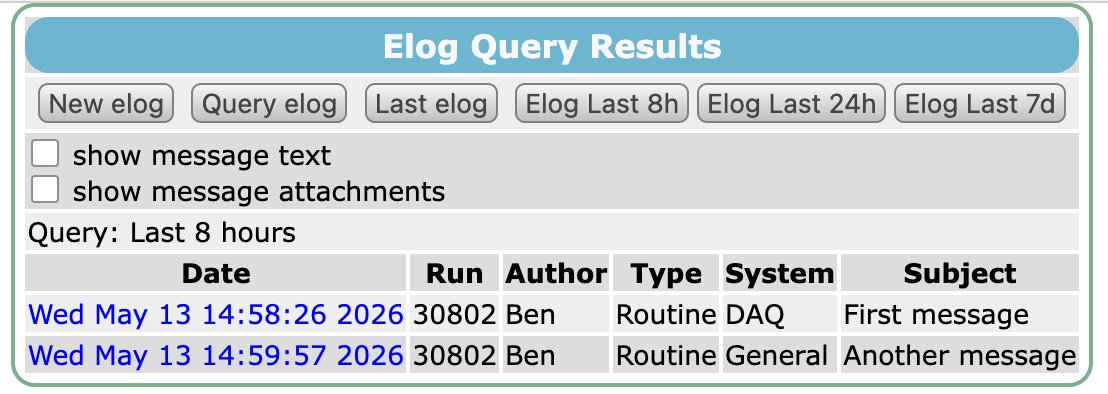
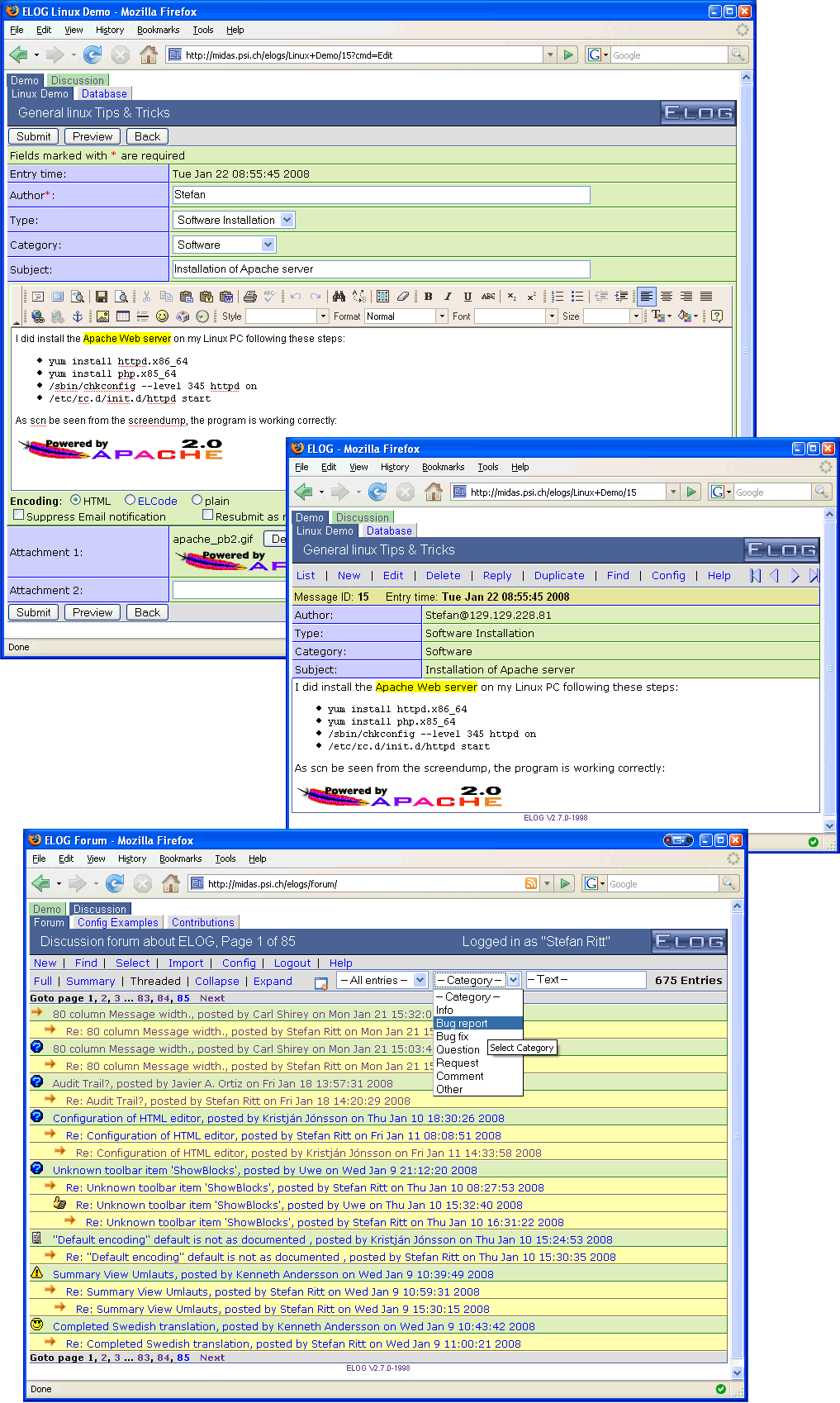
Both the built-in and external elogs provide web interfaces for adding new entries and searching for entries based on timestamp, text, category, author etc.
-
Built-in elog
-
External elog
Clicking the Elog menu item from any midas webpage takes you to:
- for the internal elog: the most recent entry. You can then click the
Query elogorElog Last 24hbuttons etc to view a list of recent entries. - for the external elog: the logbook homepage, showing a list of recent entries.
Configuration
For all the keys, see /Elog.
The elog is configured in the /Elog directory of the ODB. The directory is created automatically by the mhttpd web server.
For internal logbook
Basic config
To use an internal elog, set /Elog/External Elog to n (the default).
You can set the Types and Systems that users choose from when they submit an entry (e.g. Routine or DAQ) to anything you wish. You can also change the time spans of the Elog Last buttons with Buttons, and allow users to edit or delete entries with Allow edit and Allow delete.
Storage location
The logbook files and all attachments you upload are stored on disk on the main midas machine.
You may create the ODB key /Logger/Elog dir (as a string) and specify the directory where files should be stored. If this key does not exist, then the location in /Logger/Data dir is used instead.
Logbook entries are stored in text files named by date (e.g. 260515.log for entries submitted on 15 May 2026). Attachments are stored with the format <date>_<time>_<original_filename> (e.g. 260515_110218_star.svg for a file named star.svg that was uploaded on 15 May 2026).
Sending emails
You can request that emails get sent whenever elog entries get added to the internal elog. You can configure different recipients for different Types of messages (Routine, Question etc) and for different Systems (Beamline, DAQ etc).
You must have an SMTP server available for sending the emails. This may be localhost if you're running your own mail server.
This feature sends emails for entries submitted by the web interface and via the command-line tools. It does NOT send emails for entries submitted automatically by alarms.
You must create these keys yourself, as strings:
/Elog/SMTP host: the mail server to send emails from/Elog/Email <type or system>: the addresses to email when an entry of that Type or System is submitted, separated by commas. For example, ifEmail DAQisme@example.com,you@example.com, those two people get an email for each entry with the SystemDAQ
Emails are sent from MIDAS@<host name>, where <host name> is /Elog/Host name.
Example setup for testing on a MacBook
# Start a mail server on your macbook
sudo postfix start

# Configure ODB to send emails to you
odbedit -c 'create string "/Elog/SMTP host"'
odbedit -c 'set "/Elog/SMTP host" "localhost"'
odbedit -c 'create string "/Elog/Email DAQ"'
odbedit -c "set '/Elog/Email DAQ' `whoami`@localhost"

# Send a test elog entry. May need to change the port number to match your mhttpd.
melog -h localhost -p 8080 -a author="somebody" -a system="DAQ" 'test entry!'

# Open the local mailbox and see if the message arrived
mail
# Type q to exit the mailbox
For external logbook
To use an external elog, set /Elog/External Elog to y, and set /Elog/URL to the address of the external logbook.
Automatic elog entries when alarms get raised
You can configure an alarm class to automatically add an elog entry when an alarm is triggered. This is only implemented for the internal elog. The entry is hard-coded to use a Type of Alarm and a System of General.
If you want to do anything else (submit to an external elog, change the system etc) you can write a script that gets executed whenever an alarm gets. This script could then use a command-line tool or python script to submit an elog entry.
Command-line tools
melog (for internal)
The melog command-line tool allows you to submit an entry to the built-in elog. You must specify the hostname and port of the midas web server (mhttpd).
-h <hostname>
[-p port]                defaults to 80 (probably not correct!)
[-v]                     for verbose output
[-f <attachment>]        (up to 3 times)
-a <attribute>=<value>   (up to 20 times)
-m <textfile> | <text>
Arguments containing spaces must be enclosed in quotes. The elog message can either be submitted on the command line or in a file with the -m flag. Multiple attributes and attachments can be supplied.
Valid attributes for the -a flag are Author, Type, System and Subject. At least one attribute must be given. All of them are optional, but recommended (an entry without Author is stored with an empty author).
Each -f attaches one file. To attach several files, give -f once for each file. mhttpd only keeps the first 3 attachments of an entry. See melog for all the options.
Example melog commands
melog -h myhost -p 8081 -a author=pierre "Just an elog message"
melog -h myhost -p 8081 -a author=pierre -f file2attach.txt "Just this message with an attachment"
melog -h myhost -p 8081 -a author=pierre -m file_containing_the_message.txt
melog -h myhost -p 8081 -a Author=pierre -a Type=routine -a System=general -a Subject="my test" 'A full Elog message!'
Note, this tool uses the mhttpd web interface, but does not support sending an HTTP authorization username/password.
Deprecated arguments
The following arguments are accepted by the melog command, but may not be functional...
[-l logbook/experiment]  not needed, as there's only one built-in logbook
[-w password]            write password defined on server (may not be functional)
[-u username password]   user name and password (may not be functional)
Python script (for internal)
As noted above, melog is rather limited in which servers it can talk to. To have more control over authorization etc, you could use the python requests module to easily generate an HTTP request with the relevant parameters. More details on the requests module documentation.
Example Python script to submit an elog entry
import requests
import os

url = "http://localhost:8080/"
attachments = ["/Users/ben/DAQ/midas_latest/resources/icons/star.svg"]
text_is_html = True

# `cmd` is required. Other fields are optional, but `author` is recommended.
form_data = {
    "cmd": "Submit elog",
    "author": "Ben",
    "subject": "Test message!",
    "type": "Routine",
    "system": "DAQ",
    "run": "12345",
    "text": "<b>Message text from python!</b>"
}

# Set whether message is plain or html. For plaintext, we just don't set the "html" field at all.
if text_is_html:
    form_data["html"] = "1"

# Handle attachments (named as attfile1, attfile2 etc). Max 3 attachments will be accepted!
for idx, filepath in enumerate(attachments):
    filename = os.path.basename(filepath)
    form_data[f"attfile{idx+1}"] = (filename, open(filepath, 'rb'), "", {})

# Handle basic authentication. If you don't need to authenticate, you can ignore this
# (and remove the auth= argument from the post submission below).
auth = ('some_username', 'some_password')

# Submit!
response = requests.post(url, files=form_data, auth=auth, headers={"User-Agent": "ELOG"})

if response.status_code == 200:
    print("Message successfully transmitted")
else:
    print("Error transmitting message")
elog (for external)
The elog package comes with the elog command-line tool. You can find more details in the elog package documentation.