Sequencer: overview
Sequencer tools are provided that allow you to automate data taking, for example to take a series of runs with detectors set at different voltages.
There are two versions:
msequencerwhich supports a custom "MSL" syntaxpysequencerwhich supports python syntax
Both versions provide a web interface that allows you to edit/load scripts, start/stop them, and track their progress.
Feature comparison
| msequencer | pysequencer | |
|---|---|---|
| Script language | MSL | Python |
| Language support | Midas commands only | Midas commands, plus any python functions/libraries |
| Full web interface |  |
|
| Webpage name | Sequencer |
PySequencer |
| ODB directory | /Sequencer |
/PySequencer |
| Script file extension | .msl |
.py |
| Command to start program | msequencer -D |
python $MIDASSYS/python/midas/sequencer.py |
Web interface
The sequencer web pages allow you to:
- load, edit and save sequencer script
- start and stop scripts
- input parameters when the script starts
- track the state of the script, including progress through loops and any errors that were encountered
Starting the sequencer programs
If msequencer/sequencer.py is not running when you open the relevant webpage, the GUI will ask you whether it should start it automatically. If this fails, you should run the shown command in a terminal and debug any problems.
Loading and saving
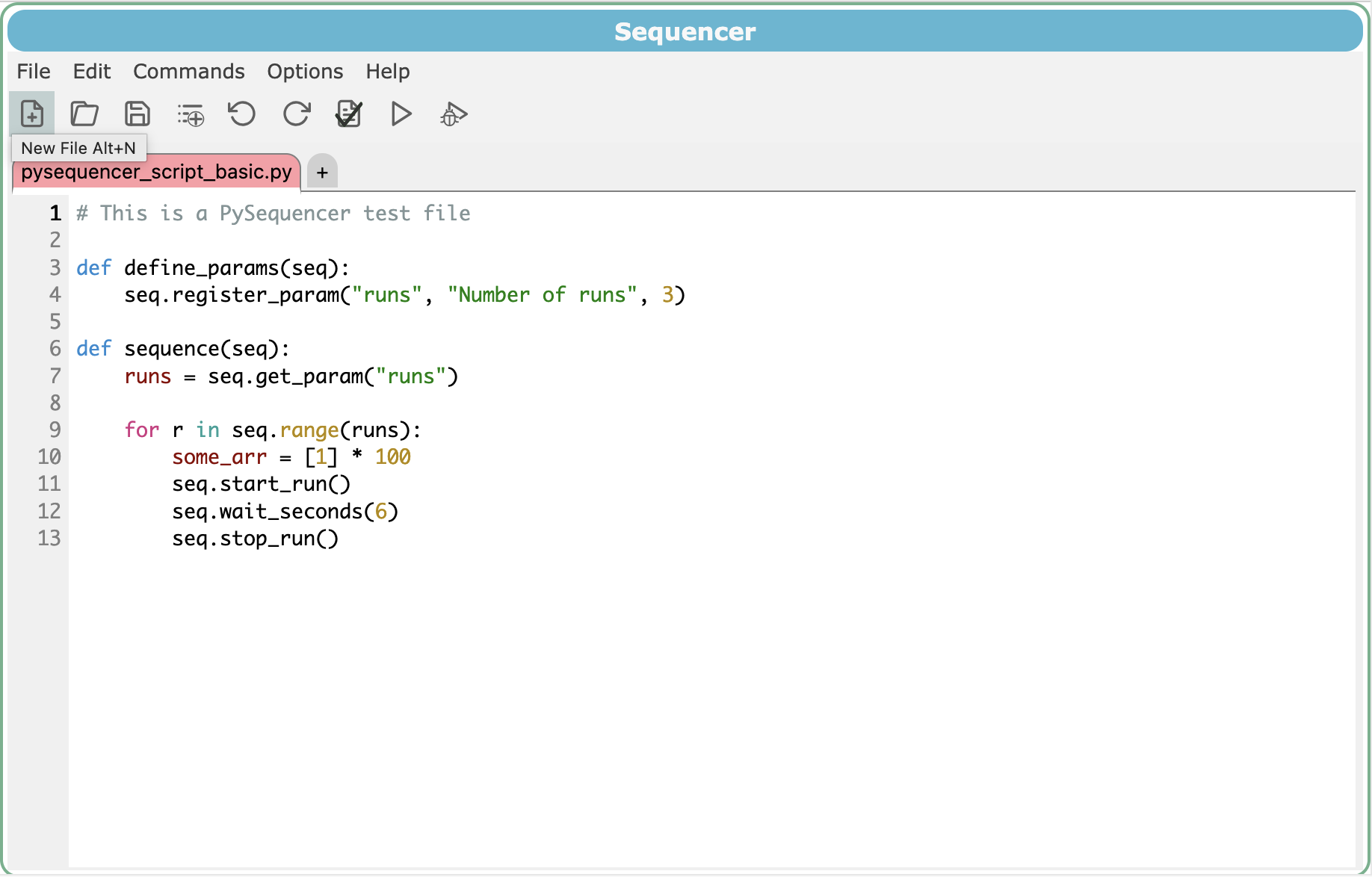
The icon allows you to create a new file, allows you to open an existing file, and allows you to save the file you are currently editing. You can click the + icon to open a new tab and edit multiple files at once.
File location
Sequencer files are stored on disk in the location <<experiment_dir>/userfiles/sequencer/[<custom_path>]/<file>, where:
<<experiment_dir>is the experiment directory<custom_path>is optional, and set by/Sequencer/State/Pathor/PySequencer/State/Path
Starting a script
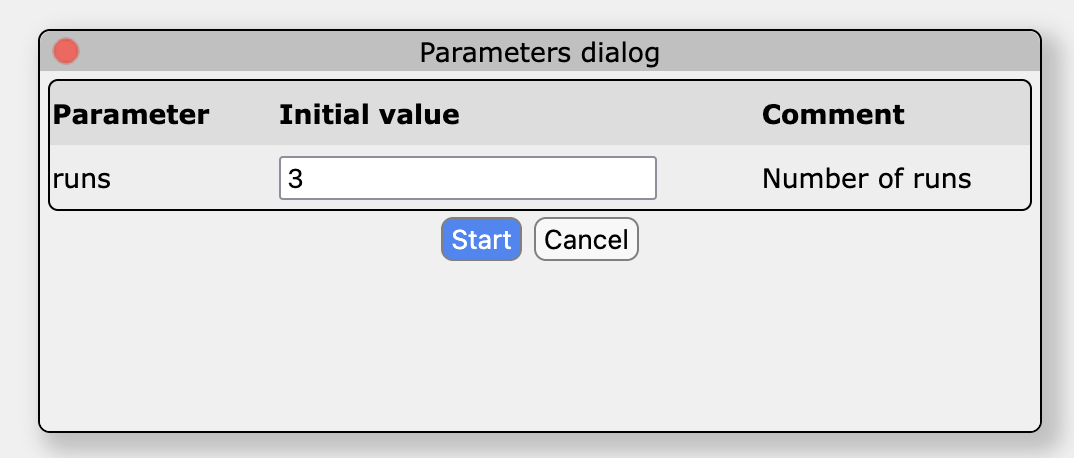
The icon will load and start a script. You will be prompted to confirm that you want to start the script, be prompted to provide any parameters that the script requires, and then the script will start.
Debugging a script
For debugging, click a line number in the editor gutter to add or remove a breakpoint; active breakpoints are shown as red circles and are synchronized through the ODB so they appear in every browser window. The Commands → Breakpoints... dialog lists all breakpoints and lets you enable, disable, delete, or jump to them. A normal start ignores the breakpoints and displays them in grey, while the play icon containing a starts in debug mode and runs until it reaches an enabled breakpoint, where it pauses before executing that line. Use the resume control to continue to the next breakpoint or to execute one line at a time; pause and wait icons beside the current line distinguish a debugger stop from a script that is still running inside a wait condition.
Monitoring a script
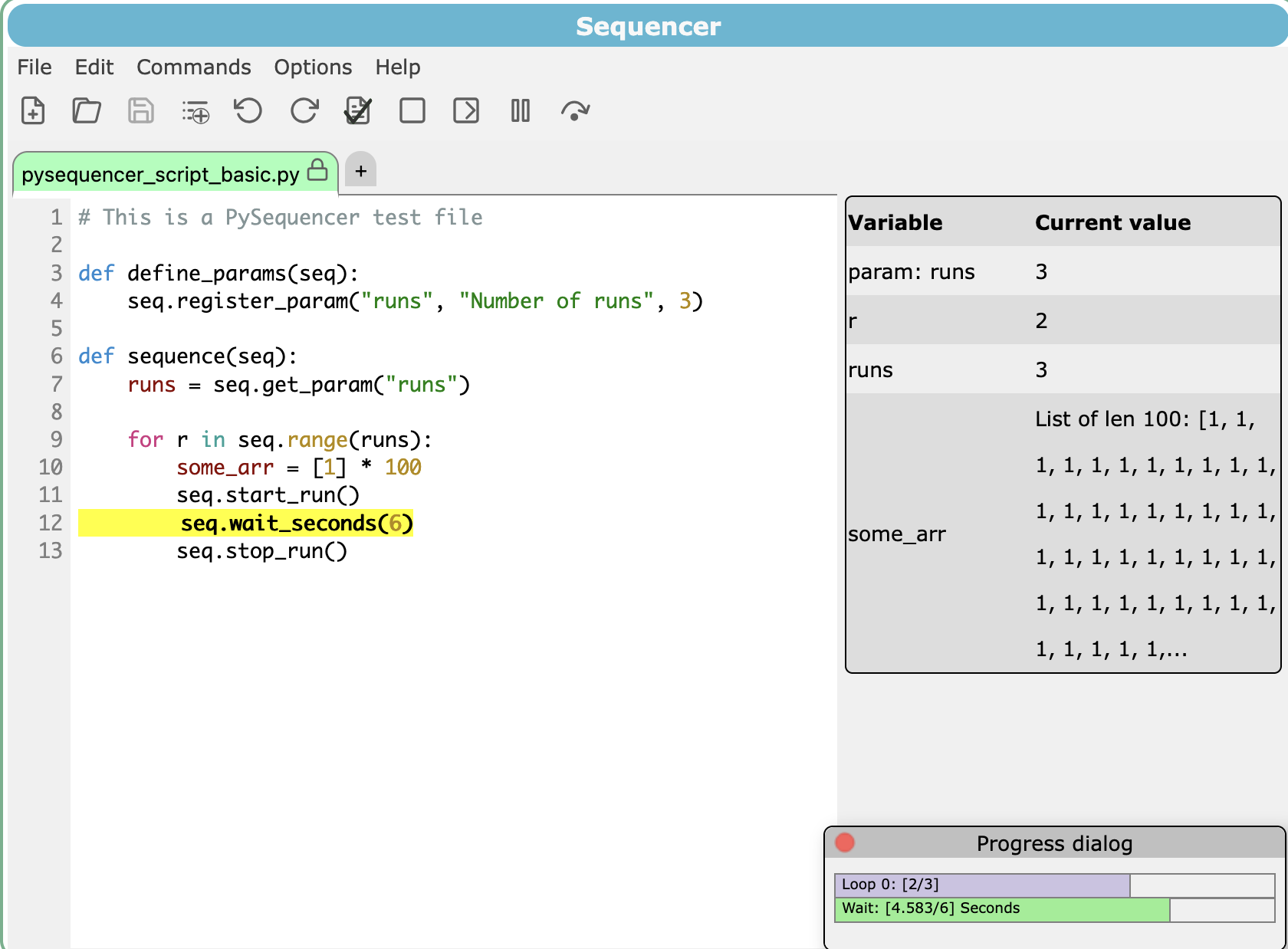
While a script is running, you are shown the state of any local variables, a progress bar for any loops or "wait" conditions, and error messages if there are any problems.
The icon allows you to pause a script on the current line that is executing, will stop execution immediately, and there are also options for stopping a sequence after the current run ends, and resuming execution that has been paused.
Running multiple scripts in succession
You may run a list of sequence scripts back-to-back (a sequence of sequences!). This is done using the "next files" dialog (or the "Next filename" array in the ODB settings). On the web interface, click "Set as next" and the current file being edited will be added to the queue.
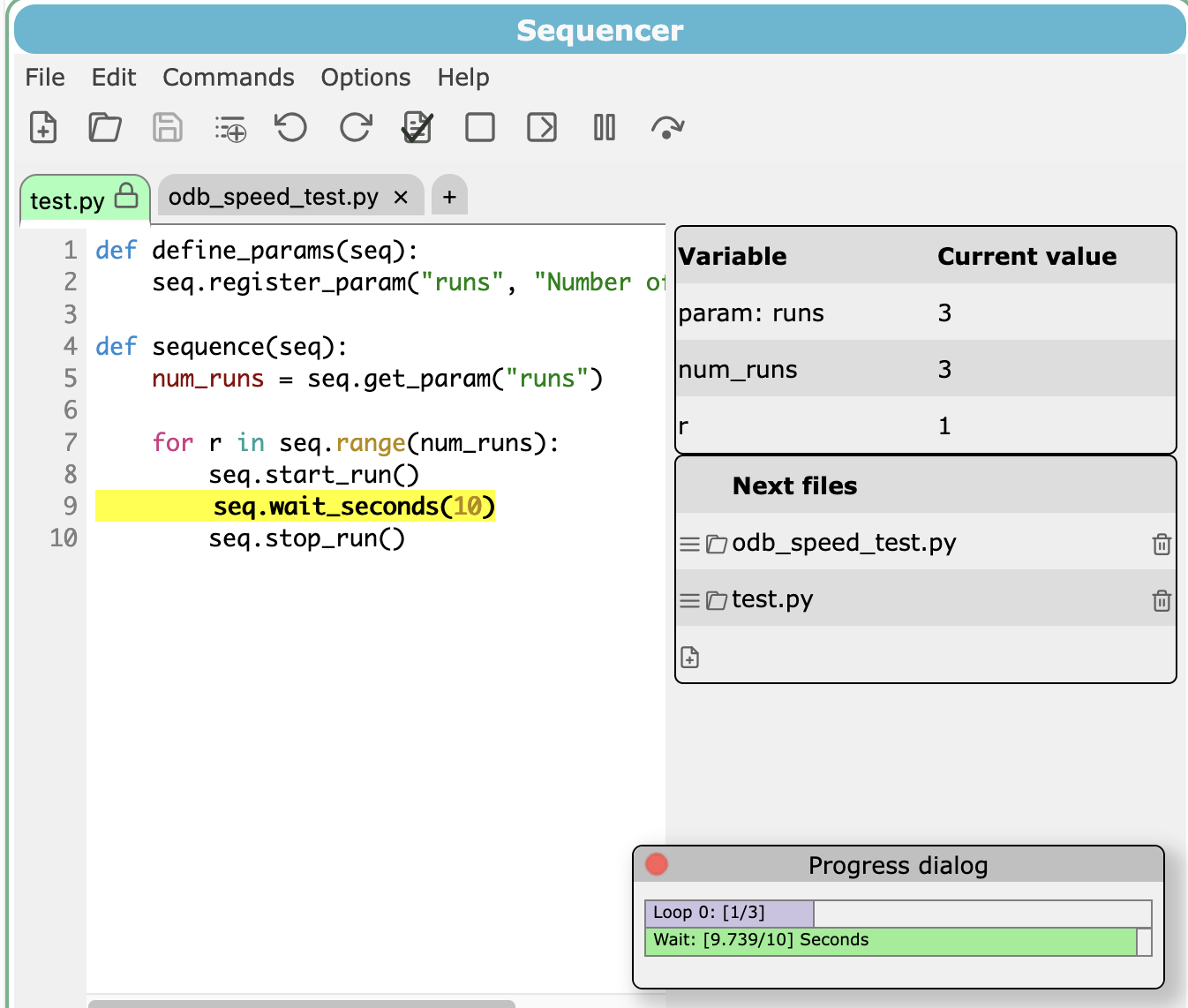
The list is not displayed until you start a script. Once a script is running, you can continue to add more files to the list, reorder the list, or remove scripts from the list.
Parameters when running multiple scripts
The user is only prompted to answer questions when the first script in the list is started. The default values are used for all subsequent scripts in the list.
ODB interface
The sequencers are generally designed to be controlled via the web interface. However they can also be controlled via settings in the ODB, for example to integrate sequencer usage with other pages/tools that your experiment uses.
The interfaces for both sequencers are very similar, but use different top-level ODB directories (/Sequencer vs /PySequencer). The relevant controls are listed below. See /Sequencer and /PySequencer for the full details.
- In /Sequencer/Command or /PySequencer/Command:
- Load new file - load the file specified in
/Sequencer/State/Filenameor/PySequencer/State/Filename - Start script - start the script that has been loaded
- Pause script - pause the script (by preventing the next line of code from executing)
- Resume script - resume the script after pausing it
- Stop immediately - stop the sequence as soon as possible
- Stop after run - stop the sequence when the current run ends. The Python sequencer stops however the run ends. msequencer only stops when the script itself stops the run (with
TRANSITION STOP) - Cancel stop after run - cancel the "Stop after run" request
- Debug script - start the script in debug mode and pause when an enabled breakpoint is reached
- Step over - execute the current line and pause again when running in debug mode
- Load new file - load the file specified in
- In /Sequencer/State or /PySequencer/State
- Path - specify a subdirectory beneath
<experiment_dir>/userfiles/sequencerwhere your files are located. May be empty. - Filename - filename to load (relative to
<experiment_dir>/userfiles/sequenceror<experiment_dir>/userfiles/sequencer/<path>) - Next filename - if running multiple scripts in succession, then next file to load once the current script has finished.
- Message - if "Message wait" is true, the sequence will not continue until "Message" has been reset to an empty string - see Sequencer: scripting for more details about sequencer messages.
- Path - specify a subdirectory beneath
Running multiple instances
You can run multiples instances of the sequencers by supplying the -c argument when starting the sequencer program. This defines a "suffix" which is used in the program name, ODB, and webpages.
$MIDASSYS/bin/msequencer -c MySuffix
| Default | With -c argument |
|
|---|---|---|
| ODB location | /Sequencer |
/SequencerMySuffix |
| Program name | Sequencer |
SequencerMySuffix |
| Web URL | ?cmd=Sequencer |
?cmd=Sequencer&SeqODB=/SequencerMySuffix |
To create a link to this instance from the midas webpage, create an alias that points to the relevant URL. For example, to create a link with text My new sequencer you could either create a key manually using the ODB web interface, or run these commands:
odbedit -c "create string '/Alias/My new sequencer'"
odbedit -c "set '/Alias/My new sequencer' '?cmd=Sequencer&SeqODB=/SequencerMySuffix'"
python $MIDASSYS/python/midas/sequencer.py -c MySuffix
| Default | With -c argument |
|
|---|---|---|
| ODB location | /PySequencer |
/PySequencerMySuffix |
| Program name | PySequencer |
PySequencerMySuffix |
| Web URL | ?cmd=Sequencer&SeqODB=/PySequencer |
?cmd=Sequencer&SeqODB=/PySequencerMySuffix |
To create a link to this instance from the midas webpage, create an alias that points to the relevant URL. For example, to create a link with text My new pysequencer you could either create a key manually using the ODB web interface, or run these commands:
odbedit -c "create string '/Alias/My new pysequencer'"
odbedit -c "set '/Alias/My new pysequencer' '?cmd=Sequencer&SeqODB=/PySequencerMySuffix'"